How to Delete App Backup Files in Windows 10?
Do you know how to delete app backup files in Windows 10 PC to release more free space on your PC? In this post, you’ll learn some ideas to clean app backup files.
By Lucas  / Last Updated May 12, 2023
What are App backup files?
Some users find that though they’ve installed new programs on other locations, the C drive will still be in the space crisis caused by the accumulation of numerous program files. How does this happen? What files will still be stored on the C drive?
The answer is the App backup files and relevant data files. When you apply an update to an existing program on your PC, the prior version of the software is stored on the disk. These prior versions of the program accumulate and consume hard drive space over time, leaving you wondering why your disk is running out of space.
In addition, all computer programs generate temporary files and cache files in order to function correctly and on demand by the user. All of these files are kept on a specific hard drive, where they continue to expand in size and consume available space.
How to delete app backup files in Windows 10/11?
Since too many app backup files will occupy too much free space on your disk, we will provide you with a comprehensive tutorial that includes some options for deleting app backup files in Windows 10. You may quickly erase all of the app backup files to save up disk space, and there are some other tricks to help you release more available space on your system drive.
Method 1. Delete app backup files manually
Step 1. Press “Win”+ “R” keys on your keyboard to open the Run dialog.
Step 2. Type %localappdata% in the search bar, and click “OK”.

Step 3. Find the “Temp” folder, and open it.
Step 4. Select all files and delete them.
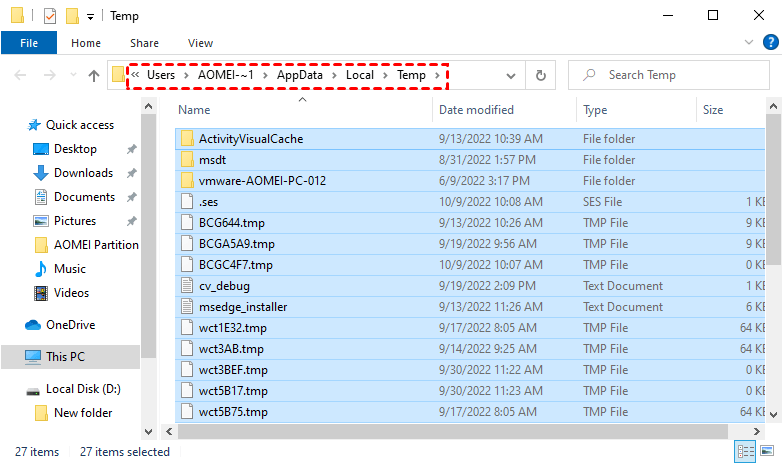
These files are only cache files, so it’s safe to remove them. Most apps have their directory files and backup files in AppData\Local\Packages. You can remove the target large backup files in this path, but some files might cause the resetting settings to the default parameters while others might not work properly.
Method 2. Use Disk Cleanup to clear app backup files
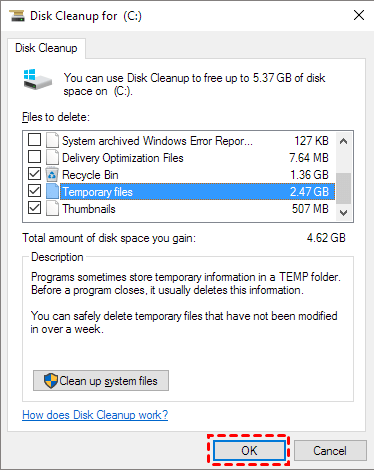
Step 1. Press Windows Key + S and enter disk cleanup. Select Disk Cleanup from the list of results.
Step 2. Select the C drive and click OK. Wait while the application scans your PC.
Step 3. Make sure to check Temporary files and then click on OK. If you want, you can select other file types.
Method 3. Use file history to delete backup files
This way can safely delete outdated files of apps and your system, you don’t need to manually recognize those files.
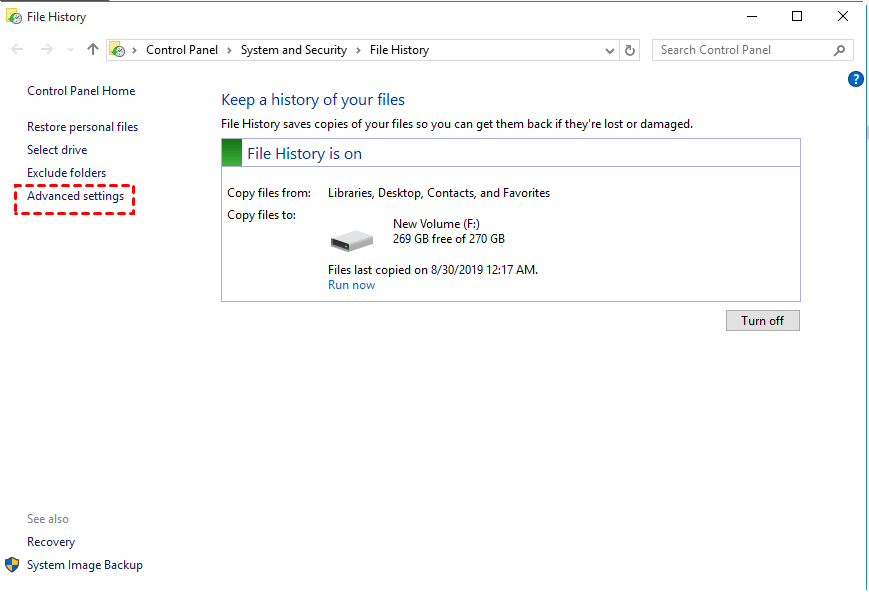
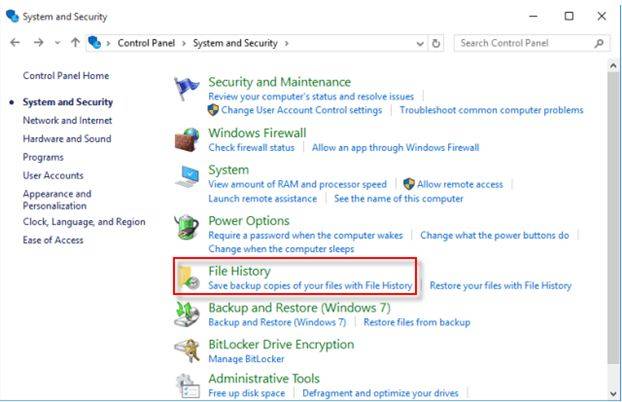
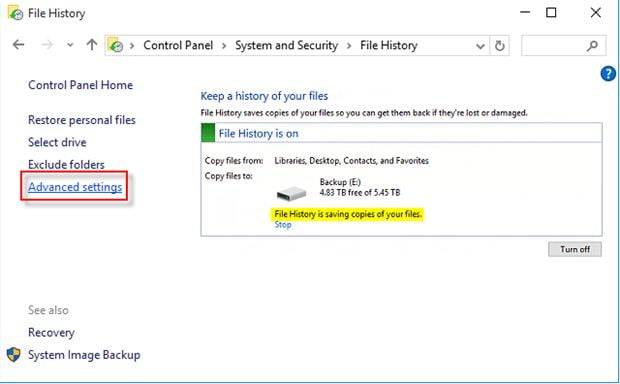
Step 1. Open “Control Panel”, and “file history” in the search box and select them. Then, in the File History window, click “Advanced settings”.
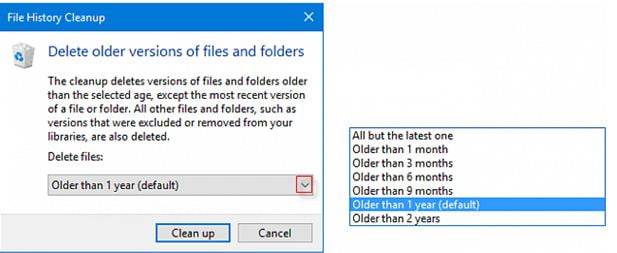
Step 2. Select “Clean up versions”. You can delete the app backups on any folder right from older than 1 month to older than 2 years.
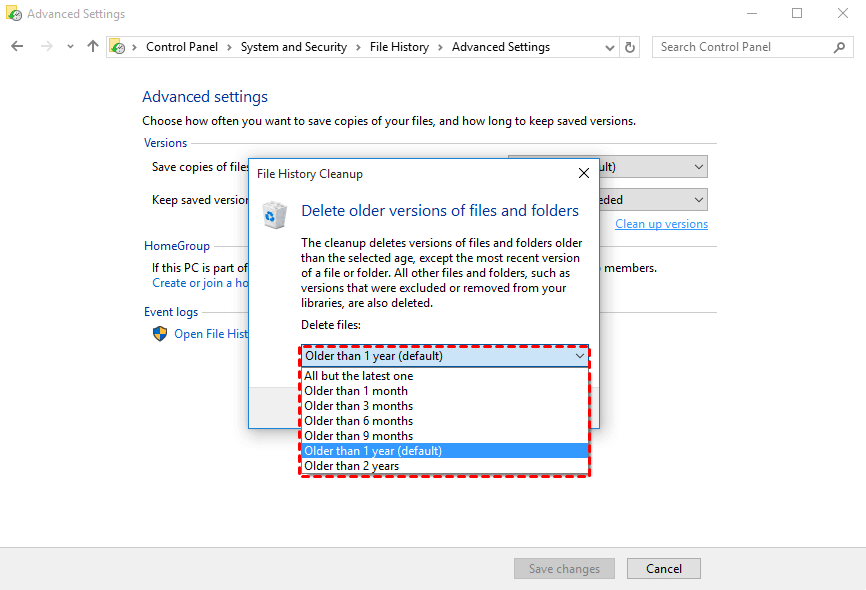
Step 3. Select the option and press the “Clean up” button.
How do you deep clean outdated files in Windows?
With the above 3 ways, you can clean unwanted files from Windows 10. In fact, we suggest users regularly clear junk files to keep the computer and disks in a nice status. But honestly, to completely clean all junk files manually is difficult because you may delete important files and make a big mistake to crash your system. Therefore, here we recommend you use a reliable PC cleaner—AOMEI Partition Assistant Standard.
It is a free disk and partition manager for Windows 11/10/8/8.1/7/XP system. The “PC Cleaner” function can deeply scan the system and the disks to filter all useless data files and list them to show users and users can choose to remove them with one click.
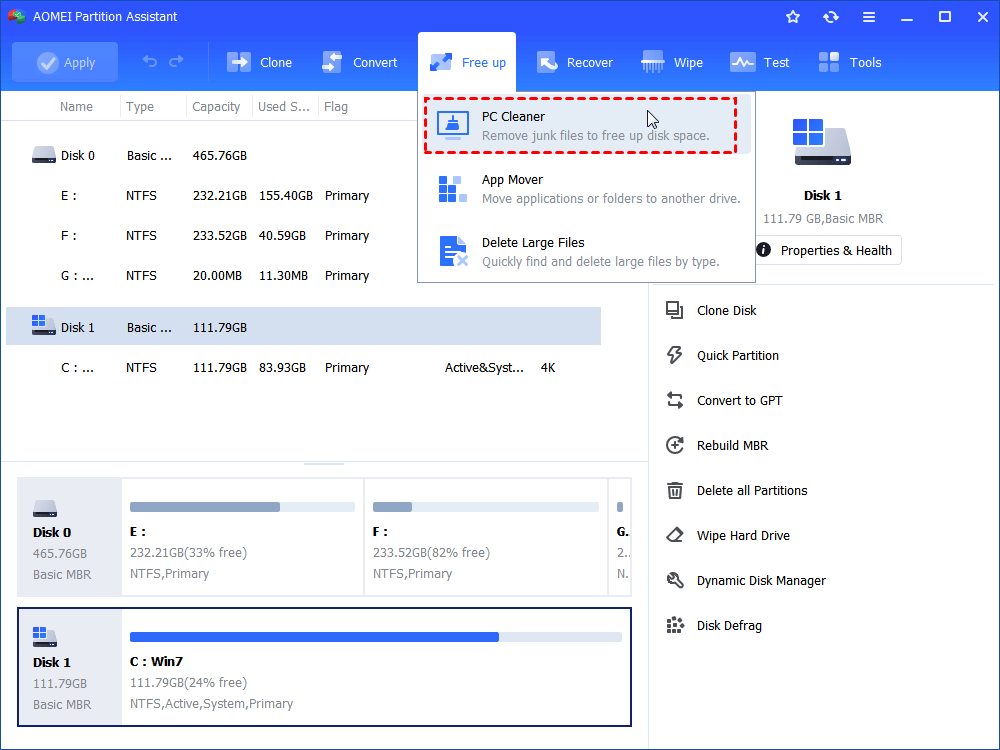
Step 1. Click «Free up» and «PC Cleaner» in turn.
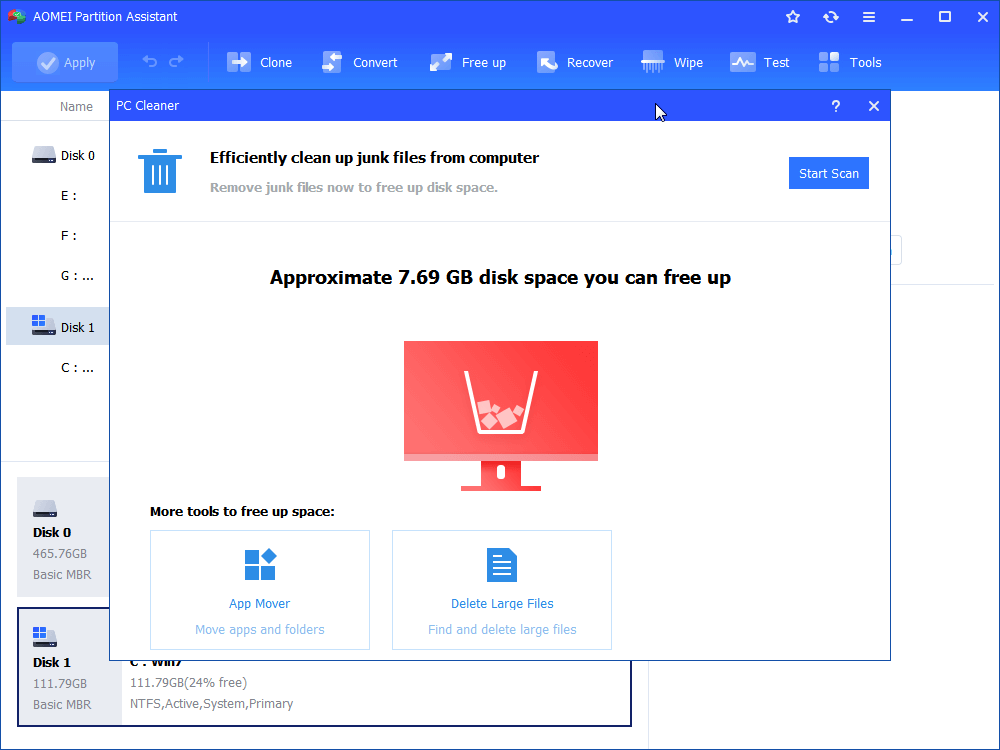
Step 2. Click «Start Scan» in the new pop-up window to scan the computer for junk files.
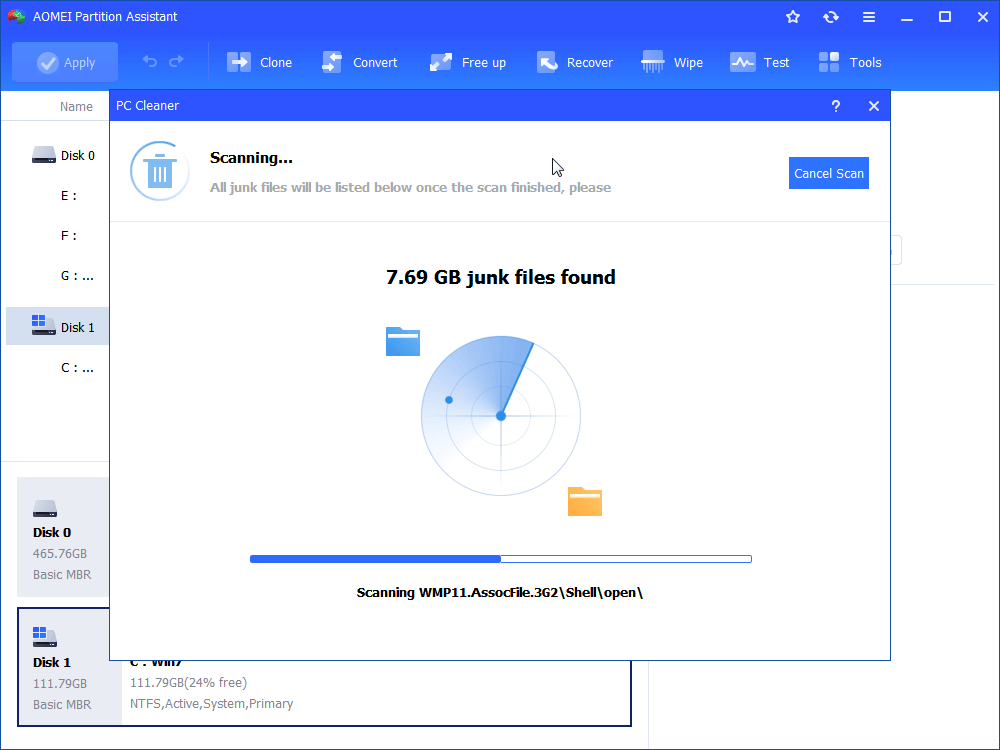
Step 3. After starting the scan, please wait for a while until the progress bar is loaded.
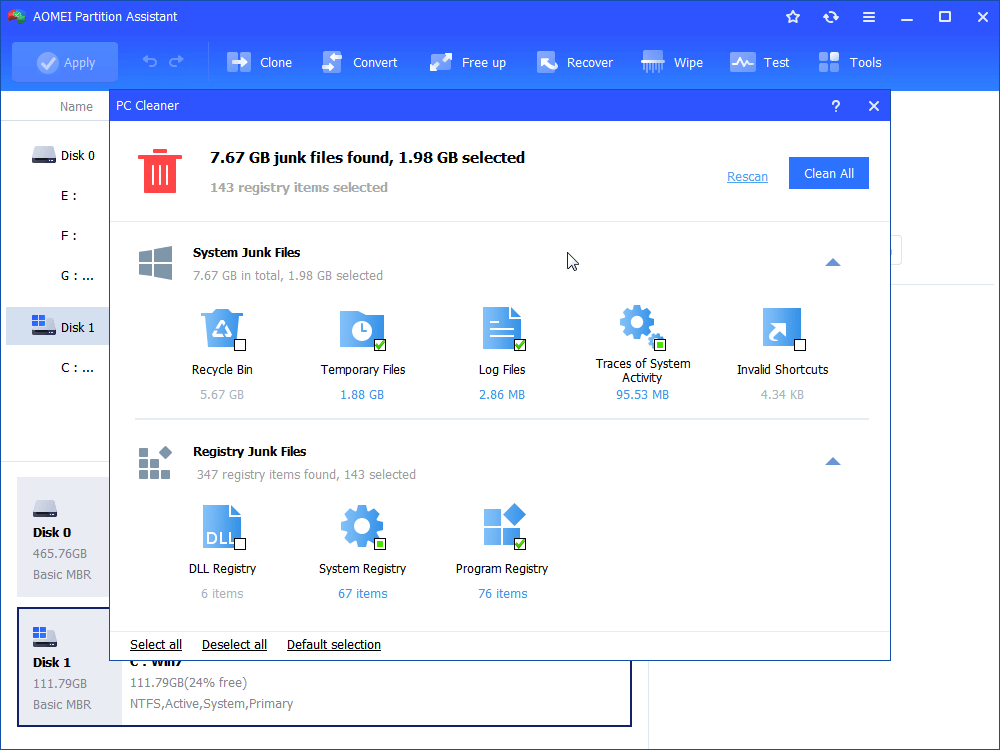
Step 4. Some junk files will be automatically selected, you can directly click «Clean All» to delete them. Or, you can tick “Select all” to delete all kinds of junk files.
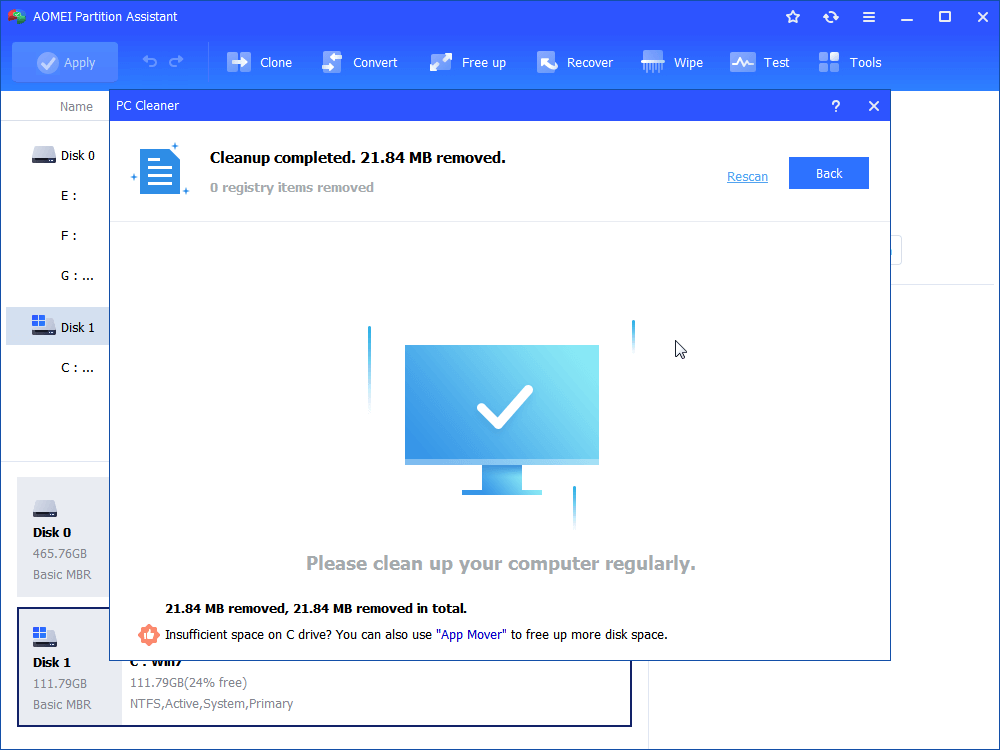
Step 5. When you see a correct symbol displayed in the interface, you can click «Back» to leave the function.
Further reading: How to extend drive space?
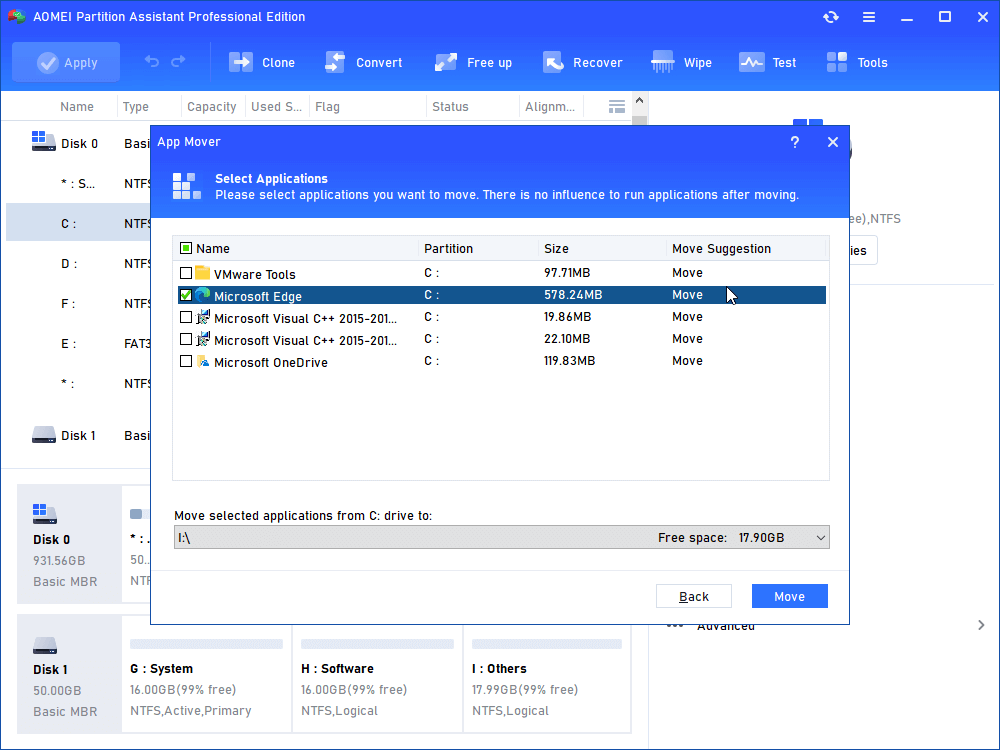
If you want to release more drive space on your PC, you can upgrade to the Professional Edition of this tool to try the “App Mover” function to move some installed apps to another location.
Ending lines
This post shows how to delete app backup files in Windows 10, if you need, you can also delete Windows 10 system backup files. AOMEI Partition Assistant can help you easily and securely fix disk space insufficiency issue. You can also use this tool to clone disk and system only, convert disk to MBR/GPT without deleting partitions, convert file systems between NTFS and FAT32 without formatting, etc.
By the way, this tool also has the Server Edition, if you’re using Windows Server 2022/2019/2016/2012(R2)/2008(R2)/2003 system, you can choose this edition to manage your computer.
Как удалить файлы резервных копий приложения в Windows 10 [Cache Files]
Многие приложения хранят свои данные конфигурации на вашем ПК, и хотя вы можете использовать эти данные для резервного копирования своих настроек, некоторые пользователи предпочитают их удалить.
Удалить файлы резервных копий довольно просто, и в этом руководстве мы покажем вам, как легко удалить файлы резервных копий приложений в Windows 10, так что приступим.
Как удалить файлы резервных копий приложений и файлы кеша в Windows 10?
1. Используйте CCleaner

Если вам нужно удалить файлы резервных копий данных приложения или кеш, самый простой способ сделать это — использовать CCleaner. Программное обеспечение предлагает простой пользовательский интерфейс, поэтому вы сможете легко очищать кеш и временные файлы.
CCleaner распознает установленные приложения и позволит вам выбрать, какой тип данных вы хотите удалить для каждого приложения. Эта функция работает для многих сторонних приложений, а также для веб-браузеров.
Программное обеспечение также предлагает функцию сканирования реестра, поэтому оно может автоматически сканировать и оптимизировать ваш реестр.
Что касается дополнительных функций, вы можете использовать программное обеспечение для удаления установленных приложений, плагинов браузера или использовать его для сканирования жесткого диска и освобождения места.
CCleaner — невероятно простое, но мощное программное обеспечение, и если вам нужно очистить кеш или удалить файлы резервных копий приложения, это правильный инструмент для работы.
Другие замечательные функции:
- Поиск дубликатов
- Привод стеклоочистителя
- Мастер обновления программного обеспечения
- Оптимизатор регистрации
- Менеджер автозагрузки
CCleaner
2. Удалите их вручную.
- Нажмите Windows Key + R и введите
% Localappdata%
- Перейдите к Темп папка.
- Теперь выберите все файлы и удалите их.
Эти файлы полностью безопасно удалить, поскольку они являются только файлами кеша и обычно не содержат важной информации.
Многие приложения хранят свои данные в следующем каталоге:
AppData Local
Для универсальных приложений это следующий каталог:
AppData Local Packages
Обычно это файлы конфигурации, и если вы хотите удалить файлы резервных копий приложения, вы должны удалить файлы из этого каталога. Почти у каждого приложения есть собственный каталог, поэтому нужные файлы легко найти.
Заметка: Имейте в виду, что при удалении этих файлов некоторые приложения могут сбросить настройки по умолчанию, в то время как другие могут работать некорректно, поэтому используйте этот метод на свой страх и риск.
3. Используйте очистку диска.
- Нажмите Windows Key + S и введите очистка диска . Выбрать Очистка диска из списка результатов.

- Выберите C води и щелкай Хорошо . Подождите, пока приложение просканирует ваш компьютер.
- Обязательно проверьте Временные файлы а затем нажмите на Хорошо . Если хотите, можете выбрать другие типы файлов.

После завершения процесса очистки кеш и временные файлы должны быть полностью удалены.
Удалить файлы резервных копий и кэш приложений довольно просто, и если вы не являетесь опытным пользователем ПК, мы рекомендуем использовать специальные инструменты для этой задачи.
How to Delete Backup Files in Windows 10
Windows have passed a long way from Windows 1 to Windows 10 which is the latest Windows Operating System running. Things have been developed and made better for us. We pack our computers every day with numerous documents, music, movies, images, and other necessary files. But do you know that Windows 10 usually back up all these files?
Please enable JavaScript
If the Windows backup files, then you should understand that it is stored inside any drive of the computer. And if thousands of backup files are stored on the computer, the total space of the computer will be decreased. On the other hand, if the backup drive has no space, it will not be able to store new backups.
So, what should you do now? The best option is to know how to delete backup files in Windows 10. And here, we will talk about several methods of deleting the backup files in Windows 10 easily! Let’s get into it!
Windows Backup Store
If you want to manage windows backup disk space, you should know the basic details regarding where your Windows keep the backup files. If you do not understand where it stores backup files, it will be tough for you to decide what to delete.
In most cases, people usually ask where the Windows backup files usually are stored. The backed-up files of Windows are usually stored on the external hard drive or the USB drive. So, to know how to delete backup files in Windows 10, you have to know how to delete backup files from the external hard drive.
The space for storing the backup files usually depends on the operating system of your windows. For Windows 10, you must know about the specific place where it stores backup data. On Windows 10, the backup folder is inside the C drive. Link: C:\Users\username\AppData\Local\Microsoft\OneNote\version\Backup
Methods of How to Delete Backup Files in Windows 10

Method 1: Built-in Tool for Deleting Image Backup Files

If you are a Windows user, you are a Windows user, you might have heard about the snap-in utility which is called Backup and Restore. These usually help you in creating the backup files automatically on the hard drive. Along with the hard drive, these also create backup files on the Windows Operating System. However, it works when you keep the schedule settings on.
When the backup drive of your Windows 10 will be full, you will need to delete the backup files to create space for the new backup files. In this case, you can follow this method.
Step 1: Update & Security
First of all, go to the desktop and then click the START button. You will find SETTINGS there. You have to click it and go for the option UPDATE & SECURITY.
Step 2: Backup and Restore
Here, you have to search for the BACKUP page. After you get the BACKUP page, you will find a link named GO TO BACKUP AND RESTORE. You have to click that.
Step 3: Manage Space
Once you reach here, you will get several options. From the different options, you have to find the MANAGE SPCAE option. All you have to do is select it.

Step 4: Period vs. Image Deleting
After selecting it, you will see a new window named MANAGE WINDOWS BACKUP DISK SPACE there. After you see this window popped up on your PC, you will see two different options there to choose from. These options are provided so that you are capable of freeing up the disk space on the backup disk of Windows 10.

Deleting According to Period
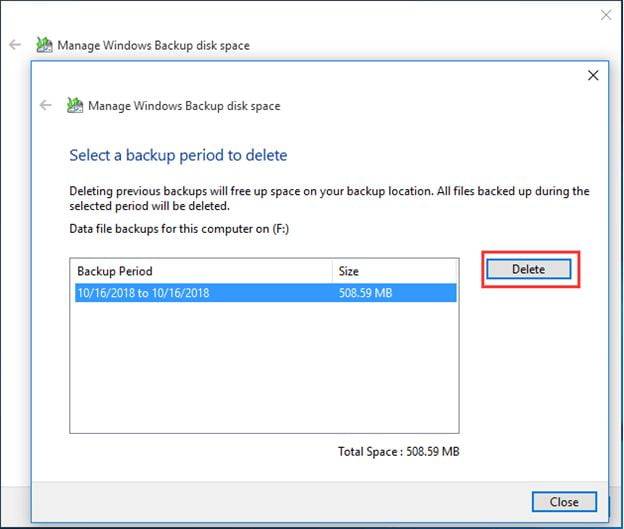
Here, when you go to the Data File Backup, you will see that there is an option named View Backups button. If you click this one, you will get an option that will ask you for a specific period for deleting the Windows backup files.
If you delete all the previous backup files from Windows 10, it can easily free the space on the backup location of your computer. This PERIOD denotes a specific date or time. Al the backup files on your Windows 10 before the period you mentioned will get deleted if you go for this option.
All you have to do is choose the perfect period and then all you need is to wait for the files to get deleted. After selecting the period, select the DELETE button. It will remove the backup file manually to serve you more disk space!
Automatic Backup Files
Here, you will also be able to select the CHANGE SETTINGS button. This is another way of saving disk space. In this process, you will be able to increase the disk space with the help of changing how your Windows 10 can retain the older system images. In this method, you will provide Windows 10 the automatic power of deleting the old backup up files by itself!
After getting into this, you will be able to see two different options for deleting the Windows image backup files.
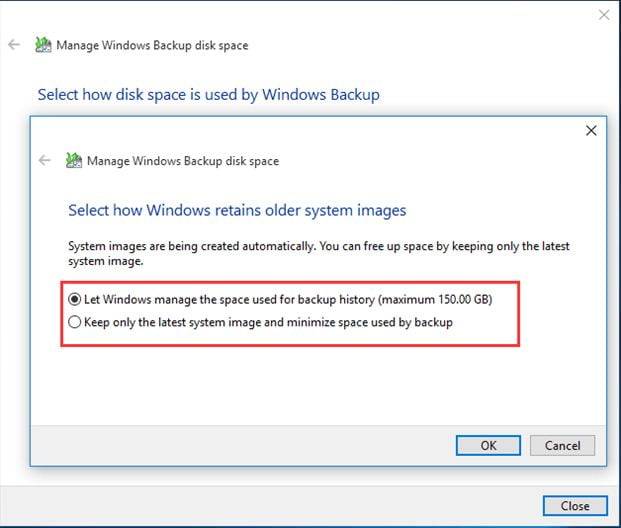
- Windows will manage the space that is used for backup history. The maximum amount of space will be mentioned in this case.
- Keeping the newest system image, backups will be deleted minimizing the space used for backup images.
In the case of the first option, Windows will do its work on its own. This is a default option. Here, Windows can easily save system images. However, as this process, if automatic, Windows 10 will not deal with space that is more than 30%.
So, while providing the autocracy to Windows to do an automatic backup image deleting process, you have to keep in mind these facts. Whenever the backup image reaches 30%, Windows will take the responsibility of deleting the older system images and freeing the space automatically.
On the other hand, you might not want to provide your Windows with complete power. In that case, you might want to keep the latest system image that is available. If you want to conserve disk space and you want to keep the recent system image, you can do that too! The second option is just the right deal for this case.
All you have to do is select the right option so that you can delete the unnecessary backup files in your Windows 10 and have enough disk space!
Method 2: Deleting App Backup Files

Some people don’t know how to delete app backup files Windows 10. In this case, we are going to discuss this method shortly so that they can easily delete the app backup files and enjoy increasing their disk space.
You should know that this method is also known as old file history backup deleting. Windows 10 will allow you to back up all the pictures, downloads, and documents along with the music and other data. As the data in your Windows will increase day by day, the backup folder will get packed up.
In this case, you will need to clean up the old backup files or the app backup files. On the other hand, if the backup drive gets full, you will not be able to continue the File History Backup. So, this is very important to delete the old backup files from your computer.
Step 1: Control Panel
First of all, you have to go to the Control Panel of your Windows. Now, in the Control Panel, you will get so many options. Select the System & Security option from the lost. After that, you have to click the History File icon.
Step 2: Select Clean Up Versions
Now that you are already in the History File Icon, you have to move forward to the left side. There, you will find an option named ADVANCED. Now, you will get a section called VERSIONS. There, you will see CLEAN UP VERSIONS. Select this option.
Step 3: Clean Up
After selecting the CLEANUP VERSIONS, you have to select the period. Windows will delete according to the period of the versions here. Select the perfect time according to you and press CLEAN UP!
Q: What are backup files in Windows 10?
A: Backup files are copies of important data and system files that Windows creates automatically to protect against data loss or system failure.
Q: How do I delete backup files in Windows 10?
A: Here are the steps to delete backup files in Windows 10:
1. Open the Control Panel by typing “Control Panel” in the search bar and clicking on the corresponding result.
2. Click on “System and Security” and then “Backup and Restore (Windows 7).”
3. Click on “Manage space” in the “Backup” section.
4. Select the backup you want to delete and click “Delete.”
Q: Can I delete all backup files at once?
A: Yes, you can delete all backup files at once by clicking on “Delete all backups of this user” in the “Manage space” section.
Q: Will deleting backup files affect my computer’s performance?
A: Deleting backup files will not affect your computer’s performance. However, if you delete the wrong files, it could potentially cause data loss or system failure. Always double-check before deleting any files.
Wrap Up
When it comes to jamming the whole computer will a lot of movies and images and documents, we forget about the backups. We all should know that Windows is backing up every data we are putting inside the computer. And in this case, to keep the computer running properly and to keep space for the fore coming data, you have to manage disk space.
The best way for this is to know how to delete backup files in Windows 10 so that you can clean them up whenever you want. If you do this routinely, you will never need to worry about the backup drive space at all! Let us know how you delete the backup files on your computer in the comment box!
How To Get Rid Of App Backup Files?
6. Click Delete to remove all contents of the backup files in the selected time period. The Backup and Restore feature saves a copy of the files inside the folder you selected upon setting up this feature. Meaning, deleting a Backup Period will delete all the files the system backed up on that time period.
Do I need app backup files?
By backing up the AppData folder, it ensures you can easily restore a program’s settings or restore your profiles from a backup. It is recommended to backup your entire user account directory, including the hidden AppData directory.
How do I delete old backups?
Delete backups and turn off iCloud Backup for your device
- Go to Settings > [your name], then tap iCloud.
- Tap Manage Storage > Backups.
- Tap the name of the device whose backup you’d like to delete.
- Tap Delete Backup > Turn Off & Delete.
How do I delete a .BAK file in Windows 10?
If you want to know how to delete backup files in Windows 10, deleting your Windows File History backups should be the first task on your list. To start, you’ll need to open the Windows Settings menu—right-click the Windows Start menu and press Settings. From here, press Update & Security > Backup.
How do I delete backup files on my Android phone?
Important: If you delete a backup, you can’t get it back.
- Go to drive.google.com.
- On the bottom left under “Storage,” click the number.
- On the top right, click Backups.
- Choose an option: View details about a backup: Right-click the backup Preview . Delete a backup: Right-click the backup Delete Backup.
Where is app backup files?
Backup data is stored in a private folder in the user’s Google Drive account, limited to 25MB per app.
Should I delete old backups?
A: The short answer is no—deleting your old iPhone backup from iCloud is completely safe and won’t affect any of the data on your actual iPhone. In fact, even deleting the backup of your current iPhone won’t have any impact on what’s actually on your device.
How do I delete my backup cache?
In the working area, press and hold the [CTRL] key, right-click the backup policy and select Clear cache.
How do I delete old iPhone backups on my computer?
In iTunes, choose Preferences, then click Devices. From here, you can right-click on the backup that you want, then choose Delete or Archive. Click OK when you’re finished. Click Delete Backup, then confirm.
How do I delete WhatsApp backup?
How to Delete the WhatsApp Backup from Google Drive
- Launch the Google Drive app on your Android phone.
- Tap the three horizontal lines in the top-left corner and select Backups.
- Find your WhatsApp backup in the list.
- Once you have found the right backup, tap the three dots next to it and select Delete backup.
What happens if I delete backup on iPhone?
Deleting a backup deletes the backup only from the iCloud storage, not anything on the iPhone. The iPhone’s iCloud backup will be updated at some point – automatically when the iPhone is connected to an available wi-fi network while connected to a power source unless the iCloud backup is turned off on the iPhone.
Why are my iPhone backups so big?
iPhone users are often surprised by the size of their device backup. iPhone backups can be very large because they may include non-essential data that can cause the backup size to bloat tremendously. You can reduce the size of your backups by controlling what you want to back up from your iCloud settings.
How do I delete old backups in Windows 10?
To delete old system files including system settings and files of previous versions, follow the steps below:
- Open Control Panel.
- Select System and Security.
- Click System.
- Click System Protection in the left pane.
- On the System Protection tab, click Configure.
- Click Delete.
- Click Apply, then OK.
How do I remove backup drive from my computer?
Use the Safely Remove tool to eject the hard drive you want to remove.
- Click the Safely Remove icon in your Windows System Tray to view the devices you can eject.
- If you don’t see the Safely Remove Hardware icon, click the Show hidden icons arrow in the system tray to display all icons in the notification area.
How do I delete my Huawei backup?
Delete Cloud backup data:
Go to Settings > Log in with HUAWEI ID > Cloud > Manage storage > Cloud backup, select your device, and touch Delete backup. All Cloud backup data for the device will be deleted.
How do I delete my Google backup?
Go to Google Dashboard and sign in with the same Google account you used on your phone. Click the arrow next to Android to see a list of all your devices with backup data. At the bottom is a button, Delete backup data. This button deletes the backed-up data from all devices.
Where is WhatsApp backup stored?
WhatsApp chat backups are stored in Google Drives. You can change the frequency at which your WhatsApp chats are saved. Google Drive saved two recent copies of your WhatsApp chat backups.
Why do backups take so much iCloud storage?
Backups of your devices are often the culprits behind a full iCloud storage space. It’s entirely possible you had your old iPhone set to upload backups to the cloud automatically, and then never removed those files.To get rid of these files, open up iCloud from the Settings app (iOS) or System Preferences app (MacOS).
What happens if you delete WhatsApp backup from iCloud?
The WhatsApp data will still remain or still be able to be available or seen within the app. It’s just that, what you describe above, will delete the backup data so it (the WhatsApp data) will no longer be included in your backups.
Does deleting a backup delete photos?
If you delete iCloud backup, your photos, messages, and other app data will be permanently removed. Your music files, movies, and the apps themselves are not in iCloud backups.