CoreSync.exe что это за процесс?
 Добрый денечек ребята. Поговорим мы о процессе CoreSync.exe, я его надыбал у себя в компе тестовом, там стоит семерка. Так вот, сначала я покопался в интернете по поводу CoreSync.exe. Но ответов что именно делает процесс я на нашел, узнал что это от Adobe, но это я и так знаю…
В общем ладно. Один чел писал, что у него процесс CoreSync.exe грузит комп, не знаю, у меня такого не было ни разу. Процесс CoreSync.exe имеет в своем названии слова core и sync, возможно что это типа синхронизация ядра Adobe.. ну или чего-то важного, не могу понять
Ладно, приступи к собственному расследованию. Значит я постараюсь узнать как можно больше информации. Вот процесс CoreSync.exe в диспетчере задач:

Что мы тут скажем? Процесс запущен от имени текущего пользователя, то есть не от система или LOCAL. Сидит ровно и проц не грузит, памяти тоже мало потребляет, в общем спокойно висит себе. В колонке Описание просто указано Core Sync. Ладно, узнаем в какой папке живет процесс. Нажал правой кнопкой по нему, выбрал этот пункт:

Открылась вот такая папка:
C:\Program Files (x86)\Adobe\Adobe Sync\CoreSync

Смотрите, в пути папки есть такое как Adobe Sync, к чему и относится CoreSync — то есть это явно что-то связано с синхронизацией. Зашел в свойства файла CoreSync.exe, пошел на вкладку Цифровые подписи и вижу что там есть какая-то подпись, имя того кто подписал это Adobe Systems Incorporated:

В общем я не знаю стоит ли доверять этой подписи или нет, но если бы ее тут не было, то было бы еще хуже. А так скорее всего штука реально от Adobe и не вирус это.. ну просто бывает в жизни всякое.. Еще смотрите сколько у меня этот файл весит:

33 мега это я вам скажу не так уж и мало для exe-шника! Но думаю так должно быть. А вы посмотрите, сколько у вас весит? Ибо если меньше мегабайта, то это немного странновато.. А вот ребята вкладка Подробно, но инфы тут толковой нет:

Значит тут я кое-что вспомнил. Есть такая штука как Adobe Creative Cloud, оно у меня установлено, и вот в этой штуке есть облако, я им не пользовался и даже не подключал. Но не в этом суть, возможно что процесс CoreSync.exe каким-то боком относится к этому облаку. Но это только догадки..
Итак, что можно сделать? В общем вот что сделал я — завершил процесс и потом быстро переименовал файл CoreSync.exe, чтобы он больше не запустился. То есть смотрите, я его назвал так CoreSync.exe_ вот гляньте:

И потом сделал перезагрузку. Процесса CoreSync.exe в диспетчере уже не было. Если будут какие-то траблы, ну там что-то работать не будет, то вам нужно просто вернуть все как было и сделать перезагрузку.
Ребята, на этом все, надеюсь какую-то полезную инфу вы тут для себя нашли. Удачи вам и берегите себя!
What Is Core Sync Mac? How To Use It? [Lately Explained in 2023]
Mac users enjoy an exclusive set of advantages and advanced features. The high-end components and the uniform designs credited by Apple aim to improve the user experience. However, out of all the functionalities available to the users, what core sync is one of the crucial questions? It is one of the necessary features to improve the seamless integration of Mac with Adobe Creative Cloud.

Let us know all the details about the core sync. First, we’ll cover the quick definition followed by the detailed steps to use it on your Mac device. We’ll also cover the key issues of core sync using high CPU and quick fixes for this problem. Finally, the quick FAQs to handle core sync independently and quickly are not to miss.
What Is Core Sync Mac?
Before jumping to the detailed steps or understanding the other related issues, it is essential to know the core sync in Mac. It starts with a quick definition, followed by its key functions and purposes.
Core sync in Mac is the background program or process used by different Adobe services. It helps share data between devices and Creative Cloud. Hence, all users aiming for seamless Adobe Creative Cloud use must use core sync on their devices.
The key function of the core sync is the uninterrupted data synchronization between devices and Adobe servers. In addition, it can further sync different cloud documents in Adobe Photoshop and Adobe XD. Hence, core sync is necessary to use Adobe Creative Cloud and other applications on the device.
The key purpose of core sync is to ensure that different Adobe applications run smoothly on the device. It ensures that all Creative Cloud files remain synced on the different devices and the cloud. In addition, it ensures that different functionalities, like Adobe fonts, are available for the users.

Syncing photos from iPhone to Mac can be easily done either with the built-in Apps/features on the iOS devices or with a third-party program like Qiling MobiMover.

How To Use Core Sync On Mac?
Core sync is an internal part of Mac’s smooth operability with Creative Cloud. So, after going through its quick definition, functions, and purposes, it comes down to how to use it. First, let us understand the quick steps to turn core sync on/off or remove it.
How to Turn On/off Core Sync Mac?
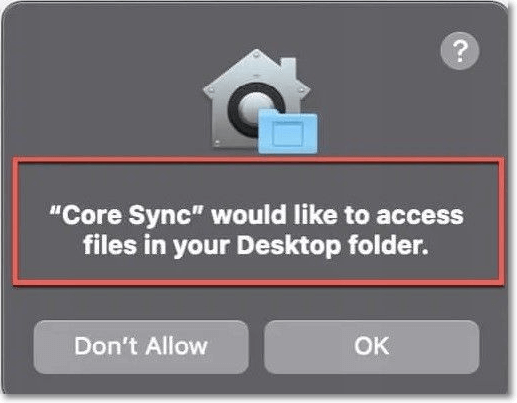
Users notice the core sync option on their Mac devices as a pop-out requesting access to system files or folders. Thus, core sync is automatically turned on on all Mac devices. However, once you’ve turned it off, you may need to turn it on to enable seamless synchronization between Adobe applications and Mac devices. The steps to turn on core sync mac are:
Step 1. Go to the «System Preferences» application and click on the «Creative Cloud» option.
Step 2. Go to the «Files» section and turn on the «SYNC ON/ OFF» option, which is set to «Off.»
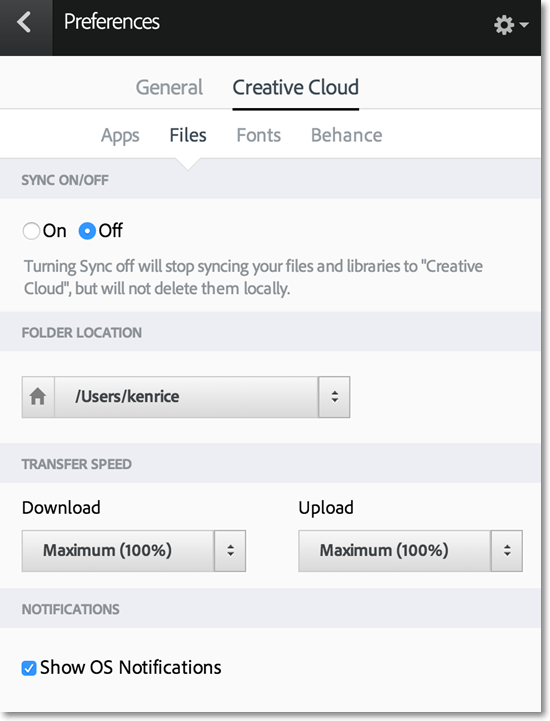
The steps to turn off core sync mac are:
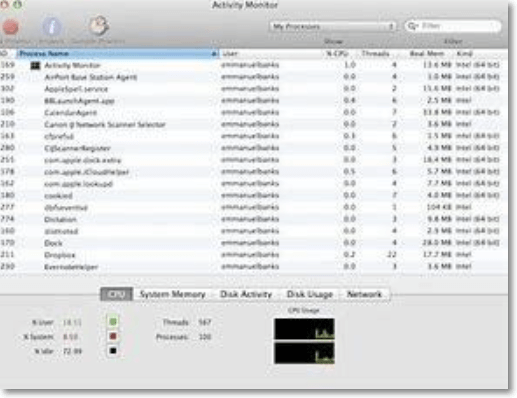
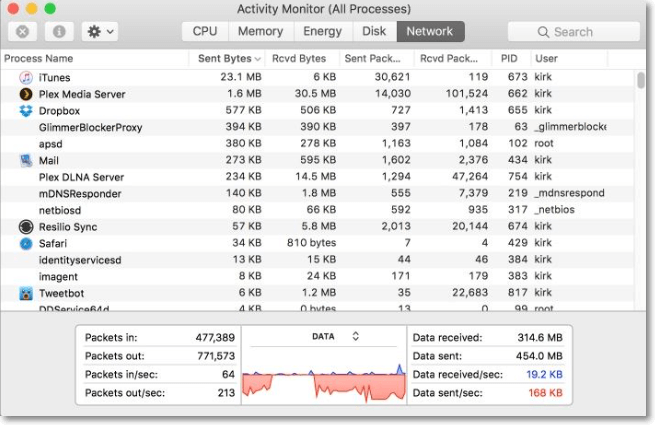
Step 1. Go to the «Activities Monitor» in the utility folder. Select «All Processes» from the drop-down menu.
Step 2. Look for the «Core sync» process in the list and click on the «i» icon next to it. Select the «Prevent unloading» option. It will turn the core sync off and prevent it from running automatically on the device.
How to Remove Core Sync Mac?
While core sync has different uses in Mac devices, sudden situations like virus threats may compromise the device’s security. To overcome the fears of malicious background programs, it becomes necessary to disable core sync. The steps to disable core sync mac are:
Step 1. Go to the «System Preferences» application and click on the «iCloud» preference pane.
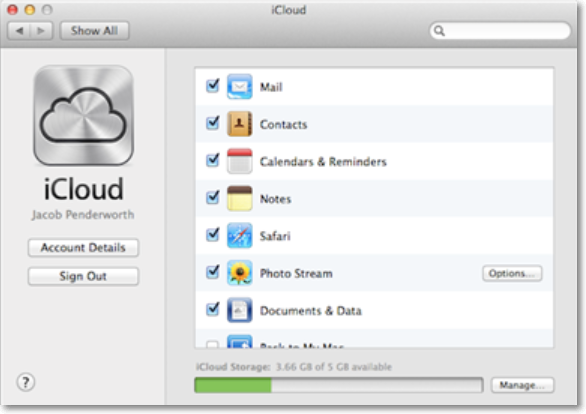
Step 2. Go to the «Documents and Desktop» menu and uncheck the box next to it.
Step 3. Click on the «Done» option to save the changes and disable core sync on the device.
Why Does Core Sync Mac Enjoy High CPU and How To Fix It?
Mac users can turn on or off the core sync option based on the system needs using the steps mentioned above. However, if ask Adobe, core sync is not supposed to use high CPU usage at any time. Hence, if you observe that it is using a high CPU on your Mac device, there is something not right. The ingenuine installation of the core sync or the malware threats is the main reason for the core sync functioning improperly.
The quick steps to confirm if the core sync on your Mac is genuine are:
Step 1. Go to the «Task Manager» and go to «Details.»
Step 2. Go to the details tab and open core sync.
Step 3. Check the core sync file location.
So do you need to worry?
The answer is a big yes as the high CPU used by core sync on Mac is not good due to the following reasons:
- It starts applications to crash.
- It overheats the Mac system.
- It leads to decreased system performance.
This clearly calls for the top troubleshooting solutions to prevent core sync from malfunctioning and causing further issues to Mac. Some of the top fixes to remove core sync Mac includes:
- Update the Software and Restart Your Mac
- Identify the source of high CPU usage with activity monitor
Update the software and restart your mac
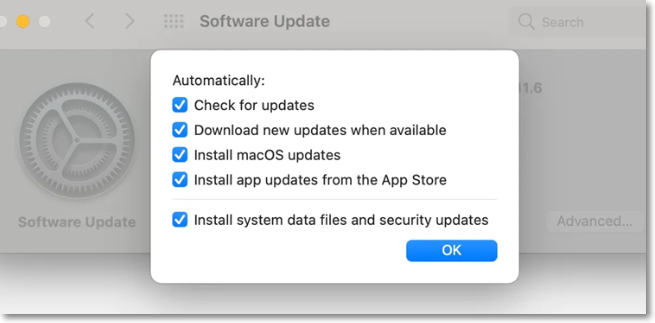
The quick steps for updating the software to get rid of high CPU usage errors.
Step 1. Go to «System Preferences» and go to «Software Update.»
Step 2. Go to the «Advanced» settings for specific update settings. Further, it is easy to check the application’s update in the relevant apps.
More Information About Core Sync Mac
It is always great to know more about the top functionalities like core sync Mac. Hence, after going through the quick fixes for the core sync mac high CPU errors, it comes down to some of the popular questions. Users may be interested in the following top searched questions:
1. What is Windows core sync?
Core sync is part of the Creative Cloud installation and app. The Windows core sync is responsible for data sharing between devices and Creative Cloud. It can synchronize different documents created in top applications like Adobe Photoshop and Adobe XD. Further, core sync synchronizes all «Creative Cloud Files» folders on Windows devices to the Adobe servers.
2. How do I turn off Adobe background processes on Mac?
Multiple Adobe background processes may run on Mac devices. The quick steps to turn these processes off include:
- Start by turning off all the Adobe Creative Cloud applications on the device.
- Disable core sync by going to the system preferences of the device.
- Disable all the LaunchAgents and LaunchDaemons.
- Finally, turn off the running Adobe processes by quitting the Adobe option.
3. What happens if I uninstall the Core Sync on my Mac?
You will no longer be able to use Adobe Creative Cloud if you delete core sync on mac devices. It is because core sync is responsible for the smooth synchronization between the Mac devices and the Creative Cloud.
Summary
Hence, learning about the core sync app option on Mac devices is easy. No more confusion when it asks for different access or permissions when you know it is necessary to synchronize the device’s data with Creative Cloud. The detailed functions and purpose of core sync ensure that users get the best out of it.
After going through what is core sync mac, the quick steps to use it ensure that users can easily turn on and turn it off according to their needs. It is easy to learn about the high CPU core sync error and fix it quickly using the detailed steps. Further, users can go through the top questions to gain more information about core sync Mac.
What is Core Sync on Mac? Why Does It Have High CPU

When you install the Adobe Creative Cloud application, CoreSync is automatically installed on your computer. And, if you have a habit of using the Creative Cloud, chances are, the CoreSync process is eating up your Mac’s CPU.
Usually, when the CoreSync is using a high CPU percentage, you’ll notice that your computer starts to slow down and heat up. So, every time this happens, you have to act quickly in order to prevent any potential overheating issues.
Nevertheless, there are some super simple and super effective fixes that will surely reduce the CoreSync’s CPU usage on your computer. So, let’s get right into it!
Table of Contents
Core Sync on Mac and Its High CPU Usage
The Adobe Creative Cloud is used to download, update and track every Adobe application on your computer, as well as the ones you haven’t purchased. It is also responsible for managing your Adobe user data and storing these data in your local storage. This is where the CoreSync comes into play.
CoreSync works in the background and acts as a bridge between your system and the Adobe server. It syncs data files to and fro between your computer and the cloud. But, when these files are larger in size, CoreSync can end up taking a lot more CPU than intended, sometimes even skyrocketing up to 100%.
Other than this, here are all the reasons that might influence the CoreSync to use a high CPU percentage:
- Corrupted caches
- Outdated app
- Location glitch
- Malware attacks
How to Monitor Your CPU Usage?
macOS has provided its user with the Activity Monitor tool to take note of the running processes and the allocated system resources. This tool comes preinstalled on your computer and can be accessed directly from the desktop screen.
- Press Command + Space to open the Spotlight search.
- Type and enter Activity Monitor.
- Navigate to the CPU tab.
- Here, you can view how much CPU CoreSync is using at this particular instant.

How to Fix the High CPU Usage of CoreSync?
Whenever the CoreSync’s CPU usage crosses the threshold, you can take some quick actions to get the CPU percentage back to normal. Listed below are all the ways to do so.
Restart Your Computer
Restarting your computer is a short-term solution to fix the high CPU issue. Doing so clears the system memory and dislocates the system resources. So, if you quickly want your CPU and the temperature to drop to a normal value, restart your system.
End the CoreSync Process
Through the Activity Monitor, you can select the CoreSync process and manually force it to shut down. This will see the CPU percentage plummet down, and the computer will start to operate at its normal speed. So, for this,

- Press Command + Space to open the Spotlight search.
- Type and enter Activity Monitor.
- Navigate to the CPU tab.
- On the top right corner of the window, type Core Sync in the search field.
- From the Process Name column, select Core Sync and click the ‘x’ icon.
Disable the CoreSync Extensions
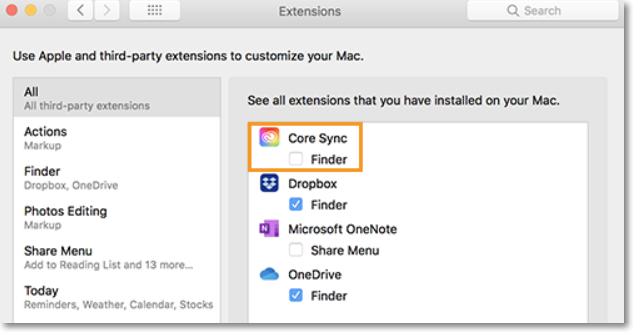
Another way to fix your abnormal CPU usage is by disabling the CoreSync extensions and their operations. This can be done directly from your Mac’s System Preferences, and here’s how you do it:
- Click on the Apple menu.
- Select System Preferences.
- Proceed to Extensions.
- Select Added Extension from the sidebar.
- Then, uncheck Core Sync Finder Extension.

- From the left panel, select Finder Extensions.
- Uncheck the option box for Core Sync Helper.

Delete the CoreSync Cache Files
Deleting the CoreSync cache files stored on your computer will fix any stability and corruption issues that came along with it. So, by researching through various forums, we have come up with a safe and surefire way to fix its high CPU usage. Follow every step exactly as shown below:
- Open Adobe Creative Cloud.
- Click on your user profile icon and go to Preferences.
- Select Syncing from the sidebar.
- Then, Pause Syncing.

- Now, end the CoreSync process from the Activity Monitor.
- Close all the open windows and go to Finder.
- Hold the Option key and click Go on the menu bar.
- Go to Library.
- Then navigate to Application Support > Adobe.
- Delete the CoreSync folder.

- Again, from back on Library, navigate to Preferences > Adobe > CoreSync.
- Delete cache_config.xml.

- Restart your computer.
- Finally, open the Adobe Creative Cloud and Resume Syncing.
Update the Creative Cloud Application
When nothing works, you can try and update the Creative Cloud application in an attempt to fix the problem. Moreover, many users have reported that a previous software build gave rise to the high CPU issue, and hence, updating it to a newer version can fix it.
So, to fix the bugs and glitches of the previous build, you can update the application with the steps below:
- Open Adobe Creative Cloud.
- Select Updates from the left sidebar.

Is CoreSync a Virus?
Although the CoreSync process takes a ton of CPU and is also not visible in the foreground, CoreSync is not a virus. It is a totally safe process, and its high CPU usage can surely be fixed.
But, if you’re not using a genuine version of the Creative Cloud application, there is a possibility that the software’s processes, including the CoreSync, could operate against you. So, to prevent any future attacks and mishaps, always use a genuine product.
Utkarsha is a tech writer who specializes in writing about macOS. He has been using the platform since its earliest days, and has written extensively about its various iterations. He also enjoys watching movies and traveling.
What Is Core Sync Mac Is It Dangerous Should You Uninstall It
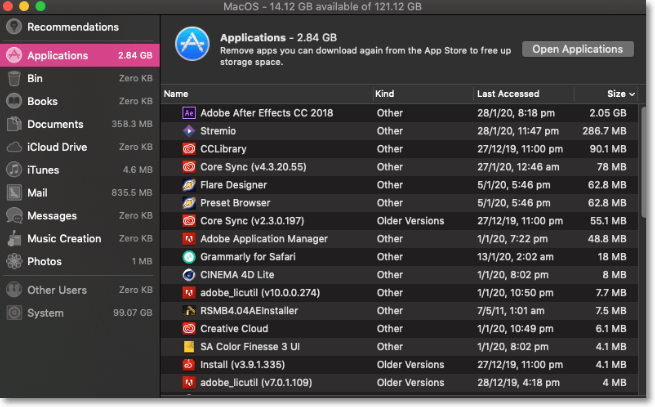
Mac users have reported that the Core Sync option appears on the top and asks for permissions such as files and storage. Allowing storage access on your Mac without knowledge may cause potential problems such as data loss and hacked files. On the other hand, not allowing permission may cause some apps to behave unexpectedly. Moreover, Core Sync also takes up a lot of space on your Mac. Sometimes, it can go as high as 90% of your total storage. Here, the idea of freeing up storage on Mac makes sense. Just like many Apple users, if you are also facing these issues, then read this article till the end
What is Core Sync Mac?#
Core Sync Mac is a process through which your Mac shares the information of your Adobe apps with Adobe Creative Cloud. Being a Mac user, this pop-up will appear only when you currently have any Adobe App or while you are using it. Core Sync is helpful when you edit or rename any type of content that is saved on Adobe cloud. After sync, it gives you seamless access to your uploaded files. Also, read How to Remove Sim Card From iPhone? Read This Guide to Avoid Breaking Your Sim Tray
Is Core Sync Safe?#
Course Sync is the name of a process that shares your files with Adobe Creative Cloud. In general, for any application or process that has access to the internet on your Mac and uploads the data, there is a potential risk of losing out personal data. What you must also know is that Core Sync works in the background. However, Core Sync asks for your permission before uploading any file. So you can consider Core Sync as a safe process. Also, read How to Scan QR Code on iPhone | A Step-by-Step Guide to Start Scanning QR
Can I Delete Core Sync on My Mac?#
There are two instances when you may want to delete the Core Sync from your Mac. One is when you are on a trial version and Adobe wants you to uninstall it. The second is because of the redundancy, i.e., you do not require it anymore. In both cases, you can delete Core Sync from your Mac. Although, you must ensure that not only the application program (app) has been deleted, but also all the files must be deleted. I highly recommend taking a backup of your data before you plan to delete Core Sync. Also, read How to Show Battery Percentage on iPhone 13 | Know your Battery Level in 3 Simple Ways
How to Delete Core Sync on Mac?#
Adobe has a dedicated removal tool that allows you to safely remove Adobe programs from your Mac. A lot of Mac users have reported that even after uninstalling the program from their Macs, Core Sync still occupied storage. Therefore, if you have decided to uninstall Core Sync from your Mac, then you must follow these steps correctly: Step 1: Open Adobe Creative Cloud on your computer and sync all the files to ensure that the backup is completed. Step 2: Open the Activity Monitor app and close all the Adobe Creative Cloud apps and Core Sync. Step 3: Then search Adobe Support Library and open it to locate the Core Sync folder. Then copy the Core Sync Folder on the Desktop. Step 4: Then download the Creative Cloud Cleaner tool for macOS and hit RUN on the disk image file. Step 5: Mark yes against all the agreements and wait for the cleaner to uninstall the Adobe Creative Cloud. Also, read How to Share Location on iPhone | A Step-By-Step Guide [Nov. 2022]
Why Does Core Sync Show High CPU Usage?#
Core Sync will show high CPU usage in any one of the two cases.
Your Adobe Create Cloud is not up-to-date. Therefore, you must update it immediately. Your Adobe Create Cloud might be a pirated version with some cracked files. Therefore, you must reinstall it because it makes your data more vulnerable to hacking.
Also, read How to Delete Contacts on Your iPhone? Some Quick And Easy Ways
What is Core Sync Mac?#
Wrapping Up#
This brings me to the end of the article What is Core Sync Mac? Adobe is a trusted software-based company, so you need not worry about installing the Creative Cloud. Core Sync operates in the background but only to sync your existing files with the cloud. If you have any questions, feel free to drop a comment.