How to find Outlook temp files on a Mac with macOS or Mac OS X
Accidentally saved an Outlook Attachment in the Temp Folder and can’t find or restore it? Do you want to retrieve documents from Outlook? Saved a file in your Outlook Temp folder and now can’t find that Outlook Temp Folder or your file? Tried using Finder with no result? Here is what to do to locate your Outlook Temp Files!
Quick tips 
Follow these quick tips to locate and recover your Outlook Temp files today!
- Check your trash, just in case your deleted or removed the file
- Look in your user’s folder’s cache for temporary items
Related Articles
What Are Outlook Temp files?
Outlook Mac stores temporary files such as e-mail signatures, opened attachments like images, documents, PDF files, etc., and other e-mail content in the following location(s):
-
For Older Versions of Office:
Locate Outlook Temp files on Newer Outlook Versions
- Open Finder
- Go to the “GO” drop-down menu and select “Go to Folder…”
- Enter /private/var/folders and click go
- For /private/var/folders, you need to search within the folder for the com.microsoft.outlook or outlook temp–sometimes it’s inside the b6 or rz folders but often it’s elsewhere!
- Some readers find it here: /private/var/folders/b6/w46fh44s2wz53qqvcwhnrz440000gp/T/com.microsoft.Outlook/Outlook Temp
- Others found it here: /private/var/folders/rz/2mcg5kq124bcngdy8fk8kk_n3w_jjw/T/com.microsoft.Outlook/TemporaryItems
Locate Outlook Temp on Older Outlook Versions
- Open Finder
- Go to the “GO” drop down menu and select “Go to Folder…”
- Enter
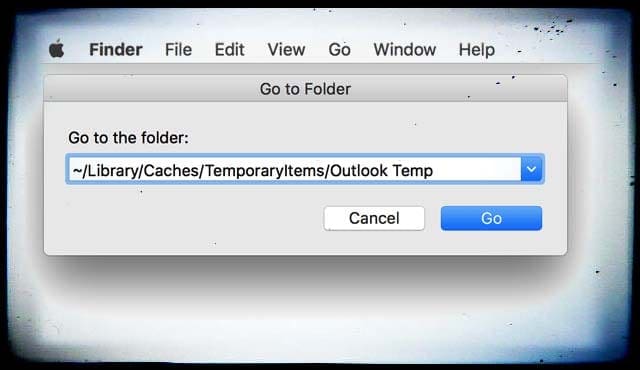
OR, alternatively
- Open Finder
- Go to the “GO” drop-down menu and hold down the option (alt) key
- The “Library” option appears
- Click on “Library” and then you find “Caches” and “TemporaryItems” and finally “Outlook Temp”
- Now you locate your Outlook file
Make Your Library Visible and Manually Search
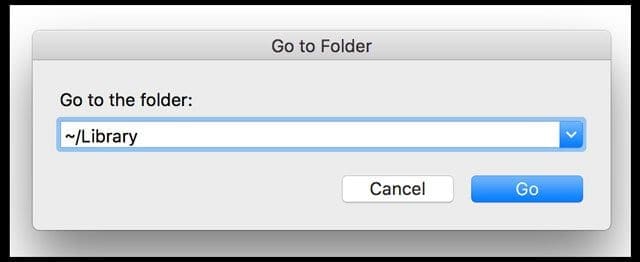
Find your Outlook Temp cache folder easily when your user Library folder is visible in macOS or Mac OS X!
For older Outlook versions
- Open your User Folder
- Click to open your Library folder
- Search for the folder Caches
- Inside the cache folder locate Temporary Items
- And look for your Outlook Temp directory there
- The full path is : User Folder > Library > Caches > Temporary Items > Outlook Temp Directory
If You Still Can’t Find Your Outlook files
Save the File to a New Location
Use Outlook’s File > Save As option to save a copy of the temp outlook file to a location you can easily access and remember!
Open a File’s Properties in Outlook
- Shift to the Mail view by clicking the Mail in the Navigation Pane
- Open the email message attachment that you want to see
- View the size, file location, and other properties
- If you are using the Outlook 2007, click the Office Button > Properties
- If you are using the Outlook 2010 and 2013, click File > Info
Use Terminal
- Go to Applications > Utilities > Terminal
- In the Terminal windows, type in the command open $TMPDIR and press enter
- This Terminal command opens all your Temporary files folder
- Select the folder named Temporaryitems
- In Temporaryitems find your Outlook file and restore it
- You may need to look into other folders and search within these folders for files listed with com.microsoft.outlook or outlook temp
Reader Tips

Follow reader John’s advice to open an attachment and try and save it
- Find an email with an attachment, open it, and click on File, then choose Save As
- When the Outlook Temp Folder pops up, you see all your documents saved to Outlook temp
- Right-click to open a file you want to retrieve, and when a menu pops up, choose Move to Trash
- Open your Trash to retrieve and save that file to another folder
John’s process avoids searching for your Library, temp folders and hunting thru its many subfolders.
Gary suggests opening up an attachment in outlook and looking at its properties to see the file location
- To find that location, open an attachment in outlook
- Then look at the properties which shows the file location
- In finder, go to that folder and copy in that file location

Obsessed with tech since the early arrival of A/UX on Apple, Sudz (SK) is responsible for the original editorial direction of AppleToolBox. He is based out of Los Angeles, CA.
Sudz specializes in covering all things macOS, having reviewed dozens of OS X and macOS developments over the years.
In a former life, Sudz worked helping Fortune 100 companies with their technology and business transformation aspirations.
Related Posts:
Reader Interactions
Write a Comment Cancel reply
Show 61 Comments
David Smith says
OS Big Sur 11.2.2: Just do it manually opening folders in the following sequence:
[Your] Mac — private — var — folders — 05 — 6qkzjs945bcp8ywnlgx753m0000gn — T — com.microsoft.Outlook — Outlook Temp.
Voilá!Awesome. Thank you so much!! This was really helpful.
john haines says
Having melted my brain trying to find Outlook temp folder on Mac Office 365 for hour+, found an elegant way to retrieve files. find an email with an attachment, Open it and click on File, then “Save As” when Outlook Temp Folder pops up. You can see all docs saved to Outlook temp.
Right-click on file you want to retrieve, menu pops up then click on “Move to Trash”
You can then go to Trash Can to retrieve and save to a normal folder.
This avoids searching for Library, temp folders and hunting thru subfolders.
Great advice and thinking! We appreciate you paying it forward.
VERY helpful!! Thanks.
polly matzinger says
thanks so much. i looked at lots of other suggestions for getting a file out of outlook temp but none worked. i think they were for windows users. i really appreciate the suggestion for mac. i followed your suggestion for the new version of outlook to go to” /private/var/folders” , found the list of folders and then typed “temp” into the search box. that worked immediately! saved me redoing the whole manuscript again!
Patrick Hammarström says
Just lost 4 hours of work because i saved a Word file as a temporary outlook item. Closed Outlook and file was definitively gone. Spent another hour to find out how to eventually recup the file. No way. This brings me to the following: I was a die hard Mac fan for years, but now I can clearly see where the company’s priorities are – IPhone and ITunes. Apple’s computer OS and desktop/folder/file navigation philosophy are total crap. Microsoft is light years ahead. So my Retina will be the last Mac computer I will ever buy. Never ever again. A totally disappointed user. You have lost a client.
Outlook is a Microsoft product not Apple. I blame Microsoft for making this folder so difficult to find.
I can find the Cache folder, but it does not contain a TemporaryItems sub folder. Does anyone know how to fix this?
You are my actual favourite person right now!
Thanks Reanna, Glad We could assist!
This help does not work for all versions of software combination but it does provide some nice pointers. The key is that Apple tends to hide these files in different places for different versions. To find that location I opened an attachment in outlook. Then I looked at the properties which shows the file location. Then in finder I did what was described in terms of go to folder and copied in that file locations which worked fine.
Gary’s advice is PERFECT. Spent forever wondering why I couldn’t find the Outlook Temp folder. Did what Gary suggested and found it in seconds.
FYI: With Outlook 2016, images are not found in this cache. (Not sure if this was true of Outlook 2011.) When opening an image from an email the image is placed in /private/var/folders////com.microsoft.Outlook/Outlook Temp/
In my particular case the token values were “jc”, “1k0p6pbd5g98n7qkdwgj2h305h682r”, and “T”. The easiest way to find a particular image was to use find:
sudo find /private/var/folders -name
Adi Montas says
Thank you that was really easy to follow and i feel proud i learned something new today!
Matt Miller says
Thank you. I opened a powerpoint from outlook, and could not find it after saving it (and having spent an hour editing it). You saved me!
You are awesome and you saved me ++++
After a long long search and help from my friends.
I used the GoTo tool in Finder and typed/Library/Caches/TemporaryItems/Outlook Temp.
And it worked!
But why, oh why make it difficult for users ? I will go off Apple products if they keep doing this to us!Aneeta Brown says
I very much appreciate the advice. iPhoto placed several photos of mine in a temp file instead of exporting them to the desktop. I looked for several minutes—-would NEVER have figured it out by myself. thank you.
Apple has made finding this temporary space much more difficult in one of the recent updates to either the Mac OS or Outlook. The Temp folder has moved and I am not sure that the OS does not change the Temp folder over time. Here is how I am able to find the files in the Temp folder:
1. Open the originating document from Outlook and hit Save As. From this, you can find the full path to the temp folder holding subject file (along with the inadvertently saved version).
2. This step requires another app that will allow you to view the hidden files and folders. (I use PathFinder but you also need to “turn on” viewing of hidden files and folders). You need access to the folder called private at the root of the MacHD.
3. Once you have access to the private folder, you can then drill down to the subfolder show in the originating document.
4. Drag the misplaced file to your Desktop and you are ready to go.
Hope this helps.
One more point. You can “goto” the private folder in Finder. In my particular case (which I assume will not be the same for everyone), here is where the files were located:
/private/var/folders/24/”a very long string starting with kfx…”/T/com.microsoft.Outlook/Outlook Temp
If Apple/MS had intentionally tried to hide these files, they could not have done a better job. In classic Apple file, the rule is “my way or the highway.”
worked great, instructions were easy to follow, most importantly I found the file I thought was lost
Как открыть папку outlook temp
Когда вы открываете вложение в своем электронном письме, копия этого вложения автоматически сохраняется во временной папке. Если вложение, которое вы открыли ранее, случайно удалили из письма, вы также можете вернуть вложение во временную папку. В этом руководстве вы узнаете, как открыть временную папку с подробностями в Outlook.
- Авто CC / BCC по правилам при отправке электронной почты; Автопересылка Множественные письма по правилам; Автоответчик без сервера обмена и дополнительных автоматических функций .
- Предупреждение BCC — показывать сообщение при попытке ответить всем, если ваш почтовый адрес находится в списке BCC; Напоминать об отсутствии вложений , и многое другое напоминает функции .
- Ответить (всем) со всеми вложениями в почтовой переписке; Отвечайте сразу на несколько писем; Автоматическое добавление приветствия при ответе; Автоматически добавлять дату и время в тему .
- Инструменты для вложения : Автоотключение, Сжать все, Переименовать все, Автосохранение всех . Быстрый отчет , Подсчет выбранных писем, Удаление повторяющихся писем и контактов .
- Более 100 дополнительных функций будут решить большинство ваших проблем в Outlook 2021–2010 или Office 365. Полнофункциональная 60-дневная бесплатная пробная версия.
 Откройте временную папку в Outlook
Чтобы открыть временную папку в Outlook, вы можете сделать следующее.
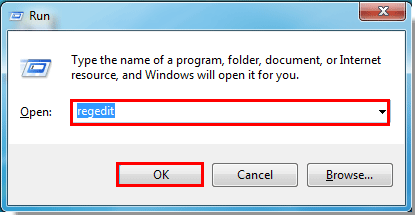
1. нажмите Windows + R в то же время, чтобы открыть Run диалоговое окно и введите regedit в Открытые текстовое окно. Смотрите скриншот:
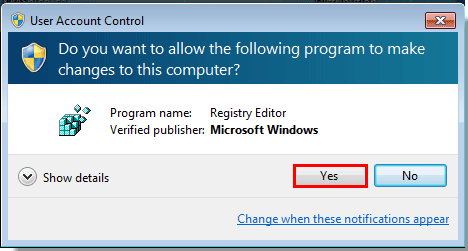
2. Нажмите OK в Контроль учетных записей диалоговое окно.
3. в Редактор реестра диалоговом окне, пожалуйста, разверните папки следующим образом.
1). Если вы используете Outlook 2013, дважды щелкните, чтобы развернуть KEY_CURRENT_USER > Software > Microsoft > Office > 15.0 > Outlook;
2). В Outlook 2010 дважды щелкните, чтобы развернуть KEY_CURRENT_USER > Software > Microsoft > Office > 14.0 > Outlook;
3). В Outlook 2007 дважды щелкните, чтобы развернуть KEY_CURRENT_USER > Software > Microsoft > Office > 12.0 > Outlook.
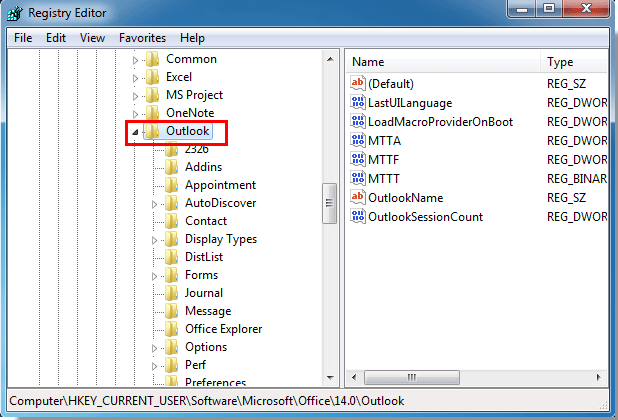
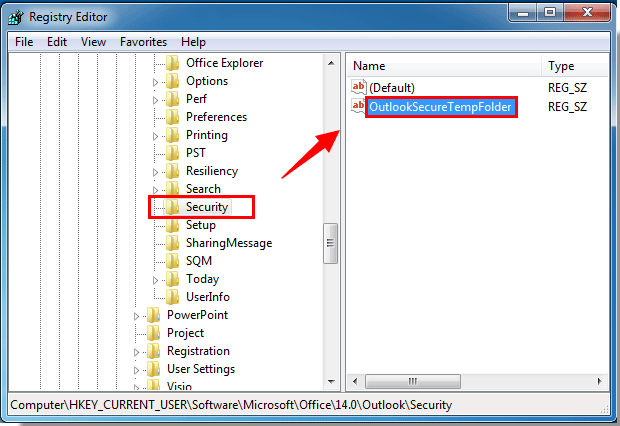
4. Прокрутите вниз, чтобы выбрать Безопасность папку на левой панели, а затем дважды щелкните, чтобы открыть Папка OutlookSecureTemp на правой панели. Смотрите скриншот:
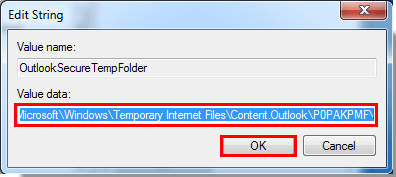
5. Когда Изменить строку появится диалоговое окно, скопируйте путь в Значение поле, а затем щелкните OK кнопку.
6. Закрой Редактор реестра диалоговое окно.
7. Дважды щелкните Компьютер на рабочем столе, чтобы открыть проводник, а затем вставьте путь, который вы скопировали выше, в поле пути. Смотрите скриншот:
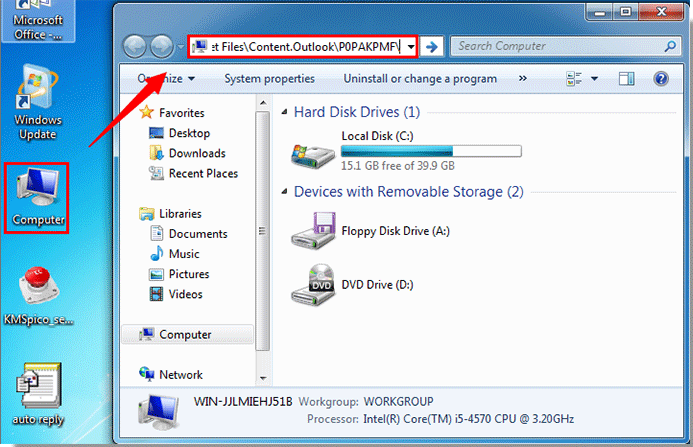
8. После вставки пути нажмите Enter ключ. Затем вы увидите, что вложения, которые вы открывали в электронных письмах, остаются внутри папки.
Как найти временные файлы Outlook на Mac с macOS или Mac OS X
ОС Big Sur 11.2.2: Просто сделайте это вручную, открывая папки в следующей последовательности:
[Ваш] Mac — частный — var — папки — 05 — 6qkzjs945bcp8ywnlgx753m0000gn — T — com.microsoft. Outlook — Outlook Temp.
Вуаля!Джон Хейнс говорит
14 августа 2019 г., 8:49
Растопив свой мозг, пытаясь найти временную папку Outlook на Mac Office 365 в течение часа +, я нашел элегантный способ извлечения файлов. найдите электронное письмо с вложением, откройте его и нажмите «Файл», затем «Сохранить как», когда появится временная папка Outlook. Вы можете увидеть все документы, сохраненные в Outlook temp.
Щелкните правой кнопкой мыши файл, который хотите восстановить, появится меню и нажмите «Переместить в корзину».
Затем вы можете перейти в корзину, чтобы извлечь и сохранить в обычной папке.
Это позволяет избежать поиска библиотеки, временных папок и поиска вложенных папок.
Полли Мэцингер говорит
14 июня 2018 г., 5:47
Спасибо. Я просмотрел множество других предложений по получению файла вне Outlook, но ни один из них не сработал. я думаю, они были для пользователей Windows. я действительно ценю предложение для Mac. Я последовал вашему предложению для новой версии Outlook перейти в «/ private / var / папки», нашел список папок и набрал «temp» в поле поиска. это сработало сразу! спасло меня, когда я снова переделал всю рукопись!
Патрик Хаммарстрём говорит
18 мая 2018 в 15:59
Просто потерял 4 часа работы, потому что я сохранил файл Word как временный элемент Outlook. Закрыл Outlook, и файл окончательно пропал. Потратил еще час, чтобы узнать, как в конечном итоге восстановить файл. Ни за что. Это подводит меня к следующему: я был убежденным поклонником Mac в течение многих лет, но теперь я ясно вижу, в чем заключаются приоритеты компании — IPhone и ITunes. Компьютерная ОС Apple и философия навигации по рабочему столу / папкам / файлам — полная чушь. Microsoft на световые годы впереди. Так что мой Retina будет последним компьютером Mac, который я когда-либо куплю. Больше никогда. Совершенно разочарованный пользователь. Вы потеряли клиента.
30 сентября 2017 в 13:30.
Я могу найти папку Cache, но в ней нет подпапки TemporaryItems. Кто-нибудь знает, как это исправить?
1 июня 2017 в 12:40
Эта справка работает не для всех версий программного обеспечения, но дает некоторые полезные подсказки. Ключ в том, что Apple имеет тенденцию скрывать эти файлы в разных местах для разных версий. Чтобы найти это место, я открыл приложение в Outlook. Затем я посмотрел на свойства, которые показывают расположение файла. Затем в Finder я сделал то, что было описано в терминах перехода в папку и скопировал в эти места файлов, которые работали нормально.
Железный стержень говорит
4 апреля 2016 г., 11:18
К вашему сведению: в Outlook 2016 изображения не находятся в этом кеше. (Не уверен, что это было верно для Outlook 2011.) При открытии изображения из электронной почты изображение помещается в /private/var/folders////com.microsoft. Outlook / Outlook Temp /
В моем конкретном случае значения токена были «jc», «1k0p6pbd5g98n7qkdwgj2h305h682r» и «T». Самый простой способ найти конкретное изображение — использовать команду find:
sudo find / private / var / folder -name
18 февраля 2016 г., 5:19
Спасибо, за этим было действительно легко следить, и я горжусь, что сегодня узнал что-то новое!
Мэтт Миллер говорит
14 января 2016 в 13:43
Спасибо. Я открыл PowerPoint из Outlook и не смог найти его после сохранения (и потратив час на его редактирование). Вы спасли меня!
4 ноября 2015 в 21:36
После долгих поисков и помощи друзей.
Я использовал инструмент GoTo в Finder и набрал/ Library / Caches / TemporaryItems / Outlook Temp.
И это сработало!
Но зачем, ну почему усложнять пользователям? Я откажусь от продуктов Apple, если они будут продолжать делать это с нами!Анита Браун говорит
9 августа 2015 в 17:47
Я очень ценю совет. iPhoto поместило несколько моих фотографий во временный файл вместо того, чтобы экспортировать их на рабочий стол. Я искал несколько минут — НИКОГДА не понял бы это сам. Спасибо.
24 июня 2015 г., 11:25
Apple значительно усложнила поиск этого временного пространства в одном из недавних обновлений Mac OS или Outlook. Папка Temp была перемещена, и я не уверен, что ОС не меняет папку Temp с течением времени. Вот как я могу найти файлы в папке Temp:
1. Откройте исходный документ из Outlook и нажмите «Сохранить как». Отсюда вы можете найти полный путь к временной папке, содержащей тематический файл (вместе с случайно сохраненной версией).
2. Для этого шага требуется другое приложение, которое позволит вам просматривать скрытые файлы и папки. (Я использую PathFinder, но вам также нужно «включить» просмотр скрытых файлов и папок). Вам необходим доступ к папке с именем private в корне MacHD.
3. Получив доступ к личной папке, вы можете перейти к отображению вложенных папок в исходном документе.
4. Перетащите потерянный файл на рабочий стол, и все готово.
Надеюсь это поможет.
28 апреля 2015 в 19:04
отлично работал, инструкции было легко выполнять, самое главное, я нашел файл, который, как мне казалось, был потерян
Кэролайн Роуленд говорит
21 апреля 2015 в 21:36
Большое спасибо, действительно полезно и легко.
23 марта 2015 в 15:44
Спасибо! Я боялся, что потерял работу, и мне придется делать это снова. Очень признателен!
10 марта 2015 г., 9:09
Какой сложный способ найти файл, который должен быть легко доступен. Это стоило мне целого дня работы. Да, я тоже был близок к припадку, потому что мой файл был утерян.
В первый раз, когда я попробовал это, я также получил сообщение «файл не найден». пока я не добавил маленькую волнистую do-da перед / libarary2 марта 2015 г., 4:36
Кто-нибудь знает, как запретить Word делать это в будущем? Я использую Macbook Pro и постоянно сталкиваюсь с этой проблемой с файлами, я нажимаю «сохранить как», затем нажимаю «Return» (я знаю, плохая привычка) и не понимаю, что он сохранил их как временные файлы не на рабочем столе.
18 февраля 2015 г., 10:26
СПАСИБО — это было НАСТОЛЬКО просто, и я полностью волновался из-за моих потенциально 12 часов потерянной информации.
7 февраля 2015 в 14:30
Привет, Серхат, после того, как я попробовал другие линии помощи, но напрасно, я не мог поверить, что нажатие скрытой клавиши ALT сотворит чудо. Отличная работа и СПАСИБО!
7 декабря 2014 в 12:04
Я повторяю благодарность выше. У меня тоже чуть не случился сердечный приступ, и теперь я счастлив и спокоен, когда нажал отправить документ, над которым работал. Очень признателен!!
1 декабря 2014 г., 00:23
В 3:30 утра до того, как должна была состояться презентация, я просто хотел бы сказать, что я никогда в своей жизни не был так благодарен за веб-сайт. Спасибо вам от всего сердца.
22 ноября 2014 г., 7:30
Вы большой спасатель. Я не мог понять, где это. Большое спасибо за то, что поделились
Кристина Линдберг говорит
24 октября 2014 г., 5:32
Большое спасибо! Очень легко и быстро исправить.
Сначала я попробовал поддержку Microsoft Office 365, но безуспешно ……. Я получил ответ, что проблем нет …….
Это было прекрасно!17 октября 2014 г., 5:59
Спасибо. Это было так просто, как 1-2-3. Большая помощь…!! Еще раз спасибо.
26 сентября 2014 г., 11:29
Отлично — спасибо!
Я не знаю, почему на других сайтах были гораздо более сложные инструкции, которые я не мог понять — это было действительно ясно и избавило меня от необходимости воссоздавать свои правки с нуля!3 августа 2014 в 16:35
Отличные направления. Легко найти. Я проверил теорию, обнаружив сегодня пустую папку. Это должно быть очень временным, поскольку документ, над которым я работал вчера вечером, найти не удалось. Я полагаю, когда я выключил, он очистил всю информацию. Хотел бы я поскорее обратиться к вашему совету, но я буду знать на будущее (если я снова сохраню неправильно). Большое спасибо.
Джон Вейгандт говорит
22 июля 2014 г., 01:22
Помощь!
На собеседование мне прислали 10 вопросов в документе Word. Я открыл его и создал «Сохранить как…» с немного другим именем. Я думаю, что он попал в папку Outlook Temp, но я его там не вижу.
Я потратил слишком много времени на ответы поздно ночью, а теперь они УПРАВЛЯЮТСЯ!
Пожалуйста помоги.Мэрилин Парсонс говорит
3 июля 2014 г., 11:20
Большое спасибо. У меня был действительно важный файл, над которым было много работы, сохраненный только во временном хранилище Outlook. Альтернативный вариант был единственным, что сработало, и я бы никогда не понял этого самостоятельно. Огромное спасибо.
Джей Бартон говорит
27 мая 2014 г., 19:54
Я сделал это, но увидел, что у меня нет подпапки TemporaryItems. Я могу найти временную папку Outlook, но она пуста. Если я выхожу в Outlook и открываю вложение, а затем выбираю «сохранить файл», открывается временная папка Outlook, в которой много файлов. Ты хоть представляешь, что здесь происходит?
21 мая 2014 г., 10:34
Спасибо. Собирался выбросить компьютер в окно… Нашел файлы… Спасибо… Спасибо…: o)
12 мая 2014 в 12:15
Ой.. Боже мой!! большое спасибо!! почти плакал! 7 часов работы!! Спасибо
6 апреля 2014 в 16:32
Большое спасибо за эту статью! В течение ужасных пяти минут я думал, что мой файл не был сохранен, пока я не понял, что он находится в этом скрытом каталоге — наличие простых инструкций, как добраться туда, значительно уменьшило мое напряжение.
13 ноября 2013 г., 9:34
Спасибо Спасибо. Документация по OS X и Windows Office или ее отсутствие были жалкими.
Марк Йолтон говорит
24 июня 2013 в 20:44
Спасибо! Вы сэкономили мне час работы плюс час попыток найти файл, над которым я работал.
11 июня 2013 в 17:02
Я сделал это, и он говорит, что файл не может быть найден. Есть ли способ сделать так, чтобы настройки этого не делались?
30 мая 2013 в 13:19
Хорошо, я нашел его — на другом моем экране вверху — я не понимаю, почему он не хранится на том же экране, что и Finder….
30 мая 2013 в 13:05
У меня, к сожалению, нет выпадающего меню GO. Есть ли аналог в более новых версиях Finder?
Вау, спасибо говорит
25 апреля 2013 в 14:45
Вы только что спасли положение. Этот пост стал палочкой-выручалочкой. Огромное спасибо!
26 марта 2013 г., 9:41
спасибо, это было так просто. Я безуспешно пытался следовать более сложным инструкциям. я смог сделать это за 3 секунды. �� вздох.
How to Delete Temporary Outlook Files On Windows and Mac?
OutlookSecureTempFolder or also called as Outlook temporary folder is used to store files like attachments when you open them in Outlook. Every time, you close the mail without closing the attachment, the attachment file will not be cleared from the Outlook temp cache folder. This continues to become an issue when the Outlook temp folder is full and you need to clear it manually.
This issue is quite common in Outlook versions like Outlook 2007, Outlok 2013 where attachments fail to open. Outlook 2016 and Outlook 2019 users do not face this issue as they are handled better here. You will find the following error message when you try to open or save any attachments:
Cannot create file: file name. Right-click the folder that you want to create the file in and then click Properties on the shortcut menu to check your permissions for the folder.
Where are Outlook Temporary files Stored?
Temporary files that are saved when you open attachments from your emails are stored in a hidden folder under Temporary Internet Files. Depending on the Outlook version you are using, Outlook searches for the “.olk” folder to save the temporary attachment files. If the folder doesn’t exist, Outlook creates the new folder and safely saves these attachment files.
The location of this Outlook temporary folder is as mentioned below. C:\Users\%username%\AppData\Local\Microsoft\Windows\Temporary Internet Files\Content.Outlook
You can copy and paste this location in the file explorer and hit enter to find Outlook secure temp folder.
How Do I Delete temporary Outlook Files in Windows?
There are two simple ways to delete temporary Outlook files on your Windows computer. The first way is using the registry keys to find and remove temporary files. The other way is to manually locate the files and delete it. It is a simple process, finding the location is the key here, follow the below mentioned methods you will be able to do it on your own.
Locate SecureTempFolder Using Windows Registry
Usually the location of the OutlookSecureTempFolder stored in the Windows registry. You can access this folder to clear the folder by deleting the temporary files or you can create a new temp folder.
The temporary file folder varies with the Outlook versions, refer to the below mentioned table to know how to find Outlook temp files on Windows 10 or previous versions:
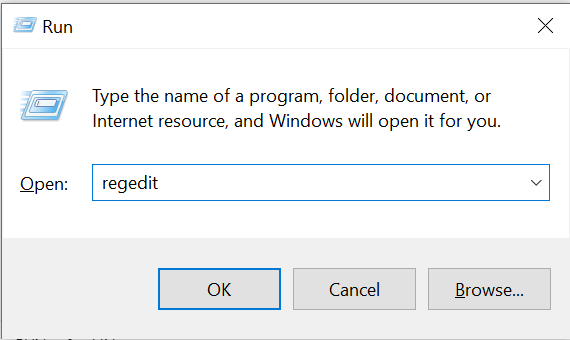
- Press Windows+R and type regedit and click on OK
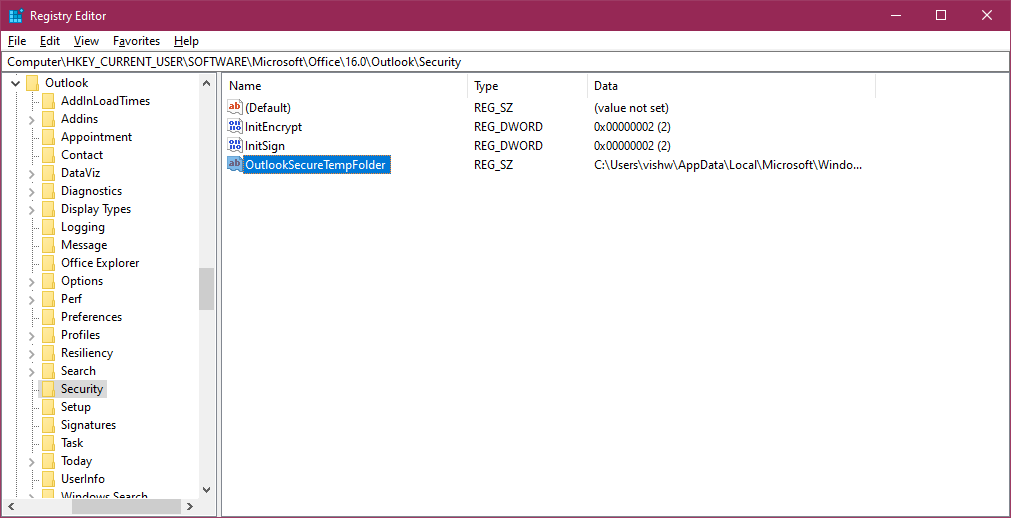
- Registry Editor Windows opens, here you can also refer to the table above for the location
- Under Outlook go to Security
- Here you will see OutlookSecureTempFolder
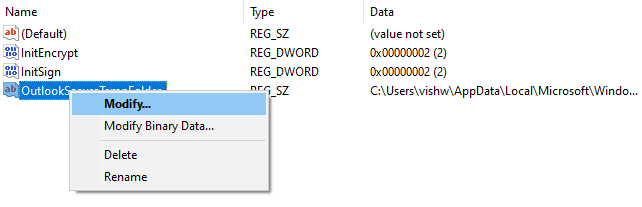
- Right click on OutlookSecureTempFolder and click on Modify
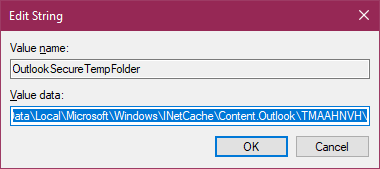
- In the Edit String Window copy the path present under value data.
-
Press Windows+E to open Windows Explorer search the path by pasting it in search bar.
- The temporary files will be visible now, you can delete files you don’t want. It is important that you delete these Outlook files permanently.
- Restart Outlook, you should be able to access the Outlook smoothly without any attachment issues.
Manually Clear Outlook Temp Files On Windows 11, 10, 8 or 7
Use the previous method, if you have never played around with your Outlook Configuration. If it didn’t work out for some reasons, you can use the manual method to find out how to find Outlook temp files and delete temporary files on Windows. Again these methods vary with the version of the Operating System you are using, kindly refer to the below mentioned steps according to your own Windows version.
If the files are stored in the SecureTempFolder or Windows will save these files under Temporary Internet Files folders. We need to find this folder which is different for every Windows OS.
Here’s the location of Outlook Temp Folders with their Windows operations system:
Windows version Temporary Internet Files Folder location Windows 11, Windows 10 Windows 8.1 and Windows 8 C:\Users\username\AppData\Local\Microsoft\Windows\INetCache\Content.Outlook Windows 7 and Windows Vista C:\Users\ username \AppData\Local\Microsoft\Windows\Temporary Internet Files\Content.Outlook Windows XP C:\Documents and Settings\ username\Local Settings\Temporary Internet Files\Content.Outlook Using the above mentioned path you can find the Temporary Internet Files folder. Under this folder you need to find the .OLK folder or Content.Outlook folder. Users of Windows OS with Outlook version above Outlook 2010, you might not be able to find the folder.
This is because Outlook manages the SecureTempFolder files better. You need not worry about clearing temporary files.
These two ways you can easily find and clear the temporary Outlook files that cause trouble in using Outlook attachments. Even after performing the above operation, if you are still facing issues with attachments in Outlook. It can be an issue with your attachment or an underlying issue with the PST file.
You might have to consider fixing the PST file, if you have important files being lost due to a corrupt PST file. We recommend you make use of the Remo PST Repair Tool to easily repair any corruption with your Outlook data file. You can download the tool here.
How to Find and Delete Outlook Temp on Mac?
If you are Microsoft Office users on Mac and worried about finding Outlook temp files on Mac, do not worry we got you covered. Similar to the Windows OS, macOS stores the temporary items of Outlook in a folder. Simply follow the below mentioned steps to access the Outlook temp folder and delete Outlook Temp files on Mac. The following method can be applied to all versions of macOS with Outlook:
- Open finder in mac OS
- Drag down the Go menu and select Go To Folder you can also do it by clicking on command+Shift+G
- Then input the following path in address bar
Here in the folder you can find all the Outlook items like email attachments, html signatures, calendars etc. If you have enabled private folders visible, you can also manually find the Temp folder on Outlook Mac with this path: Library > Caches > Temporary Items > Outlook Temp directory.
Here, once you find the files, you can take a copy of the files you are looking or clear Outlook temp folder to fix your Outlook issue easily.
Final Words:
All the above mentioned methods will certainly help you in making your Outlook problems go away by clearing the Outlook secure temp folder on both Windows and Mac. Hope the methods mentioned helped you in clearing your problem. If you have any questions with respect to the information mentioned above please do comment below. Do not forget to use Remo Outlook PST Repair to fix any issues with Outlook.
Frequently Asked Questions:
Yes, they may and ought to be periodically eliminated. The temporary folder gives applications a place to work. There, programs can create temporary files for their own short-term needs. When software stops, it should remove all temporary files, but this doesn’t always happen for a variety of reasons (for example, if the program crashes, it never gets to do this). It’s wise to regularly clear out anything that has accumulated there.
Applications and programs can store temporary files on your computer that can consume a lot of storage space. Clearing these files is a smart approach to free up space on your hard drive if you are running low.
In Vista, Windows 7/8/10 and newer versions like Windows 11, Outlook’s secure temp folder is at C:\Users\username\AppData\Local\Microsoft\Windows\Temporary Internet Files\Content.
Also Read:
Tony Landry
Tony Landry is a Web Content Editor at Remo Software. He loves to write, edit, and manage content for users trying to troubleshoot and fix problems on Windows, Outlook, storage drives and Cloud storage networks.
He has published more than 200 articles in Remo Software blog. He actively engages in research and problem-solving techniques to consistently generate great web content. Fixing various hardware problems on computer and storage devices along with a great knack for fixing Outlook errors, Tony is also the fun-time IT guy for all his work friends. He lives in the San Francisco Bay Area and enjoys cycling.