Смена пароля для входа в Windows 11
Рассмотрение вариантов действий по смене пароля пользователя Виндовс 11 начнём с самого короткого и наиболее простого. Нижеописанный подход очень легко задействовать и удобно использовать, особенно когда операцию требуется проводить часто, но эффективен он только в отношении текущей (в которую выполнен вход) учётной записи ОС.
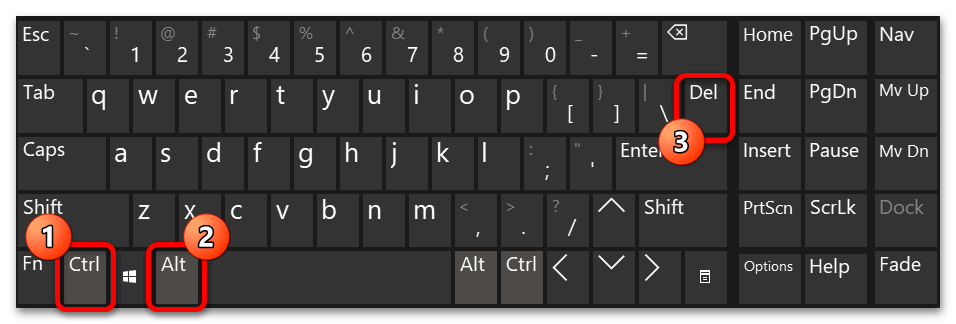
- Нажмите, пожалуй, самую известную с точки зрения пользователей компьютеров комбинацию клавиш его клавиатуры: «Ctrl»+«Alt»+«Delete».
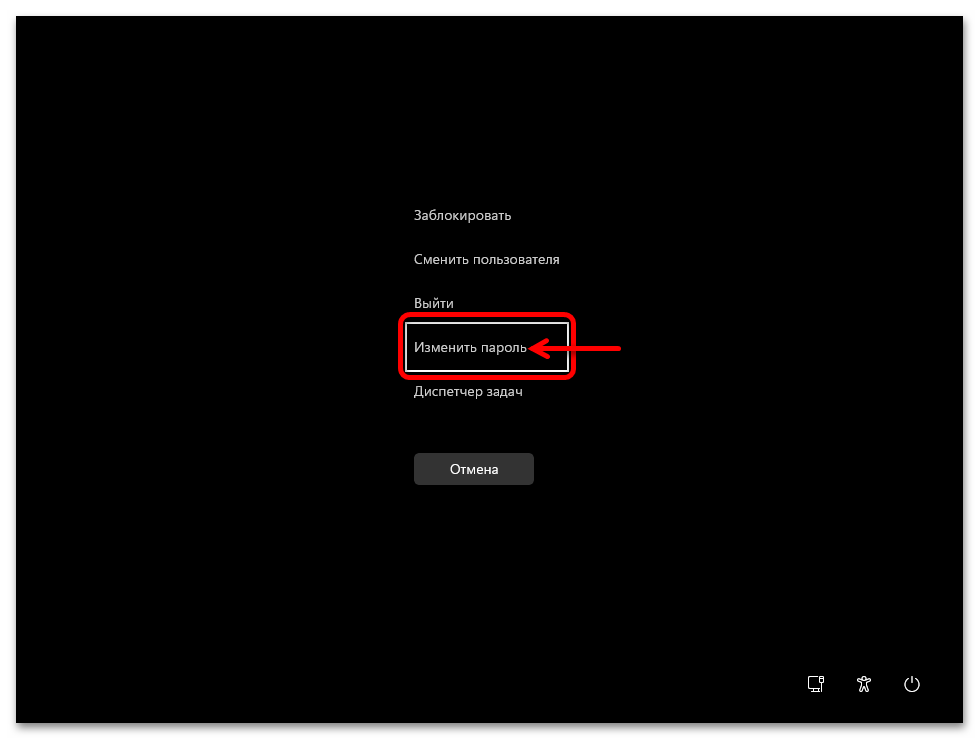
- По результату указанного выше действия в Windows 11 отобразится меню управления зарегистрированными в ОС учётными записями пользователей и ссылкой на запуск «Диспетчера задач». Щёлкните мышкой «Изменить пароль» (или подсветите этот пункт меню, нажимая на кнопки-стрелки клавиатуры, а затем нажмите «Enter»).
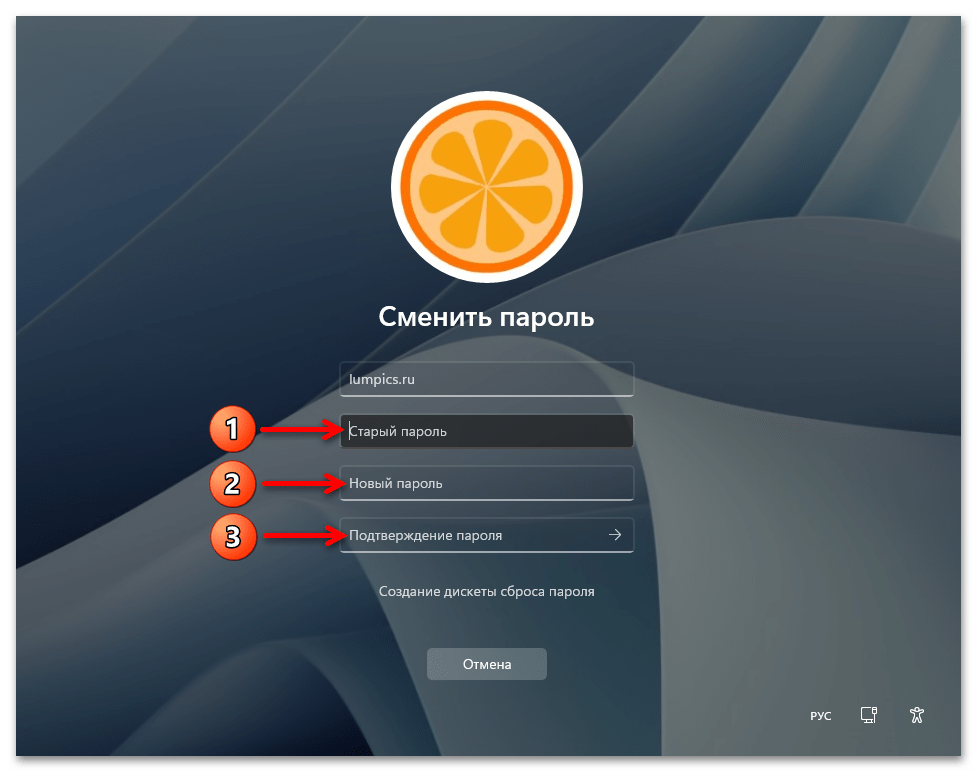
- Введите открывающую доступ в операционку текущему пользователю секретную комбинацию символов в поле «Старый пароль». Далее дважды напишите новый назначаемый аккаунту пароль в соответствующих полях.
Способ 2: «Параметры»
Немного более длительный, нежели вышеописанный, но при этом считающийся основным, способ смены пароля авторизованного в Win 11 пользователя реализуется через главное средство настройки операционной системы – приложение «Параметры».
- Чтобы вызвать «Параметры» в Windows 11, используйте клавиатурную комбинацию «Win»+«I» либо щёлкните по значку приложения в разделе «Закреплённые» Главного меню операционки. Ещё способ – выберите пункт «Параметры» в контекстном меню (открывается по щелчку ПКМ) расположенного на Панели задач элемента «Пуск».
Способ 3: «Панель управления»
Следующий способ изменения пароля для доступа в Windows 11 примечателен в первую очередь тем, что позволяет решить данную задачу, не только авторизовавшись в обслуживаемой учётке ОС, как в двух вышеописанных вариантах действий, но также (при наличии прав Администратора) в отношении любого пользователя десктопа/ноутбука, причём знание его текущего пароля при этом не обязательно.
-
Доступ к целевому для смены пароля рассматриваемым способом элементу «Панели управления» возможно получить разными путями, далее описано два из них:
-
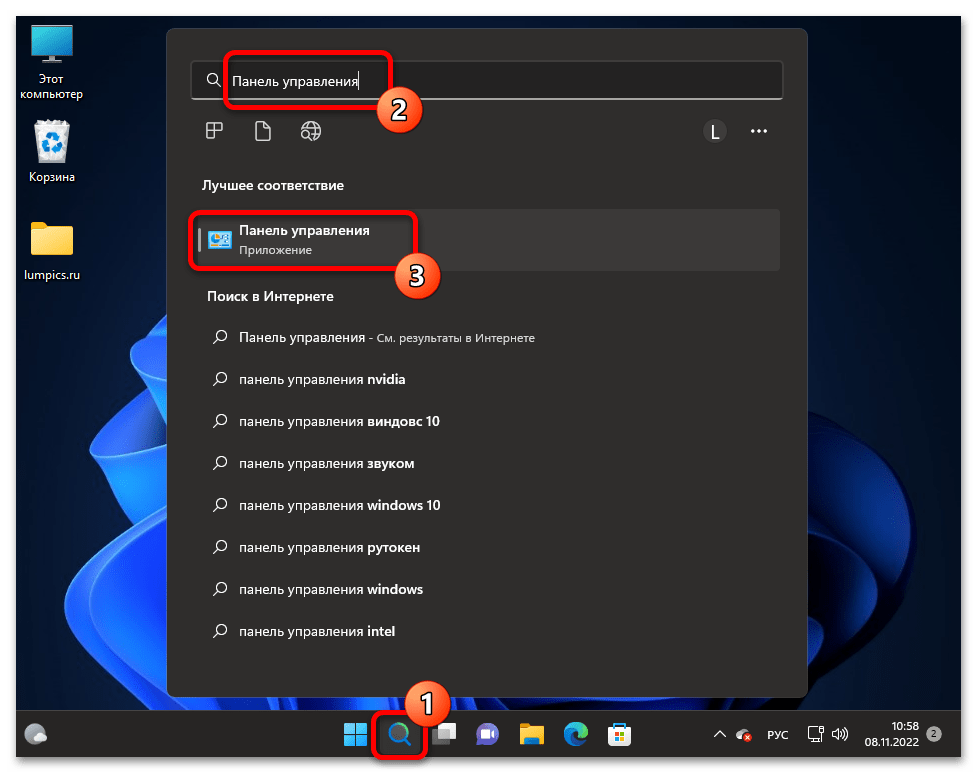
Откройте «Панель управления» Win 11. Проще всего с такой целью будет кликнуть по значку «Поиск» на Панели задач, ввести наименование средства в поле для запросов, после чего перейти по предоставленной системой как «Лучшее соответствие» ссылке.
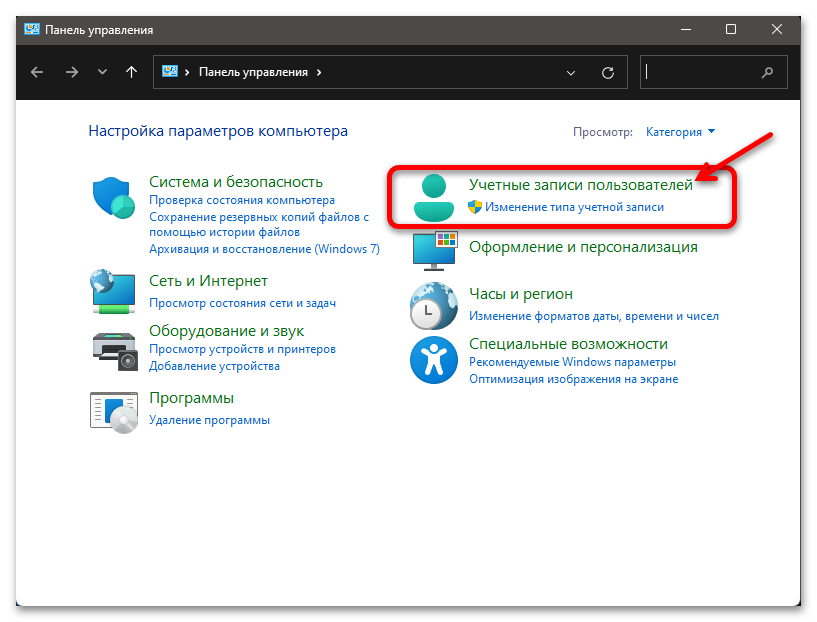
Перейдите в категорию настроек «Учётные записи пользователей».
В единственное поле «Открыть» отобразившегося окна введите следующий текст и нажмите «Ввод» на клавиатуре или кликните мышкой по кнопке «ОК»:
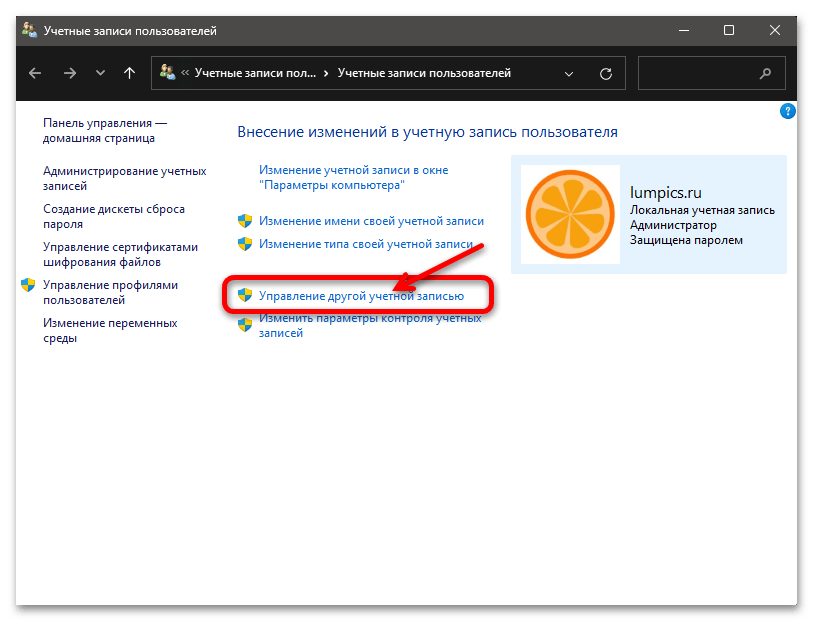
Способ 4: «Управление компьютером»
Следующая системная оснастка, которую мы рассмотрим в качестве средства изменения пароля пользователя Windows 11, может эффективно использоваться только из-под учётки Администратора и часто задействуется последним с целью смены забытых обычными юзерами секретных комбинаций для входа в ОС.
-
Вызовите окно «Управление компьютером». С такой целью можно поступить минимум двухвариантно:
-
Кликнув по соответствующему значку на Панели задач или одновременно нажав кнопки «Win»+«S» на клавиатуре, откройте системный «Поиск». Введите фразу Управление компьютером в поле для запросов и перейдите по предоставленной системой в категории «Лучшее соответствие» ссылке-результату (либо щёлкните «Открыть» в перечне функций справа области средства поиска).
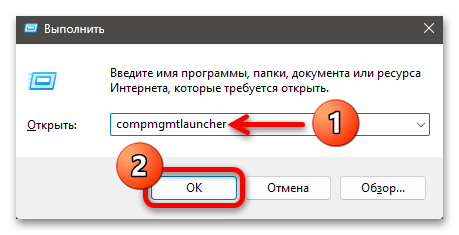
введите в её поле одну из следующих команд:
Способ 5: Консоль Windows
Во всех версиях ОС от Microsoft, и одиннадцатая здесь не исключение, пользователям с административными правами доступна возможность разнопланового управления зарегистрированными в Windows учётными записями путём отправки на выполнение специальных консольных команд.
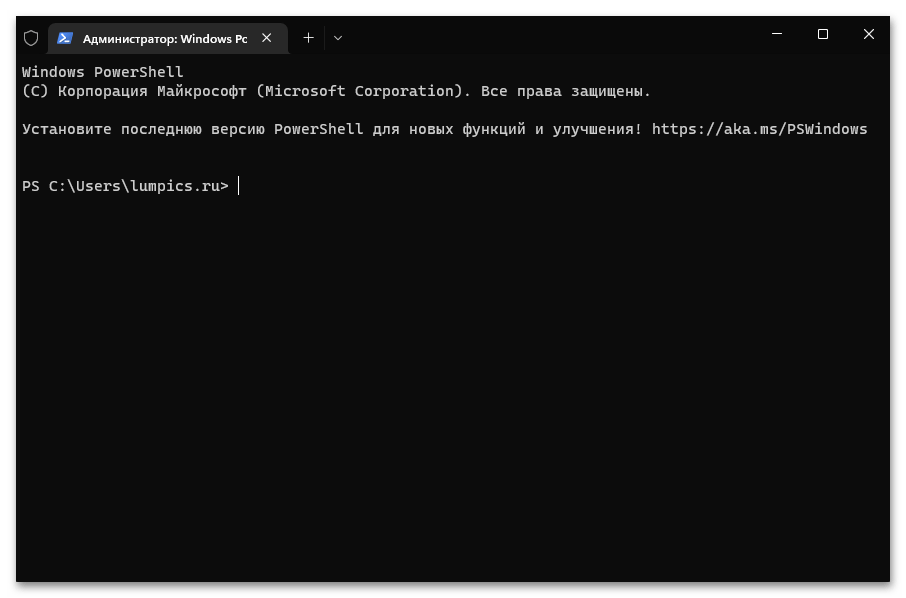
Решение задачи смены пароля пользователя Виндовс 11 при помощи консоли осуществимо путём принудительного назначения защищающей доступ в операционку секретной комбинации символов (и при этом не имеет значения установлена ли парольная защита целевой учётной записи или нет), то есть потребуется просто назначить новый пароль для того или иного пользователя, в точности выполнив доступную по следующей ссылке инструкцию:
Как изменить пароль или ПИН-код Windows 11
В этой пошаговой инструкции подробно о том, как изменить пароль как от локальной учетной записи, так и от учетной записи Майкрософт, либо поменять ПИН-код, если вход выполняется по нему. Для этого в системе предусмотрено несколько способов. В случае, если вы хотите убрать пароль при входе, изучите материал Как убрать пароль при входе в Windows 11.
Внимание: все предложенные варианты предполагают, что вы знаете текущий пароль или ПИН и можете войти в систему. Если это не так, используйте отдельную инструкцию Как сбросить пароль или ПИН-код Windows 11.
Изменение пароля локальной учётной записи
Если на вашем компьютере или ноутбуке используется локальная учетная запись (без привязки электронной почты), вы можете изменить пароль одним из следующих простых способов.
Изменение пароля в Параметрах
Первый способ — использование нового интерфейса «Параметры», шаги будут следующими:
- Зайдите в Пуск — Параметры, либо нажмите клавиши Win+I на клавиатуре.
- В «Параметрах» откройте пункт «Учётные записи», а в этом разделе — «Варианты входа».

- Раскройте пункт «Пароль» и нажмите кнопку «Изменить».

- Введите текущий пароль учетной записи и нажмите «Далее».

- Введите новый пароль и его подтверждение. И, для этого способа обязательно — подсказку для пароля. Если не вводить пароль (оставить поля пустыми, без пробелов и других символов), вход будет осуществляться без ввода пароля. Нажмите «Далее».

- Нажмите кнопку «Готово» для завершения.

Пароль изменен и при следующем входе в систему потребуется вводить уже его.
Через Ctrl+Alt+Delete
Еще более быстрый вариант — использовать меню Ctrl+Alt+Delete:
- Если войти в систему с локальной учетной записью и нажать сочетание клавиш Ctrl+Alt+Delete, вы увидите следующее меню:

- В нём присутствует пункт «Изменить пароль». Нажмите его, после чего введите необходимые данные и нажмите стрелку вправо в поле подтверждения пароля.

- Если всё было введено верно, вы увидите уведомление «Пароль был изменен».
Панель управления
Старый вариант изменения пароля в Панели управления всё ещё доступен в Windows 11:
- Откройте Панель управления (для этого можно использовать поиск в панели задач) и перейдите в раздел «Учетные записи пользователей» (если не наблюдаете его, вверху справа включите вид «Значки»).
- Нажмите «Управление другой учетной записью».

- Выберите пользователя, для которого будет изменяться пароль.

- Нажмите «Изменить пароль».

- Введите текущий пароль, новый пароль, его подтверждение и подсказку. Нажмите кнопку «Сменить пароль» для подтверждения.

В командной строке
Изменение пароля возможно и в командной строке:
- Запустите командную строку от имени Администратора. Для этого можно использовать поиск в Панели задач, как на изображении ниже.

- Введите командуи нажмите Enter — это отобразит список имен пользователей. Имя пользователя, для которого мы будем менять пароль, потребуется в следующей команде.
- Введите командузаменив имя пользователя и новый пароль на нужные, нажмите Enter для смены пароля.

Если в результате выполнения команды вы получили сообщение «Команда выполнена успешно», пароль был изменен.
PowerShell
В Windows PowerShell также предусмотрены команды для работы с учетными записями, в том числе — смены пароля:
- Запустите Windows PowerShell от имени администратора, либо Терминал Windows от имени Администратора: например, нажмите правой кнопкой мыши по кнопке «Пуск» и выберите пункт «Терминал (Администратор)».
- Введите командуи нажмите Enter, чтобы получить список имен локальных пользователей.
- Введите командунажмите Enter и введите новый пароль на запрос пароля.

- Введите по порядку две команды, заменив в первой имя пользователя на нужное

На этом всё: PowerShell или Терминал можно закрыть, а при следующем входе — использовать новый пароль.
Локальные пользователи и группы
И ещё один вариант — использование оснастки «Локальные пользователи и группы», с помощью которой можно изменить пароль, не вводя предыдущий (при этом требуется быть в системе с правами администратора):
- Нажмите правой кнопкой мыши по кнопке «Пуск», выберите пункт «Выполнить», введите lusrmgr.msc и нажмите Enter.
- Откройте раздел «Пользователи», нажмите правой кнопкой мыши по пользователю, для которого будет меняться пароль и выберите пункт «Задать пароль».

- Вы увидите предупреждение о том, что это не совсем смена, а сброс пароля и что доступ к части данных пользователя может быть закрыт (доступ к сохраненным паролям, сертификатам безопасности). Если вы согласны, нажмите «Продолжить».

- Введите новый пароль и его подтверждение, внимательно прочитайте предупреждение под полем ввода пароля и, если вы с этим согласны, нажмите «Ок».

Изменение пароля учетной записи Майкрософт
Изменение пароля для учетной записи Майкрософт производится онлайн, а не на локальном компьютере, а само изменение повлияет на все устройства, где вход осуществляется с указанной учетной записью. Необходимые шаги:
- Перейдите на страницу https://account.microsoft.com/?ref=settings либо используйте путь Параметры — Учетные записи — Ваши данные — Учетные записи (Управлять своими учетными записями), что так же переведёт вас на указанную страницу.
- Войдите на страницу с текущим адресом почты или телефоном и паролем (запрос может и не появиться). Затем нажмите «Изменить пароль» (если вас не просили вводить пароль ранее, то попросят в этот момент).

- Введите текущий пароль и новый пароль для учетной записи Майкрософт, нажмите «Сохранить».

Важно: после смены пароля учетной записи Майкрософт синхронизация параметров с устройствами может произойти не моментально и, если у вас более одного ПК или ноутбука с одной учётной записью, на некоторых может потребоваться ввод старого пароля, если новый не подошел.
Изменение ПИН-кода Windows 11
Прежде всего, если вы решили полностью удалить ПИН-код, используйте отдельную инструкцию: Как убрать ПИН-код Windows 11. Если же требуется именно его изменение, шаги будут следующими:
- Перейдите в Параметры — Учетные записи — Варианты входа.

- Нажмите «PIN-код (Windows Hello), а затем — кнопку «Изменить ПИН-код».

- Введите старый ПИН-код, новый и его подтверждение. По умолчанию — только цифры, но вы можете включить буквы и символы с помощью соответствующей отметки. По завершении нажмите «Ок».

ПК HP – Изменение или сброс пароля на компьютере в Windows 11
Если вы не можете вспомнить свой пароль или пароль нужно изменить, возможны следующие варианты.
HP рекомендует использовать учетную запись Microsoft для выполнения входа в Windows. Использование учетной записи Microsoft предоставляет различные преимущества, включая простое восстановление пароля. Если в настоящее время вы используете локальную учетную запись пользователя, после восстановления или изменения текущего пароля рассмотрите возможность перехода на учетную запись Microsoft. Дополнительные сведения см. в документе ПК HP – Управление учетными записями и регистрационными именами пользователей в Windows 10.
Если не удается выполнить вход, используя свой пароль, убедитесь, что не нажата клавиша Caps Lock , а раскладка клавиатуры соответствует вашей стране/региону. Используйте другие методы для входа, если они доступны, например подсказку пароля, PIN-код или графический пароль.
Сброс пароля учетной записи Microsoft
Если используются адрес электронной почты Microsoft и пароль для входа, пароль можно сбросить или изменить в любом веб-браузере.
Чтобы создать новый пароль, перейдите на страницу Восстановление учетной записи Microsoft (на английском языке).
Изменение локального пароля, если известен текущий пароль
Используйте параметры входа учетной записи Windows, если известен текущий пароль для компьютера и его необходимо изменить на другой пароль.
В ОС Windows выполните поиск и откройте Параметры входа .
Выберите Пароль щелкните Изменить , затем выполните инструкции на экране, чтобы создать новый пароль и подсказку.
Изменение вашего локального пароля из учетной записи другого пользователя
Выполните вход с помощью другой учетной записи, чтобы использовать функцию управления другой учетной записью в Windows. Учетная запись должна обладать правами администратора. Для выполнения этих действий может понадобиться помощь владельца учетной записи.
Выполните вход на компьютер с помощью другой учетной записи пользователя.
В ОС Windows выполните поиск и откройте Панель управления .
Щелкните Учетные записи пользователей , затем снова щелкните Учетные записи пользователей .
Выберите Управление другой учетной записью .
Если пункт Управление другой учетной записью не доступен, у текущей учетной записи отсутствуют права администратора. Для сброса вашего пароля учетная запись другого пользователя должна обладать правами администратора.
Выберите учетную запись с паролем, которую необходимо изменить.
Щелкните Изменить пароль , затем выполните инструкции на экране, чтобы создать новый пароль и подсказку для пароля.
Выйдите из учетной записи, затем выполните вход в нужную учетную запись с помощью нового пароля.
Использование ранее созданного диска или USB-накопителя для сброса локального пароля
Сбросьте пароль локальной учетной записи Windows с помощью диска или USB-накопителя для сброса пароля, созданного с помощью Мастера забытых паролей.
Включите компьютер и попытайтесь выполнить вход.
На экране Неправильный пароль. Повторите попытку. нажмите кнопку OK .
Вставьте диск или USB-накопитель сброса пароля в компьютер, затем щелкните Сбросить пароль . Открывается Мастер сброса пароля.
Нажмите кнопку Далее , выберите место хранения ключа пароля в раскрывающемся меню, затем нажмите кнопку Далее .
Следуйте инструкциям на экране, чтобы создать новый пароль и подсказку для него.
По завершению нажмите кнопку Далее , затем кнопку Готово .
Создавать новый диск сброса пароля для нового пароля не потребуется.
Обращение в сервис ремонта компьютеров для восстановления локального пароля
Если другие методы восстановления пароля недоступны или безуспешны, обратитесь в местный сервис по ремонту компьютеров. Многие сервисы предлагают платную услугу восстановления паролей.
Сброс настроек компьютера, если все другие варианты безуспешны
Если все попытки восстановить пароль закончились безуспешно, нет нужды утилизировать компьютер. Вместо этого сбросьте настройки вашего компьютера, чтобы создать начать все заново и создать новый пароль.
Сброс этого ПК приводит к удалению всех файлов и локальных паролей. При этом будет выполнен сброс компьютера до последней работоспособной версии Windows 11. После сброса на Рабочем столе сохраняется список приложений, которые более не доступны. Можно повторно установить приложения и программное обеспечение из магазина Microsoft Store или с установочных дисков.
Находясь на экране входа нажмите и удерживайте клавишу Shift , щелкните значок питания , выберите Перезагрузка и продолжайте нажимать клавишу Shift , пока не появится экран Выбор действия .
Выберите Устранение неполадок .
Выберите Сброс этого ПК , затем выберите Удалить все .
Щелкните Локальная переустановка.
Щелкните Просто удалить мои файлы , затем щелкните Сброс .
Выполняется переустановка операционной системы Windows. По завершению отображается начальный экран Windows.
Поддержка, связанная с паролями
Чтобы получить дополнительной поддержки для паролей, воспользуйтесь следующими ссылками.
Дополнительные сведения о забытых паролях см. в документе Политика Microsoft для забытых или восстановленных паролей (на английском языке).
Easily Reset Windows 11 Password with 6 Proven Methods

From what we have seen, one-third of Windows 10 computers have been upgraded to Windows 11 by default. One of the issues you might come across is password forgetting. This is a common case in real world. When you input a wrong login password, Windows says ‘The password is incorrect. Try again’. At this time, you are unable to get into Windows 11 desktop.
Forgetting Windows 11 password is pretty normal, trust me. Especially when one has to remember dozens of passwords for websites and apps. However, forgetting Windows 11 local admin password can be quite a pain. Why? Mostly because resetting it is a difficult feat and reinstalling Windows 11 could damage user data on current device.
This is why we decided to come up with this post. Here, we have listed at least 6 methods which can be used to reset Windows 11 local admin password. However, most of them have their own pros and cons, so we would suggest you to go through all of them before choosing the right one for your situation.
There is one common thing for all of these methods though, it is that all of them requires a USB flash drive, so better to keep one handy. And don’t forget to backup the data in the USB drive since you would be losing the data in it if you follow these methods.
[Notice]: The following method will tech you how to reset Windows 11 password for local accounts. However, if you were logging Windows 11 with a Microsoft account, please follow the guidance in this post to reset Windows 11 password for Microsoft account.
Reset Windows 11 Password with Pre-Made Password Reset Disk
‘Create a password reset disk’ is a hidden feature that Microsoft provides with Windows operating systems.This method is pretty simple, and you don’t need to install anything to apply this on a Windows 11 PC.
However, this is a preventive method. It needs to be applied while your Windows 11 PC is still working fine, in the anticipation that you might be unfortunate enough to forget Windows 11 password on a bad day. Doesn’t they say, it is better to be safe than sorry.
So, once you have this Password reset disk (even though it’s called a Password reset disk, we would still use a USB flash drive to prepare it), if ever you forget Windows 11 password, you can use this password reset disk to set a new login password for Windows 11 PC.
Step 1. Insert this Password Reset USB to locked Windows 11 computer and restart the device.
Step 2. On Windows 11 Welcome window, click Enter key and you will see a prompt, saying the password is incorrect. From then on, a password reset option is shown on the screen. Click on it to proceed to password reset wizard.
Step 3. On the Password Reset Wizard screen, press Next.
Step 4. Now select the USB drive from drop-down list.
Step 5. Type in a new password and confirm it, along with a hint for that password for Windows 11 PC, and then press Next.
Step 6. This will bring up a confirmation pop up that the password was reset successfully.
Step 7. Now, take out the USB flash drive and restart Windows 11 PC normally, and login to Windows 11 using the new password.
- easy and free.
- No software install.
- 100% success.
- Safe as USB not being formatted.
- Must create this password reset in advance.
- Can be only working with the same user account on the same computer.
Summary: Your best option to reset Windows 11 password if you already created a password reset disk before you forgot the password.
Reset Windows 11 Password via Command Prompt
But what if you are already past the point of prevention, and even before you could create a Password reset disk, you forgot Windows 11 password and is locked out of your PC? In that case, this method can prove to be quite useful. It is also helpful when you do not have any other local admin account on that same PC, otherwise, you could have gone into that other administrator account and reset the password for a locked admin account.
For this method to work, however, you would need a Windows 11 installation USB, which you can easily prepare by downloading Windows 11 Media Creation Tool that is available from the Microsoft website itself. The beauty of a bootable USB is that you can perform various remedial steps on a Windows 11 PC, like resetting local admin password.
Step 1. Create a Windows 11 bootable USB with Media Creation Tool provided by Microsoft.
Step 2. Boot Windows 11 PC from Windows 11 installation media. This can be done with the help of Boot Menu. Taking my Lenovo laptop for example. First, you have to click Enter key once the computer boots up. Press F12 to open Boot Menu.
Then choose USB drive from Boot Menu. From my case, it is a SanDisk USB drive. The boot menu key is a bit different for different brands. Please go and search it for your own brand first.
Step 3. Once Windows 11 PC boots up from installation USB, you will see a Windows Setup screen. Now, click Next after select language and keyboard. Don’t worry, we will not be installing Windows 11 all over again, neither will you be losing any of your personal data using this method.
Step 4. On Windows Setup screen, press Shift and F10 key together on your keyboard. This will bring up a Command Prompt window. A Command Prompt is a pretty amazing tool which can be used to solve numerous problems on your Windows 11 PC using shortcut methods like we will be doing here.
Step 5. Now, type the below commands in Command Prompt window and don’t forget to press the Enter key after typing each line of command. This will change Windows 11 Utility Manager into Command Prompt.
move c:\windows\system32\utilman.exe c:\
copy c:\windows\system32\cmd.exe c:\windows\system32\utilman.exe
Step 6. Now, take out Windows 11 bootable USB and restart PC like you normally would.
Step 7. Once the PC restarts and you can see the login screen, press Ease of Access button as shown below. On other occasions, this should open the Ease of Access menu, however, this time it will open a Command Prompt window.
Step 8. Once you have Command Prompt opened here, type the below command to reset Windows 11 password of a local admin account.
net user admin 276531
In above example, admin is the my user name and 276531 is the new password for login. Please remember the user name and password accordingly.
Step 9. Once done, close Command Prompt windows by clicking on the X icon at the top right of the window, and login to Windows 11 local admin account with the new password.
- Free.
- Proven to be working with latest Windows 11.
- Compatible with all Windows versions.
- Additional effort to make a Windows 10 installation USB.
- Time consuming and more complex steps.
- High risk to damage the computer when inputting the long commands.
Summary: Only recommended for users who prefer a completely free method to reset Windows 11 password and those tech geeks who are looking for a more challenging solution.
Reset Windows 11 Password via PassMoz LabWin
Time is a considerable factory when it comes to password reset. Simply put, most users don’t want to spend much time on this. That’s why a lot of premium Windows password reset software comes into help. PassMoz LabWin is one example. Usually, those premium solution are build upon with a great UI and most importantly it is much more easier to use. In addition, there is no data loss, which is a good aspect of commercial software.
PassMoz LabWin utility is one of the easiest to use in case you want to reset Windows 11 password on a locked PC. This tool has a user-friend GUI, so no more going through a Command Prompt window and typing cryptic commands like we did in the last method. It also supports multiple platforms including Windows and macOS.
In the following example, I will take PassMoz LabWin for demonstration.
Step 1. Go and get another PC or Mac and download LabWin Windows password reset software from below link. This need not be a Windows 11 PC either
Step 2. Install and start PassMoz LabWin utility. This will open the below screen. Now, insert a blank USB flash drive and press the Burn USB button on this window.
Step 3. Before the process commences, click the Yes button on the small dialog box that pops-up. This basically tells you that the USB will be formatted, so any existing data will be lost. Ensure that you do not have any data in the media.
Step 4: Once the process of creating the bootable USB is completed, it will show a confirmation window. Click on the Yes button on this window to close it, and then exit the LabWin utility.
Step 4. Launch Boot Menu at startup and boot Windows 11 PC from PassMoz USB.
Step 5. You will a screen which lists all the accounts along with the locked Windows 11 local admin account. On this window, select Windows 11 installation, and then select the locked local admin account, and finally click the Reset Password button. This will reset the password to blank.
Step 6. Once the password has been reset, it will show the same with a message on a small dialog box.
Take out the USB, and click on Reboot button on the previous window. The Windows 11 PC will reboot and will go directly to the desktop of the locked account without asking you for any password because the old password was removed from target account.
Pros:
- Comfortable and pleasant user experience.
- Save time (only takes 5–7 minutes).
- Modern and compact UI.
- High success rate (support all Windows versions).
- Compatible with UEFI and legacy BIOS.
Cons:
- The trial version can only list user accounts.
- Download file is a bit large (177 MB).
Summary: LabWin is your best choice for lazy users who want to unlock the computer without knowing the password and don’t want to spend much time on it.
Reset Windows 11 Password with Bob.Omb’s Modified Win10PEx64
Sometimes you need more than just a password resetting USB. For example, if your Windows 11 PC has been infected with a malware, or a virus, and because of that you are locked out of local administrator account. You would still need to reset the password, but a simple bootable USB will not be enough in that case, you would need a rescue disk (Windows PE).
Windows PE is a tailored and size Windows operating system, or at least a different version of it in the case of Bob.Omb’s Modified Win10PEx64, is a pre-loaded Windows OS that can be loaded onto a PC without actually installing it.
These Windows PE, or preinstallation environments, contains a modified version of Windows OS along with a number of extremely useful of free utilities. These tools can be used not only to reset local admin account passwords, but also to rescue Windows 11 PC from malware, viruses, defrag your hard drive, run as check disk from boot screen and a lot more. So, you can use this if your Windows 11 PC is unfortunate enough to be infected with such a virus or malware.
Step 1. Download the latest version of Bob.Omb’s Modified Win10PEx64 from Google Drive. It is a compressed 7z file that contains a bootable ISO file.
Step 2. Unzip .7z file onto the desktop of your PC. Now, create a bootable from this ISO file by using a bootable USB creator software like Rufus.
Step 3. Boot Windows 11 PC using this bootable USB like the steps we shared in above section. Once it loads up Bob.Omb’s Modified Win10PEx64, click on the Windows Start button to bring up the start menu.
Step 4. In the Start menu, under Security, click on NTPWEdit. This should bring up the NTPWEdit window. Here, click on the Open button with the three ellipses to select the SAM file for Windows 11 installation.
Step 5. This should list all the user accounts, including the locked local admin account, in your Windows 11 PC. Here, select a locked local admin account on this Windows 11 PC, and then click on Unlock to remove the password.
Step 6. Save the changes and close NTPWEdit; and then take out the bootable USB, and restart your Windows 11 PC normally. This should login to your local admin account without any password at all.
Pros:
- Contain four Windows password reset/recover utilities.
- Include hundreds of free software for different tasks.
- Graphics user interface available.
- Support Legacy and UEFI boot.
Cons:
- Download file is too large (over 2 GB).
- Must working with ISO burning software.
- No update for two years.
- Take more time for booting as install.wim file is too big.
- Running slow on computers with low specs.
Summary: This is a huge popular solutions among advanced users and system administrator who’d love to deal with computer issues from time to time.
Reset Windows 11 Password in Kali Linux LiveCD
In case you are an advanced user, you might want to look at Kali Linux. Earlier known as BackTrack, Kali Linux is one of the most popular Linux distributions that is majorly used for penetration testing, and reverse engineering. Since it is an open-source distribution based on Debian, it is available free of cost from their official website.
They have a number of editions of Kali Linux listed on their downloads page, including a Kali Linux virtual machine image. However, we would be more interested in the Live Boot edition. This would give you direct access to the hardware of your Windows 11 PC, it contains a customized Kali Linux kernel, and you would be able to use it without altering the host OS at all.
If all of these sounds like hieroglyphics, then I would suggest you to look at the other options given above, especially the one with PassMoz LabWin. Sometimes tools need to be simple instead of being able to perform multiple tasks at once. If however you are comfortable with the words hardware and kernel, then you would feel right at home using the Kali Linux bootable USB.
Step 1. Download Kali Linux ISO image from their official website using the below link: https://www.kali.org/get-kali/
Please note that the ISO we require is for preparing a Live Boot USB, so it would be listed as such in their website.
Step 2. Now, download another utility called Rufus which would help you create a bootable USB using the Kali Linux ISO.
Step 3. Once the bootable USB flash drive has been created, insert it into your Window 11 PC, and boot the PC using this Kali Live USB. Once it boots up, you will see a Kali Linux menu as shown below. From this menu, choose the option that says Live (forensic mode).
Step 4. The stock bootloader tries to decompress initrd.img file and load it into memory. Wait about two minutes and you will see Kali Linux desktop.
Step 5. On Kali Linux desktop, open Files app at the top sidebar and click Other Locations at the bottom, where you can choose the partition where Windows OS has been installed.
Step 6. Please go and find this folder (/Windows/System32/Config). Inside this folder, there would be a file called SAM. Right click on the blank space, and then click on Open Terminal Here from the menu that pops up.
Step 7. This should bring up a Terminal window. Now, type the following command and press Enter to view all the usernames of all the accounts on your Windows 11 PC, including the locked local admin account.
Step 8. Input the following command in the same Terminal and press Enter. Remember to replace <username> with the username of the locked Windows 11 local admin account.
Step 9. In the next window, press 1 and then press Enter to reset the password to blank for this local administrator account.
Step 10. Finally, press y and then hit Enter to save the changes you just made to the SAM file. Now, restart Windows 11 PC, and then login to your local admin account without any password at all.
Pros:
- Very effective method for password reset.
- Free tool.
- Great for Linux users.
Cons:
-
Take time to download ISO file (
Summary: Ideal solution for Linux users.
Other Proven Ways to Reset Windows 11 Password
For most cases, one of the above method should help you reset Windows 11 password on a PC which login password was forgotten. However, there is no 100% guarantee! Below are some alternative but proven to work methods to reset Windows 11 password.
PassFolk: This is a completely free Windows password reset program that comes with a GUI. It is super easy to reset Windows password no matter it is weak or complex. It is one of my favorite tool.
Hiren’s Boot CD: Another popular rescue disk that works similarly as Bob.Omb’s Modified WinPE. However, it gets updates more frequently and still in active development. There are several free password utilities in its ISO package. You can use one of them to reset forgotten password of Windows 11 local account.
Kon-Boot: It is a premium software being used to bypass Windows password instead of reset. This means you can access a locked computer without password. By doing this, Kon-Boot does not modify the registry entry in SAM file and revert back to original state once the locked device restarted. This is a huge difference between Kon-Boot and other password reset programs.
Factory Reset Windows 11: Your last option to reset Windows 11 password. It will reinstall Windows 11 from scratch and delete user files saved in system partition. This is your only choice when C drive is encrypted by BitLocker. No password reset software could help you for encrypted drives. Factory reset is the only option left!
The Bottom Line
If you ask me, I would suggest you to use Password Reset Disk method for resetting the password. It’s the simplest of them all. However, you can use this method only if you have created the USB beforehand. Otherwise, I would suggest you to go for PassMoz LabWin, which has a very beautiful GUI to guide you through the entire process, thus making things extremely simple for you as a user.