CPU Over Temperature Error ! Что делать? Если я буду Ignored эту температуру
ДЛя начала посмотри какая температура регистрируется БИОС (чтобы исключить глюк винды) . Зайди в биос (через del при загрузке) . Если температура больше 50-60 — то действительно перегрев. Тогда проверь вентилятор процессора — вращается ли, и с какой скоростью. Если плохо вращается- чисти или меняй. Так же проверь радиатор — не забился ли пылью.
Если всё чисто — снимай радиатор к чертям, чисти всё основательно, акуратно счисти старую термоапасту с процессора и радиатора, Радиатор можено промыть спиртом. Нанеси свежую термопасту (лучше — кремнийорганическую КПТ-8) тонким слоем. И снова всё собери (не рекомендую делать самому для процессоров AMD с открытым ядром — сколете кристалл — проц можно выкидывать. )
Не помогает — проверь не подвергался ли комп «оверклокингу». (не повышалась ли рабочая частота процессора, путём изменения делителей или повышением напряжения питания ядра) . Если таковое было — сбрось на первоначальные — знать не тянет твоё охлаждение такого режима.
Если все чисто, термопаста свежая, радиатор плотно прижат к процессору, вентиллятор работает нормально (поток воздуха ощутим) , комп «разгону» не подвергался, но температура всё равно зашкаливает, то вероятнее всего (70%) глючит термодатчик процессора. Тогда остаётся только одно — игнорировать. Хотя может оказаться что до поры до времени.
Решение: CPU Over Temperature Error

Ошибка CPU Over Temperature Error Press F1 to Continue возникает при начальной загрузке компьютера, как правило это возникает после перезагрузки, когда компьютер работал до этого.
Продолжить загрузку операционной системы можно нажав кнопку F1.
Игнорировать эту ошибку крайне опасно. CPU Over Temperature Error означает, что центральный процессор нагревается до слишком высоких температур. Это может происходить по ряду причин:

- Не работает вентилятор охлаждения процессора. В первую очередь проверяем работает ли вентилятор. Если вентилятор не вращается — проверяем контакты подключения. Если с контактами все нормально — меняем вентилятор на новый.
- Термопаста нанесена не правильно или требуется её замена. Термопаста предназначена для наилучшей передачи тепла от процессора к куллеру. Термопаста не должна быть нанесена толстым слоем. Паста должна быть нанесена тонким слоем, равномерно по всей площади и куллер крепко прижат к процессору.
- Разгон процессора. Если вы программного разогнали процессор, уменьшите напряжение, подаваемое на CPU или установите более эффективное охлаждение.
- Проблема с блоком питания. Проблема встречается крайне редко — при старте образуется слишком высокий скачок напряжения. Проблема определяется в сервисном центре.
- Неисправный термодатчик материнской платы. Так же есть вероятность, что процессор не нагрет до высокой температуры, но датчик определяет температуру не верно. Осторожно проверьте температуру радиатора рукой. Если он не горячий, а термопаста была нанесена правильно — термодатчик неисправен.
Ошибка CPU Over Temperature Error может привести к перегреву процессора и его неисправности, поэтому внимательно отнеситесь к этому сообщению.
How to Fix the CPU Over Temperature Error with 3 Useful Solutions [MiniTool Tips]
This post will introduce you what causes the CPU over temperature error, and also show you when the error is not serious or when it is dangerous. Meanwhile, this post briefly shows you how to fix this error with 3 solutions. If you are interested in this topic, click to get more information from the MiniTool website.
Processors are becoming more powerful. It is prominent to upgrade to new processors as newer technology becomes more demanding in terms of performance. Cooling the components of a computer system is very important. If you don’t cool these components properly, most of them could stop working because of overheating problems.
The CPU over temperature error falls into the same category. This error could pop up when you are booting the system. Right now, because of the heating problem, this error is sometimes not very big and only occurs one in a million times. However, there are some scenarios where you need to pay attention to the appearance of the error message.
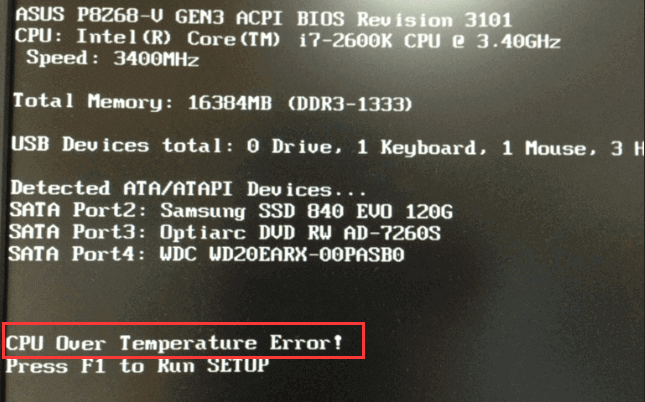
CPU Over Temperature Error
Error messages pop up when your CPU overheats and the cooler fails to eliminate the heat generated by the overheated CPU. This happens when the heat sink is not properly connected to the CPU. In this case, you should unscrew your system and confirm the heat sink is fully fit and not loose.
If the cooler fails and the fan fails to provide the necessary amount of air, this problem can also occur. In that case, all you need to do is change a cooler.
The following part will discuss when the CPU over temperature error can be ignored and when this problem is dangerous.
When Is CPU over Temperature Error Not Serious?
If you get the CPU over temperature error message, don’t worry about it. In some cases, the problem is not dangerous.
Suppose you’ve been playing games on your system for hours, and your system gets hot. There are various factors that prevent heat dissipation, such as dust on the CPU fan that prevents the fan from spinning properly. In the summer, due to the high temperature, the system usually heats up rapidly, which causes the inside of the casing to be warmer than usual.
In this case, you will probably receive this error message. Thus, there is no need to worry about it.
When Is CPU over Temperature Error Dangerous?
When this error message appears frequently under normal circumstances, you should pay attention to them, even when you don’t use the system for high-intensity games or anything else that brings quite a load on the system. If you get the error message in this situation, you should diagnose the issue.
Suppose you’re just watching YouTube or watching a movie on your web browser, and then your system reboots and sends you the CPU over temperature error message, you should find a method and monitor the temperature.
When the error message becomes troublesome, follow the solutions below to fix the CPU over temperature error.
How to Fix the CPU Over Temperature Error?
Solution 1: Check the Heat Sink
What you need to do is checking the heat sink connected to the CPU firstly. This issue always occurs when the heat sink is loose and not working properly. Many of you have encountered this problem due to improper placement of the heat sink.
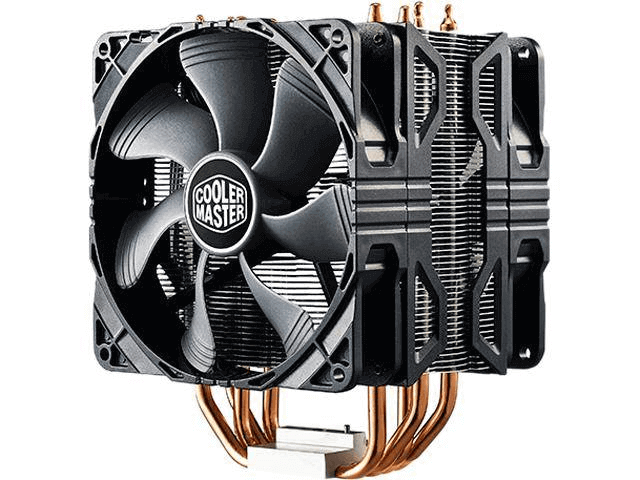
You should unscrew the computer system firstly and then navigate to the CPU on the motherboard. Check the heat sink and confirm it is in the correct place. If the heat sink is completely fit, skip to the next solution.
Solution 2: Stop Overclocking
Now, it is a common thing to overlock a CPU, but this may lead to CPU overheat. If your CPU is overclocking, you need to stop it because overclocking consumes more energy and generates more heat. Once you stop overlocking the CPU, you can monitor the temperature to see if the problem still exists.
Solution 3: Clean Your System
If the problem persists, you need to clean up the system. Over time, your system will be covered by dust particles which could also stop the airflow. In this case, there’s not enough airflow, and the system ends up getting hot. Thus, you should unscrew the SSD, RAM, GPU, etc. and then clean the system. By doing so, you will no longer see this error message.
Bottom Line
This post has shown you what causes the CPU over temperature error and when the error is not serious or dangerous. In addition, it also introduces you 3 solutions to fix this error briefly.
About The Author
Echo is a technology enthusiast, has published many professional technical articles. She previously specialized in backup and recovery of data, files, disk partition, and system. Now she writes mostly about YouTube expertise.
As an enthusiastic technical writer, Echo believes that technology makes our life better and she has been trying to make her technical articles easier to understand and help more people. You must benefit a lot from reading her article.
How to Fix CPU Over Temperature Error?

Have you ever encountered the frustrating “CPU over temperature error” message on your computer? As someone who has experienced this issue, I know firsthand how important it is to address it promptly. Not only can this error lead to automatic shutdowns and decreased computer performance, but it can also cause permanent damage to your CPU if left unaddressed.
Please enable JavaScript
In this article, I will walk you through the causes and symptoms of CPU over temperature error and provide practical steps you can take to fix the issue. By the end of this article, you will better understand what causes this error and how to prevent it from happening again.
Table of Contents
What is a CPU Over Temperature Error?
A CPU over temperature error occurs when the CPU becomes too hot for various reasons, such as overclocking or malfunctioning cooling systems. Not only can it cause your computer to freeze, reboot or shut down but it can also damage the CPU itself if left unaddressed.
To avoid this error, ensuring that your CPU is not overclocked and that the cooling system is functioning effectively is crucial. Overclocking increases the CPU’s clock rate, which leads to excessive heat generation. To fix this, reset your BIOS settings to their default values or reduce the frequency of the CPU.
It’s also important to ensure that the cooling system is functioning properly. Check if the fans are running smoothly and clean any dust buildup on the heat sink. If the cooling system is faulty, consider replacing the fan or heatsink to prevent future errors.
Causes Of CPU Over Temperature Error

A few common culprits can lead to CPU over temperature error. One is overclocking, which involves increasing the clock speed of your CPU beyond what it was designed to handle. This can cause it to generate more heat than your cooling system can dissipate, resulting in an error message.
Another common cause is a faulty cooling system. This can occur if your fans are not working properly or if there is a buildup of dust and debris inside your computer, which can obstruct airflow and cause temperatures to rise.
Additionally, malfunctioning fans can also lead to CPU over temperature error. If your fans aren’t working as they should be, they won’t be able to cool your CPU efficiently, leading to increased temperatures.
Finally, poor thermal paste application can also be a culprit. Thermal paste is a material applied between your CPU and its heatsink to facilitate heat transfer. If it is not used correctly or has dried out over time, it can cause your CPU to overheat and trigger the error message.
Knowing the possible sources of a CPU over temperature error, you can take preventive measures to avoid it and keep your computer functioning optimally.
How to Fix CPU Over Temperature Error
Method 1: Clean Your System
Your system may overheat if it is not clean. Cleaning the system can help reduce the CPU temperature by a few degrees. If you are comfortable opening your computer, you can clean the inside. Be sure to unplug all cables before opening the case.
You can use a vacuum cleaner with a soft brush attachment to remove the dust from all components. If you are uncomfortable opening your computer, you can take it to a professional who can clean it.
Method 2: Improve Airflow in Your Computer
The components in your computer need to have airflow to keep them cool. If the airflow in your computer is blocked, it can cause the components to overheat. Make sure that no objects are blocking the air vents on your computer.
You should also check to see if the fan inside your computer is working correctly.
Method 3: Check the Heatsink
A heatsink helps to dissipate the heat away from the CPU. If the heatsink is not properly attached to the CPU, it can cause the CPU to overheat. Make sure that the screws attaching the heatsink to the CPU are tight.
You should also check to see if there is any thermal paste between the CPU and the heatsink. If there is no thermal paste, you will need to apply some.
Method 4: Check the Temperature in BIOS
The temperature of the CPU can be checked in the BIOS. To enter the BIOS, restart your computer and press a key when prompted. The key that you need to press will be displayed on the screen. Once in the BIOS, look for the section showing the CPU temperature.
If the CPU temperature is too high, you will need to take measures to cool it down. You can try one of the solutions listed above. If the CPU temperature is still too high, you may need to replace the CPU.
Method 5: Update the BIOS
An outdated BIOS can cause the CPU to overheat. You should check your motherboard manufacturer’s website to see if any BIOS updates are available. If an update is available, you will need to download and install it.
Ensure that you follow the instructions carefully when updating the BIOS. If you do not, it could cause further damage to your computer.
Method 6: Clean the CPU Fan
The CPU fan helps to keep the CPU cool by moving air over it. If the fan is dirty, it will not be able to move enough air, which can cause the CPU to overheat. It would be best to clean the CPU fan regularly to prevent this.
To clean the fan, you must unplug the power cord from the power supply and then remove the CPU fan from the CPU. Once you have removed the fan, you can clean it with a can of compressed air. Hold the fan so it does not spin while cleaning it.
Method 7: Replace the CPU Fan
If cleaning the CPU fan does not solve the problem, you may need to replace it. You can purchase a new CPU fan from your local computer store or online. Be sure to get a fan that is compatible with your motherboard.