Как удалить Python на Mac безопасно и полностью

Всемогущий эксперт по написанию текстов, который хорошо разбирается в проблемах Mac и предоставляет эффективные решения.
Python — это широко используемый язык программирования с открытым исходным кодом, который используется как начинающими, так и опытными программистами с другими подобными языками. Специальное приложение Python для Mac позволяет пользователям создавать концепции с меньшим количеством кодов.
Когда вы найдете свой памяти приложения не хватает однажды, и пора удалить Python с вашего Mac, вы обнаружите, что это непростой процесс. К сожалению, некоторым пользователям сложно удалить Python Mac.
СОВЕТЫ:
Часть 1. Самый быстрый и простой способ удалить Python на Mac
Python — это простой и гибкий язык, используемый разработчиками для эффективного решения проблем, связанных со сценариями, исследовательским программированием и быстрым прототипированием. Важно отметить, что Apple предварительно установила Python 2.7 в Mac OS X 10.8.
Если вы используете старую версию Mac OS, но скачал последнюю версию со своего официального сайта, будьте осторожны, если хотите удалить программу со своего устройства.
Планируете ли вы обновите Python на вашем Mac или удалите его навсегда, вам следует внимательно изучить некоторые из методов, которые вы можете использовать.
Как удалить Python на Mac? Если вам нужен беспроблемный, но эффективный процесс его удаления, вам следует внимательно изучить iMyMac PowerMyMac.
Это высокоэффективный универсальный инструмент, который не только удаляет нежелательные элементы, включая приложения и файлы с вашего устройства, но также оптимизирует его производительность с помощью различных инструментов.
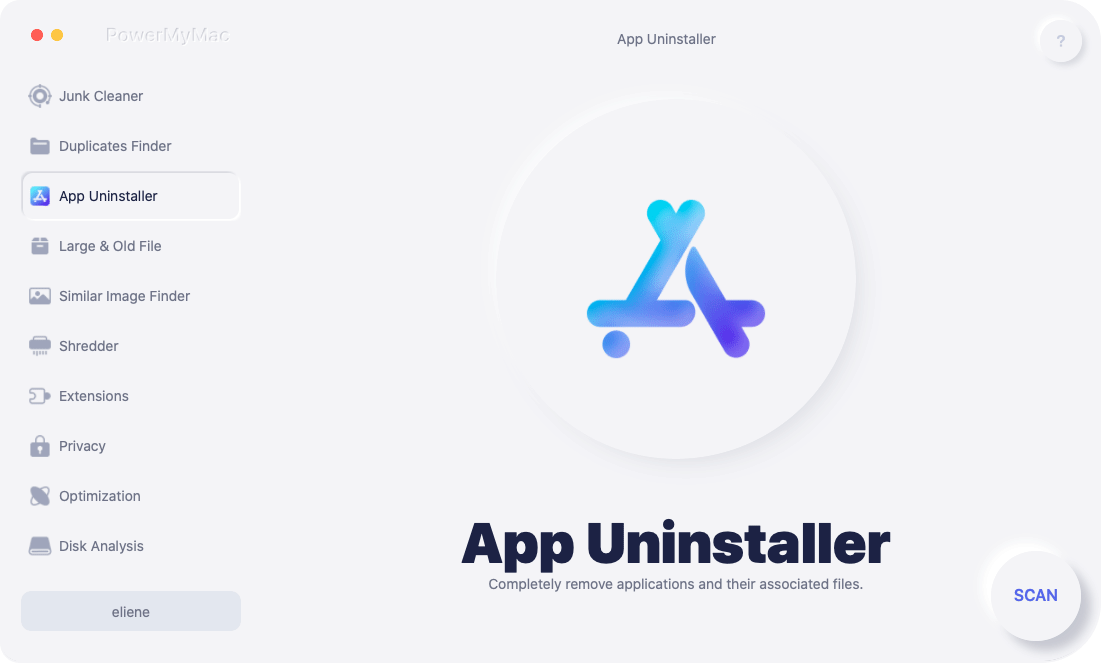
Функция, которая отличает PowerMyMac от остальных, заключается в том, что он предлагает все необходимые инструменты для оптимизации вашего Mac. Поскольку вы хотите удалить Python с Mac, «App Uninstaller» — это инструмент, который вы будете использовать для удаления Python с вашего устройства.
Вы можете сначала использовать его бесплатную пробную версию, если вы новичок в iMyMac. Давайте начнем с процесса удаления Python с вашего Mac с помощью «App Uninstaller»:
- Откройте PowerMyMac и нажмите «Удаление приложений», расположенное слева.
- Запустите процесс сканирования приложения, нажав кнопку «Сканировать».
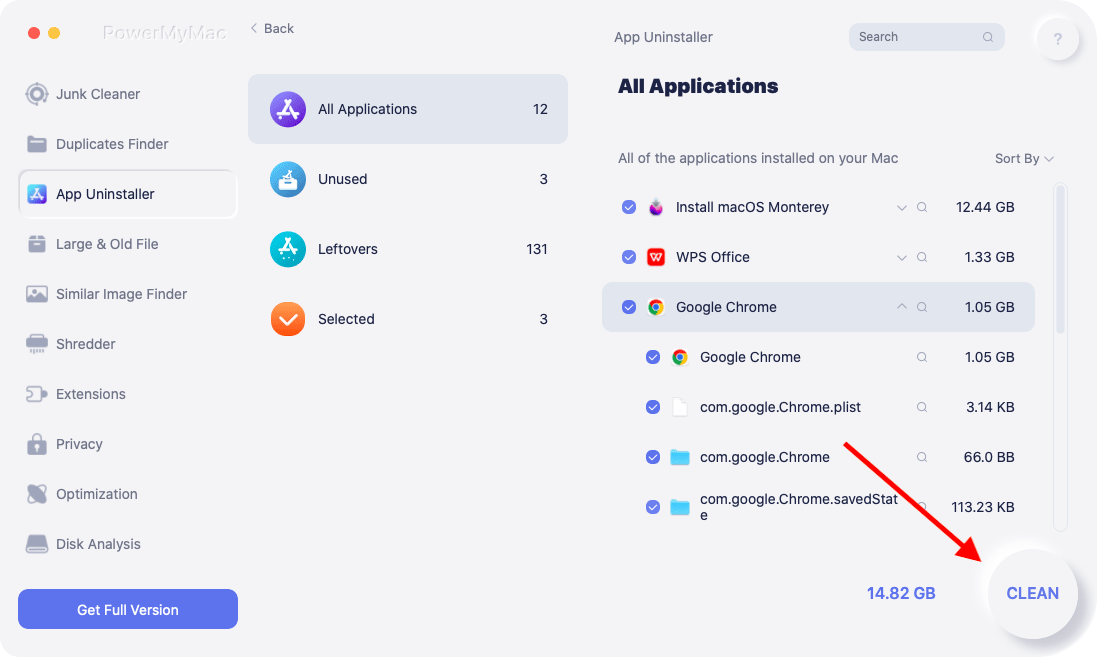
- После завершения сканирования вы увидите конкретный объем памяти, используемый приложениями, установленными на вашем устройстве.
- Проверьте список приложений, чтобы найти приложение Python. Щелкните Python, чтобы развернуть папки или файлы в приложении в правой части экрана.
- Выберите «Все» и нажмите кнопку «Очистить», чтобы удалить приложение Python и все связанные с ним файлы.
- Дождитесь завершения процесса удаления.
Часть 2. Как удалить Python на Mac вручную?
Если вы являетесь специалистом по техническим вопросам или предпочитаете выполнять процесс удаления вручную, существуют методы, которые вы можете использовать для удаления Python на Mac.
Метод 1. Удаление приложения с Launchpad
- Откройте Launchpad и введите «Python» в поле поиска в верхней части интерфейса.
- Выберите и удерживайте значок Python что появляется, пока не начинает трястись
- Выберите значок «X», который появляется в верхнем левом углу значка Python, и щелкните значок «Удалить»В диалоговом окне подтверждения, чтобы начать процесс удаления.
- После нажатия кнопки «Удалить» процесс начнется мгновенно, и нет необходимости очистить корзину.
Метод 2. Удаление Python 3 вручную
- Первым шагом является закрыть приложение и все запущенные процессы Python в фоновом режиме. Помните, что это жизненно важный шаг для безопасного удаления программы.
- Открыть «Активностьмонитор»И проверьте, активны ли еще какие-то процессы. Нажать на «X», Чтобы закрыть процессы Python.
- Откройте «Папку приложения» в Finder и переместить Python в корзину. Убедитесь, что вы удаляете пакет удаления Python полностью, а не просто разделяете файлы.
- На последнем этапе найти и удалить все служебные файлы который Python создал, пока вы его использовали. Служебные файлы хранятся в папке библиотеки.
Некоторые файлы, которые можно найти в Библиотекавложенные папки включают:
Вы также можете найти некоторые скрытые файлы в папке пользователя. Вы можете увидеть их все, только если сделаете все свои скрытые файлы видимыми.
Этот процесс может быть проблематичным для большинства пользователей, поскольку вы должны найти все служебные файлы Python и переместить их все в корзину.
Метод 3. Удалите Python на Mac с помощью терминала.
Те, кто знаком с приложением Терминал, могут использовать команды для удаления Python на Mac. При таком подходе вы должны принять к сведению эти шаги.
- Шаг 1. Передача Python в корзину
- Шаг 2. Откройте приложение «Терминал» и введите эту команду в окне:
alexa$ sudo rm -rf /Applications/Python\ 3.6/
- Шаг 3. Введите пароль администратора, чтобы авторизовать удаление.
Советы: Этот подход не рекомендуется для удаления Python на Mac, если вы не знакомы с командами терминала.
Часть 3. Заключение по удалению Python
Теперь, когда вы знакомы с методами удаления Python на Mac, вы можете удалить его вручную, например удалить с помощью Терминала. Вы также можете использовать автоматический инструмент, который поможет вам в этом.
Вы обнаружите, что метод, включающий PowerMyMac это эффективный подход. Это отличный инструмент, который поможет вам правильно удалить ненужные приложения на Mac. Приложение не только упрощает процесс удаления Python, но также предоставляет вам другие полезные функции, такие как оптимизация и даже лучшая конфиденциальность для вашего Mac.
How to uninstall Python from your Mac

Having spent some years coding applications for macOS, we’ve created a tool that everybody can use. The all-round problem fixer for Mac.

So here’s a tip for you: Download CleanMyMac to quickly solve some of the issues mentioned in this article. But to help you do it all by yourself, we’ve gathered our best ideas and solutions below.
Millions of people want to learn to code, and many of us start by learning Python — it’s a widely used and relatively straightforward language to start with. However, if you’ve installed Python on your Mac and then given up on learning to code or decided that you want to learn another language instead, you probably want to get rid of it. Here, we’ll show you the best ways to uninstall Python on your Mac.
Before we start, there is a version of Python that is preinstalled with macOS. You should not uninstall that. This guide is intended for versions of Python, such as 3.7, that you install yourself.
What is Python?
Python is an object-oriented, high-level language that is particularly suitable for web and app development. It’s relatively simple to learn and uses a syntax that is focused on readability. That means that it’s much easier to read and translate than other programming languages. Python also supports modules and packages, meaning you can turn code into modules and use them in multiple different projects. It’s widely used in data science for writing scripts to scrape large databases, and both its standard library and interpreter are available for free. In other words, it’s an excellent gateway to learning to code.
NASA uses Python for programming jobs for equipment that’s sent into space!
How to remove Python from your Mac
Ok, so you’ve decided you want to learn to code. Or you can already code but want to learn Python, and you’ve installed it on your Mac. Now, you’ve changed your mind, but how do you uninstall it?
As you probably know, it’s not just a matter of dragging the application icon to the Bin/Trash — you need to remove all the other files that were installed, too. The quickest, easiest, and most effective way to do that is to use a dedicated uninstaller.
Among numerous uninstallers for Mac, I’d pick CleanMyMac X. It hunts down and removes every file related to an app and removes them. It also has several other modules that keep your Mac free of junk files, help it run more smoothly, and protect it from malware. It has been recommended on well-known Mac bogs like Cult of Mac and iMore, and for very good reason. Here’s how to use it to remove Python.
-
— direct link from the developer.
- Open the app and find the Uninstaller tab.
This is me uninstalling Python. See how many supporting files are there apart from the main app? There are “launchers” and “binaries” — all those items that regular deletion doesn’t cover.

How to uninstall Python from your Mac manually
The method you use to uninstall Python depends on which version of Python you’re running. Some will install a folder in Applications; others won’t. So, you’ll need to check to find out. The first step, though, is to quit all Python-related processes that may be running.

- Go to the Utilities folder inside your Applications folder and double-click Activity Monitor to open it (you can also search for Activity Monitor in Spotlight and launch it that way).
- Use Activity Monitor’s search bar to look for any process with Python in its name.
- When you find one, select it and click Quit Process (X) in the toolbar.
- When you’re done, quit Activity Monitor.
- Go to your Applications folder, look for a folder called Python and drag it to the Bin/Trash.
Now, you need to track down the files that Python has stored elsewhere on your Mac.
- In the Finder, select the Go menu and then choose Go to folder
- In the text box in that window, search for the following directories, one at a time:
Again, depending on which version you’re running, one of those folders may not exist.
- Drag the contents of each of those folders to the Bin/Trash.
- Empty the Bin/Trash.
How to remove Python using Terminal
If you’re comfortable using Terminal, you can uninstall Python using the command below
rm -rf /Applications/Python/ 3.7
You can replace ‘3.7’ with whichever version of Python you’re running.
Talking of different versions, it’s worth noting that you don’t need to uninstall one version of Python to install a different one. You can run them simultaneously without them conflicting with each other.
Python is a versatile and relatively easy-to-learn programming language that is very popular in web and app development. For that reason, lots of people install versions on their Macs to experiment with it. If you need to uninstall it with all its remains, the easiest way is to use CleanMyMac X. Alternatively, you can use the guidance above to do it manually.
How Can I Properly Uninstall Python from Mac (Solved)
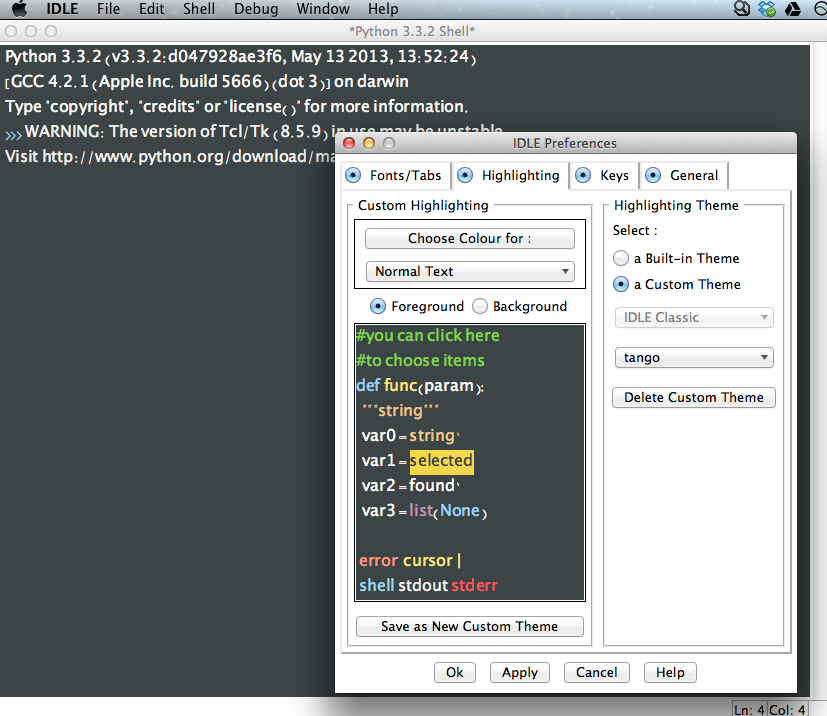
Python is a widely used high-level programming language for general-purpose programming. Python for Mac provides constructs intended to enable writing clear programs on both a small and large scale, allowing programmers to express concepts in fewer lines of code on macOS. Generally, this application ships with the standard IDLE development environment, the Launcher that handles Python scripts, and the Build Applet tool that help package Python scripts as standalone apps on Mac.

How can you uninstall Python application without hassle? Since the standard drag-and-drop option cannot fully remove Python and its bundles from your macOS, you need to do more than that if you want to achieve a clean uninstall. After reading through this tutorial, choose the uninstall method you prefer to use in this task.
Basic Steps to Uninstall Python Application on macOS
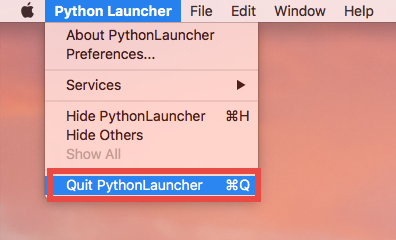
First of all, if Python is running, you are supposed to quit related processes before performing uninstall. And there are multiple ways you can take to exit out of Python:
(1) Right click on its icon on the Dock, and then choose the Quit option;

(2) Open a Python window, and choose Quit from the Apple menu on the left top;
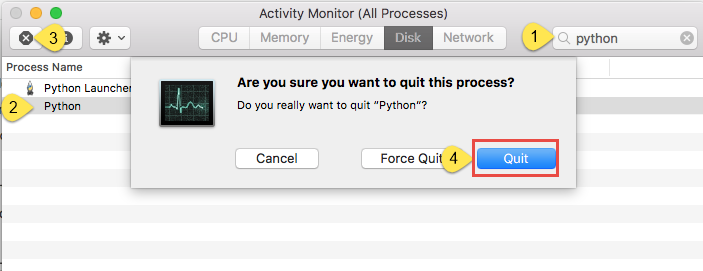
(3) Launch Activity Monitor, select the process with the name of Python in the list, then click the “X” button on the upper left corner, and click Quite button in the pop-up dialog. If the app fails to quit, then try Force Quite in Activity Monitor.
After that you can carry out the standard uninstall, and two options are available here.
Option 1: remove Python from Launchpad
- Open Launchpad, and type Python in the search box on the top.
- Click and hold Python icon that appears until it starts to wiggle.
- Click the “X” icon that appears on the left upper corner of Python icon, and click on the Delete button in the confirmation dialog to execute the uninstallation.

Once you click the Delete button, the uninstall will be handled instantly, and there is no need to empty the Trash afterwards. If you install Python through the App Store and your system is OS X lion or later, you can take this approach to easily uninstall it.
Option 2: delete Python to the Trash
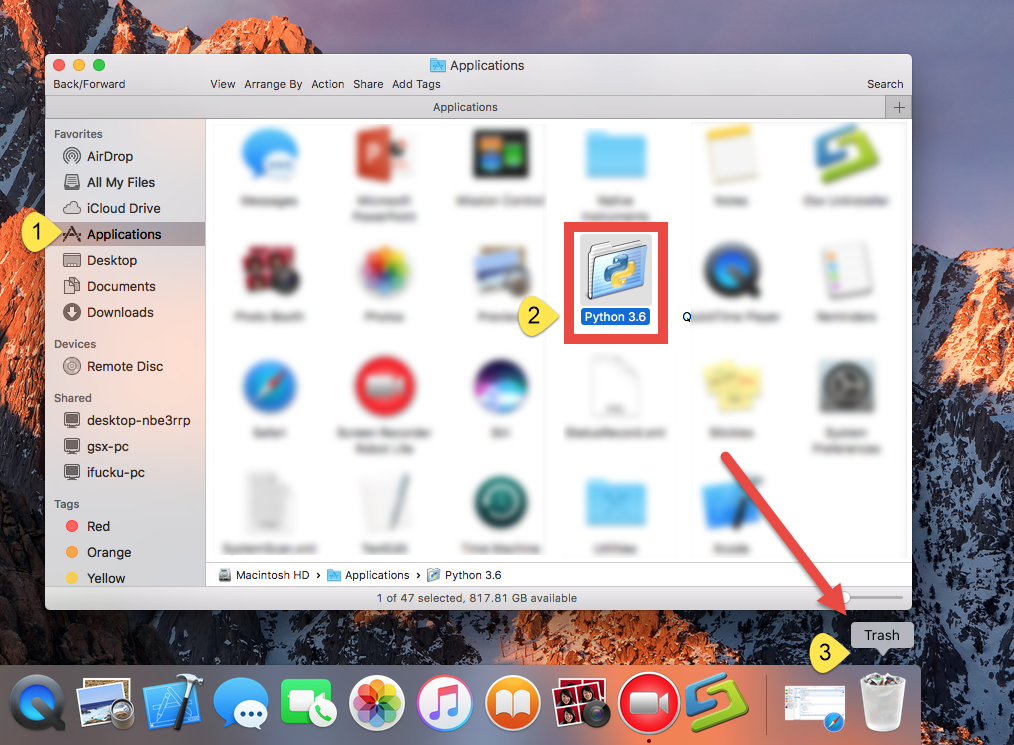
- Open the Finder, and click on Applications in the sidebar to navigate to the folder.
- Locate and select Python, then drag the icon to the Trash and drop it there.
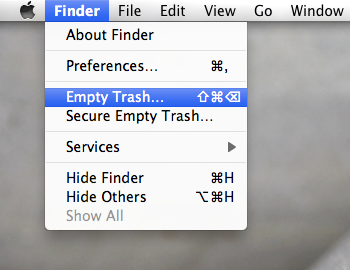
- Right click the Trash icon and choose Empty Trash to perform the uninstall.
Notice : Be cautious when you perform the last step. Emptying the Trash will instantly remove all the files you’ve thrown into the Trash, and this operation is irrevocable. Make sure you deleted the right things, and before emptying the Trash, you can still restore the item by right clicking on it there and choosing the Put Back option.
Besides, you can uninstall an app like that: (1) right click the app and choose Move to Trash option; (2) select the app, and head to File menu > Move to Trash option.

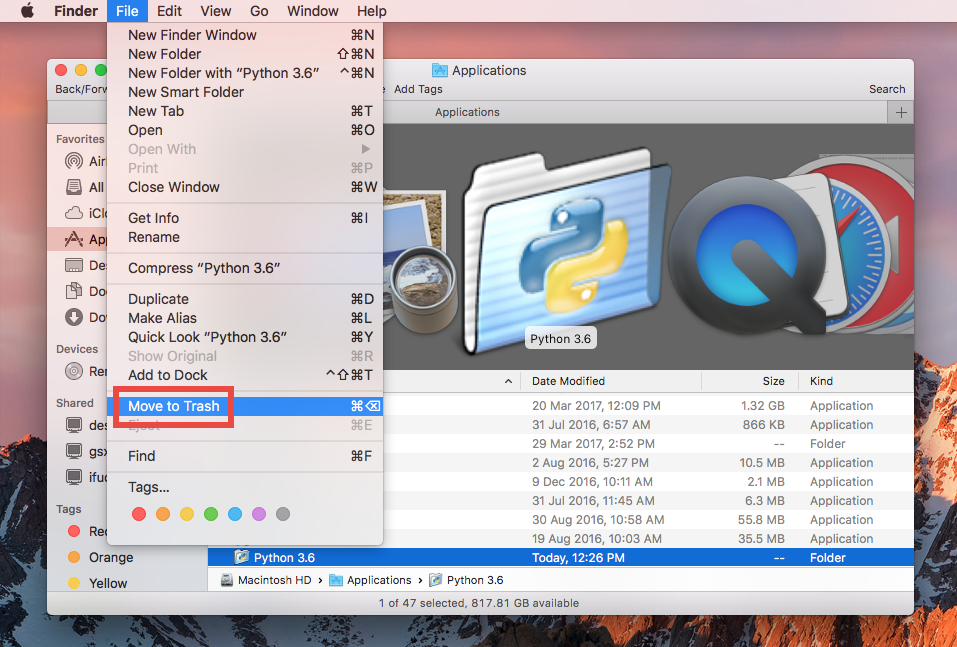
The drag-to-delete method works in all versions of Mac OS X. Once installed properly, most apps can be smoothly uninstalled in that way, though it may not applicable to some built-in apps. If you fail to move an app to the Trash, try to select the app icon, hold the Option key, and choose Empty Trash from the Finder menu.
Option 3: uninstall Python via command line
If you installed the earlier version of Python, you can take this method to uninstall it from your Mac. First open the Terminal, and input the following command lines:
sudo rm -rf “/Applications/Python”
sudo rm -rf /Library/Frameworks/Python.framework
sudo rm -rf /usr/local/bin/python
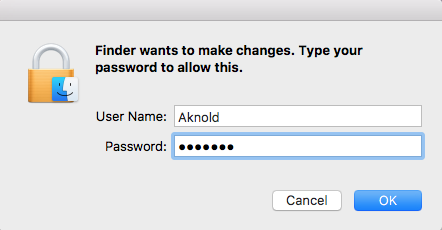
Then enter your administrator password if prompted, to confirm the deletion.
This option is not recommended for Mac novices to adopt, especially for those who are unfamiliar with Terminal command. If you have tried the aforementioned ways to uninstall Python but still fail, you’d better use a professional tool to handle this task.
Additional Steps to Remove Python-Related Items
If you have successfully deleted Python from Finder or Launchpad, you can proceed with the removal of associated components it left behind. It is especially recommended to delete app remnants when they are no longer in use or take up large disk space. But how can we detect and delete the entire invalid items? If you are a Mac novice, we do not suggest you to perform the deletion manually, because any mis-operation might trigger problems on other apps or even affect macOS itself.
Still decide to handle this task on your own? Then follow the steps with caution.
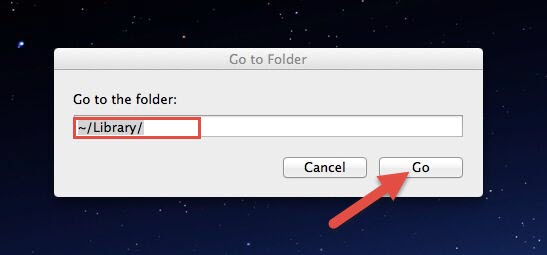
- Open the Finder, click Go in the Menu bar, and select the entry Go to Folder…
- Type the path /Library in Go to the Folder box, and hit Enter key to open it.
You can utilize the Search feature in the Finder to help locate related components.
-
Type the path of the current user’s Library Folder:
Manual deletion could be time-wasting and also low-efficient. How can you make sure you detect all Python files on your system? After spending much time for searching, you may still miss out some leftovers. If you are looking for a perfect solution to effortlessly uninstall Python, just continue reading the next section.
Is There Any Shortcut to Help Remove Python? Sure!
For anyone who are desired to uninstall Python without any trouble, here is the most time-saving and high-efficiency solution. Osx Uninstaller is a reputable and handy tool designed for all-level users to uninstall any unwanted, problematic, stubborn and malicious apps within a few clicks. Featured with an intuitive interface and powerful engine, it can uninstall Python along with its bundled software in 3 simple steps.
Let’s take a quick look at how this tool works to fully delete Python on Mac.
And here are the detailed instructions for using Osx Uninstaller to remove Python.
Step 1. Download Osx Uninstaller and install this tool to the Application folder.
Step 2. Launch Osx Uninstaller, select Microsoft OneNote and click Run Analysis.

Step 3. Review related files and folders, click Complete Uninstall button, and click Yes in the pop-up dialog to fully remove all components of Python.
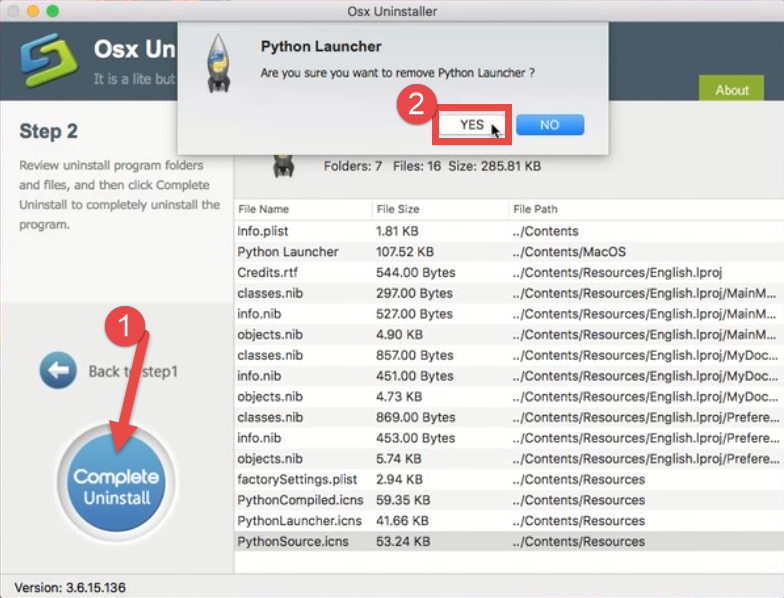
Now click on the Back to Interface button to re-scan your Mac, and Python is supposed to disappear from the interface. You can go on with uninstalling its toolkit like Python Launcher and IDLE by repeating the same steps. The whole uninstall process completes just in the few blinks of time. Incredibly simple, right?
In this post we offers different approaches guiding you to uninstall Python from Mac computer. Does it help solve your uninstall issues? Let’s us know if you are satisfied.
Got any question in uninstalling unwanted apps? Feel free to contact us for help.
How to Uninstall Python on Mac
Python comes pre-installed on macOS. The Apple-provided Python Framework is installed in /System/Library/Frameworks/Python.framework .
You can find several symlinks in the usr/bin/python directory.
You shouldn’t attempt to remove the pre-installed version of Python provided by Apple, as this may cause your operating system to malfunction.
If you would like to remove any third party Python framework that you may have installed, such as the ones found in python.org, this tutorial will provide you with step by step instructions on how to fully uninstall Python from your Mac.
Before we start, it is important to know that there are several things happening during the Python installation process.
- A folder will be installed in the Applications directory. The folder contains IDLE, PythonLauncher, and the Build Applet tool.
- A framework will be installed in the /Library/Frameworks/Python.framework directory. This path includes the Python executable and a number of libraries.
- Several symlinks to the Python executable will be placed in the /usr/local/bin directory.
You are required to remove all these items to completely remove Python from your system.
Keep in mind that there are two versions of Python available as Python 2 and Python 3. If you have installed both the versions and would like to delete just one, specific instructions on how to do so are mentioned in each of the steps.
Step 1: Manually remove the Python folders from the Applications folder
In Finder, navigate to the Applications folder.
Move any Python folders that are installed into the Trash. If you would like to remove a single version, only remove the file relevant to that version.

If the following dialog box gets prompted, please enter the password.

Next, go to the Trash directory.
Right-click on the folder and select Delete Immediately.

Deleting the Python folders will not completely uninstall Python from your system. To completely uninstall Python, please go through the following steps.
Step 2: Remove the Python Framework from the /Library directory
We will use the command line starting from this step.
Press command + space to bring up the Spotlight Search.
Search for Terminal and open it.

In the terminal type the following command to remove all the Python Frameworks present in the /Library directory and hit enter.

If prompted to enter the password, please do so.
If you would like to delete only a specific version of Python, please update your command as below.
Removing Python 2.7

Removing Python 3.8

Step 3: Remove Python symbolic links
Now that we deleted all python directories and files, there may be links in your system that may still be referencing the folders that we have already deleted. This step will ensure that all such links will be deleted.
There are two ways in which this step could be performed. Let’s look at both the ways in detail.
1st Method: Using Homebrew
It is highly recommended that you install Homebrew if you do not have it already. Please install it by typing the following command in the Terminal.
(Please refer to the Homebrew official site https://brew.sh for more information)
You can easily find broken symbolic links by running the command.

The result will look like this (Please note that your result may look different)

Run the command ‘brew cleanup’ as instructed to remove all broken symlinks.
2nd Method: Manual deletion
The symlinks referencing Python frameworks are in the /usr/local/bin directory. If you would like to see the broken symlinks, please use the following command.
(The path ‘/Library/Frameworks/Python.framework’ should be replaced by what you chose in Step 2’)

The result will show you all the links that are referencing the Python frameworks.

To delete these broken symlinks, please use the following commands.
To enter into the directory

To delete the broken symlinks in the directory
(Please keep in mind that the path ‘/Library/Frameworks/Python.framework’ should be changed according to the path you chose in Step 2.)
There you have it. Now your system is completely free from Python. Now you can download and install a fresh copy of Python or leave it as it is.