How to save and exit a file from Vim editor in Ubuntu Linux

1. Installing Vim editor on Ubuntu.
2. Using Vim mode.
3. Create a file using the Vim editor.
4. Open the file to edit with Vim editor.
5. How to save changes in Vim editor.
5.1 Save and quit Vim editor.
5.2 Save file but without quit Vim editor.
5.3 Quit Vim editor but without save change file.
6. Clone and rename file with Vim editor
7. Summary
Please note that in this article I only guideway to manipulation with Vim editor in Ubuntu Linux.
1. Installing Vim editor on Ubuntu.
By default, you need to open a terminal or login to the remote Ubuntu server by using the SSH client. To install Vim editor we need the following apt-get command.
First, we need to update all packages for apt-get.
Finally, run the command below to install the Vim editor.
To check Vim version or ready install success, using below command:
2. Using Vim mode.
When editing a file by using Vim editor, there are two modes in vim we have to know to easily manipulate with the tex file.
— Command mode : In this mode, you can delete text, copy, paste, undo, redo, save, exit file. To switch this mode press the ESC key.
— Insert mode : In this mode, you can insert text or edit text and write anything inside the current file. To switch this mode press the i key.
3. Create a file using the Vim editor.
First, you need to select the folder you want to create a file and below is the syntax for creating a file by using Vim:
For example, I will create the demo.txt file inside the test folder, I will do as below :
And you can see your file opening in Vim editor, press i to switch to insert mode and you can write something for this file. Now you want to save and exit the file, you need to switch to command mode by pressing the ESC key and press :wq! and then press the ENTER key.
4. Open the file to edit with Vim editor.
To open a file to edit in Vim, it looks like creating a file with Vim editor. When you enter the command sudo vim [your_file_name.extention] the program will check if this file name does not exist Vim will create this file and open file to edit and if it exists Vim will open it to edit.
5. How to save changes in Vim editor.
5.1 Save and quit Vim editor.
To save file and quit in Vim editor:
Step 1: Press ESC key to switch to Command mode.
Step 2: Press : ( colon) to open the command bar and insert a colon in the left bottom of the window.
Step 3: Enter more wq! and then press ENTER key to save and quit Vim.
Alternatively, we have another short way to save and exit Vim editor:
5.2 Save file but without quit Vim editor.
To save a file without exiting in Vim:
Step 1: Press ESC key to switch to Command mode.
Step 2: Press : ( colon) to open the command bar and insert a colon in the left bottom of the window.
Step 3: Press w [current file name] and then press Enter key.
For example: :w demo.txt
5.3 Quit Vim editor but without save change file.
To exit Vim without saving changes:
Step 1: Press ESC key to switch to Command mode.
Step 2: Press : ( colon) to open the command bar and insert a colon in the left bottom of the window.
Step 3: Press qa! and then press the Enter key.
Alternatively, we have another short way to exit without save file in Vim editor:
6. Clone and rename file with Vim editor
To rename a file in Vim editor, you can refer to item 5.2. For example, you want to rename demo.txt file to text.txt file, You can do as below :
Change :w demo.txt to :w text.txt and then press Enter key.
Now we check all files in the current folder, we can see two files exist.
7. Summary
In this article, I only guide how to save and exit a file from Vim editor in Ubuntu Linux, also some other manipulation necessary with a file using Vim editor such as create a new file, clone, remane…
�� Как сохранить файл в Vi / Vim и выйти

Vi – это текстовый редактор командной строки для систем на базе Unix / Linux.
Vim (Vi IMproved) – многофункциональный преемник текстового редактора Vi с множеством улучшений и удобств для пользователя.

Как сохранить изменения в Vim
В этой части вы узнаете, как сохранить изменения в Vim, не выходя из редактора.
- Нажмите ESC, чтобы перейти в командный режим.
- Введите: (двоеточие), чтобы запустить командную строку в нижнем левом углу редактора.
- Введите w сразу после символа двоеточия и нажмите Enter.
Вышеупомянутый процесс сохранит изменения в текущем редакторе vi / vim.
Ваш файл останется открытым в редакторе для дальнейших изменений.
Как сохранить файл и выйти из Vim
В этой части вы узнаете, как сохранить изменения в Vim, и выйти из редактора.
- Нажмите ESC, чтобы перейти в командный режим.
- Введите: (двоеточие), чтобы запустить командную строку в нижнем левом углу редактора.
- Введите wq сразу после символа двоеточия и нажмите Enter.
Другие команды сохранения и выхода в Vi / Vim
В приведенных выше методах вы узнали о сохранении файла и выходе из редактора vim.
Есть и другие методы.
Первые два шага останутся такими же, как указано выше:
- Нажмите ESC, чтобы перейти в командный режим.
- Введите: (двоеточие), чтобы запустить командную строку в нижнем левом углу редактора.
Теперь используйте одну из следующих команд в соответствии с вашими требованиями.
Заключение
Это руководство поможет вам понять, как сохранить файл и выйти из него в редакторе vi / vim.
Как сохранить Vim / Vi и выйти из редактора
Vim – это улучшенная версия редактора Vi — стандартного визуального текстового редактора Unix. Редактор Vim доступен буквально во всех Unix — подобных системах, включая Linux и Mac OS.
Vim довольно быстрый редактор, и почти все функции имеют клавиши быстрого доступа. Редактор Vim является очень полезным текстовым редактором например для программирования сценариев и редактирования конфигурационных файлов.
В этой статье мы покажем вам, как сохранить файл в Vim / Vi и выйти из редактора.
Возможно вам будет интересно:
Горячие команды Vim / Vi редактора
Вот небольшой список горячих команд, которые упростят вашу работу с редактором Vim/VI. С помощью этих горячих команд можно выйти из редактора Vim / Vi.
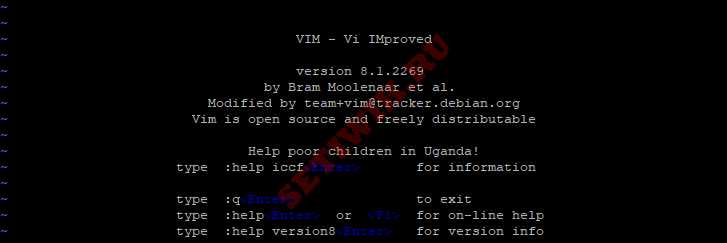
Чтобы открыть существующий файл с помощью Vim, выполните приведенную ниже команду.
Примечание: Если существующий файл не находится в текущем рабочем каталоге, вы должны указать путь к файлу. Например:
Vim имеет два режима, которые позволяют выполнять различные операции. Таковы они: Нормальный режим и режим вставки.
Нормальный режим
Когда вы открываете Vim, вы находитесь в нормальном режиме. Этот режим позволяет вводить команды Vim и перемещаться по файлу.
Режим вставки
Режим вставки Vim позволяет вставлять текст в редактор. Чтобы переключиться из обычного режима в режим вставки, нажмите клавишу i на клавиатуре. Обратите внимание на надпись — INSERT — в левом нижнем углу Vim.

А теперь пройдите вперед и введите или вставьте текст в редактор.
Чтобы сохранить файл, вам нужно сначала вернуться в нормальный режим. Для этого нажмите клавишу ESC, чтобы выйти из режима вставки.
Затем введите :w и нажмите enter. Это сохранит редактируемый файл.
Примечание: Если вы работаете над новым файлом, вам нужно будет указать его имя. Ниже на картинке приведен пример.
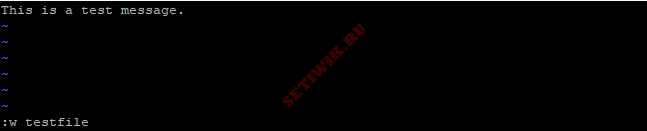
Вы должны увидеть сообщение в нижней части Vim, указывающее, что ваши изменения были записаны.
Выйти из Vim / Vi
В обычном режиме введите следующую команду, чтобы выйти из Vim.
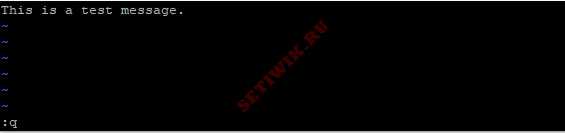
Чтобы выйти из Vim без сохранения, необходимо выполнить следующую команду;
Так же вы можете сохранить файл и выйти из Vim, делается это следующей командой.
Кроме того, можно ввести приведенную ниже команду, чтобы сохранить изменения и выйти из Vim;
Заключение
В этой статье мы показали вам, как сохранить файл в Vim, а также как выйти из текстового редактора Vim. Если у вас остались какие-либо вопросы, мы будем рады прояснить их в комментариях.
How do I save files edited with vim?
What key combination or sequence must I press to save this?
4 Answers 4
You’re probably in editing/insert mode. You need to type the following sequence :
- Esc , to quit edit mode and fallback to command mode ;
- : + w + q , start with a : (colon) then press w and finally q to write and quit (or just :w to write without quitting)
- then press Enter to valid.

I usually press ESC and then hold Shift and press z twice. Just like you would like to type two capital Z letters in word editor 🙂 That saves your document and closes your editor.

Check whether you have administrative (root) privileges to edit the file. use this command
If the result is not «root», then you are not supposed to edit the file.
To login as root user, use the below command
After the changes, save the file using
- Press Esc to change the mode
- 😡 to save and quit the file
this question was answered a long time ago, but in case it comes up in search engines again, this link is a nice vim cheatsheet that you might want to bookmark if you use vim a lot.
By the way, You can use :wq to save and exit the file ( you should first press esc key to exit insert or replace mode and then press commands ) and use :q! to exit without saving.

You must log in to answer this question.
-
The Overflow Blog
Linked
Related
Hot Network Questions
Subscribe to RSS
To subscribe to this RSS feed, copy and paste this URL into your RSS reader.
Site design / logo © 2023 Stack Exchange Inc; user contributions licensed under CC BY-SA . rev 2023.8.2.43556
By clicking “Accept all cookies”, you agree Stack Exchange can store cookies on your device and disclose information in accordance with our Cookie Policy.