How to change the measurement units in Blender
In this article we are going to see measurements in Blender, for example how to change from meters to millimeters or how to change the measurement system from metric to imperial in Blender.
In the following video I explain how to CHANGE MEASUREMENT UNITS in BLENDER.
We start with any 3D model in which the lengths of the edges have been displayed as shown in Figure 1, we see that the edges of the plane measure 2 meters each and if we go to the Transform window of the object we see that it is positioned at the origin and that distance is also expressed in meters.
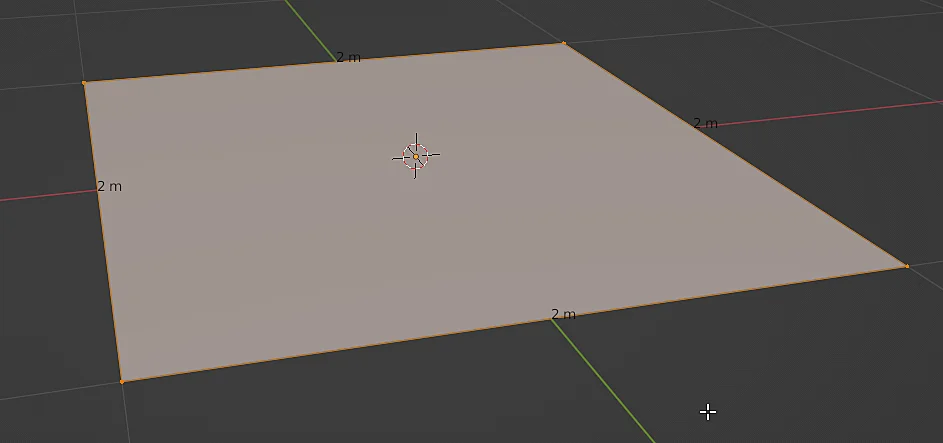
Fig. 1: Plan in which the lengths of each edge are shown.
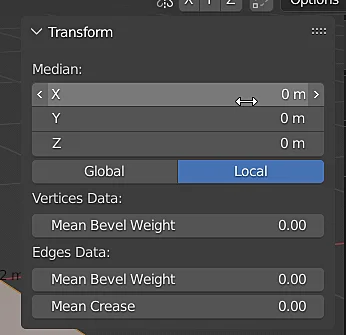
Fig. 2: In the object transformation window the lengths are expressed in meters.
The unit system window in Blender is located in the properties tab of the scene, we can access it using the icon shown in figure 3.
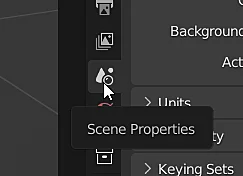 Fig. 3: Scene properties tab in Blender where you can change the measurement system.
There we go to the “Units” section and there we have the options to change the unit system, we are going to change the “Length” property from meters to millimeters, as shown in figure 5.
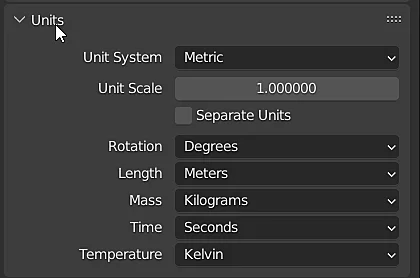
Fig. 4: In the units section you can select which units to display and apply a scaling.
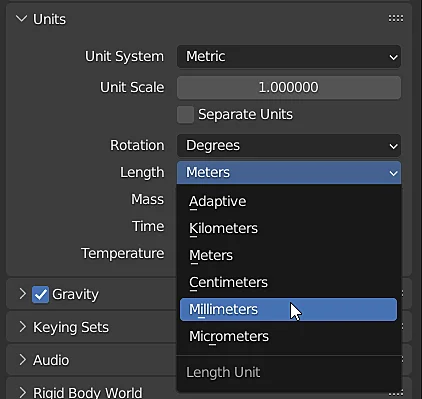
Fig. 5: Once the measurement system has been selected, the units for a given quantity can be changed.
Now the lengths of the edges and the lengths appearing in the windows are expressed in millimeters, as shown in Figure 6.
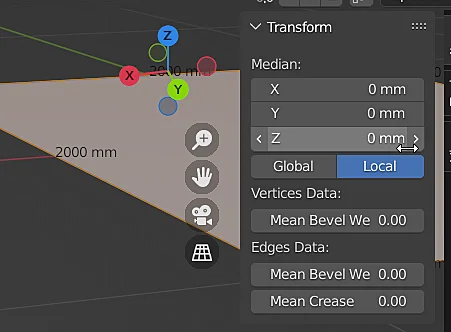
Fig. 6: By changing the length units to millimeters, dimensions and lengths are now expressed in millimeters.
Using the imperial measurement system in Blender
If instead of meters we want to use feet or inches we must change the unit system from “Metric” to “Imperial”, as shown in figure 7.
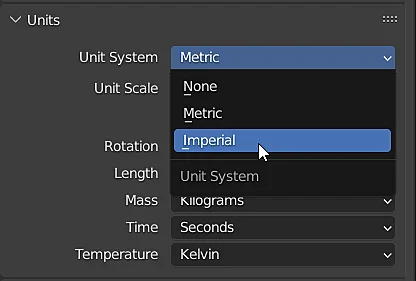
Fig. 7: The imperial measurement system can be selected to express lengths in feet and inches for example.

Fig. 8: The dimensions in the plane are expressed in feet.
Now in the parameter “Length” we find the units feet and inches.
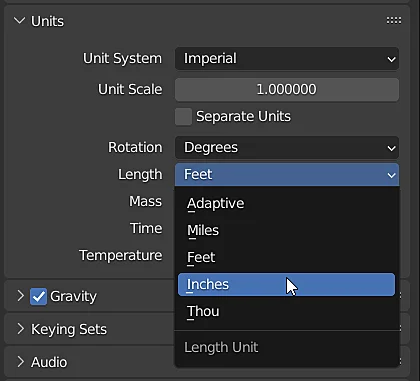
Fig. 9: The units are changed to inches.
MORE POSTS
Algorithm for adding N Natural numbers
Introduction In this article we are going to analyze an algorithm to add the numbers from 1 to 10, that is to say we will create a function that solves…
< STRING type variables >– Programming theory
Definition of STRING A STRING is a data type used to store text, it is not a primitive variable such as int, bool or float, but a set of primitive…
Teleport objects in Unity – Teleportation System to download and import
Introduction In this article we are going to see a prototype of a teleportation system for Unity, which consists of a series of interconnected rings, when an object that has…
My name is Hernán, I have 8 years of experience in Unity and Blender. Currently I work on projects made in Unity both personal and projects for third parties, I continue researching these tools and I dedicate myself to create content about them.
Программа Blender, как поменять на миллиметры, сантиметры Стрелочкой указал где
Подскажите, как можно сменить на миллиметры 
Настройка мира, units, length.
Вячеслав Оракул (59270) Oleg Olegik, а ещё надо смотреть сюда 
Как поменять метрическую систему в blender
Возможно.
Это делается изменением шага сетки окна 3D Viewport’a: View/View Properties.
В Wiki это звучит так:
The 3D Viewport’s grid represents Blender Units (BU). A BU can be as large as you would like it to be: an inch, a centimeter, a mile, or a cubit.
(http://en.wikibooks.org/wiki/Blender_3D:_Noob_to_Pro/Blender_Windowing_System)
Что в переводе означает:
Сетка 3D Vieport’a представляет собой единицы измерения Blender’а (BU). BU может принимать любые значения, будь то дюйм, сантиметр, миля, или кьюбит.
Поведение blender при смене единиц измерения. Так и задумано или баг?
Я тут начал с этим разбираться и понял следующее. Во вкладке, где мы выбираем метрическую систему — там стоит 1, и если все измерения привести к этой единице, то масштабы при переносе мешей из файла в файл и/или из старой версии в новую — СОБЛЮДАЮТСЯ!
Другое дело, я вот чего не понял. Когда работал в старой версии, мне нужно было создавать малые объекты и выбирал в метрике единицу измерения — сантиметры. И фокус в том, что тогда эта единица делилась зачем-то на 100 и отображается так: 0,01. А в новой версии всегда стоит единица, независимо от того, выбираем ли мы метры, сантиметры или миллиметры. Всегда будет 1. А в старой версии — выбрав сантиметры или миллиметры — единица делится на сто — и это теперь стало миной. Теперь все созданные объекты нужно возвращать к единице. То есть, масштабировать (в сто раз) и сбрасывать масштаб к 100%. А это в некоторых случаях абсолютно невозможно, так как объекты многократно дублированы с сохранением связей, а значит, сбросить им масштаб к 100% не представляется возможным. Это, получается, переделывать многие работы заново. Вот это сюрприз!
На скринах наглядно показано, что в старой версии при выборе системы длины — единица делится на масштаб, а в новой — остаётся ВСЕГДА единицей. Поэтому те, кто выбирал в старой версии сантиметры — капитально попали на переделку своих работ, если хотят их интегрировать в файлы в новую версию программы.
Как поменять метрическую систему в blender
Текстовое поле и поле поиска.
Текстовые поля имеют закруглённую прямоугольную рамку и, возможно, значок и/или текст внутри рамки. Текстовые поля хранят текстовые строки и предоставляют средства для редактирования текста с помощью стандартных сочетаний клавиш редактирования текста .
Для текстовых полей со значком и всплывающими окнами см. Data ID .
Числовые поля
В числовых полях хранятся значения и единицы измерения.
Первый тип числового поля показывает треугольники, указывающие влево (<) и вправо (>) по сторонам поля, когда указатель мыши находится над полем. Ползунки, второй тип числового поля, имеют цветную полосу на заднем фоне для отображения значений в диапазоне, например, процентные значения.
Значение можно изменить несколькими способами:
Чтобы изменить значение поэтапно, нажимайте ЛКМ по маленьким треугольникам (доступно только для первого типа поля). Вы также можете использовать Ctrl — Колесо при наведении курсора на поле, чтобы отредактировать значение.
Чтобы изменить значение с помощью мыши, зажмите ЛКМ и перетащите влево или вправо.
Удерживайте Ctrl для привязки к дискретным шагам при перетаскивании или Shift для более точного ввода.
Ввод с клавиатуры
Нажмите ЛКМ или Return , чтобы ввести значение, набрав его с клавиатуры.
При вводе значений с клавиатуры, числовые поля работают также, как и текстовые поля:
Для применения изменений нажмите Return или ЛКМ за пределами поля.
Для отмены нажмите Esc или RMB .
Для перехода к следующему полю нажмите Tab , для перехода к предыдущему нажмите Shift — Tab .
Нажмите Minus , наведя указатель мыши на числовое поле, чтобы инвертировать значение (в версии 3.0 не работает).
Редактирование нескольких значений
Редактирование нескольких значений.
Вы можете редактировать несколько числовых полей одновременно, нажав ЛКМ на первом поле, а затем перетащив его вертикально по полям, которые вы хотите отредактировать. Наконец, вы можете перетащить мышью влево или вправо, чтобы настроить значение, или отпустить ЛКМ и ввести значение.
Ограничение значений
Большинство числовых значений ограничены диапазонами значений «soft limit» (мягкий предел) и «hard limit» (жёсткий предел). Изменение значений путем перетаскивания мышью ограничено диапазоном значений «мягкого предела». Ввод с клавиатуры позволит использовать более широкие диапазоны значений, но не более «жёсткого предела».
Expressions
Вы можете вводить математические выражения в любое числовое поле. Например, введите 3*2 или 10/5+4 вместо 6 . Можно использовать даже такие константы, как Пи (3.142), или такие функции, как sqrt(2) (квадратный корень из 2).
Эти выражения вычисляются Python; все доступные математические выражения см. в Cправочнике по математическим модулям.
Выражения как драйверы (управляемые выражения)
Вы можете захотеть, чтобы ваше выражение было переназначено после его ввода. Blender поддерживает это с помощью Драйверов (функция системы анимации).
Выражения, начинающиеся с # , имеют особое назначение. Вместо оценки значения и отбрасывания выражения, к свойству добавляется драйвер с введенным выражением.
Выражение #frame — это быстрый способ доступа к сопоставлению значения с текущим кадром, но также поддерживаются и более сложные выражения, например, #fmod(frame, 24) / 24 .
Это просто удобный ярлык для добавления драйверов, который также можно добавить через меню, нажатием ПКМ .
Единицы измерений
As well as expressions, you can specify numbers and units. If no unit is given, then a default unit is applied. The unit system can be changed in scene settings .
Вы можете использовать либо аббревиатуру единицы измерения, либо полное название после значения.
How To Change My Unit Measurements In Blender?
3D modeling applications can be used to create accurate representations of real-world objects. But for them to be truly accurate, the models need to be using the correct values for their dimensions. Dimensions play an important role in architecture, physics simulations, and in 3D printing.
You can change the active units of measurement by going to Properties > Scenes > Units, and changing the unit system to the measurement system that you want to use. Then change the length attribute to best represent the size of the objects that you are trying to create. For example, a pencil would be best suited with centimeters and a large space station could use kilometers.
It is very easy to miss for a beginner and while it does not matter so much when you are simply creating objects for a scene render in Blender itself. Problems can occur if the unit of measurement is too large or too small for an external purpose like game design or 3D printing.
What Are Blender Units And Why Are They The Default?
Blender Units are the default system of measurement that Blender uses if no real-world systems have been assigned. They are easy to work with for beginners and can be used for creating objects and scenes of various sizes.
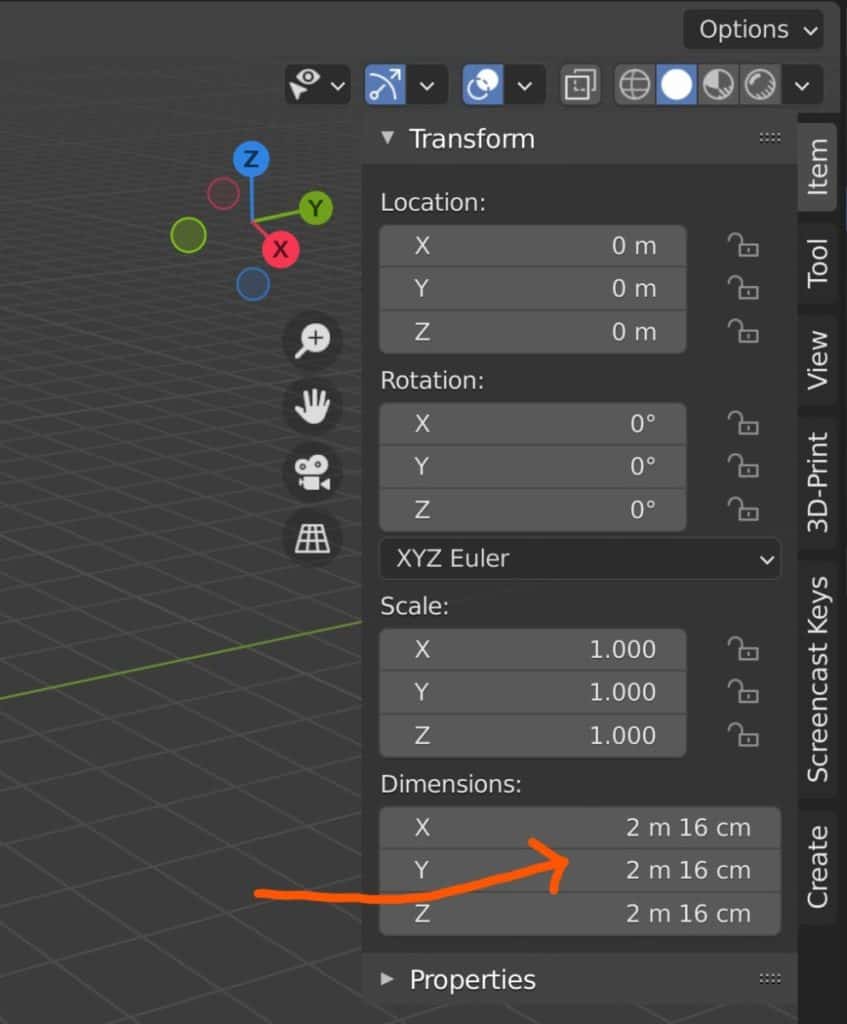
The Blender unit most closely resembles metric meters in terms of the actual size of the objects that are created. If you open up the side panel in the 3D viewport, you will be able to see which unit system is being used for the current project by looking at the values for the location, rotation, and scale of the selected object.
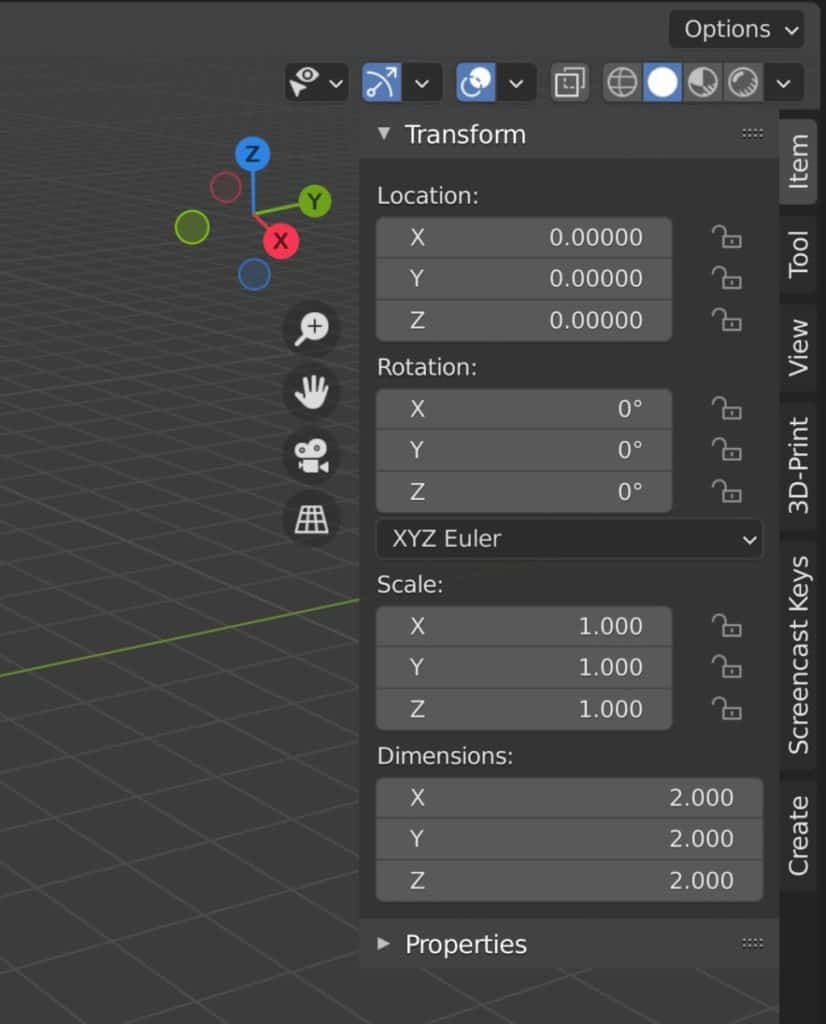 Side Panel Blender Units
If Blender units are applied as the system of measurement, then you will only see float numbers for location and dimension.
Even in this system, you are still using degrees for your rotational values but none of the other Unit attributes can be changed.
A unit attribute is a parameter that influences how the unit system is calculated in the scene. Go to Properties > Scenes > Units and you will see the current option for your unit system as well as the following attributes:
- Unit Scale (Slider)
- Separate Units (Checkbox)
- Rotation
- Length
- Mass
- Time
- Temperature
If you are using Blender units as your system of measurement, then the unit system option will appear as none and all of the attributes apart from the rotation will be greyed out and nonselectable.
You can change your unit system here to either metric or imperial. If you are not sure about which to choose, In Europe, the metric system is used to calculate in millimeters, centimeters, etc. While America uses the imperial system for inches, feet, yards, etc.
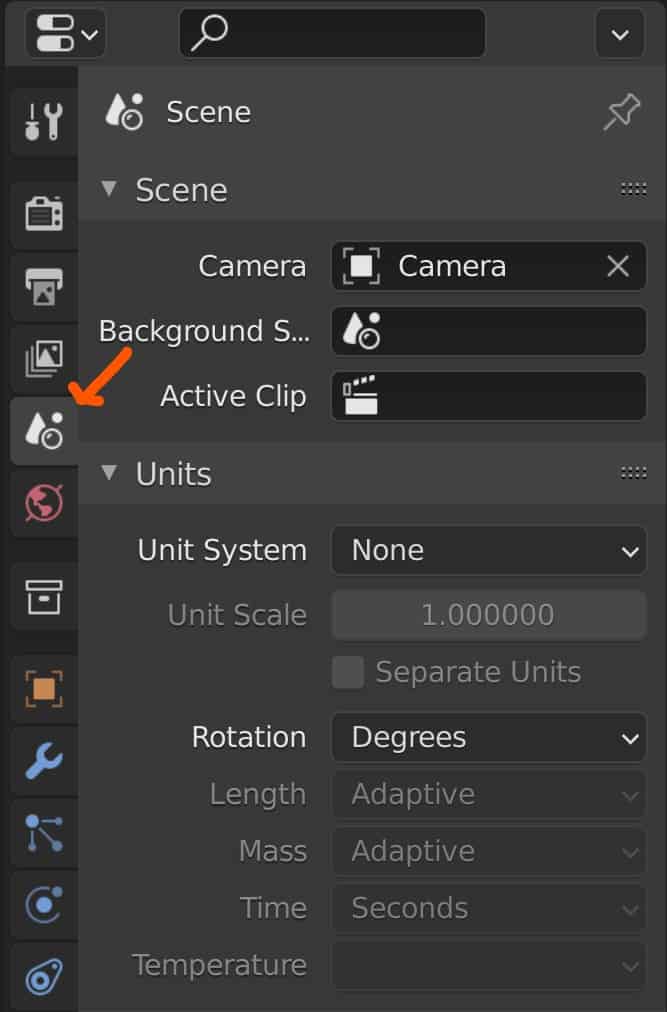 Blender Unit Systems Location
5 Reasons Why You Should Change Your Units Of Measurement?
Blender 3D is a powerful and versatile software for creating 3D models, animations, simulations, and more. However, to achieve accurate and realistic results, it is important to change the units of measurement for 3D modeling according to your needs and preferences. Here are five reasons why:
- Changing the units of measurement can help you match the scale of your 3D models to the real-world objects they represent. For example, if you are modeling a building, you might want to use meters or feet as your units of length, rather than Blender Units (which are equivalent to metric meters by default).
- Changing the units of measurement can also help you communicate with other 3D artists, clients, or collaborators who might use different systems or standards. For example, if you are working on a project that requires imperial units (such as inches, feet, yards, etc.), you can easily switch to that system in Blender and avoid confusion or errors.
- It can also help you prepare your 3D models for different purposes or outputs, such as rendering, animation, physics simulation, or 3D printing. For example, if you are planning to 3D print your model, you might want to use millimeters as your units of length, since most 3D printers use that unit for slicing and printing.
- Changing your units can also help you control the level of detail and precision of your 3D models. For example, if you are modeling a small object with intricate details, you might want to use smaller units of length, such as centimeters or millimeters, to achieve finer control over your mesh and vertices.
- And it also helps you visualize the dimensions and proportions of your 3D models more easily and intuitively. For example, if you enable the viewport overlays option for edge length and face area in Blender, you can see the measurements of your selected edges and faces on your screen in your chosen units.
When Should You Change Your Unit System And Parameters?
If you are designing a scene specifically for rendering within Blender, then changing the unit system will not really make a difference so long that the objects themselves are the correct size when compared to each other. Here the standard Blender units system will do the job nicely.
Where the scale of the object becomes important is in any situation where the 3D models will be exported to another program.
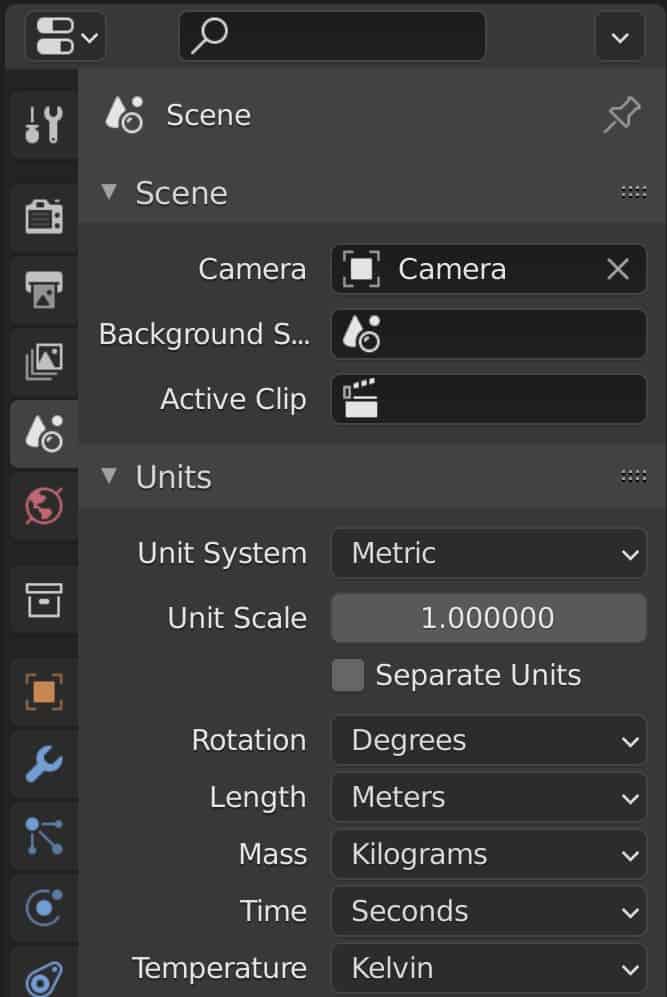 Metric Unit options
For example, a common use of Blender is to create objects for video games, meaning that the objects will need to be exported to a game engine.
Game engines will have their own systems for object behavior, physics simulations, etc. And so the object that we export will need to be the correct size and scale for those physics simulations, otherwise, the behavior may not be what we expect.
Other situations where you will need to make changes to your unit system will be for creating physical products through architecture, manufacturing, and 3D printing.
Basically, if the purpose of a model is to be used exclusively within Blender, then you do not need to change the unit settings. If the purpose is external, like in game design, then the unit system becomes much more important.
What Can Go Wrong If You Do Not Change Your Unit System?
That depends on what you are trying to do with your object. As mentioned above, in game design the scale of the model should be correct for the scene that it needs to be imported into. Incorrect sizing can be adjusted and corrected in the game engine itself, but it is better to make sure that your dimensions are correct before exporting from Blender.
This way you know that there are fewer things that can go wrong with an asset when you begin to use the model for animations, physics simulations, etc.
Another thing to be careful of is the scale value. If you look at the side panel in Blender you will notice that the scale values remain the same regardless of the unit system that was used. This is because the scale is relative to its original size, and the dimensions are the true values for the size of the object.
When these scale values are set to something other than one it can cause incorrect behaviors even if the unit system and length were correct.
To apply your scale, select the object in Blender and use the hotkey of Control + A to bring up the apply menu, then select rotation and scale to apply those transforms.
How Can The Unit Scale Value Help In Modelling?
The unit scale is a universal scale system that you can use to increase or decrease the size of your models all at the same time.
Let’s say you began a project creating a low poly city with buildings of various shapes and sizes, mostly built around cube objects.
You set up the look of your scene so that everything looks to be the correct size. However, you then notice a problem when you check the transforms.
Your tallest building is only 12 meters high when it should be 120. All of the buildings look right, but they are all smaller than what they need to be.
Instead of having to go in and manually change the scale of each object, you can adjust the unit scale value in the properties panel. So in this case, we can increase the unit scale to 10 to make all the objects 10 times the original size. You can double-check this by looking at the object’s dimensions.
 Separate Units
Another useful tool here is the separate units option found just below the unit scale. When this option is ticked the dimensions are split to become easier to read. For example, 20.1 meters will become 20m 10cm, and so on.
Keep in mind that adjusting the unit scale works for the objects that are currently in your scene. Adding a new object after changing the unit scale will still result in that object having its original dimensions, meaning it may appear much larger or smaller than the rest of your scene.
Does The Unit System Effect Clipping?
Clipping is the effect where the viewport cuts out detail after a certain point, whether that be from zooming too far in or too far out of your scene.
You can access the clipping values by pressing N to open up the side panel, then going to View (Tab) > View and changing the clip start and clip end values.
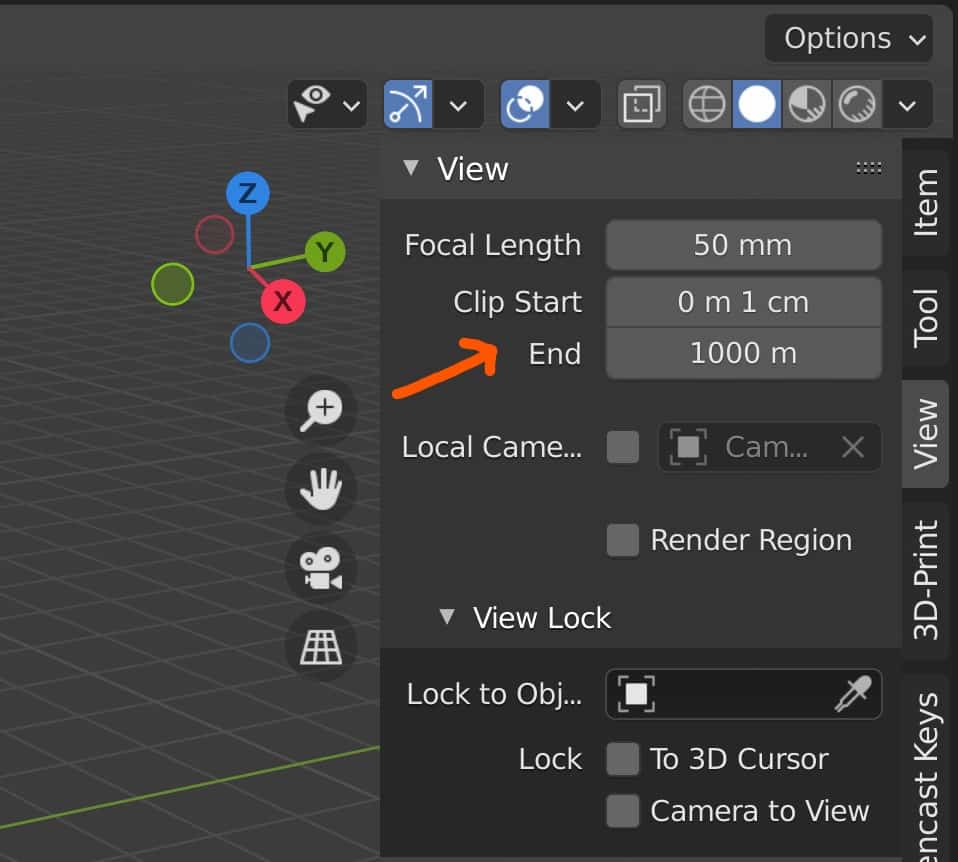 Clip Start And End
If you are using the metric system with meters as the length, then the lowest value before clipping occurs will be 1cm, while the highest point will be 1km.
Note that the clipping values are dependent on the unit scale value, so changing the unit scale will alter the start and end values in real-time.
Thanks For Reading Our Article
We hope that you enjoyed reading our article on the unit systems in Blender. Below we have gathered a shortlist of other articles we think you may be interested in.

How To Covert An Image Sequence To A Movie File?
One of the most frustrating aspects of being an animator is the time one spends waiting for the animation to render. While a single image can render pretty quickly, the
Setting The Output Of Our Rendered Animations
The vast majority of projects we create in Blender will eventually be rendered or exported for use in different applications. These applications range from game engines like unity to MP4
How To Define The Frame Range Of Your Animation?
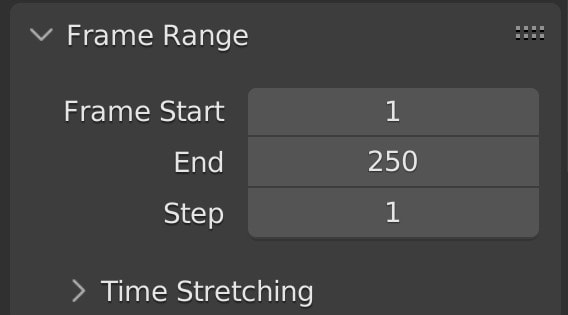
Before we can begin creating the keyframes that build up our animations in our 3D scenes, we must first go through the process of setting up the animation itself. These