Не удаляется антивирус Reason Cybersecurity
Через панель управления в программах и компонентах он удален и его нет. Но во вкладке «Защита от вирусов и угроз» этот антивирус работает. Когда нажимаю открыть приложение, ничего не происходит.
Вы его удалили из списка, а надо было деинсталлировать. Если был установлен недавно, попробуйте через восстановление системы. Ну или специализированными анинсталлерами или вообще вручную чистить.
А что за специализированный анинсталлер? Я пробовал Total uninstaller и другие, они не видят файл. Говорят что он связан с RAVantivirus и надо анинсталлерить его. Но большинство файлов Ravantivirus были удалены. Когда я пытался удалить остатки Ravantivirusa писалось, что папка или файл открыты в другой программе
Любой, подобный тому, что вы попробовали. Только все-равно сложно. Удалять процессы, которые блокируют, используя unlocker. Возможно использовать безопасный режим.
А можете дать ссылку на анлокеры? Я скачавиал анлокер 1.9.2 и он не запускался, писалось что в нем содержится вирус или нежелательная программа.
Удалите ваш антивирус, если он так пишет.
И вообще может вам проще переставить виндоуз? Если время чистки от всякой нечисти сравнимо со временем установки виндоуз, то лучше переставить виндоуз. Исключение всякие офисные, бухгалтерские, и т. д. компьютеры, где установлено много всего и разными людьми, так что переустановить все эти программы быстро не получится.
Приложение RAV antivirus
чтобы удалить, используй uninstall или HiBit. В одном из этого найди RAV antivirus и нажми деинсталляция и все готово
Задайте свой вопрос по компьютерам
профессионалам
Другие вопросы на эту тему:
Хочу удалить Reason CyberSecurity очень нужно, но не знаю как!
Добрый вечер, помогите пожалуйста
Нужно удалить этот антивирус бесит
Ошибка запуска
Пк не знает как открыть игру или программу и предлагает выбрать через что открывать и все значки поменялись
У меня удаляется игра
Здравствуйте. Я начинаю скачивать игру на компьютер, скачал, открыл папку с игрой, нажал на игру, пошла установка и вот тут возникает проблема. Как только начинается установка, сразу появляется окно с надписью «Удаление игры с компьютера». Установка удаляется автоматически. Даже не спрашивают, надо удалять или нет. Просто удаляют с ПК и всё. Что делать?

Помогите хочу удалить Reason Cybersecurity
помогите хочу удалить Reason Cybersecurity а данных на компьютере нету про это программу типо её нету на пк хотя она есть в безопасности виндовс
Клавиатурная скорость нажатия
хочу полность убратью задержку перед повтором ввода клавиатуры, а так же скорость самого повтора зажатой клавиши увеличить как минимум вдвое. Базовые ползунки в панеле управления Клавиатуры максимальны
Reason cybersecurity как удалить
Reddit and its partners use cookies and similar technologies to provide you with a better experience.
By accepting all cookies, you agree to our use of cookies to deliver and maintain our services and site, improve the quality of Reddit, personalize Reddit content and advertising, and measure the effectiveness of advertising.
By rejecting non-essential cookies, Reddit may still use certain cookies to ensure the proper functionality of our platform.
For more information, please see our Cookie Notice and our Privacy Policy .
Get the Reddit app
Stumped on a tech problem? Ask the community and try to help others with their problems as well. Note: Reddit is dying due to terrible leadership from CEO /u/spez. Please use our Discord server instead of supporting a company that acts against its users and unpaid moderators.
i had to turn off my anti virus and when i go to the windows security i find "Reason Cybersecurity is turned on" and no option to disable it, a quick google tells tht it is a external software, i hv no idea how it got on my computer and now i cant seem to uninstall it coz it dosent come up in the apps list in settings or control panel. It has a engine service in bg i even used tht to go to its file location but there was no uninstall option there too. Can someone pls help me get this out of my pc
Правильное использование программы Reason Core Security для отслеживания вредоносного ПО
Даже лучшие антивирусы порой достаточно лояльны к рекламным приложениям и не видят в них никакого вреда. Тем не менее пользователю не очень приятно постоянно наблюдать всплывающие баннеры и закрывать окна. Для отслеживания софта, ответственного за их появление, разработаны специальные приложения, совместимые с фаерволом. Одним из таких является Reason Core Security: далее вы сможете подробнее ознакомиться с его способностями и функциями.
Как скачать Reason Core Security и удалить программу при необходимости
Некоторое время назад Reason Core Security распространялся бесплатно, теперь же при посещении официального сайта вы увидите, что это стоит денег — за программу просят 29 долларов в год (около 1800 рублей). Есть и пиратские версии, предлагаемые в виде архивов, торрентов и exe-файлов, но они несут в себе определённый риск – вместо защиты можно получить дополнительные проблемы.
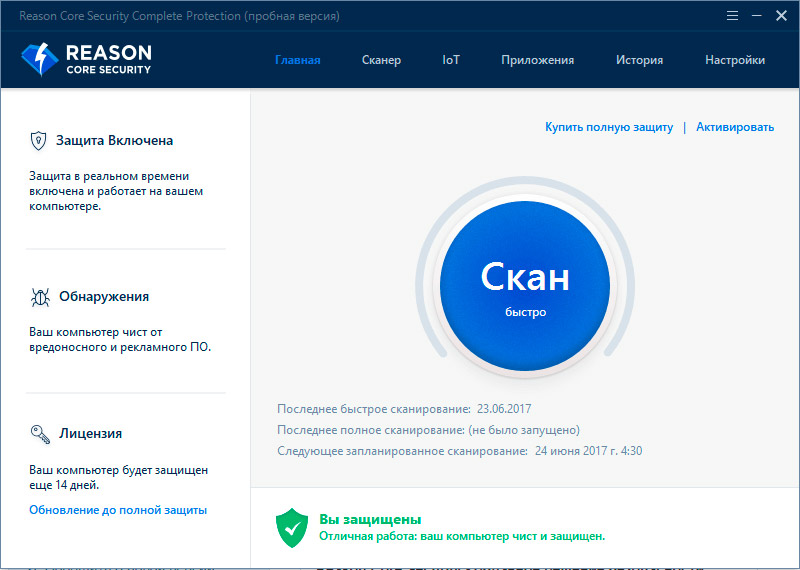
К счастью, разработчики предлагают 30-дневную демоверсию, которая, к слову, не перестаёт работать по истечении этого срока – просто теряет часть функций. Её легко установить, а при желании – продлить лицензию платно. Это делается так:

- Нужно зайти на сайт reasonsecurity.com, причём обратите внимание, что к домену не должны прилагаться дополнительные имена.
- Нажмите на ссылку с фразой: Download free, чтобы сразу скачать пробную версию, или View all products, чтобы посмотреть другие пакеты.
- После завершения загрузки кликните по файлу и разрешите ему внести изменения.
- Выберите язык, нажмите «Установить» и ждите, пока пакет распакуется.
- Система оповестит вас об успешной установке.
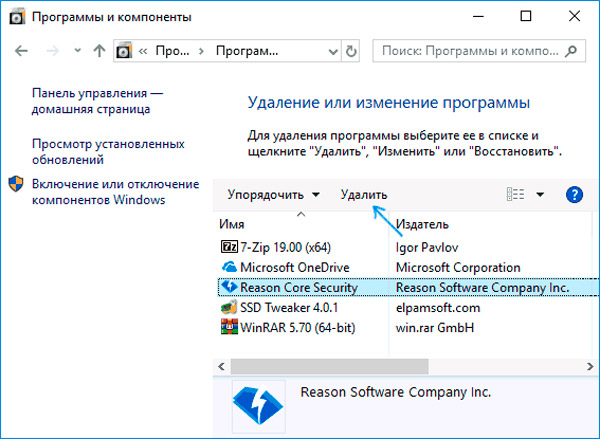
- Если у вас Windows 7, нажмите Start — Control Panel-Programs-Uninstall A Program, выберите нужное из списка и нажмите «Удалить» вверху.
- Если у вас Windows 8/10, то лучше открыть «Поиск», вбить туда: «Панель управления» (классическое приложение) и проделать то же самое.
Если софт по какой-то причине не желает деинсталлироваться, то попробуйте следующее:
- Откройте «Проводник» или «Пуск», найдите «Компьютер», кликните по нему дополнительной кнопкой мыши и перейдите в раздел «Администрирование» — «Сервис». Если Reason Core Security окажется в перечне, нужно кликнуть по нему и выбрать «Остановить». Затем можно переходить к стандартной процедуре деинсталляции.
- Когда ПО вообще не обнаруживается в качестве установленного, можно попробовать запустить инсталлятор. Вы увидите окно с вопросом, хотите ли удалить софт. После утвердительного ответа начнётся процесс деинсталляции.
- Также можно воспользоваться программой Uninstall Tool. Ее интерфейс выглядит почти так же, как системный раздел «Удаление программ», но есть особая кнопочка с изображением веника и надписью «Принудительное удаление». Выделите Reason Core Security и кликните по этому значку, а затем перезагрузите ПК.
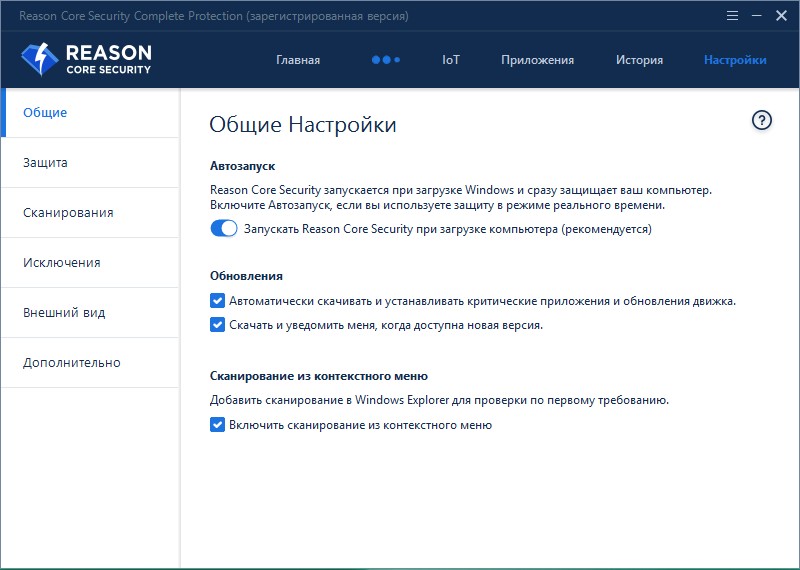
Вкладка настроек для эффективной защиты системы
Использование Reason Core Security
По умолчанию программа добавляется в Autorun и запускается вместе с системой, чтобы постоянно контролировать другие приложения. Если вам это не подходит, то нажмите Win+R и в появившуюся строку впишите: msconfig. Вы увидите перед собой перечень всего ПО в автозагрузке и сможете убрать лишнее. Но в этом случае вам придётся периодически запускать Reason Core Security и проверять приложения вручную.
Когда окно программы открывается, то вверху и слева можно увидеть все разделы и инструменты для работы с приложениями:
- «Сканер» вверху позволяет проверить текущее состояние компьютера и наличие угрожающего софта. Просто запустите его и подождите результатов, если вы не знаете, какое именно ПО стало причиной странного поведения компьютера.

- Верхняя вкладка «Приложения» составляет для вас список всего ПО, что установлено, включая скрытое, и маркирует его отметками: «есть угроза», «нет угрозы».
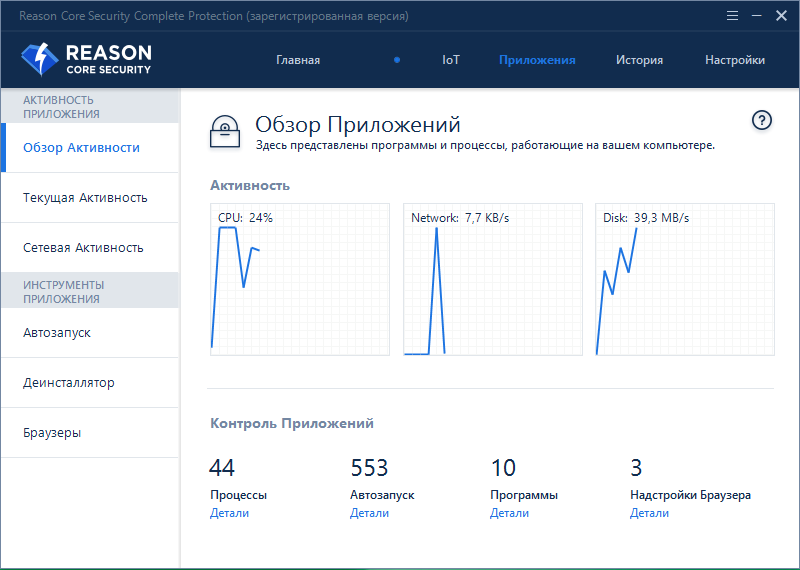
- Слева находится меню для непосредственных манипуляций, «Автозапуск» показывает, что загружается вместе с ОС и насколько это безопасно.
- «Деинсталлятор» может удалять софт, от которого трудно избавиться стандартным способом.
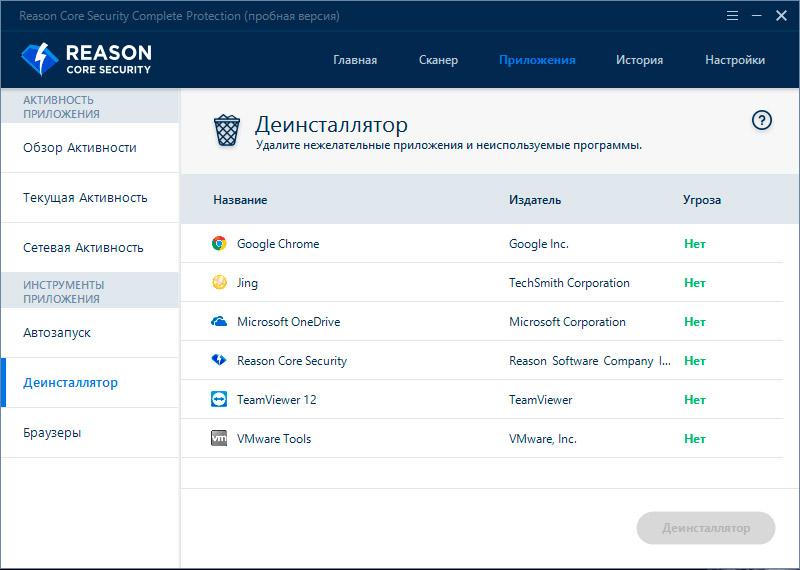
- Вкладка «Браузеры» покажет стартовую страницу, расширения, настройки и ПО, которое повлияло на смену Home page.
- IoT предоставляет перечень устройств, подключенных к вашей интернет-сети, соответственно, оценивая их с точки зрения безопасности.
- В «Истории» вы найдете информацию о проверках и найденных проблемах.
- В «Настройках» можно добавить или убрать софт из карантина, отрегулировать исключения и т. п.
К каждому пункту прилагается инструкция в виде вопросительного знака – нажмите и прочтите интересующую информацию.
Также приложением можно проверять скачанные файлы, архивы, торренты и папки: просто кликните по ним правой кнопкой и выберите «Проверить с помощью Reason Core Security».
Reason Security Engine
The Reason Security Engine is an outdated component often linked with RAV Antivirus, an obsolete security software categorized as a potentially unwanted program (PUP). Users have reported the Reason Security Engine causing significant system slowdown, consuming an excessive amount of RAM, and monopolizing disk usage, often reaching 100%. Despite attempts to close it via the task manager, the engine remains operational, frequently denying access due to its background operation. Uninstallation poses a challenge as it may not be visible in the control panel. Furthermore, even after removing the associated RAV Antivirus, the Reason Security Engine persists, suggesting it embeds itself deeply within the system. Given these issues and its antiquated nature, it’s advisable to replace it with up-to-date security software.

The Reason Security Engine will take most of your OS resources
To uninstall ReasonLabs, you’ll first need to run its uninstaller, but since this may not be enough to get rid of everything, then you’ll need to either use a professional removal tool or follow our guide to manually find and eliminate any residual traces of the malware.
The ReasonLabs application virus is actually a legitimate app that is mistakenly referred to as a virus due to it sometimes getting installed without the user’s informed permission. Though it’s technically a safe software, it’s still recommended to delete the ReasonLabs application if it got installed on your PC without you wanting it there.
To fully delete ReasonLabs after running its uninstaller, we recommend checking system settings such as the Registry or the Services and Startup items and remove from there anything that may be related to the app. A detailed guide on how to do all that is provided for you on this page.
To turn off Reason Cybersecurity, you will need to uninstall the application from your PC either by following the steps detailed in our removal guide, or by using a specialized removal tool that can automatically get rid of the undesired application and all of its residual files and settings.
Reason Security
Reason Security is a security software that may install itself without explicit user consent, often alongside outdated or unwanted software like RAV Antivirus. Once embedded in a system, it poses various challenges for users. It may not appear in Control Panel listings or settings apps, complicating its removal. Furthermore, it runs a component known as the Reason Security Engine in the background, which can consume significant system resources. Users report an inability to disable Reason Security through standard system settings, even after seemingly successful uninstallations, indicating it may leave residual traces. If the software is causing issues, it’s recommended to utilize specialized removal tools, like the one from this page, or to follow the detailed removal guide we’ve included below.
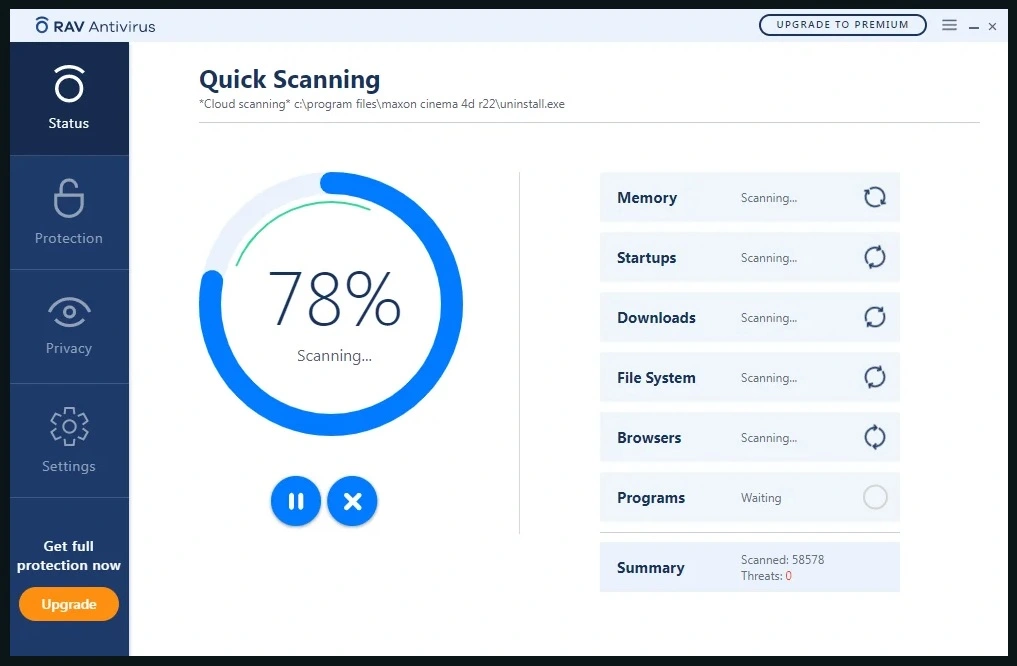
RAV Antivirus is potentially unwanted software that gets installed along with Reason Security
The Reason Security Engine service
The Reason Security Engine service is a process linked to the outdated RAV Antivirus program, which is often flagged as potentially unwanted. Although the service itself isn’t harmful, it’s associated with a program that offers inadequate security features and poses potential system vulnerabilities due to it being outdated. These vulnerabilities may be exploited by genuine malware, thereby jeopardizing your cybersecurity. Despite its non-malicious nature, the Reason Security Engine service may lead to intrusive behaviors like fake alerts, causing undue stress and confusion. Moreover, its high resource usage can affect system performance. Given these factors, it’s advisable to eliminate it along with the RAV Antivirus, ensuring a thorough system cleanup to minimize potential risks.
Reason Security Engine high CPU usage
The Reason Security Engine high CPU usage is a common problem faced by most users who have this engine on their machines. This service is linked with the outdated RAV Antivirus and can lead to system slowdowns and potential instability. This excessive utilization of system resources can disrupt other vital processes, hampering overall performance and potentially leading to system crashes. Additionally, the Reason Security Engine may trigger unwarranted alerts, creating a confusing user experience. Since RAV Antivirus itself is considered a potentially unwanted program with subpar security measures, it might leave your system vulnerable to actual malware threats. Therefore, despite the Reason Security Engine itself not being malicious, its Reason Security Engine high CPU usage and its other adverse impacts on system make its removal strongly recommended.
ReasonLabs application
The ReasonLabs Application is a safe security tool designed by the legitimate software company ReasonLabs. However, issues arise when the software gets bundled with other downloads, potentially installing without explicit user consent. The bundling practice often results in the automatic installation of the Reason Security Engine, an outdated component associated with various system issues. Despite being non-malicious, this engine can cause substantial CPU usage, leading to system slowdowns, unwarranted alerts, and possible instability. Thus, while the ReasonLabs Application is designed to enhance your system’s security, its unintended installation and the subsequent automatic inclusion of the Reason Security Engine can lead to performance degradation and potential exposure to security risks, necessitating its careful management or removal.
Reason Cybersecurity
In conclusion, Reason Cybersecurity, developed by the reputable company ReasonLabs, provides protective software solutions intended to bolster system security. However, some associated elements, such as the Reason Security Engine, can inadvertently disrupt system performance, particularly when bundled with other software and installed without user knowledge. Issues may include excessive CPU usage, misleading alerts, and even potential system instability. The fact that this component is sometimes installed without explicit user consent has led to a degree of skepticism and concerns regarding user privacy and system integrity. While the core software from ReasonLabs is undeniably safe, it’s essential for users to understand the full implications of bundled installations to ensure optimal computer performance and safety.
SUMMARY:
| Name | Reason Security Engine |
| Type | PUP |
How to Uninstall Reason Security Engine
To get rid of Reason Security Engine:
- Uninstall RAV Antivirus and any other potentially unwanted programs from Apps & features settings section.
- Quit the Reason Security Engine process and delete its location folder.
- Clean the Startup items list, the Task Scheduler, the Services list, and the System Registry.
- Get rid of any remaining Reason Security Engine or RAV Antivirus files.
Completing those four steps should usually result in the full deletion of anything related to the Reason Security Engine process or the RAV Antivirus PUP. To make sure that you correctly complete each of the steps, make sure to check out the detailed instructions we’ve shown below.
Detailed Reason Security Engine removal guide
Step 1
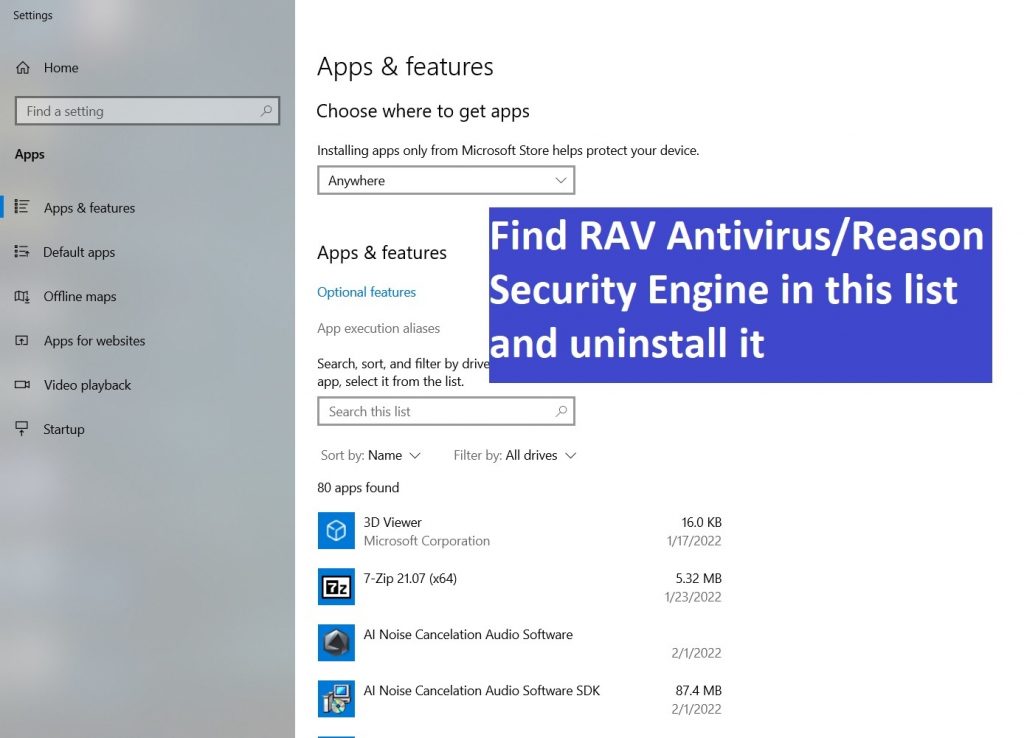
Open the Start Menu/click in the Start Menu search bar and type Apps & Features. Next, scroll down to see the list of apps and programs that are installed on your PC and look for anything named RAV Antivirus or Reason Security Engine. If you notice an app or apps with those names, select them, select Uninstall, and proceed to uninstall the potentially unwanted program/s by following the prompts. If the uninstaller asks you if you’d prefer to keep on your computer something related to the unwanted program, make sure to refuse that offer. Also, some unwanted apps try to trick you into installing other undesirable software when you are running their uninstallers – be sure to carefully read all the options in the uninstaller so that you don’t end up getting some other PUP on your PC.
Step 2
Open the Task Manager with the Ctrl + Shift + Esc keyboard combination, then visit the Processes tab and there look for the Reason Security Engine process. When you find it, right-click it, click Open File Location, then return to the Task Manager (without closing the file location folder), right-click the process again, click Quit Process, and click Quit again to confirm. Now go back to the file location folder, delete everything that’s in it, and then delete the folder itself. If there are any items that can’t be deleted right now, leave them as they are for now, and, once you finish the rest of the guide, try to delete them again.
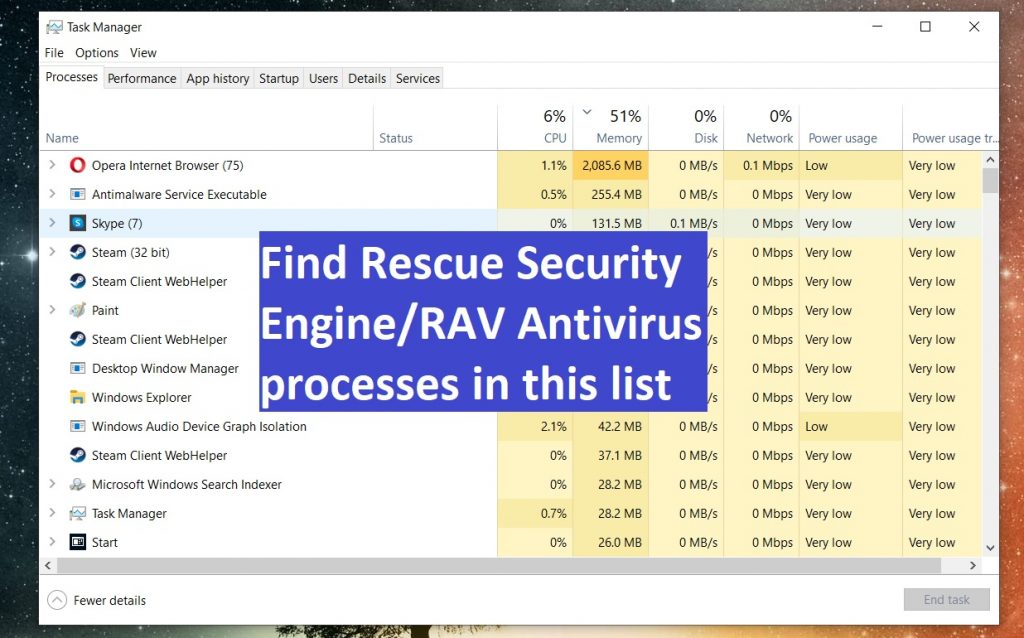
You should also look for any processes named RAV Antivirus or anything similar and do the same thing with them and their file location folders. Additionally, if you notice any other sketchy and suspicious processes in the Task Manager, go to their file location folders, scan the contents of those folders with the next free online malware scanner, and if anything is flagged as potentially unsafe, quit the related process and delete the entire file location folder.

Step 3
We recommend putting your PC in Safe Mode for the next steps, so this is what you should do now. Here are our instructions on How to enter Safe Mode on a Windows PC if you need help with this.
Step 4
Now, it is time to visit different sections and settings in your system where there may be remnants of the RAV Antivirus/Reason Security Engine. Go to each system section by typing the items/names shown below in the Start menu search and then hit Enter to open the first search results. After that, complete the instructions we’ve provided for each item:
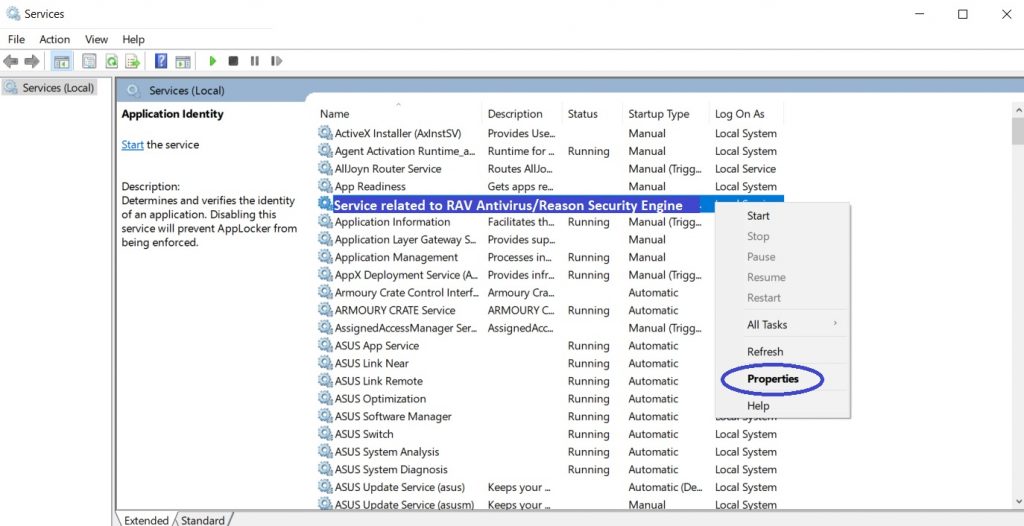
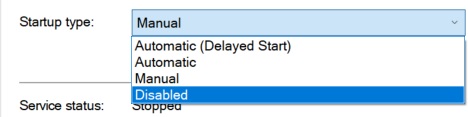
Services – When the Services window opens, look through the services listed in it, searching for anything named RAV Antivirus or Reason Security Engine. If you find an item or items that have such names, right-click them, click Properties, and then set the Startup type to Disabled. Do this with every services item that you think is linked to the Reason Security Engine process and/or the RAV Antivirus PUP.
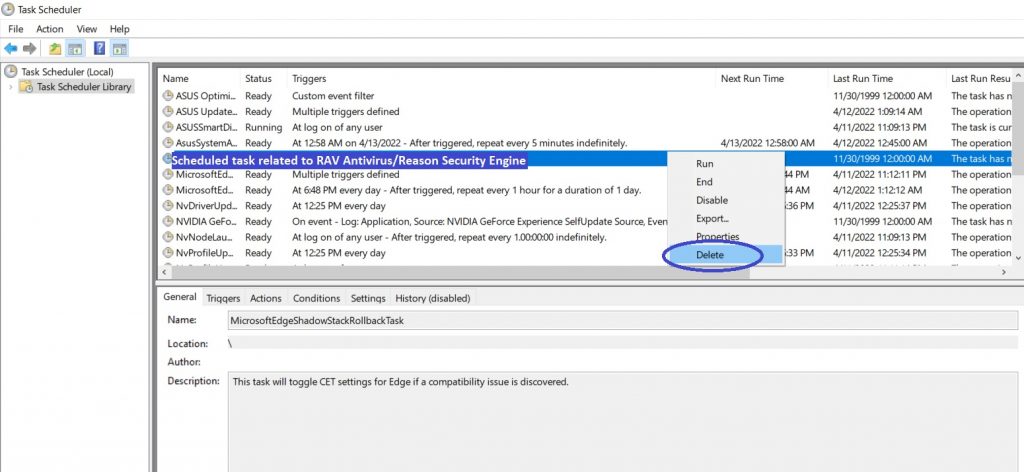
Task Scheduler – In the Task Scheduler, first click the Task Scheduler Library folder shown in the top-left, and then look at the tasks shown in the list. Again, search for items named Reason Security Engine or RAV Antivirus. If such items are found, right-click them, select Delete, and confirm the action.
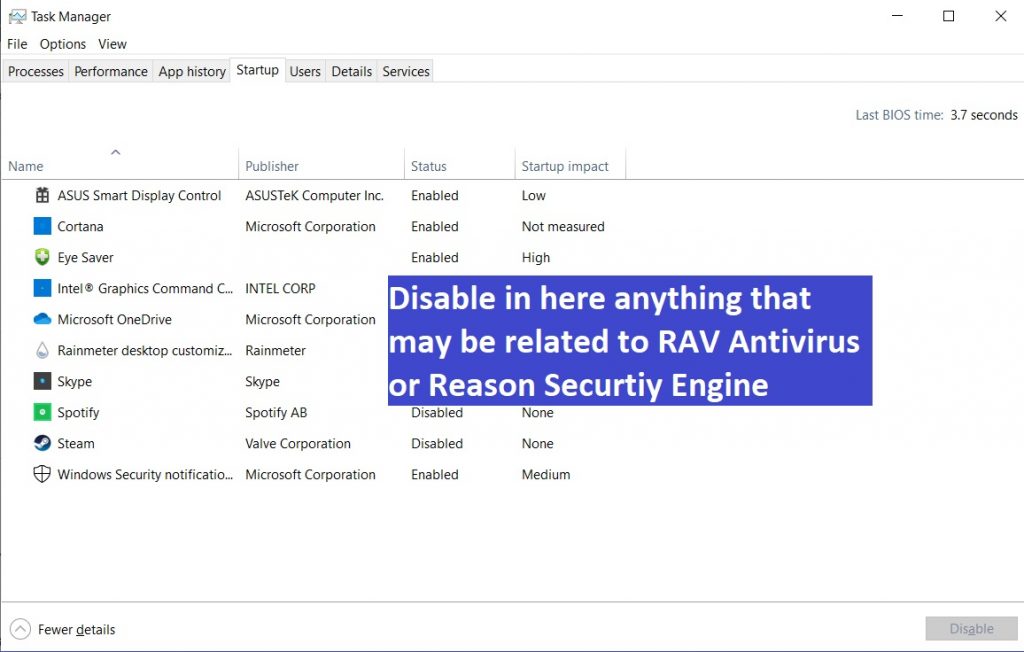
Msconfig – Select the Startup tab in the System Configuration window, and then, if you see a button named Open Task Manager, click it. When you get a list of the system’s startup items, look carefully through them and if you see entries named Reason Security Engine or RAV Antivirus, disable them.
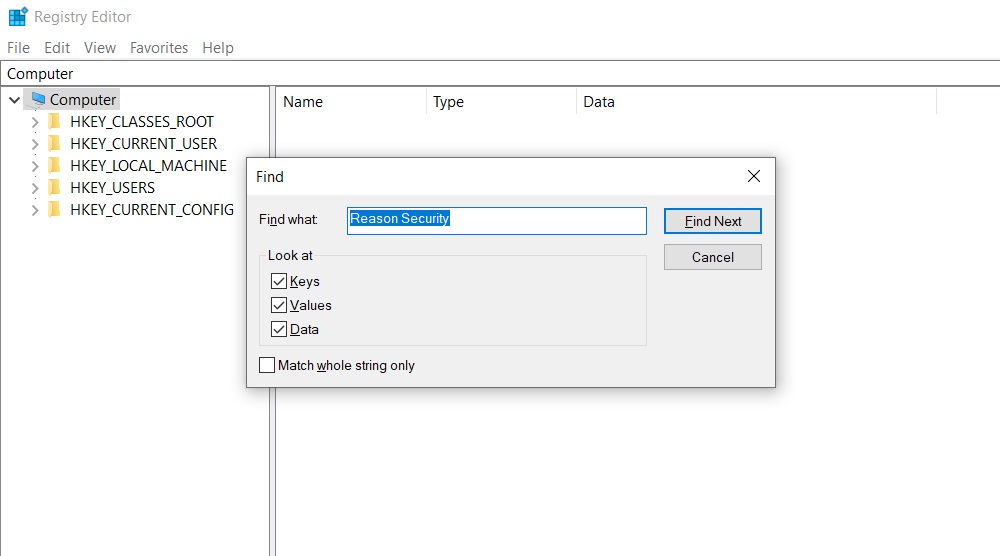
Regedit.exe – Allow the app to make changes to your system by clicking Yes when your permission is required and then, when the Registry Editor shows up, press Ctrl + F. In the search bar that pops up, type RAV Antivirus, perform the search, delete the first item that gets found, and search again. In this way, make sure that all items that come up for this search are deleted. Then do the same with search phrases “RAV”, “Reason Security”, and “Reason Security Engine”.
After you’ve made sure that everything related to those four search phrases is deleted, manually go to the following three Registry locations by expanding the folders to the left. In each of those locations, look for items with unusual names that seem to be randomly generated (for instance, items with names like this: “903urj09fd0923ut09ik3e90turr”). Tell us in the comments if you notice anything like this, and we will tell you what to do with it.
- HKEY_CURRENT_USER/Software/Random Directory.
- HKEY_CURRENT_USER/Software/Microsoft/Windows/CurrentVersion/Run
- HKEY_CURRENT_USER/Software/Microsoft/Internet Explorer/Main
Step 5
Lastly, there are a couple of folders where there may be file remnants from the RAV Antivirus PUP, so you should check for such remnants and delete what you may find. Before that, however, type Folder Options in the Start Menu, open the first result, click the View tab, and there check the Show hidden files, folders, and drives option. After that, click OK so that the changes are saved. Now, type each of the following (together with the “%” symbols) in the Start Menu search and open the respective folders. In all of those folders, except %Temp%, delete only the most recently created files (anything created since the time you think RAV Antivirus got installed on your PC). In the Temp folder, you must delete everything – since there will likely be thousands of items there, the easiest way to delete them all at once is to press Ctrl + A while in the folder, then press Del, and confirm the deletion.
- %LocalAppData%
- %ProgramData%
- %WinDir%
- %AppData%
- %Temp%

About the author
Brandon Skies
Brandon is a researcher and content creator in the fields of cyber-security and virtual privacy. Years of experience enable him to provide readers with important information and adequate solutions for the latest software and malware problems.