What is Spindump on Mac & Fix Spindump Using High CPU
Summary: This post tells you what spindump on Mac is, how to run spindump to debug sluggishness in applications, and how to disable spindump when it tops your Mac’s CPU.
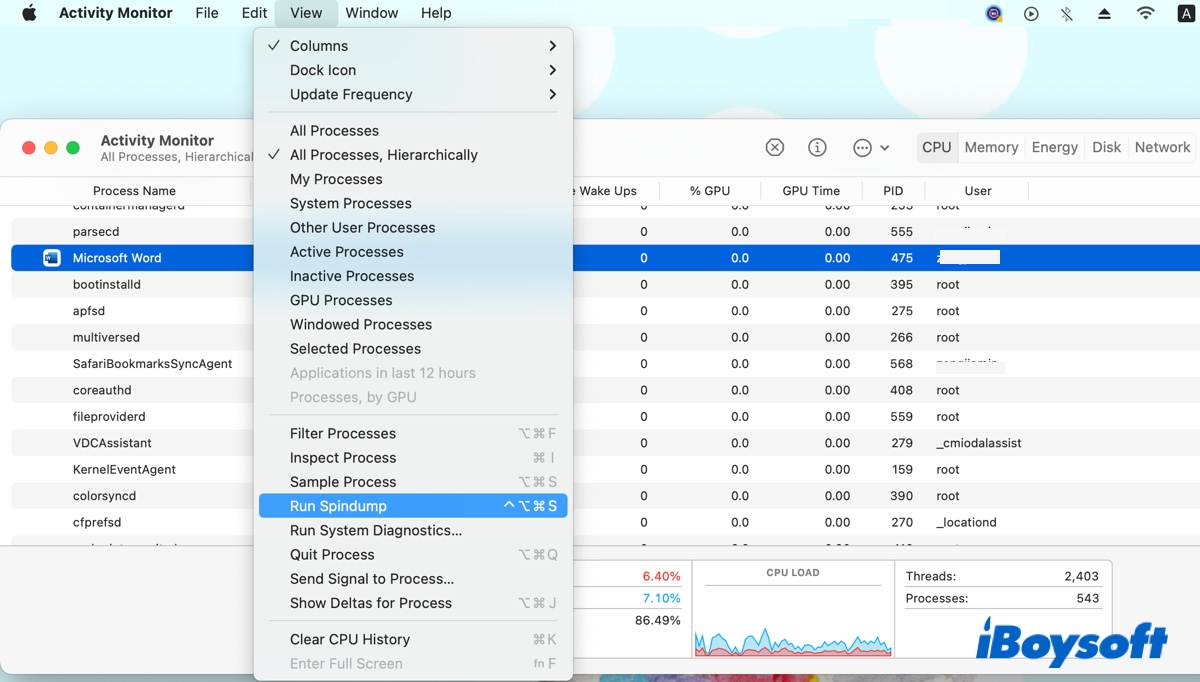
If you open Activity Monitor and click the View menu at the top, you will notice a feature called «Run Spindump.» Checking the running processes, you will find spindump again and its helper agent «spindump_agent.» At times, spindump may consume high CPU usage on Mac, accompanied by loud fan noises and slower performance.
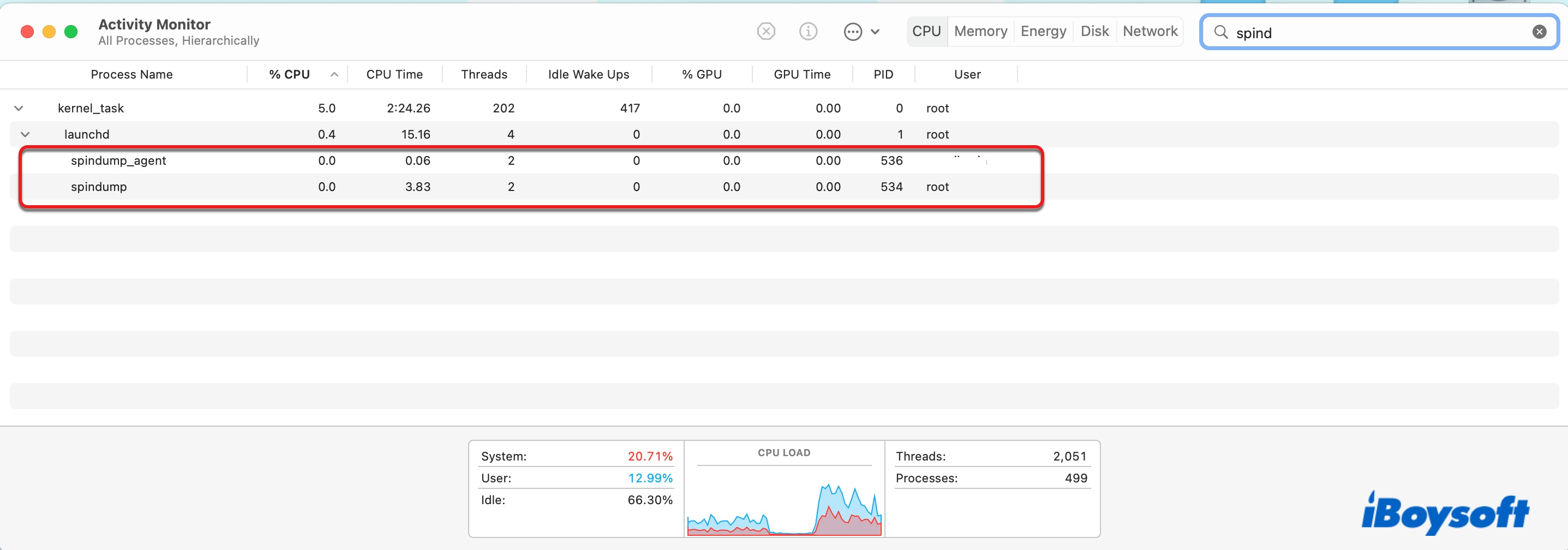
You are likely wondering about the purpose of the macOS spindump and what to do when it takes up your Mac’s CPU. Here, we will break it down for you.
Guide to spindump on Mac:
What is spindump on Mac?
Spindump is a debugging tool used by various system components to create reports when an unresponsive app is forced to quit, thus often requested by support or developer to determine the cause when an app hangs or crashes. However, the debug information spindump collects may not be very helpful for average users and sometimes slow down your Mac or make the fan noisy when other processes crash.
The reports spindump generated are stored at /Library/Logs/DiagnosticReports/, which you can also view in Console.
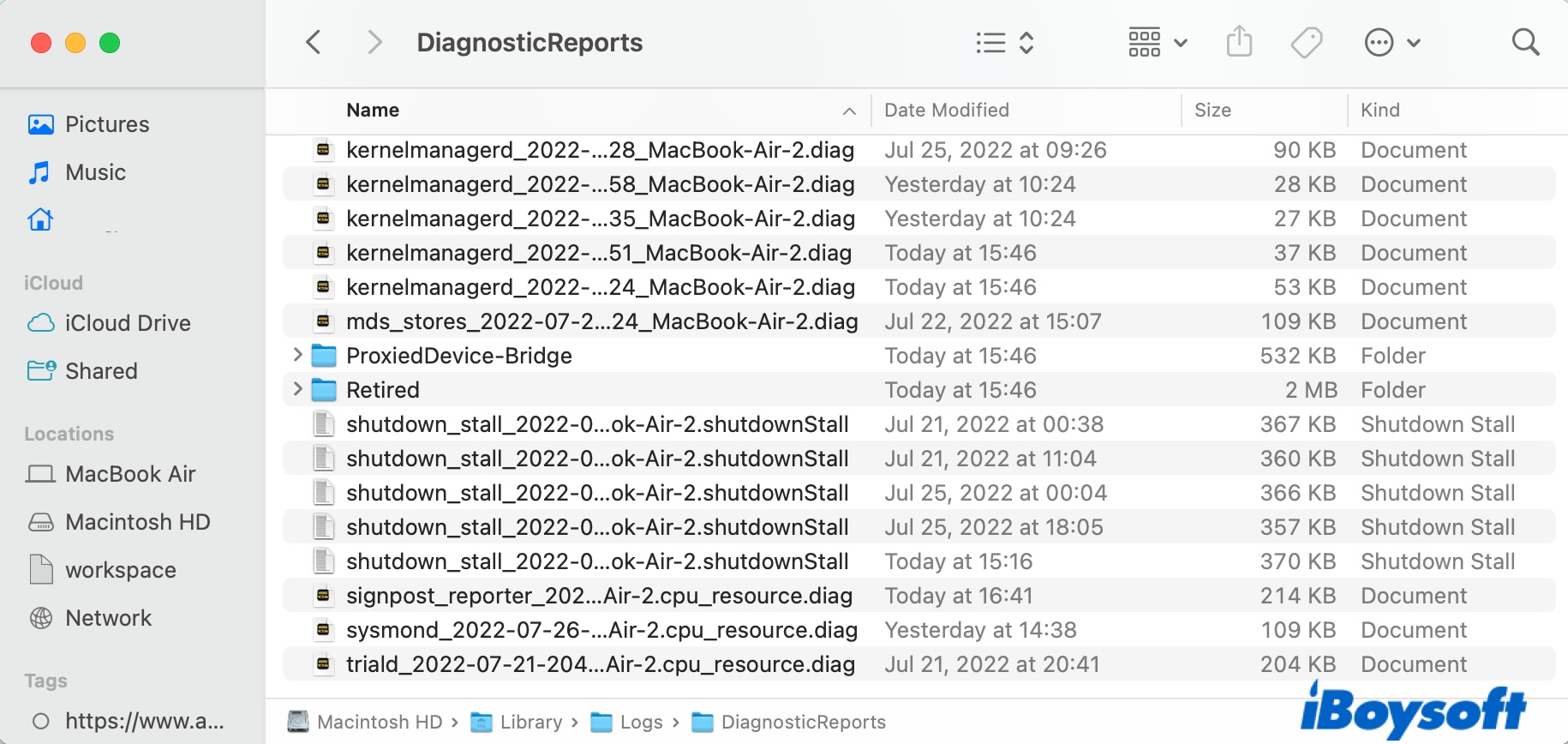
For normal application force quits, spindump displays a dialog box to alert you of the crash and allow you to view the details or send a report to Apple. Spindump is enabled by default and runs automatically in the background, but you can initiate it manually. When run manually, spindump samples user and kernel stacks for every process in the system.
How to create a spindump file on Mac?
A spindump file is useful for troubleshooting issues that may cause a program to hang, crash, or not run well. If your application crashes often, you can create a spindump file to send to the app developer for further assistance with the steps below.
Note: The app in question needs to be active and demonstrate the lag when the report is taken. This way, spindump can show you what the app was doing while experiencing the issue.
- Open Finder, then navigate to Applications > Utilities.
- Launch Activity Monitor.
- Select the problematic app from the list of processes.
- Click «View» at the top and choose «Run Spindump.»
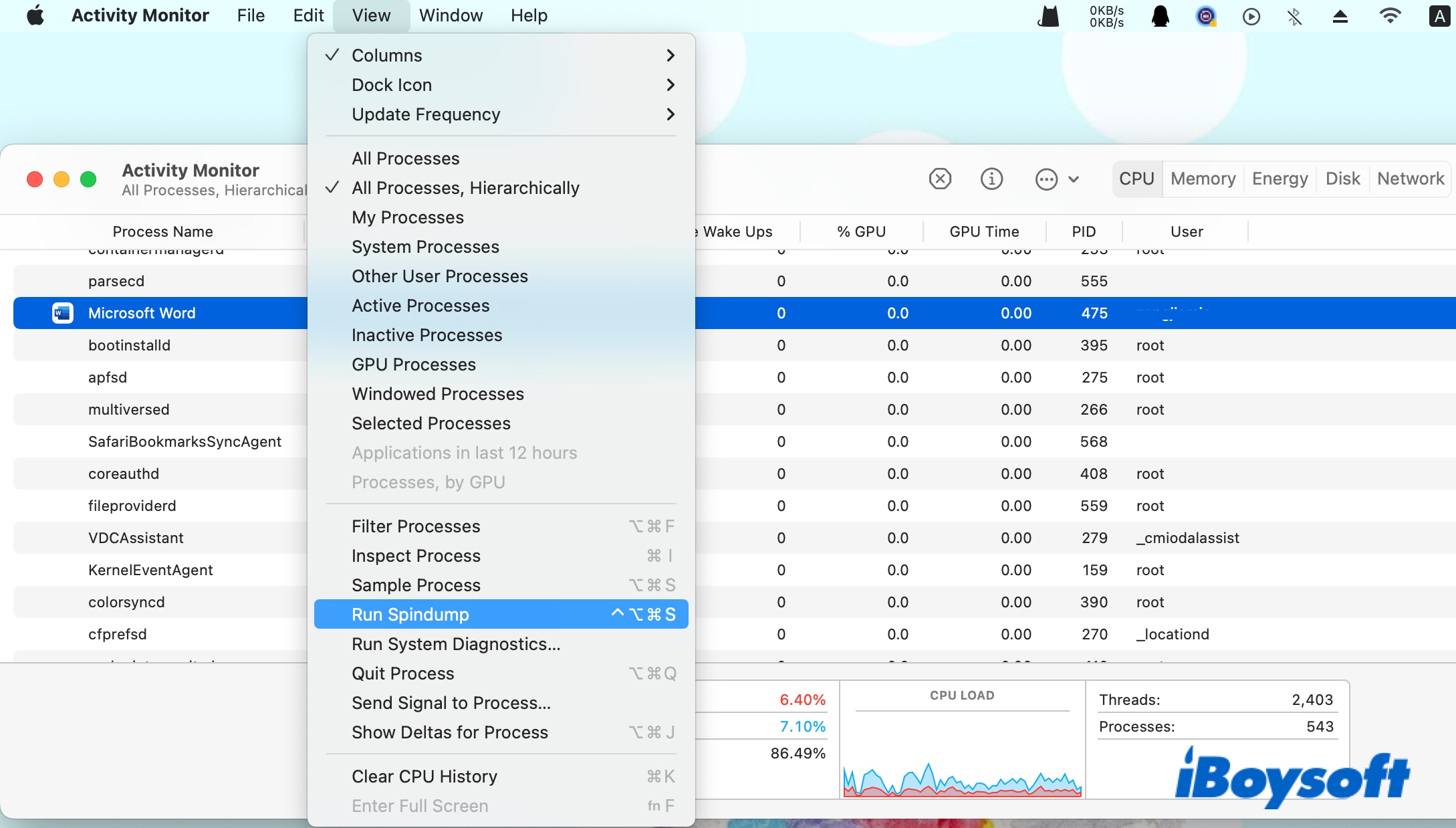
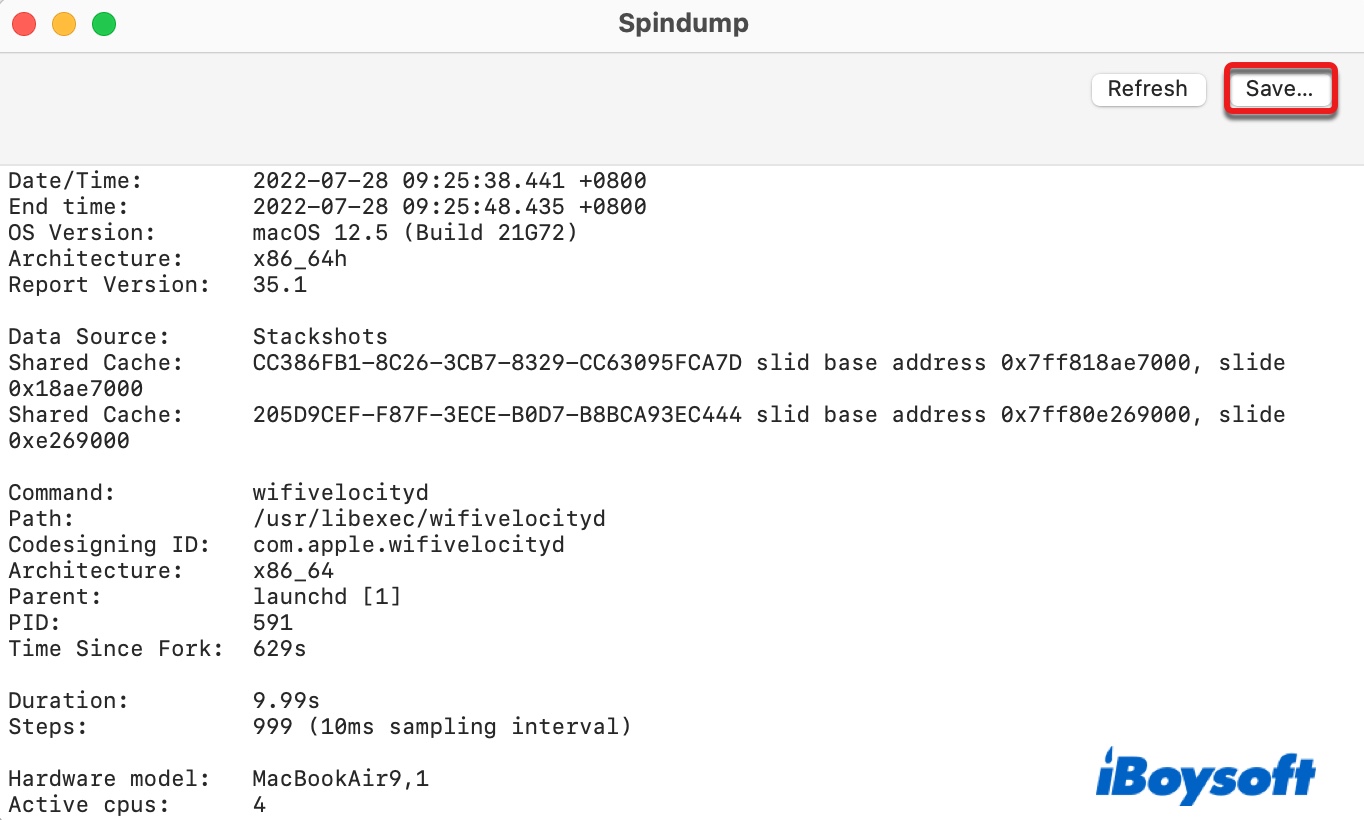
- Wait for spindump to generate the report.
- Click «Save» to save it to a preferred location.
Is it safe to kill spindump in Activity Monitor?
If your Mac’s fan runs at full speed and further investigation discovers that the spindump process is hogging much of the CPU, you may be tempted to kill spindump in Activity Monitor, hoping that the issue can go away. But is it safe to kill spindump?
The answer is yes. The problem with killing a process or app is that this may corrupt the files it writes to. Since spindump only writes diagnostic logs, it’s one of the safest processes to be killed. However, terminating spindump doesn’t fix the real problem, as spindump will restart when needed.
When an application or process hangs or consumes a large amount of CPU, the spindump process will fire up to take a snapshot of what was happening for future debugging and consumes the CPU of its own. Since spindump takes CPU, other processes may work longer to finish a task, activating spindump again. The resources will only be released when everything has finished.
In which case, you can wait until the processes settle down or quit the apps or processes that may initiate it. If the issue is hardware-related, you can reset the NVRAM to see if it helps.
How to disable spindump on Mac if it consumes high CPU usage?
If you don’t want to quit the app that triggered spindump and are willing to give it more time to load, you can disable spindump on Mac to speed up the process. Note that you need to disable SIP first if your Mac is running macOS High Sierra or later.
Warning: If spindump is disabled, it will stop working automatically to generate reports, which may not be desirable for developers.
Here are the detailed steps to disable macOS spindump:
- Restart your Mac in macOS Recovery.
- Open Utilities > Terminal.
- Type in the following command in Terminal and hit Enter. csrutil disable
- Reboot your Mac.
- Launch Terminal from the Applications > Utilities folder.
- Copy and paste the command below and press Enter. sudo su launchctl unload -w /System/Library/LaunchDaemons/com.apple.spindump.plist
- Input your password and hit Enter again.
- Type in the following commands one by one and press Enter after each command to execute it. mount -uw / killall Finder cd /System/Library/LaunchDaemons mv com.apple.spindump.plist com.apple.spindump.plist.bak
- Exit Terminal.
- Repeat steps 1- 3 but change the command to re-enable SIP on Mac. csrutil enable
- Reboot your Mac.
In some cases, you may find tailspind working closely with spindump and consumes a majority of CPU too. If so, you can disable tailspind as well. To do that, repeat the steps above but replace spindump on the above commands with tailspind.
Suppose you are still experiencing issues after disabling spindump; consider backing up your Mac and doing a clean macOS reinstall.
Please share this post if it’s useful.

Jenny is a technical writer at iBoysoft, specializing in computer-related knowledge such as macOS, Windows, hard drives, etc. She’s also been producing top-notch articles for other famous technical magazines and websites.

Jessica Shee is a senior tech editor at iBoysoft. Throughout her 3 years of experience, Jessica has written many informative and instructional articles in data recovery, data security, and disk management to help a lot of readers secure their important documents and take the best advantage of their devices.
Как получить выборку процесса или Spindump | macOS
Как правило, зависание (иногда называемое «зависание», «вращающийся курсор» или «радужное колесо») происходит, когда приложение ожидает ответа от ОС или другого процесса.
В случае, если приложение Adobe перестает отвечать, специалисты службы поддержки могут запросить файлы выборки процесса или Spindump, чтобы помочь определить причину.
- Выборка процесса:создает отчет о выбранном процессе за период в 3 секунды.
- Spindump:создает отчет для приложений, которые не отвечают и завершены принудительно.
Зависание и сбой — это совершенно разные инциденты. Как сообщить о сбое:
Spindump: What It Is and How to Create/Delete It
All of a sudden, you noticed that there was a “thing” named “Spindump” or “Run Spindump” in the Activity Monitor. You have no idea what the Spindump is and whether you can delete it from the Mac device. Often, you can also observe the Tailspind or Kernel-task in the Activity Monitor.
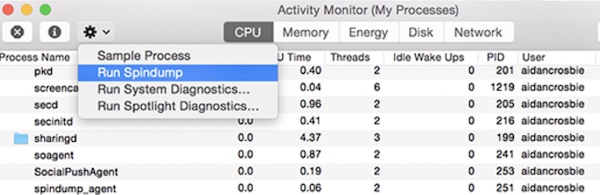
From the screenshot above, some users may still be wondering whether you should run Spindump or Run System Diagnostics or Run Spotlight Diagnostics. However, it is common to hit upon Spindump high CPU error on various Mac devices like MacBook Air or Pro, or iMac.
What is a Spindump on My Mac?
The Spindump is a tool used to create hang report files so that users can know about the application hangs. For instance, so long as an application crashes, the Spindump will work to show a window that warns you of the crash and display the details of the crashing.
In other words, Spindump writes the diagnostic logs of your applications. The information detailing the crash will also be reported to Apple.
As many of you often see the Spindump and Tailspind in the Activity Monitor, it is also safe to say that they are two system processes on macOS and play a role when specific programs start to work.
In this way, Spindump is useful in some cases to help users realize and handle various application or program issues in time.
Is It Safe to Kill Spindump?
You may consider removing Spindump when noticing that this process has hogged much CPU in Activity Monitor. Or you just want to delete it as you don’t know what it is.
Hence, if you found that the Spindump uses a high CPU and slows down the device, the first thing that crosses your mind is to get rid of it.
Yes, you can kill the Spindump process, but you should back up resources on your Mac device before removing this process.
How to Disable Spindump on Mac Devices?
Whether your device is on macOS High Sierra or any other macOS versions, if you are determined to disable the Spindump process or Tailspind, just follow the steps below. It is foolproof to do so, but you would better back up your Mac in case of data loss.
1. Restart the Mac and hit Command + R when it boosts up again. That will get your device into recovery mode.
2. In Launchpad, find out Terminal.
3. In Terminal, input csrutil disable and then press the Return key.

In so doing, the Mac feature System Integrity Protection (SIP) will have been disabled, so you can try to stop the Spindump or Tailspind as you wish.
Here, SIP is a security technology that protects your macOS from malware. In case your action to kill Spindump is taken as that of malicious software, you need to close SIP firstly.
4. In Terminal, copy and paste the following commands and run them one by one:

5. Re-enable the SIP by running the command “csrutil enable” in Terminal.
You will have removed the Spindump file as well from the system after running these two commands. If you also wish to disable Tailspind, just run the commands one by one:
As you can see, you just need to replace spindump with tailspind in the two commands to stop Tailspind.
After that, you won’t observe the process of Spindump using up CPU on macOS. When possible, you can try to update macOS after disabling the system process.
How to Create the Spindump File on macOS?
After killing the Spindump process, some users are afraid that there will not be diagnostic logs that warn you of the problems with different applications, so you may choose not to disable the Spindump process.
But instead, you hope to create a Spindump file for the system to check the status of these applications. Don’t worry, the steps to create the Spindump file are foolproof.
1. In the Launchpad, go to Activity Monitor.
2. In Activity Monitor, hit the Settings icon and then choose to Run Spindump.
3. You can see that the Spindump window is working to generate files.
4. Use Password to create the file and then Save it.
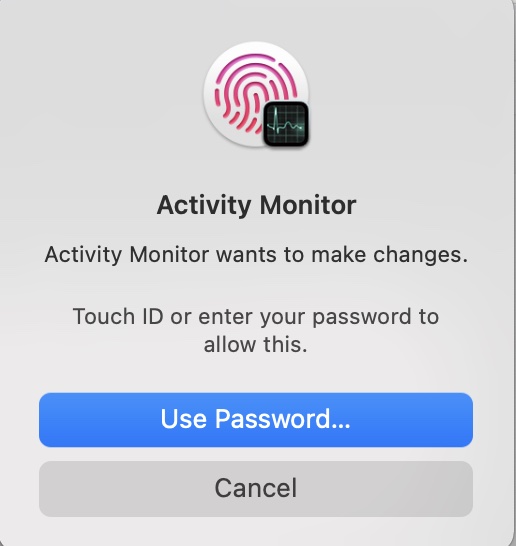
As such, the Spindump file will be available, and you can check the crashing information for your apps. If needed, take measures to handle the problems with the app.
Summary:
In this post, you can learn what Spindump is and how to do with it on macOS. You can choose to disable it in Terminal or create files about the apps with it. Normally, unless this Spindump cause crashes to your device, you would better not kill it.
What is Spindump? How to read, analysis and disable Spindump
You use the iMac and the Mac OS X operating system. But you do not know what Spindum is in Mac OS X; this article will help you understand what Spindum is and how to read and use Spindump.

What is Spindump?
Spindump is a hang reporting tool used by various system components to create hang reports. Most users should not run Spindump manually; it can be invoked by root with arguments similar to those for the sample for debugging.
Spindump shows for each program that is running, at what point in the program it got to then and what programming libraries it’s using. This helps developers of an application that crashed or has bugs. They use it to understand the particular environment under which a program was running then, at what stage in the program it got to when it hangs or crashed, for example.
When a program crashes it triggers a spin dump to be sent to Apple who, then, forward it to the developers of the offending program, whether in-the-house or third party developers. It helps in improving the quality of software.
As it reveals what programs your computer was running, it is helpful to identify programs that run when they shouldn’t, viruses or unwanted programs such as “spigot application manager” that I just discovered running now. I It may also give weak hints of what you were doing then. I wonder if third party developers receive the full thing or just the part concerning their application.
How to read and analysis Spindum
With Spindump, you get multiple stack traces over a period together.
There are two cases in which you might want to examine a Spindump:
- an infinite loop, probably calling the same function over and over
- deadlock.
The first case can be seen from the Spindump by many calls to the same function over and over. A good thing to use in such situations is Activity Monitor – take the sample of a hung process there, and you can view it in several useful ways, hiding unimportant frames, etc.
The second case can be viewed by different threads waiting on locks at the same time.
Here is a little example:
What this tells me, is that MyApp has gone through main, etc. and finally got into a function CFRunLoopRunSpecific , then __CFRunLoopRun – from there (2557) it called __CFRunLoopServiceMachPort , which called mach_msg and got into a trap at mach_msg_trap (calling a syscall) – when it got back, the stack trace returned to CFRunLoopRunSpecific , where __CFRunLoopRun was called, which then calls __CFRunLoopDoObservers , and so on.
Note that this isn’t a Spindump of any hanging process – you can sample this way any running process and view what functions were called during that sample. An infinite loop, however, will have a repeating calls to some task over and over again – there will be the same call tree over and over again. Of course, this can mean a simple for the cycle, but that’s where you can examine if the for period isn’t for some reason infinite. Unfortunately, these spin dumps are usually quite long, depending on what function you are calling, so it may take some time to examine
The + sign at the beginning of the row indicates a start of a line – lines without the + sign indicate a beginning of a new thread. The ! and: signs make a range, so it’s easier for you to see subsequent calls – i.e., which calls are at the same level. Further, the | character can also be used.
The numbers mean how long the app spent in that particular call – they are in the name of samples. The sampling works that the sampled app gets suspended every few milliseconds and the stack frame is examined of each thread. If the app is still in the same function, the function gets +1.
Disable Spindump to Speed Up your Mac
macOS High Sierra includes System Integrity Protection, which means that individual files are untouchable and uneditable. This has the benefit of helping keep your system files pure and malware-free, with the cost of flexibility.
To disable tailspin and Spindump we need that flexibility, and that means temporarily disabling System Integrity Protection (SIP). To disable SIP:
- Boot your Mac into Recovery Mode by restarting with Command-R held down until the Apple logo appears.
- Once your Mac is in Recovery Mode, go to Utilities > Terminal .
- In the Recovery Mode Terminal, an issue crucial disables and press return.
- Reboot your Mac.
Once SIP is disabled, the steps to disable Spindump are pretty straightforward. Launch Terminal and type/paste the following four commands. The first two turn off and render Spindump useless.
- sudo launchctl unload -w /System/Library/LaunchDaemons/com.apple.spindump.plist
- sudo mv /System/Library/LaunchDaemons/com.apple.spindump.plist /System/Library/LaunchDaemons/com.apple.spindump.plist.bak
- sudo launchctl unload -w /System/Library/LaunchDaemons/com.apple.tailspind.plist
- sudo mv /System/Library/LaunchDaemons/com.apple.tailspind.plist /System/Library/LaunchDaemons/com.apple.tailspind.plist.bak
Make sure to re-enable SIP when you’re finished by performing the steps to disable SIP (in Recovery Mode again), and issuing crucial enable as step #3.
That’s it. From this point forward, Spindump will be disabled and will not run on your Mac. It’s advisable to check these after macOS upgrades as it’s entirely possible that an update could re-enable these processes without any warning.