What is GPU Scaling? How to Enable GPU Scaling?
You might enjoy playing an action-packed third-person shooter such as Gears of War on gaming PC or laptop. With a high-end graphics-processing unit and amazing surround sound – the experience is unmatchable.
But, what if you want to go back to the old days and play Mafia, you might be taken aback. You are likely to experience blurred or stretched out images, slow gaming and a poor output overall.
This is because the older games were not made according to the modern systems with different aspect ratios. So, to enjoy old classics like Mafia and GTA San Andreas, you need to tweak your system. For this, GPU scaling will come to your rescue.
What is GPU Scaling
A GPU is a processor that is dedicated specifically to gaming. The realistic blood and gore you see when you kill the enemies in the game are due to the GPU.
GPU scaling is an option available in the modern graphic processing units that lets you tweak the games aspect ratio, which is the ratio between the height and width of your screen. Altering the aspect ratio makes an old game fit perfectly on your monitor with no stretches and lags.
The problems you might have faced while playing older games is because of their aspect ratio. Games like Max Payne and Quake had a native aspect ratio of 4:3 and 5:4. But modern monitors have aspect ratios of 16:9 and 21:9. GPU scaling makes the appropriate adjustments so that you get a high-quality output without the images being pixelated.
Types of GPU scaling
If you want to enable GPU scaling in your GPU, you will come across three modes:
1) Scale Image to Full Panel Size
This option lets you stretch the image of your game to fit the display of your screen. It is an easy fix while playing old games, but the resultant image will have a pixelated appearance. This kind of output is due to the fact that the game’s initial aspect ratio was not used. So, no space will be wasted while adjusting the image, but you will not enjoy stunning visuals.
2) Maintain Aspect Ratio
Using this option, you can play the game in full-screen mode. Here, the game’s original aspect ratio will not be changed but the graphics are scaled up. As the images will not be stretched, the extra background gaps will be filled using black bars or patterns. These are added to the left, right or below the images.
3) Use Centered Trimmings
You can use this mode when the game image is smaller than your screen’s resolution. The option does not scale the image. Instead, the option positions the image right at the centre. As this option does not completely fill the monitor, you will see the game image surrounded by a pattern or black bars.
Now that you have grasped the basics of GPU scaling, let us look at the ways to enable these settings in different graphic processing units.
How to Enable GPU Scaling?
1) GPU scaling in AMD Catalyst
This method enabling GPU scaling is a little old as most PCs use Radeon settings. Here are the steps:
- Select the AMD Catalyst Control Center after right-clicking on the desktop, in the drop-down menu.
- Hover over to the option My Digital Flat Panels on the left side of the page. Click on it and another drop down will appear.
- Click on the Properties (Digital Flat Panel) option.
- In the window on the right, you will find an option called Enable GPU upscaling. Tick the box to enable GPU scaling.
- Then you will be presented with the three possible scaling methods – Maintain aspect ratio, Scale image to full pane size and Use centered trimmings.
- Choose on the preferred scaling mode and click on the Apply button.
- To adapt to the changes, your monitor will turn off for a couple of seconds. When it turns on, the changes will have been applied.
2) GPU scaling in AMD Radeon Settings
For modern GPUs and AMD graphic cards, these are the steps you have to use for enabling GPU scaling:
- Right-click on the desktop and select AMD Radeon Settings.
- In the AMD Radeon Settings window that appears, click on the Display tab.
- Then click on the GPU Scaling option to turn it on.
- After that, click on the Scaling Mode to open a drop-down menu.
- Choose your required scaling mode from the options presented in that menu.
- Exit the Radeon Settings.
3) GPU scaling with NVIDIA Control Panel
- Right-click on the desktop and click on the NVIDIA Control Panel in the drop-down menu.
- On the left part of the Control Panel, you will find the Display tab.
- Click on the Adjust desktop size and position from that tab.
- In the main window on the right, click on Perform Scaling On option.
- In the drop-down menu that appears, click on GPU.
- Select the scaling method you want such as Maintain aspect ratio, Scale the image to full pane size, and Use centred trimmings.
- Exit the NVIDIA Control Panel.
Pros of GPU Scaling
As GPU scaling helps in resizing and adjusting the display in the games, it enhances the gaming experience for users. The advantages of GPU scaling are as follows:
- The scaling mode preserves the original aspect ratio of the old games. So, there are no ugly stretches in the graphics or odd shapes around the edges of the screen. All the details are clearly visible without any issues.
- Normal systems without a GPU are not equipped to handle high-quality graphics. GPU scaling helps to support these graphics and preserve image quality when running both modern and older games.
- If the image goes beyond the screen resolution, you might see black bars where the images are cut off. GPU scaling has an option of Underscan/ Overscan in the configuration menu that can remove these bars. The image is adjusted to get a better output.
Cons of GPU scaling
Effect of GPU on Input Lag
A disadvantage you might face while performing GPU scaling is its significant effect on input lag. The process of GPU scaling requires a lot of processing power. This is because the process displays the graphics or game images just as they are while preserving their quality. If you play a video, this slight delay while displaying will not be noticed easily.
But, when you are playing games, the additional processing power needed to render the graphics are noticeable. You might observe a slight delay in the resultant effect when you press a button. This is called an input lag.
For example, if you press a button to fire a bullet but the effect is a little delayed. This is a real problem when you are engrossed in a game — and are busy strategizing and killing your enemies.
GPU scaling is best while playing old games. When you are playing newer games, it is best to turn GPU scaling off to avoid input lag.
Conclusion
Most of the modern games like Far Cry, Crysis and Mass Effect do not require GPU scaling and the screen resolution is compatible with the current monitors. So, if you are a gamer who wants an uninterrupted gaming experience, turn the GPU scaling option off.
But if you like playing oldies such as Doom and GTA Vice City, turn on the GPU scaling for an enjoyable experience. In all cases, weigh the effects of not scaling images against that of input lag.
What Is GPU Scaling? Should I Keep GPU Scaling On Or Off?
All modern games are made with the 16:9 aspect ratio in mind, with some allowing scalability up to 21:9 for ultrawide monitors. Contrarily, most older titles made for PC and console had a 4:3 aspect ratio, so playing old games these days raises a new problem.
Fast forward to 2023; all displays have a new standard that is, 16:9 so games that run on the old 4:3 or 5:4 aspect ratios do not play properly on today’s TVs and monitors.
Now comes in our hero and saviour: GPU Scaling. All modern cards come with this feature built-in. It allows old applications to be scaled properly on modern displays with clashing aspect ratios.
It also accounts for both the vertical and horizontal positions and adjusts the application to fit within a modern aspect ratio accordingly without any stretching or weird distortion. For example: playing a 4:3 game on a recent 16:9 4K monitor.
What Exactly is GPU Scaling?
It is a feature present in every modern video card. It allows you to play games at original quality without losing any details at whatever resolution you want, regardless of the game’s native output.
It effectively “scales” the graphics on your screen to fit your monitor and enables you to retain all the detail and quality of the game.
This feature was made to allow older square aspect ratio games to fit best on modern wide and ultrawide displays.
It scales games running on 4:3 and 5:4 aspect ratios to run at high quality on 16:9 and 21:9 displays with either black borders (both horizontal and vertical) around the game’s window or by stretching the game to fit any modern display.
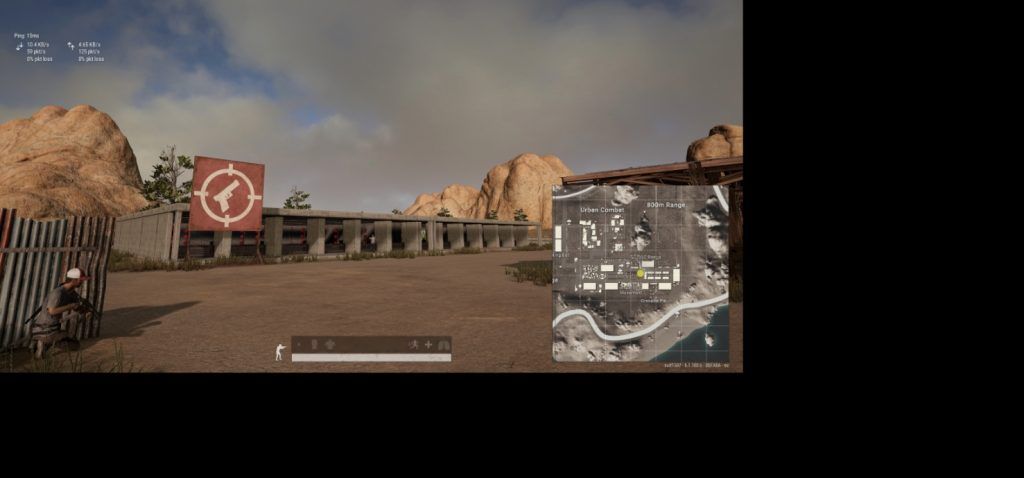
The choice is in the player’s hand. Some players want to experience the game classically by playing with a 4:3 aspect ratio with black borders around the game.
In contrast, some players demand the most up-to-date stretched aspect ratio for a better FOV and gameplay experience. Both AMD and Nvidia’s graphic cards allow you to use this feature to upscale the game from its native output to fit your desired resolution and aspect ratio best.
GPU scaling also aims to get rid of any weird image stretching issues and blurring in your game. Since you are essentially forcing the game to run at a different output than it was meant to, you are bound to face some distortion and possibly poor image quality, and a pixelated result. It works to reduce that as best as it can and imitates those games to be playable on a modern display without looking like garbage.
Is GPU Scaling Necessary?
Scaled graphics are not entirely necessary because it is of no use in modern titles that are already made to run on ultrawide displays but, if you plan on playing older games and want to preserve their quality while playing them without any weird image distortion, inadequately stretched out resolutions, or poor quality output than this feature suddenly becomes vital for an enjoyable experience.
The biggest advantage that this brings is allowing 4:3 games to run at an almost native quality on displays that aren’t 4:3 or any square aspect ratio for that matter.
Stretching a square image on a rectangular display would cause strange artifacts and distort the image output to the point where it would just look like a weird gallop of unorganized pixels.
Some people like their games to look more old school and want to play with the original aspect ratio, for those you can preserve the original aspect ratio and allow your graphics card just to put up black bars around your game while you are playing in fullscreen mode. This helps you maintain the classic look without losing any of its functionality.
Recommended Reading:
However, often the game’s resolution wildly contrasts your monitor’s resolution, i.e. when the game has a smaller resolution than your monitor.
In these cases, you’d want it to be centered on the screen with appropriate black bars filling the rest of your monitor, so your game always stays perfectly in the center of its window on your screen and does not look blurred or pixelated.
GPU scaling also allows you to take any mismatched aspect ratio game and scale it all the way up to be displayed on a wide or ultrawide display. But simply stretching it to fit your display is not the best way to scale your graphics and the result can be poor, similar to how your monitor would scale the game.
All modern displays automatically scale whatever is on the screen to be displayed in the best way possible, but they are often terrible at it.
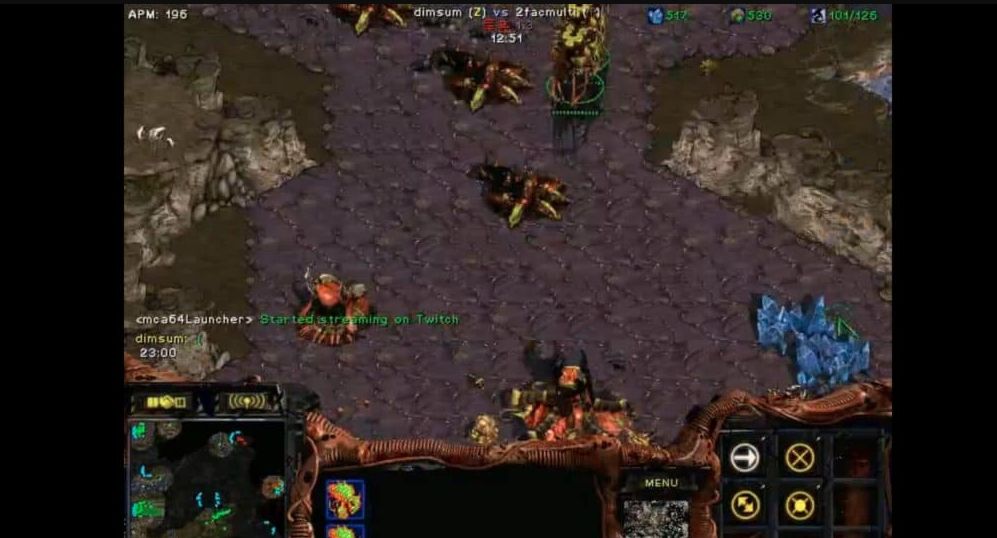
The results can be absolutely unplayable with completely stretched-out resolutions and inaccurate colors along with poor image quality. This is why graphics-based scaling is preferred over your display’s built-in methods.
Graphics-based scaling becomes irrelevant when we account emulators into the equation. Emulators already come with proper scaling tools and even some enhancements that improve the gameplay experience considerably from the original console.
Here, GPU scaling won’t do anything since you don’t need it to do anything here, and in fact, if you force it you’d probably end up with a worse output than what your emulator is already displaying.
The biggest downside of using scaled graphics is input lag. Because your graphics card is working harder than it normally would to scale those graphics for you, a bit of latency comes into play here.
Now, this input lag is barely even noticeable while viewing pictures or watching videos but when it comes to actually playing games, it can sometimes have a clear-cut effect on your game and can make it feel sluggish or slow. More expensive monitors come with lower input lag (such as 1ms), so your chances of not noticing the input lag are best at the higher end of the spectrum.
Long story short, if you plan on playing games with a square aspect ratio and want the best experience possible, then GPU scaling is necessary for you and you should turn it on.
On the contrary, if you only want to play modern games that already support modern wide and ultrawide displays, or you will be playing on emulators, then this feature is certainly not a must for you.
Note: GPU scaling only works with digital inputs (HDMI, DVI, DisplayPort) and not with analog inputs (VGA). Your monitor must be connected directly to your graphics card for this to work.
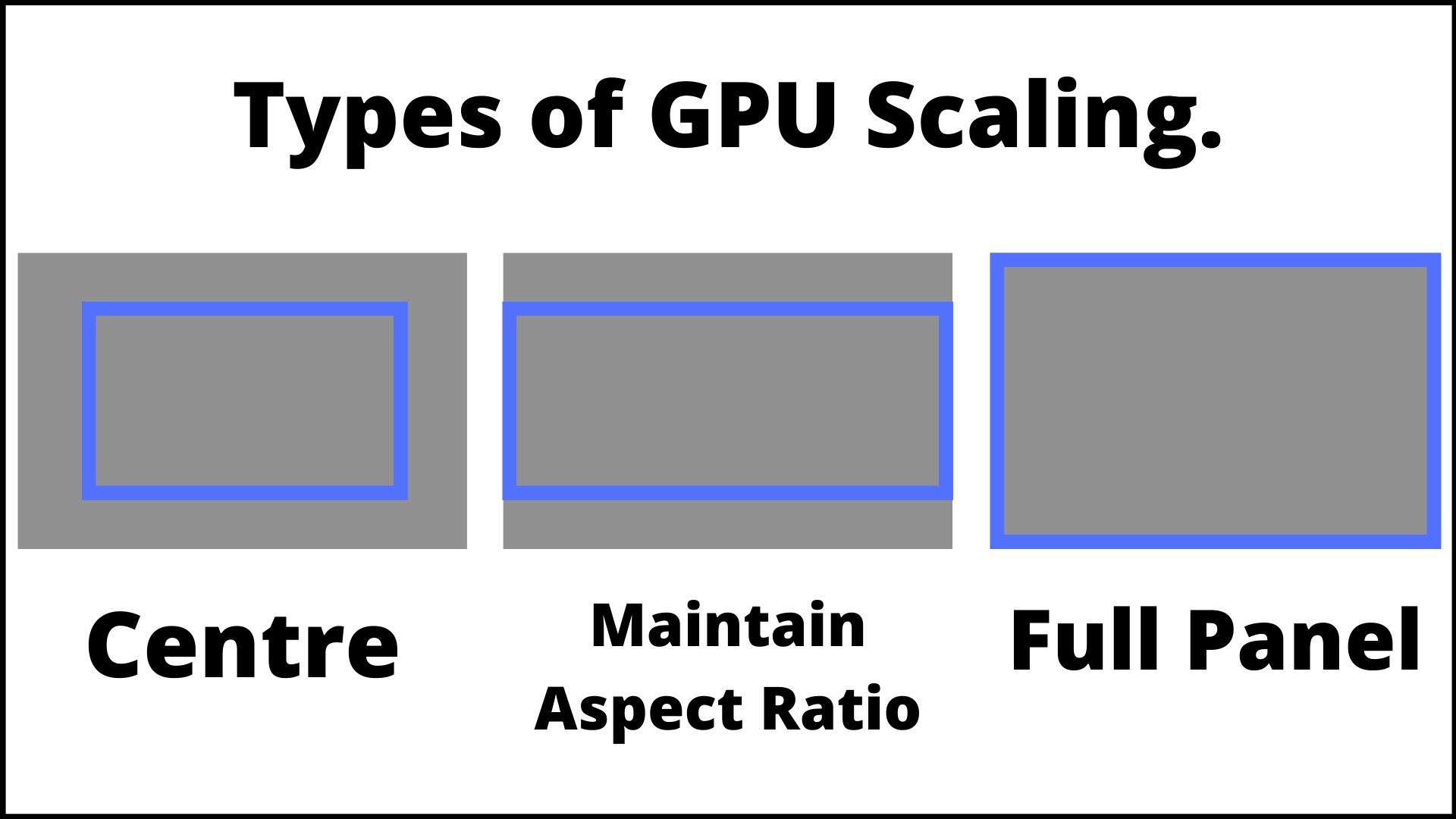
Types of GPU Scaling
1- Maintain Aspect Ratio
As the name suggests, this method allows you to maintain the original aspect ratio of the game when you are playing in both fullscreen mode and windowed mode. Essentially, your graphics card scales up the image to fit your monitor’s height as best as possible while preserving the original aspect ratio; the space that is left unfilled on the left and right by the game is then filled with black bars.
“Maintain Aspect Ratio” also works nicely on very low-end hardware because you are just stretching the game’s original output to fit a bigger display without messing with anything else. Older titles that don’t have any widescreen support or at least an easy-to-implement widescreen option can also benefit from this to fit modern displays best.
2- Full Panel
Full panel stretches out the game to fit your display regardless of whatever resolution you are playing at. The result, however, can be a blurry and distorted output because you are forcing the game’s aspect ratio to change and adapt to a newer aspect ratio that it does not support.
If you really hate black bars and want your game to fit edge to edge on your 32” 4K ultrawide monitor at all costs, then Full Panel is the way to go for you.
3- Center
Centred scaling places the game dead centre in the middle of your screen and displays black bars all around it to fill up the rest of your display. Centred is ideal if your game’s resolution is lower than your display’s and you still want a sharp image with most of the details preserved.
Turning Your GPU Scaling on or off
Being a very popular feature, it is available on both AMD and Nvidia’s discrete graphics cards, and as we discussed above, it allows you to scale up an older game to fit best on your modern widescreen display. Let’s see how you can enable or disable GPU scaling on your PC.
#1- AMD Graphics Card (Using AMD Catalyst Control Centre)
- Right-click on your desktop.
- Select the “AMD Catalyst Control Centre” option and open it.
- On your right, you’ll see a list of options, select “My Digital Flat Panels”
- Now, select Properties (Digital Flat Panel)
- Now, you’ll see a checkbox in the middle of the window saying “Enable GPU Scaling”,
- Select your preferred type of GPU scaling, and select the checkbox to enable GPU scaling.
#1.1 Using The AMD Radeon Settings
- Right-click on your desktop.
- Select the “AMD Radeon Settings” option and click on it to open it.
- Click on the Display tab.
- From there, select the GPU Scaling option and turn it on.
- Then, select your preferred type of GPU scaling from the drop-down menu (located right next to on/off option).
#2- How To Turn on GPU Scaling with An NVIDIA Graphics Card
- Right-click on your desktop,
- Select the “NVIDIA Control Panel” option; click it to open it.
- On the left, you’ll see a list of settings, locate the “Display” section.
- Underneath the Display section, click on “Adjust desktop size and position”.
- Now, click and open the drop-down menu labeled as “Perform scaling on” and select “GPU”.
- From here, select your preferred type of GPU scaling,
- And make sure to mark the checkbox saying “Override the scaling mode set by games and programs”.
- Apply the settings, and you’re, finally, good to go!
#3- How To Enable GPU Scaling On Intel Graphics
- Right-click on your desktop.
- Select the “Intel HD Graphics Control Panel” option to open it.
- You’ll now see a bunch of big icons, select the “Display” icon.
- Under the “Scaling tab”, select your preferred type of GPU scaling.
- Lastly, click on Apply to apply (duh) the new settings, and that’s it.
Conclusion: Is GPU Scaling Better?
This is an amazing feature for retro gamers looking to play older tiles with mismatched aspect ratios to their modern displays.
It allows you to play at the original quality without losing detail and doesn’t even tax the card that much.
However, since your graphics card is working slightly harder, you can notice input lag that can affect your gameplay immersion. That being said, the added latency is not that noticeable, and the better monitor you have, the less noticeable it will be.
It can be much better than your monitor’s native scaling because the output is directly coming from what your graphics unit is rendering in real-time. Display scaling has gotten significantly better over the years though, and in some cases, it might be better to enable that instead of using your graphic card’s scaled up output.
Unless your hate for black bars around your game’s window is on an all-time high, GPU scaling is a pretty sweet feature to have.
More content:
Frequently Asked Questions (FAQs)
Question 1- Should I turn on GPU scaling?
You should turn it on if you’re playing older games that are made to run on squared aspect ratios like 4:3 and 5:4, games that do not fit properly on modern widescreen displays. It can allow those to appropriately fit your 16:9 display and output a sharp image without any loss in details and quality.
Question 2- Is GPU scaling good or bad?
It is a great feature that essentially breathes new life into old games. It can allow you to enjoy those games on your modern displays without any hassle at whatever resolution you desire. Only when you force an application to stretch edge to edge unnaturally on a screen does this feature tend to produce a blurry and lossy image.
Question 3- How do I turn off NVIDIA scaling resolution?
You can not turn off scaling on custom resolutions but if you are running on a standard resolution then open the NVIDIA Control Panel, select the “Adjust desktop size and position option” and from there, select “Perform scaling on” and select “Display” and make sure to uncheck the checkbox saying “Override the scaling mode set by games and programs”. apply the settings, and you’re golden.
Douglas Crawford
A hardcore gamer who plays games 24/7 just decided to share his gaming passion on this platform. Meet your best friend and a nerd gaming buddy. I mostly write anything related to graphics cards, monitors, and games.
What Is GPU Scaling? Every Pro & Con You Need To Know!

What is GPU scaling? GPU scaling is a modern technology used by GPUs that scales/render the images to fit the monitor’s resolution horizontally and vertically.
This technology is best for playing videogames that had a fixed native aspect ratio of 4:3 or either 5:4. Aspect ratio is the ratio between the width and height of an image.
An image with a resolution of 1280×1024 will have an aspect ratio of 5:4. An image with a resolution of 1920×1080 has an aspect ratio of 16:9.
The GPU scaling option, in general, allows the GPU to render the frames with a specific aspect ratio to fit on a display of a different aspect ratio.
For example, with GPU scaling, the GPUs are capable of rendering the frames of native 5:4 resolution to fit on a display that supports a 16:9 aspect ratio.
It is a decent technology that improves the gaming experience with an older game with fixed aspect ratios to fit newer displays with higher aspect ratios.
However, there is a catch. Turning on GPU scaling introduces a little bit of input lag in a fraction of a second. The lag is not noticeable in videos but can be observed in video games.
In our article, we will discuss key things about this technology and whether turning on GPU scaling in videogames is worth it or not?
What Is GPU Scaling? – The Overview
There is not much to talk about when talking about GPU scaling. It is a simple technology that allows the GPU to render a game with a fixed aspect ratio to fit in a monitor with flexible aspect ratios. It is excellent for older games and not so good for newer games.
Games released a few years back used to have a fixed native resolution, i.e., 4:3 or 5:4. In times when CRT monitors were used for work and gaming. These monitors had fixed resolutions, and a need for a flexible aspect ratio was not considered necessary.
So, older games came with native aspect ratios. Playing them on newer, advanced monitors is a pain as they do not fit the whole monitor until the GPU scaling technology was introduced.
Due to advancements in technology, developers develop their game with flexible aspect ratios that can fit on a display of any type or any aspect ratio. The alternative to this technology is the monitor scaling. With this technology, the games are scaled by the monitor instead of a GPU.
In simple words, using GPU scaling, you will have an option to choose between black bars and a stretched image.
There are three scaling modes available for GPU scaling that you can use:
- Preserve aspect ratio
- Center
- Full panel
Do You Need GPU scaling?
Depending on what types of games you are looking to play. There are many reasons why you should need GPU scaling and vice versa. If you want to play retro games with a fixed native aspect ratio of 4:3 or 5:4, these ratios were the standard ratios for the past games.

This technology will prove to be best for that. Sometimes a monitor does not support a specific resolution, which shows a jumbled, colored lines mess or either nothing. This technology is decent for such issues. If you are a video editor, GPU scaling might be the best new technology you might have.
However, when it comes to the latest games, GPU scaling will do more harm than good. The GPU will have to process more data to render the image to fit on the monitor’s display. More processing will take more time to render a frame.
More time in rendering frames means input lag. The input lag is a mere fraction of a second, which is not noticeable in the videos. However, in video games that require split-second decisions, an increased input lag will only result in frustration and a bad experience.
Competitive games and monitors should have the least possible input lag for maximum efficiency and lightning fast reactions. Turning on the feature will only add more input lag, which is not recommended for competitive games.
Overall, GPU scaling is beneficial for older generation games that had fixed native resolutions; it is pointless for newer generation games. However, it is great for displays with odd aspect ratios.
Main Types Of GPU Scaling
There are three types of GPU scaling. You might read different names across the internet or even in software, but the basic functionality does not change. These modes will render or present the image on the screen.
Below are the details of the main types of image scaling by GPUs:
Preserve Aspect Ratio: This mode will extend the image to the full size of the monitor without expanding the image to fill all of the display, i.e., preserving the aspect ratio of the image. This mode will leave black bars to fill the empty space on the right and left sides.
With this mode, the image will not stretch onto the main screen. The image will be presented in its normal height and width.
Center: This mode will turn off scaling and centers the image for non-native resolutions like LCDs. Black bars will surround the image to fill the whole screen.
Full panel: This mode will expand the full image on the monitor’s display with native resolutions. The image will stretch in the result. Turning on the scaling to this mode might ruin the image quality as the image is being rendered in a different aspect ratio.
Using full panel scaling often leads to poor image quality, due to image stretching (mostly horizontally).
Is There A Way To Use GPU Scaling Without Getting The Black Bars?
Sometimes during the process of scaling and the image analysis of the GPU, a minor delay occurs. Due to this delay, black bars surround the image. The “HDMI Scaling option” can resolve the black bar issue.
The HDMI Scaling option exists in the Radeon Settings and can be adjusted to the desired values. With the slider, the image can be scaled to fit the monitor’s native display resolution. Here is how you can remove the black bars with the HDMI Scaling option in Radeon Software.
Note: Before getting into the solution, make sure your display is set to its native resolution and refresh rate.
- Open Radeon Settings by right-clicking desktop and selecting “AMD Radeon Settings”.
- A new window will open, and from the new window, select “Display”.

- Find “HDMI Scaling” and adjust the slider until the image fits the whole display.

- Close Radeon Settings after you are finished adjusting the slider to the desired value.
Input Lag
When you press a key from the keyboard, if the action is performed with a little delay, this hindrance is called input lag. In basic terms, it is the delay between an action performed in a video game and an input from a mouse/keyboard.

An increase in input lag can cause many issues in video games especially, multiplayer games. There are many ways to reduce input lag in video games when GPU scaling is turned on; it will add more to the input delay.
If you want to get rid of the input lag, turning off the GPU scaling is the only option you will have. The reason behind this lag is the extra time taken by the GPU to render the image with a native aspect ratio according to the aspect ratio of the monitor’s display.
The delay is around one-quarter of a second. For any competitive game, the less the input lag there is, the better the experience will be and the faster you will react. Turning on the GPU scaling is not recommended for such games.
Pros And Cons Of GPU Scaling
GPU scaling is a brilliant technical feature that turns pictures with native aspect ratios into images that can fit the screens with flexible aspect ratios. It is an impressive feature and can have multiple advantages, but it does have its set of issues.
Below we will discuss the pros and cons that come along with GPU scaling.
Pros:
- Preserve aspect ratio: This mode will extend the image to the full size of the monitor without expanding the image to fill all of the display.
- Center: This mode will turn off scaling and centers the image for non-native resolutions like LCDs.
- Full panel: This mode will expand the full image on the monitor display with native resolutions.
- Excellent feature for retro and old games with native resolutions like 4:3 or 5:4.
- Great for videos.
Cons:
- Images can get jumbled and pixelated due to stretching.
- Images can lose quality after using this mode.
- Increased Input lag: Due to the extra amount of work that the GPU has to perform to scale the native aspect ratio image into the monitor’s aspect ratio. The GPU takes more time to render such images, which causes input lag. The lag is a fraction of a second.
- Not recommended for competitive games due to increased input lag.
- Black bars around images might ruin immersion for some people.
Old games are still fun, and with this feature, a person can enjoy their favorite classic titles on their bigger displays without seeing black bars on the sides. Overall it is decent for retro and old games with native aspect ratios.
How To Enable GPU Scaling
With the introduction and overview of the features is out of the way, let us get to the guide to enable GPU Scaling if you are using AMD GPUs. There are two ways to enable GPU scaling on your computer.
The first method is by using AMD Catalyst software, while the other method is by using the AMD Radeon Settings. Without wasting any time, let us get to the guide.
#1 – By Using Method 1: Turning Your GPU Scaling On Or Off Via AMD Catalyst
The AMD Catalyst is the old software for a system using older operating systems and older AMD GPUs. If you are using Radeon software, feel free to skip this section.
If you have the AMD Catalyst software installed on your system, here is how you can turn on or off the GPU scaling on your system.

- Go to your desktop, right-click and select “AMD Catalyst Control Center”.
- After opening the software, find and select “My Digital Flat-Panels”.
- Select “Properties (Digital Flat-Panel)” from the list of settings on the left hand side.
- Then find and check “Enable GPU up-scaling”. Upon checking the box, the software will present three scaling modes.
- From “Preferred Scaling Mode:” select your desired mode out of the three modes.
- After selecting your preferred scaling mode, click “Apply”.
- Close the AMD Catalyst Control Center when done.
- Restart the computer if necessary.
The screen will turn blank after this procedure. The blink will ensure that the settings have been applied.
#2 – By Using Method 2: Turn On GPU Scaling Through AMD’s Radeon Settings
For people who are using the AMD Radeon Settings, which is the software for the latest and recent AMD GPUs, you can turn on the GPU scaling via the Radeon Settings. The procedure is straight forward and simple.
Before getting into the solution itself, make sure to update the driver to the latest version to avoid any inconveniences and just to be on the safe side. Here is how you can turn on the GPU scaling via Radeon Settings:
- Open your desktop, right-click and select the AMD Radeon Settings from the menu.
- After selecting, a new window will pop up.
- From the new window, find and select, “Display” tab. The tab will be located on the top side of UI.

- After selecting “Display”, the software will display a bunch of options. Find and turn on the “GPU scaling” option.

- After turning on the “GPU Scaling”, select the right option, “Scaling Mode” and a drop down menu will appear.
- From the drop down menu, select your desired scaling mode.

- After selecting, close Radeon Settings when done.
To check if the option is applied, the screen might blink for a second, which will indicate that the scaling has been applied.
Should You Use GPU Scaling?
GPU scaling is a very decent technical feature in the AMD Radeon Settings and AMD Catalyst Control Center. It helps in scaling the image with native resolutions or aspect ratio like 4:3 or 5:4 into an image of aspect ratio according to the ratio of your display that has flexible aspect ratio.
GPU scaling can be turned on with the help of the AMD GPU driver. The alternative to this feature is the monitor scaling that is done by the monitor rather than the GPU. These days people have monitors with flexible aspect ratios in the past, we did not.
Due to that, the developers developed their games with a fixed native aspect ratio. Due to that, it is a pain to play retro games with native aspect ratios. This problem can be resolved by GPU scaling. It allows a person to enjoy the retro titles on their full screens.
But there is a catch. Upon using GPU scaling, the GPU stretches the images according to the aspect ratio of the monitor. Due to the stretching, the image sometimes loses its quality and often appears mixed up colors and pixelated.
The other issue with GPU scaling is the input lag that comes with the feature due to the extra processing the GPU has to do to scale the image to the full size of the monitor.
What is GPU Scaling & How to Enable [Do You Even Need It?]
Whether you want to fit a 2K display resolution into a 1080p monitor or an FHD game resolution into a QHD monitor, GPU & Display Scaling is the only tool to rely on.
In my case, I needed to run my tad-old GPU output into a 21:9 Aspect Ratio based 4K wide monitor. And my graphics card doesn’t have WQHD resolution support, leaving my 144Hz monitor running at 30Hz.
Let me share my experience and how I overcame it with the help of the GPU scaling function.
- What is GPU Scaling & How Does It Work?
- How to Enable GPU Scaling on Both AMD & Nvidia?
- AMD
- Nvidia
What is GPU Scaling & How Does It Work?
If I say briefly, the GPU Scaling stretches a non-native GPU resolution to fit into your Monitor. Such a statement isn’t sufficient to understand precisely, requiring more explanation and technical terminologies.
Therefore, you must consider some terms and relevant know-how before I start explaining GPU Scaling in detail.
First, we’ll discuss various Resolutions, EDID, Input lag, Adaptive Sync, and Display Scaling.
As we all know, every display has a particular amount of Resolution Adaptive compatibility. Similarly, GPUs are different based on some specific Resolution Output capacity.
Although some standard Resolution presets like HD, FHD, QHD, WQHD, 4K UHD, and 8K UHD, monitors with unfamiliar Aspect Ratios need additional support from a GPU by creating Custom Resolution. Those Custom Resolutions remain excluded from EDID, which is merely justifiable as a list of display resolution presets.
Furthermore, the Input Lag is the time delay a monitor needs to show images continuously coming from the GPU. The input lag is estimated in ms (milliseconds), affecting FPS while gaming.
Lastly, Adaptive Sync is essential for the gaming experience. You’ll face ghosting effects, Frame-Rate fluctuation, blurry views, and more troubles, if the display resolution can’t synchronize with the GPU output resolution, leading to the topic of Display scaling and GPU Scaling at the end.
Check out the easiest way to fix GPU Sag.
Now, What is GPU Scaling actually & how does it work?
The GPU Scaling can compress a higher resolution GPU output onto a lower native resolution monitor to show a richer view. Alternatively, lower-resolution output from GPU remains sharp and considerable on higher-resolution displays to achieve extra FPS from GPU.
As a result, the Input latency increases if your GPU isn’t powerful enough to handle more FPS required to deliver. Also, the monitor plays a vital role here by adopting those extra FPS, only if the monitor firmware is capable of adopting the required resolution.
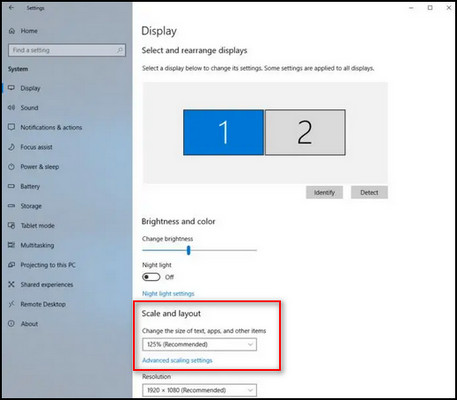
Here comes the matter of Display Scaling, which is an OS-based setting for immense texts, apps, and menus if your monitor is bigger plus high-res. Regarding the fact that everything might look slightly pixelated or blurry.
Then which is better, GPU Scaling or Display / Monitor Scaling?
The fundamental difference is resolution and its sharpness. While Display Scaling is regulated to make options and texts more accessible, GPU Scaling is especially used to upscale the image quality.
For example, I wanted to stretch an HD (720p) output into an FHD(1080p) monitor without losing the sharpness and clearness of Valorant Game. Either way, I had to compress 4K into my FHD display to achieve a richer view.
However, GPU scaling does not apply to every monitor display, enabling it and tweakings are primarily doable if you have a dedicated GPU. The following section might help you learn how to enable & tweak GPU scaling.
How to Enable GPU Scaling on Both AMD & Nvidia?
Both AMD & Nvidia have GPU Scaling support under different names. You can easily enable and grab advantage of it if your monitor has G Sync or Freesync support. But you must enable the Adaptive sync feature from the specific games to make it work.
Here are the step-by-step processes to enable GPU scaling on AMD & Nvidia:
AMD
Seemingly, the GPU scaling feature is the name that came from AMD drivers. The Adrenaline software from AMD made this process less difficult & accessible.
Here are the steps to enable GPU Scaling in the AMD Radeon Software:
- Search AMD Radeon Software using Windows Search Box.
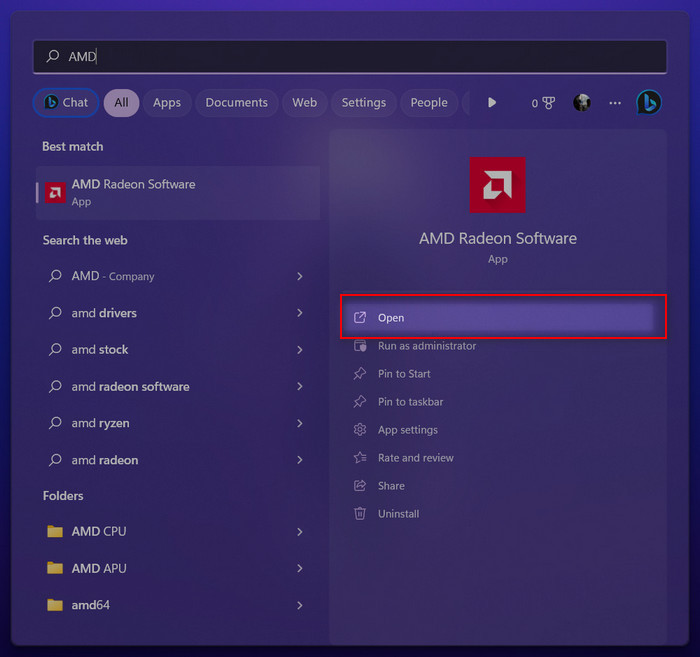
- Launch it and navigate to the Display Tab.
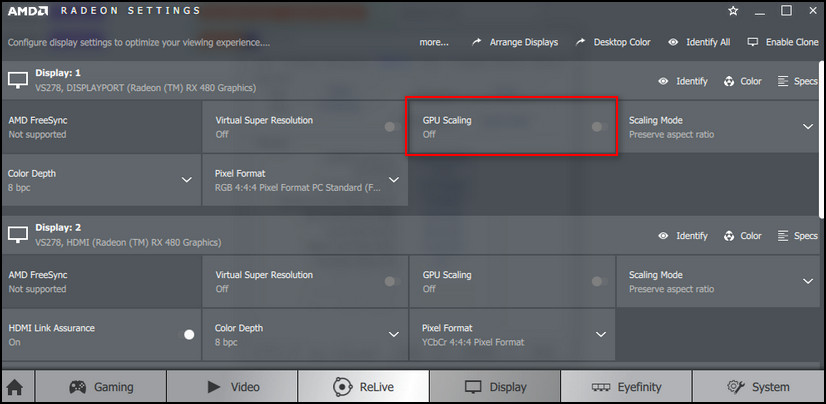
- Enable GPU Scaling from the list.
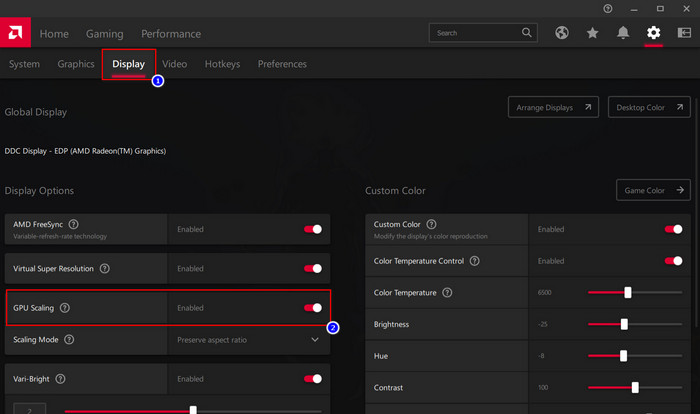
- Select Scaling Mode from the drop-down menu.
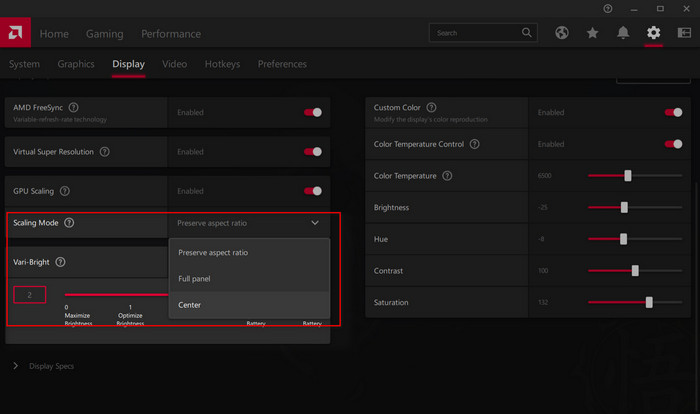
These simple steps might help you adjust GPU Scaling in AMD’s control panel settings called Adrenaline software.
Nvidia
Nvidia also has the GPU Scaling feature under the hood of 3D Management, making it less accessible than AMD. But the GPU Scaling on Nvidia cards has better tweaking options and is rich in quality.
Here are the steps to enable GPU Scaling in Nvidia Control Panel:
- Search for Nvidia Control Panel with Windows Search Bar.
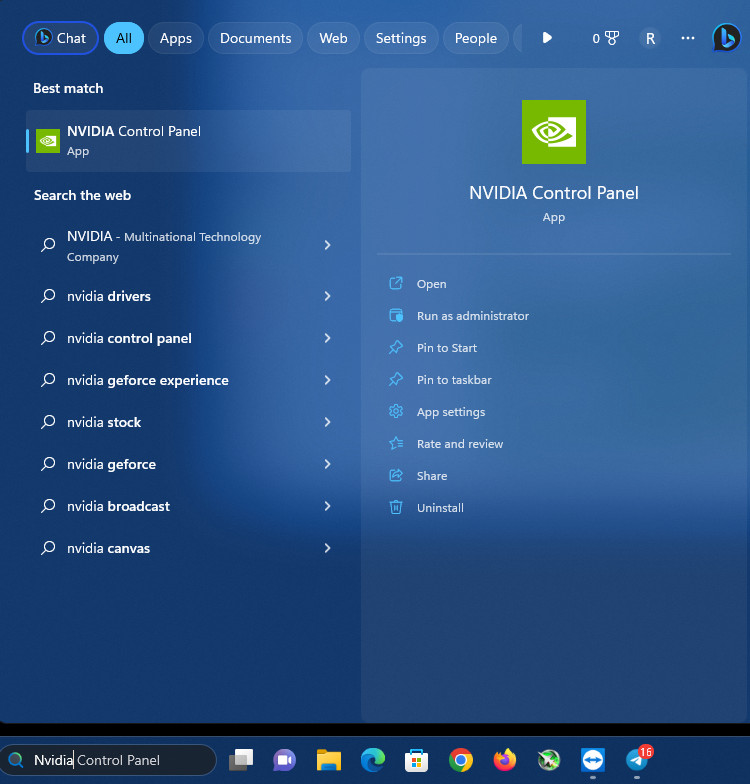
- Click on Adjust setting with preview Under 3D settings.
- Select Use the Advanced 3D settings.
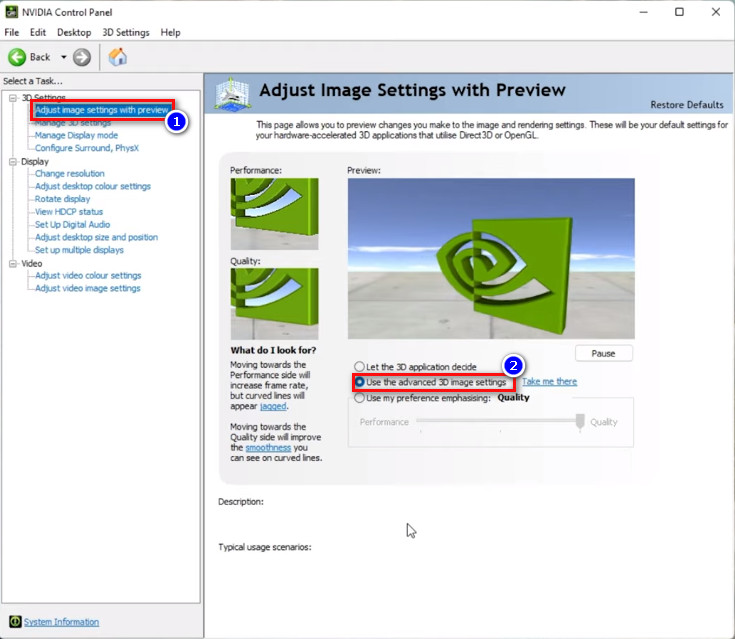
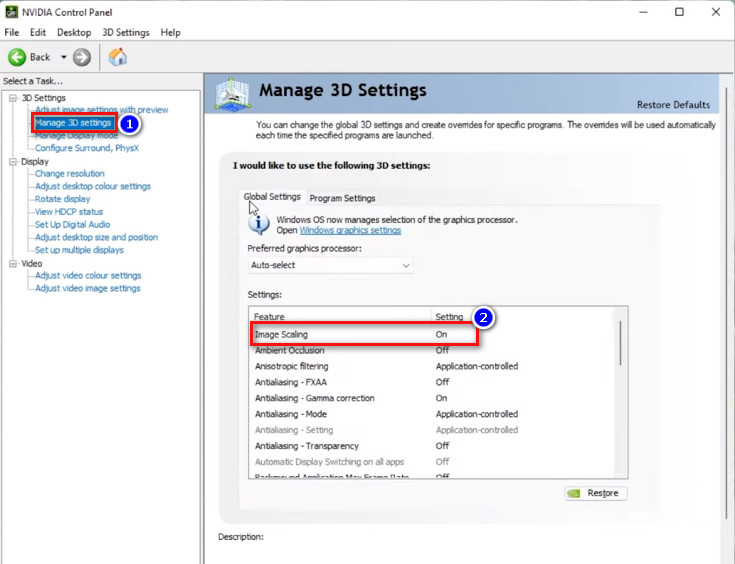
- Click on Manage 3D settings.
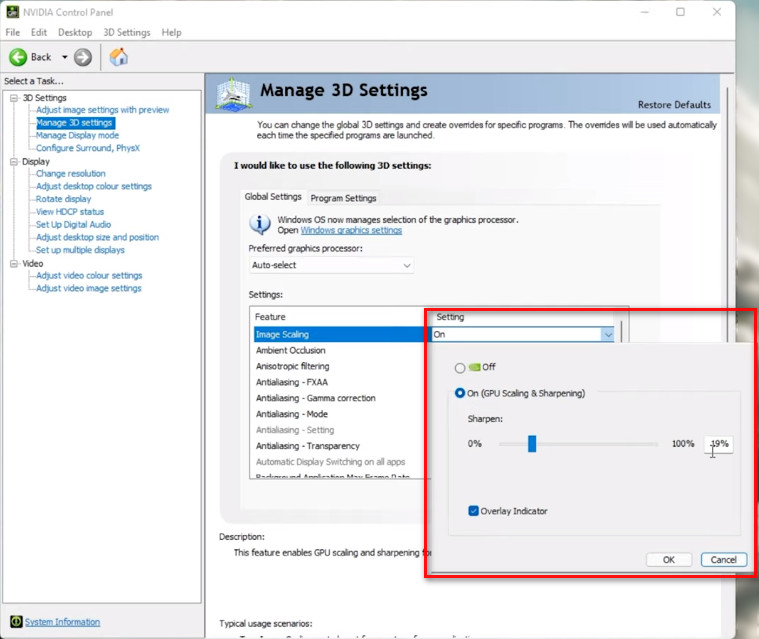
- Expand the Image Scaling and toggle On.
- Set Sharpness from 20-35% according to your need.
- Check the box Overlay Indicator.
- Launch Geforce Experience. By searching in Windows Search.
- Click on the General tab from the list-left.
- Toggle the Image Scaling option.
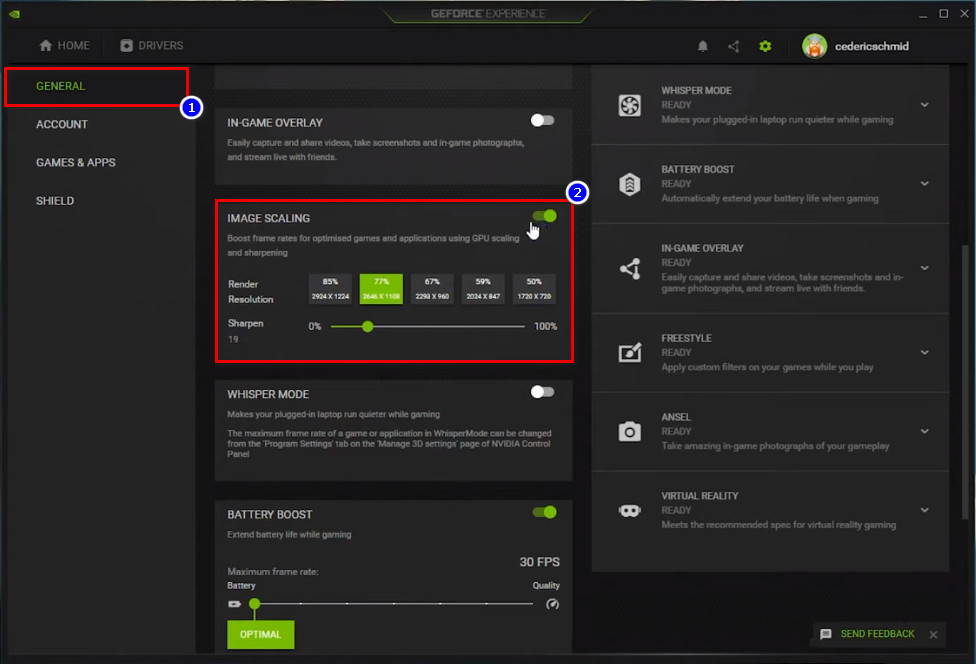
- Set Render Resolution as you prefer.
Here are the steps you can easily turn on the GPU scaling in the Nvidia Control Panel & Geforce Experience.
You need to read our separate post about does GPU Artifacting mean Defective.
Does GPU Scaling Boost Gaming FPS?
Unfortunately, it doesn’t increase or boost FPS while gaming, because every frame/image GPU has to push to display, needs to be stretched vertically & horizontally, creating extra labor on the graphics card.
Therefore, it may affect your gaming FPS due to input lag if your GPU isn’t powerful enough to handle it. Then what is the use case?
The goal is to increase the image quality of the games that don’t support the native resolution of your system. Take the Fallout Game as an example, being a game of the old period, it doesn’t have the support for a QHD monitor. To get a sharp and considerable view in your native monitor resolution, you’d need GPU Scaling turned on.
Another example of recent games is some games don’t have the support for WQHD monitors, which I have had a bitter experience of. The stretched view is so unusual that I paused playing games until I bought a GPU that supports GPU scaling.
So, you see when and why GPU Scaling is necessary. Although GPU scaling can’t increase the FPS of your game, you might consider this feature for retro gaming or DeSmuMe games.
FAQs
What increases FPS in GPU?
Some attributes like VRAM, GPU Architecture, compatibility, and overall system matching can increase FPS with a perfectly tweaked system.
Does RTX give better FPS?
RTX has Ray-Tracing feature support on many different games and those games look much better even on a slightly lower resolution.
Does RTX reduce lag?
Reflex is a Technology announced by Nvidia while releasing the 3000 series, offering less input lag between devices & gaming monitors to give better gaming FPS.
Does VSync help FPS?
Unfortunately, VSync limits your FPS according to our monitor’s capability instead of increasing it to avoid screen tearing & ghosting.
Final Verdict
All the features offered by GPU manufacturers may not serve every user well, but a feature like GPU Scaling does have the potential for specific circumstances. I always recommend learning about features before turning them on in your system.
Thus, you may turn your system acting up as you turned a setting on without knowing its effects.
For more such information, follow us and remember to drop a comment as you should find this article informative.