startup menu
Menu — For other uses, see Menu (disambiguation). A menu from a Vietnamese restaurant. In a restaurant, a menu is a presentation of food and beverage offerings. A menu may be a la carte – which guests use to choose from a list of options – or table d… … Wikipedia
StartUp-Manager — Ubuntu Cet article concerne le système d exploitation. Pour les autres significations, voir Ubuntu (homonymie) … Wikipédia en Français
Linux startup process — The Linux startup process is the process by which Linux based operating systems initialize. It is in many ways similar to the BSD and other Unix style boot processes, from which it derives.Overview of typical processIn Linux, the flow of control… … Wikipedia
Windows NT startup process — The Windows NT startup process is the process by which Windows NT 4.0, Windows 2000, Windows XP and Windows Server 2003 operating systems initialize. In Windows Vista and later, this process has changed slightly; see Windows Vista startup process … Wikipedia
Windows Vista startup process — This refers to the boot components for Windows Vista and Windows Server 2008. The Windows Vista startup process is the process by which Microsoft s Windows Vista operating system initializes. Quick Overview Bios > Master Boot Record > Boot Sector … Wikipedia
Macintosh startup — The Macintosh startup behaviors characteristic of Macintosh computers include the startup chime, Happy Mac, Sad Mac, and Chimes of Death (also known as Hawaiian Death Chimes). Contents 1 Startup chime 2 Happy Mac 3 Sad Mac … Wikipedia
Special menu (Mac OS) — The Special menu was a feature of Apple s Mac OS from its inception until the last release of Classic Mac OS, Mac OS 9.2.2. This menu was responsible for managing the hardware and other system functions. It was always the rightmost menu on the… … Wikipedia
Wii Menu — The Wii Menu as displayed in the widescreen (16:9) format. The Wii Menu (known internally as the System Menu) is the top level menu interface of the Wii game console. It has four pages, each with a 4:3 grid, and each displaying the current time… … Wikipedia
Start menu — Меню Пуск в Windows XP Главное меню системы Windows (Меню Пуск) меню Microsoft Windows, запускаемое нажатием кнопки «Пуск» на панели задач или нажатием клавиши с логотипом Windows на клавиатуре. Впервые появилось в Windows 95 Начиная с Windows… … Википедия
Windows Registry — The Windows Registry is a hierarchical database that stores configuration settings and options on Microsoft Windows operating systems. It contains settings for low level operating system components as well as the applications running on the… … Wikipedia
Disk partitioning — GParted is a popular utility used for disk partitioning Disk partitioning is the act of dividing a hard disk drive into multiple logical storage units referred to as partitions, to treat one physical disk drive as if it were multiple disks.… … Wikipedia
Скажите пожалуйста, только можно своими словами, я в компьютерах не разбираюсь.
Press the ESC key for Startup Menu — Нажми кнопку ESC для запуска стартового меню. Скорее всего, это HP. Возможно, что они до сих пор пихают на HDD в скрытые разделы свой софт.
Boot Device Not Found Please install an operating system on your hard disk. — Загрузочное усройство не найдено. Пожалуйста установи операционную систему на жёсткий диск.
Как показывает опыт, на ESC жать — довольно таки бессмысленно. Надо установить Венду или, если она уже установлена, восстановить загрузчик с установочного DVD-диска Венды. Можно попробовать по F10 (по-моему) выбрать имеющийся HDD в качестве загрузочного, но не факт, что поможет.
Горячие клавиши на компьютере и ноутбуке
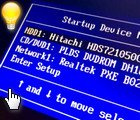 Доброго дня всем!
Зачем запоминать то, что не нужно каждый день? Достаточно открыть и прочитать информацию, когда она понадобиться — главное уметь пользоваться! Обычно я так сам и поступаю, и эти таблички с горячими клавишами не исключение…
Эта статья — справочная, она содержит кнопки для входа в BIOS, для вызова загрузочного меню (его так же называют Boot Menu). Часто они просто «жизненно» необходимы при переустановке Windows, при восстановлении работы компьютера, настройке BIOS и т.д. Надеюсь, информация будет актуальна и вы найдете заветную клавишу для вызова нужного меню.
- Информация на странице, время от времени, будет пополняться и расширяться;
- Кнопки для входа в BIOS можете посмотреть в этой статье (а так же о том, как вообще войти в BIOS :)): https://pcpro100.info/kak-voyti-v-bios-klavishi-vhoda/
- В конце статьи приведены примеры и пояснения сокращений в таблице, расшифровка функций.
НОУТБУКИ
| Производитель | BIOS (модель) | Горячая клавиша | Функция |
| Acer | Phoenix | F2 | Enter Setup |
| F12 | Boot Menu (Change Boot Device, Multi Boot Selection Menu) |
||
| Alt+F10 | D2D Recovery (disk-to-disk system recovery) |
||
| Asus | AMI | F2 | Enter Setup |
| ESC | Popup Menu | ||
| F4 | Easy Flash | ||
| Phoenix-Award | DEL | BIOS Setup | |
| F8 | Boot Menu | ||
| F9 | D2D Recovery | ||
| Benq | Phoenix | F2 | BIOS Setup |
| Dell | Phoenix, Aptio | F2 | Setup |
| F12 | Boot Menu | ||
| Ctrl+F11 | D2D Recovery | ||
| eMachines (Acer) |
Phoenix | F12 | Boot Menu |
| Fujitsu Siemens |
AMI | F2 | BIOS Setup |
| F12 | Boot Menu | ||
| Gateway (Acer) |
Phoenix | Click mouse or Enter | Menu |
| F2 | BIOS Settings | ||
| F10 | Boot Menu | ||
| F12 | PXE Boot | ||
| HP (Hewlett-Packard) / Compaq |
Insyde | ESC | Startup Menu |
| F1 | System Information | ||
| F2 | System Diagnostics | ||
| F9 | Boot Device Options | ||
| F10 | BIOS Setup | ||
| F11 | System Recovery | ||
| Enter | Continue Startup | ||
| Lenovo (IBM) |
Phoenix SecureCore Tiano | F2 | Setup |
| F12 | MultiBoot Menu | ||
| MSI (Micro Star) |
* | DEL | Setup |
| F11 | Boot Menu | ||
| TAB | Show POST screen | ||
| F3 | Recovery | ||
| Packard Bell (Acer) |
Phoenix | F2 | Setup |
| F12 | Boot Menu | ||
| Samsung | * | ESC | Boot Menu |
| Toshiba | Phoenix | Esc, F1, F2 | Enter Setup |
| Toshiba Satellite A300 |
F12 | Bios |
ПЕРСОНАЛЬНЫЕ КОМПЬЮТЕРЫ
| Motherboard | BIOS | Горячая клавиша | Функция |
| Acer | Del | Enter Setup | |
| F12 | Boot Menu | ||
| ASRock | AMI | F2 или DEL | Run Setup |
| F6 | Instant Flash | ||
| F11 | Boot Menu | ||
| TAB | Switch Screen | ||
| Asus | Phoenix-Award | DEL | BIOS Setup |
| TAB | Display BIOS POST Message | ||
| F8 | Boot Menu | ||
| Alt + F2 | Asus EZ Flash 2 | ||
| F4 | Asus Core Unlocker | ||
| BioStar | Phoenix-Award | F8 | Enable System Configuration |
| F9 | Select Booting Device after POST | ||
| DEL | Enter SETUP | ||
| ChainTech | Award | DEL | Enter SETUP |
| ALT+F2 | Enter AWDFLASH | ||
| ECS (EliteGrour) |
AMI | DEL | Enter SETUP |
| F11 | BBS POPUP | ||
| FoxConn (WinFast) |
TAB | POST Screen | |
| DEL | SETUP | ||
| ESC | Boot Menu | ||
| GigaByte | Award | ESC | Skip memory test |
| DEL | Enter SETUP/Q-Flash | ||
| F9 | Xpress Recovery Xpress Recovery 2 |
||
| F12 | Boot Menu | ||
| Intel | AMI | F2 | Enter SETUP |
| MSI (MicroStar) |
Enter SETUP |
СПРАВКА (по вышеприведенным таблицам)
BIOS Setup (так же Enter Setup, BIOS Settings, или просто BIOS) — это и есть кнопка для входа в настройки BIOS. Нажимать ее нужно после включения компьютера (ноутбука), причем, лучше несколько раз, пока не появиться экран. В зависимости от производителя оборудования название может несколько различаться.
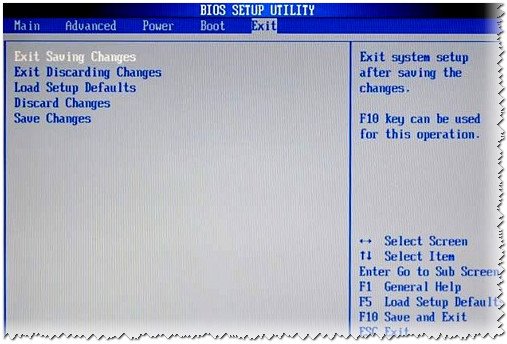
Пример BIOS Setup
Boot Menu (так же Change Boot Device, Popup Menu) — очень полезное меню, позволяющее выбрать устройство, с которого устройство будет загружаться. Причем, для выбора устройства не нужно заходить в BIOS и менять очередь загрузки. Т.е., например, нужно установить ОС Windows — нажал кнопку входа в Boot Menu, выбрал установочную флешку, а после перезагрузки — компьютер автоматически будет загружаться с жесткого диска (и никаких лишних настроек BIOS).
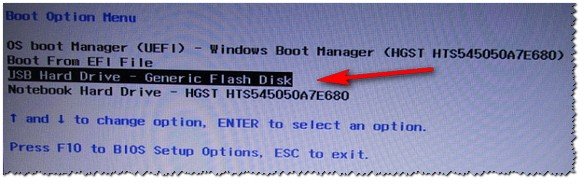
Пример Boot Menu — ноутбук HP (Boot Option Menu).
D2D Recovery (так же Recovery) — функция восстановления Windows на ноутбуках. Позволяет довольно быстро восстановить работоспособность устройства из скрытого раздела жесткого диска. Признаться честно, лично я не люблю использовать эту функцию, т.к. восстановление в ноутбуках, часто, «кривое», работает топорно и не всегда есть возможность выбора детальных настроек «как и что»… Предпочитаю установку и восстановление Windows с загрузочной флешки.
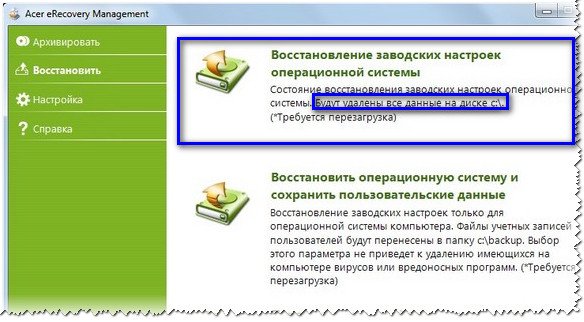
Пример. Утилита восстановления Windows на ноутбуке ACER
Easy Flash — используется для обновления BIOS (не рекомендую использовать начинающим…).
System Information — системная информация о ноутбуке и его компонентах (например, данная опция есть на ноутбуках HP).
За дополнения по теме статьи — заранее благодарен. Ваша информация (например, кнопки для входа в BIOS на вашей модели ноутбука) будет добавлена в статью. Всего наилучшего!
How to Access HP Boot Menu with HP Boot Menu Key
What is the boot menu? How to access and make use of the HP boot menu on HP laptops and desktop computers? This page offers a beginner’s guide to show you how to access HP boot menu with HP boot menu key and make use of it easily in Windows 10, Windows 8, and Windows 7. Let’s start.
Updated by Cedric on 2023/07/20
Approved by Evan Galasso
- 01 Windows 11 VS Windows 10 Gaming
- 02 Windows 11 Size
- 03 Windows 11 Not Activated
- 04 Windows 10 Safe Mode
- 05 HP Boot Menu
All computer users know how to boot up their computers, however, very few of them know the boot menu and how to access it on their computers. Here, we’ll take the HP boot menu and HP boot menu key as an example to show everything that you need to know about it.
| Workable Solutions | Step-by-step Troubleshooting |
|---|---|
| What Is HP Boot Menu | Boot Menu is an approach that appears before you enter the OS by pressing the boot menu keys. Full steps |
| How to Access HP Boot Menu | Enter the boot menu on an HP laptop with the HP laptop boot menu key to change its boot order. Full steps |
| What’s in HP Boot Menu | HP Laptop Boot Menu: F1 System Information; F2 System Diagnostics; F9 Boot Device Options. Full steps |
| How to Make Use of HP Boot Menu | Access HP boot menu with boot keys to use each option on the HP boot menu, e.g. F9 Boot Device Options. Full steps |
| Data Recovery from HP Boot Menu | Use bootable data recovery software to create a bootable media and boot HP to restore files. Full steps |
Are you looking for a brief guide to tell you how to access the HP boot menu and how to make use of the HP boot menu key? Stay here. On this page, we’ll show you how to access your HP laptop or desktop boot menu and use it to configure your computer successfully. It applies to all levels of HP computer or laptop users. Let’s get started.
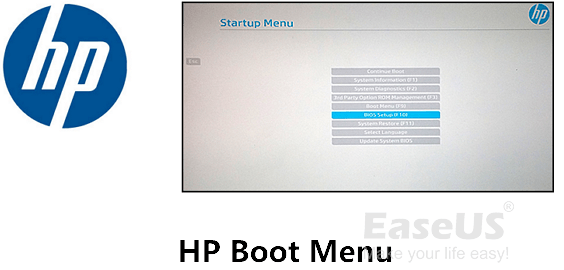
What Is HP Boot Menu Windows 10
Normally, when you press the power button to boot up a computer, the boot menu will not show up. Boot Menu is an approach that appears before you enter the operating system by pressing the boot menu keys.
So why does Boot Menu matter? Here is what you can do with the boot menu:
- Change BIOS boot order
- Diagnostic system
- Boot computer from USB or recovery drive
- Repair or fix internal system errors, etc.
HP Boot Menu Key Windows 10
As for HP users, to enter and access the HP boot menu and make changes to their computers, they have to press the HP boot menu keys.
So what is the HP Boot Menu key? Let’s check out:
| Computer Type | HP Boot Menu Key | HP BIOS Keys |
|---|---|---|
| HP Desktop Computer/Laptop | Esc/F9 | Esc/F10/F1 |
How to Access HP Boot Menu
So how do I get to the boot menu on my HP laptop? Or how to enter the boot menu on an HP laptop to change its boot order?
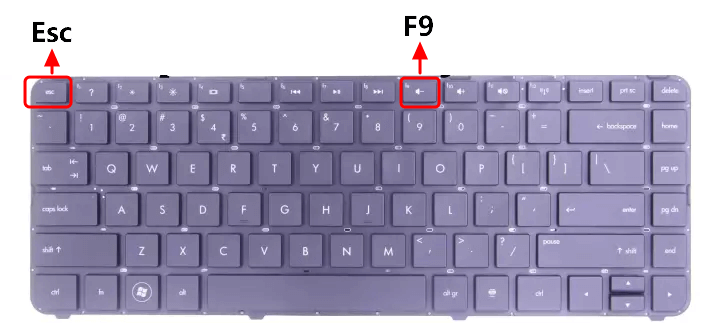
Here are the basic steps that you can follow to enter the boot menu on your HP computers:
Step 1. Turn on or restart the HP computer.
Step 2. Press «Esc» or «F9» immediately to enter the Boot Menu.
Step 3. Wait for the HP boot menu to show up.
What’s in HP Boot Menu
So what is in the HP boot menu? If you followed the step-by-step guide above, you’ll be able to see the following content in your HP Boot Menu (also known as HP Startup Menu):
HP Laptop Boot Menu:
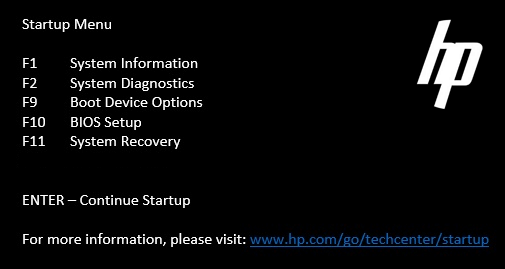
- F1 System Information
- F2 System Diagnostics
- F9 Boot Device Options
- F10 BIOS Setup
- F11 System Recovery
HP Desktop Boot Menu:

- F1 System Information
- F2 System Diagnostics
- F9 Boot Device Options
- F10 BIOS Setup
- F11 System Recovery
- F12 Network Boot
So what does each option means and how to make use of these Boot Menu keys? Find out the answers in the next part.
When and How to Make Use of HP Boot Menu
Here, in this part, you’ll learn when do you need to use each option on the HP boot menu and how to make use of each boot menu key respectively.
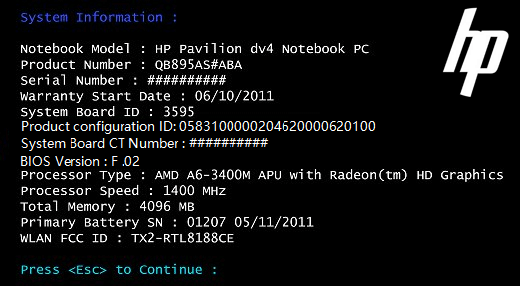
F1 System Information
The System Information key can help you load the system’s basic details, product details, such as manufacturer, processor, serial number, and BIOS data, etc.
How to Use:
When you need to check the computer and system information, here are the steps:
Step 1. Restart PC and press «Esc» to enter Boot Menu.
Step 2. Press «F1» wait for the computer to load the system information.
F2 System Diagnostics
The System Diagnostics key is designed for checking and testing hardware failures on HP computers.
How to Use:
Step 1. Restart PC and Press «Esc» and enter Boot Menu.
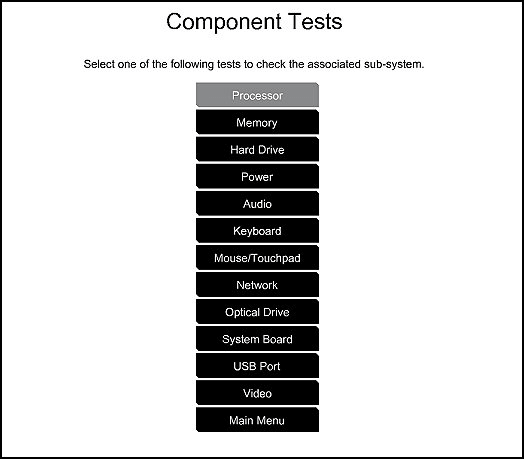
Step 2. Press F2 and wait for the computer to check and load the diagnostic information.

Step 3. To run further tests, you can use the up and down arrow keys to switch and select the items.
For example, the component tests.
F9 Boot Device Options
The Boot Device Options, F9, is known for BIOS boot resources for UEFI including Windows Boot Manager, Network Card. And it also includes Legacy Boot Source like DVD, hard drive, CD, and USB flash drive.
When you need to switch or change the PC boot order in BIOS, you can use this option.
How to Use:
#1. Change HP BIOS Boot Order
Step 1. Restart PC and Press «Esc» and enter Boot Menu.
Step 2. Press F9 to enter BIOS Boot Options.
Step 3. Use the arrow keys to adjust or change the boot drive on your HP laptop.
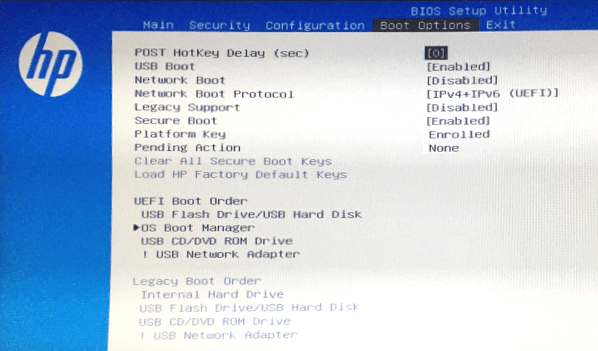
Step 4. Save the changes and restart the HP computer.
#2. Boot HP from USB
Step 1. Connect a Windows recovery USB drive to your PC.
Step 2. Restart PC and Press «Esc» and enter Boot Menu.
Step 3. Press F9 to enter BIOS Boot Options.
Step 4. Use the arrow key to switch the computer boot drive to the USB drive.
Step 5. Save the changes and restart the computer.
F10 BIOS Setup
F10, the BIOS Setup option, is a quick access for you to switch UEFI boot mode into BIOS legacy mode.
F11 System Recovery
It’s an option that allows you to reset your HP computers, for example, reset the computer to its factory settings.
How to Use:
#1. Factory Reset HP from Startup:
When you are unable to factory reset Windows in settings, you can use the Boot Menu key to give it a try.
Note that this operation will fully erase all files on your disk. So before you start, make sure that you have fully backed up the computer data.
Step 1. Remove or unplug all unnecessary external devices and restart the HP computer.
Step 2. Press the Esc key to enter Boot Menu.
Step 3. Press F11 and select «Troubleshoot» to enter the Recovery Manager.
Step 4. Select «Factory Reset» and follow the onscreen guide to finishing the process.

#2. Perform System Recovery on HP
When you are not satisfied with the current OS or you want to revert your Windows OS to a previous system state with the created system image, you can try this out.
Note that this operation may also cause some file loss on your system C drive. So please make sure that you’ve backed up all important system C drive files.
Step 1. Remove or unplug all unnecessary external devices and restart the HP computer.
Step 2. Press the Esc key to enter Boot Menu.
Step 3. Press F11, click «Troubleshoot» to enter the Recovery Manager.
Step 4. Select «System Recovery» and follow to select a previous system image.
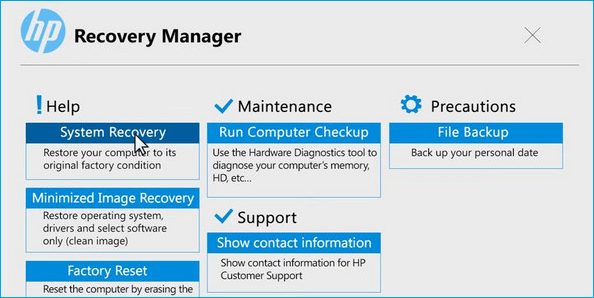
Step 5. Follow the onscreen guide to finish the process.
If you feel regretful, check this out: How to Undo System Restore.
In a word, stop using your computer immediately once you lost files using the HP boot menu key on Windows 10 for restoring or resetting the OS. And turn to reliable EaseUS Data Recovery Wizard for help.
You can also use the manual repair and data recovery services of EaseUS to perform system repair and recovery. The professional technical team can help you solve any system startup errors, including system failure, system blue screen, system black screen, and so on.
EaseUS Windows Recovery Services
Click here to contact our experts for a free evaluation 
Consult with EaseUS data recovery experts for one-on-one manual recovery service. We could offer the following services after FREE diagnosis:
- Fix Windows boot issues, including BSOD
- Fix Windows error and configure Windows environment
- Restore the system when it fails to boot
- Optimize Windows computer to make it run quickly
F12 Network Boot
If you have a network drive that supports you to access and boot your computer, you can try this option. To boot an HP computer from a network drive, it’s quick and efficient.
How to Use:
Step 1. Restart HP computer.
Step 2. Press the Esc key to enter Boot Menu.
Step 3. Press F12 to enter the Network Boot Menu.
Step 4. Select a network drive to boot your computer from.
Step 5. Save the changes and restart the PC.

Data Recovery from HP Boot Menu
Sometimes, when the HP computer OS crashes or becomes unbootable, you may need help to perform data recovery from the HP boot menu.
If your computer is currently unbootable or dead, you can turn to bootable data recovery software for help. Here, EaseUS Data Recovery Wizard can help. It allows you to create a bootable media and boot HP from its boot menu to fully scan and restore all valuable hard disk files.
You can use this powerful data recovery software to recover data from a dead HP laptop hard drive.
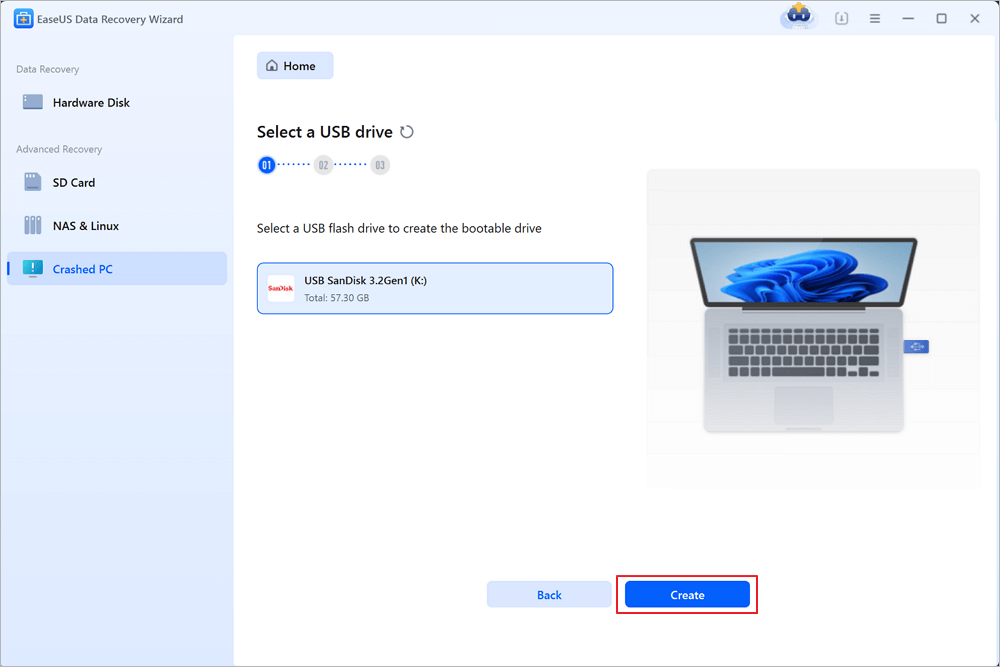
Step 1. Create a bootable disk
Launch EaseUS Data Recovery Wizard, choose «Crashed PC Recovery» and click «Go to Recover».
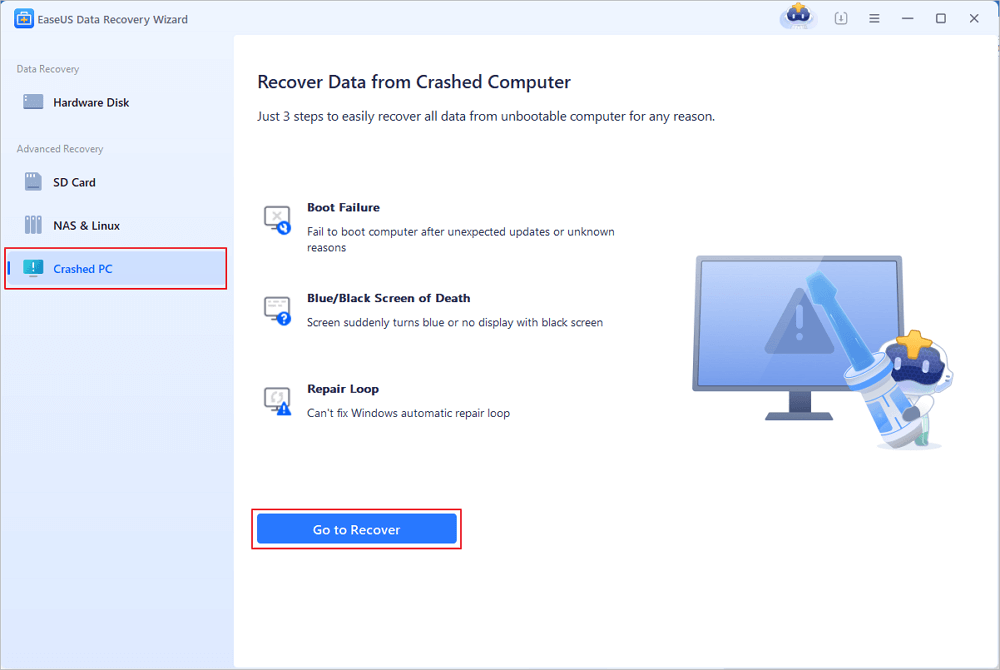
Select an empty USB to create the bootable drive and click «Create».
Warning: When you create a bootable disk, EaseUS Data Recovery Wizard will erase all data saved in the USB drive. Back up important data beforehand.
Step 2. Boot your computer from the bootable USB
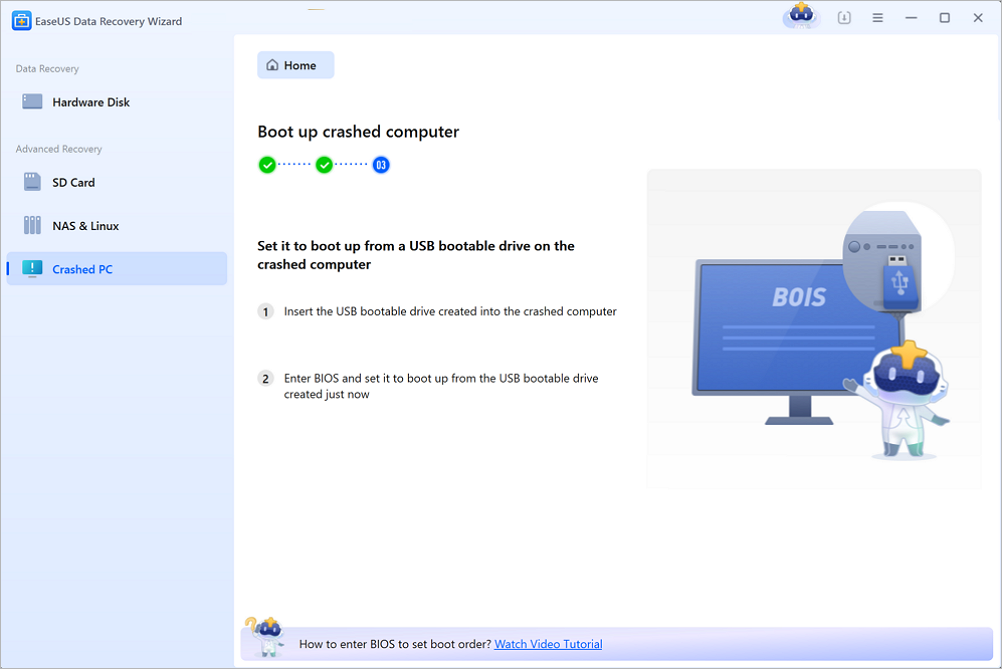
Connect the bootable disk to the PC that won’t boot and change your computer boot sequence in BIOS. For most users, it works well when they restart their computer and press F2 simultaneously to enter BIOS.
Set to boot the PC from «Removable Devices» (bootable USB disk) beyond Hard Drive. Press «F10» to save and exit.
Step 3. Recover data from a crashed system/PC
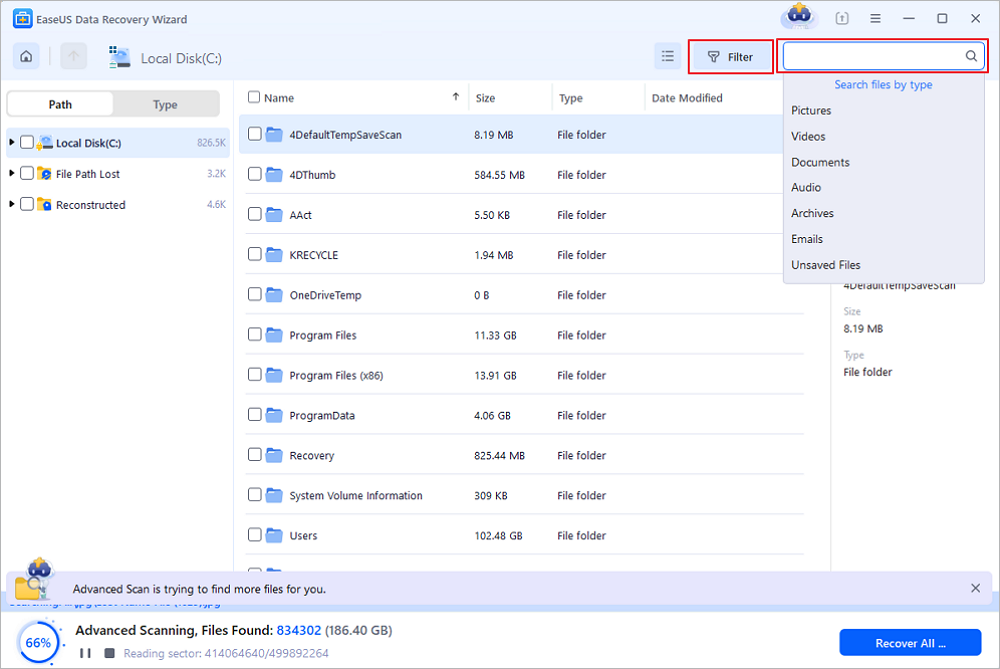
After booting from EaseUS Data Recovery Wizard bootable disk, select the drive you want to scan to find all your lost files. Preview and recover the files you need to a safe location.
Conclusion: HP Boot Menu Is Complex, Use It Carefully
On this page, we introduced what the HP boot menu is and how to access the HP boot menu effectively. According to the HP boot menu keys, you can check device information, run a hardware diagnostic, change boot order, run HP from USB, and even run HP from a Network drive.
Note that the HP boot menu is complex and make sure that you’ll use it carefully. Also, when you can’t access files on an unbootable HP computer, EaseUS bootable data recovery software can help.