3 разных способа выключить и перезапустить OnePlus Nord
На старых устройствах OnePlus и большинстве других телефонов Android можно было просто выключить телефон, удерживая кнопку питания. Однако это изменилось на новых смартфонах OnePlus, включая OnePlus Nord, OnePlus 8T / 8 Pro, OnePlus 9/9 Pro и OnePlus 9R. Теперь, когда вы долго нажимаете кнопку питания, Google Assistant запускается по умолчанию вместо меню питания.
К счастью, OxygenOS на телефонах OnePlus предлагает настройку для изменения функции клавиши включения по умолчанию. Таким образом вы удалите Google Assistant с кнопки питания в OnePlus Nord и других устройствах. В то же время вы также можете использовать комбинацию аппаратных кнопок для выключения OnePlus Nord.
Чтобы упростить это, вот краткое руководство по отключению OnePlus Nord под управлением OxygenOS на базе Android 11. Кроме того, мы увидим, как вы можете выключить свой телефон OnePlus Nord без кнопки питания.
Как выключить OnePlus Nord
Метод 1 — Использование физических кнопок
Используйте этот метод, если вы не хотите менять поведение кнопки питания по умолчанию и предпочитаете пользоваться голосовым помощником Google, как раньше.
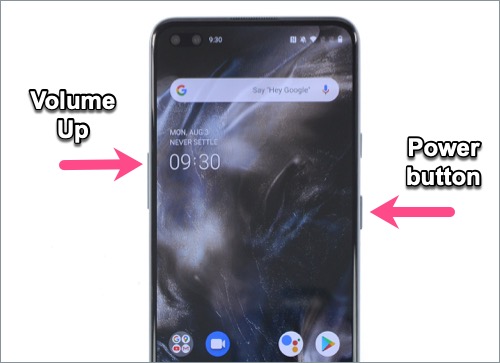
- Нажмите и удерживайте Кнопка питания и Увеличить громкость одновременно, пока на экране не появится меню питания.
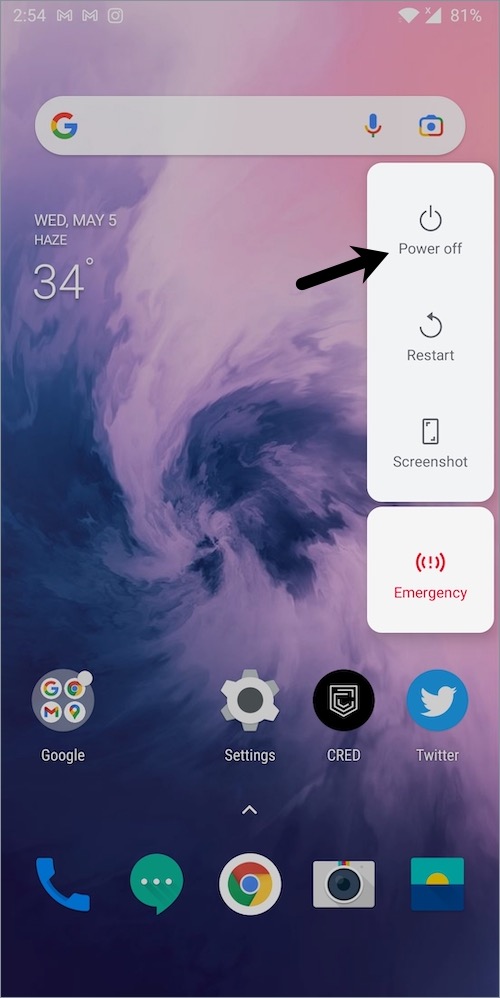
- Выберите опцию «Выключить».
Чтобы включить OnePlus Nord, просто нажмите и удерживайте кнопку питания на правой стороне телефона.
Чтобы перезагрузить или перезапустить OnePlus Nord, просто следуйте приведенным выше инструкциям и нажмите кнопку «Перезагрузить» вместо выключения питания.
Метод 2 — Использование кнопки питания
В OxygenOS вы можете переназначить клавишу питания, если вы редко используете Google Assistant или не предпочитаете использовать комбинацию кнопок питания и громкости для выключения или перезапуска устройства.
Чтобы отключить Google Assistant после нажатия кнопки питания в OnePlus Nord, выполните следующие действия.
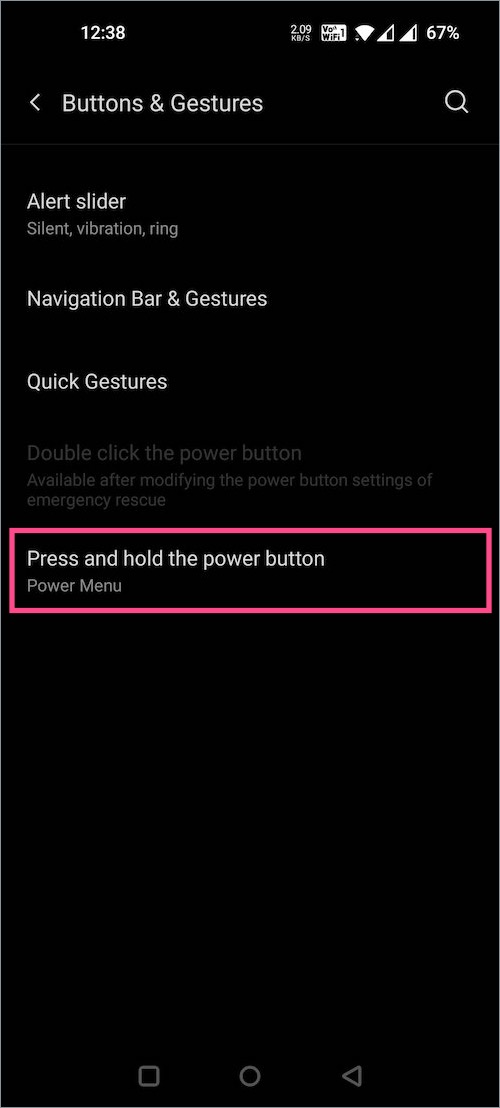
- Перейдите в «Настройки»> «Кнопки и жесты».
- Нажмите «Нажмите и удерживайте кнопку питания».
- Вместо голосового помощника выберите «Меню питания».
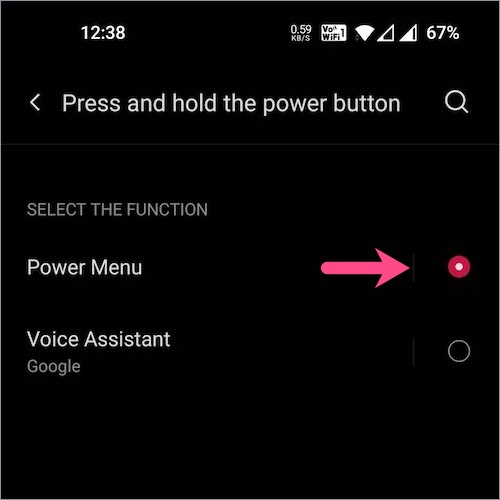
Вот и все. Теперь вы увидите параметры выключения и перезапуска, когда вы удерживаете кнопку питания.
Способ 3 — Без кнопки питания
Этот метод пригодится, если ваша кнопка питания сломана или не работает. В таком случае вы можете использовать виртуальный ярлык для выключения телефона OnePlus без кнопки питания и кнопки громкости.
Для этого перейдите в «Настройки»> «Система». Нажмите "Выключение»Внизу экрана.
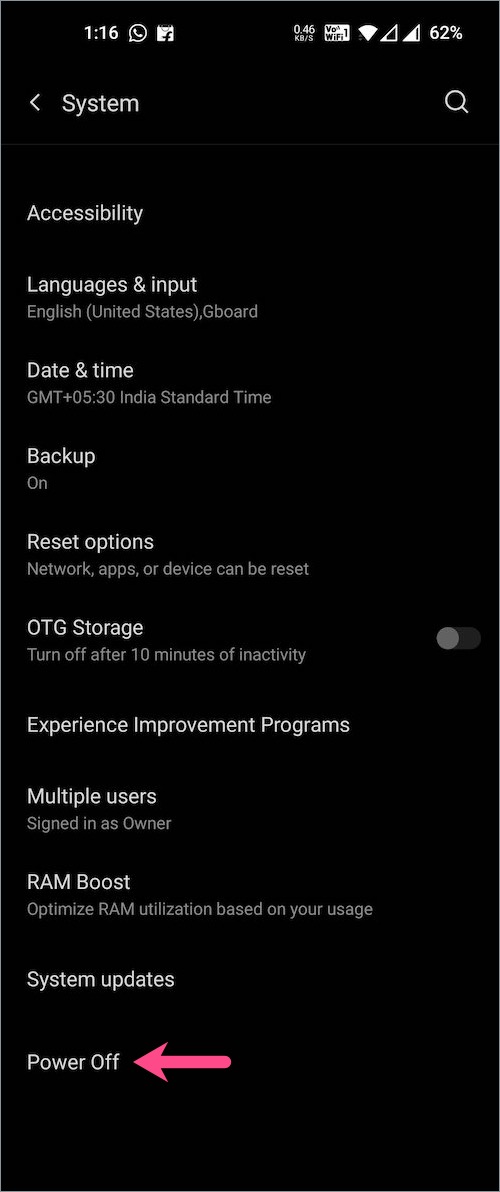
ПРИМЕЧАНИЕ: В старых телефонах OnePlus под управлением Android 10 параметр «Отключение питания» отсутствует на странице «Система». Такие пользователи могут вместо этого использовать обходной путь, описанный ниже.
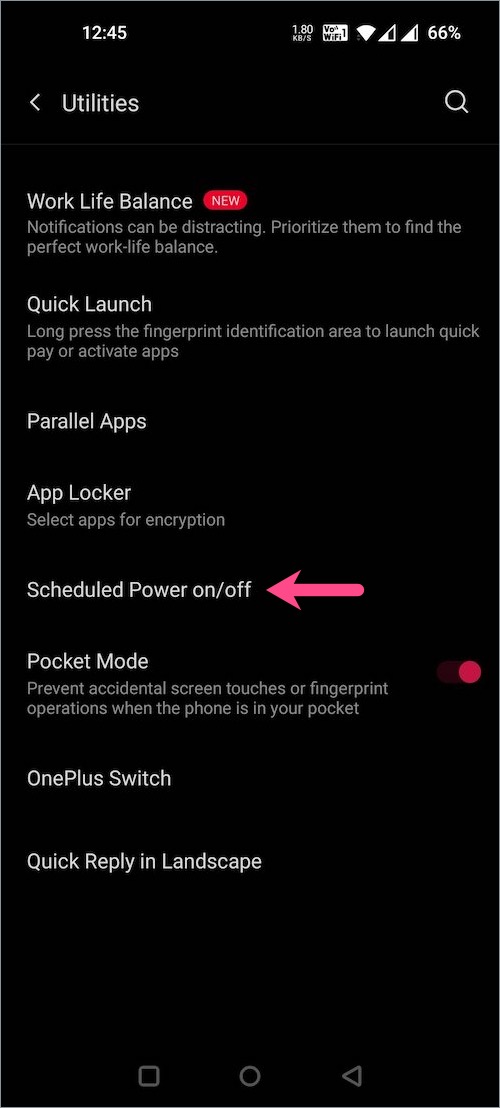
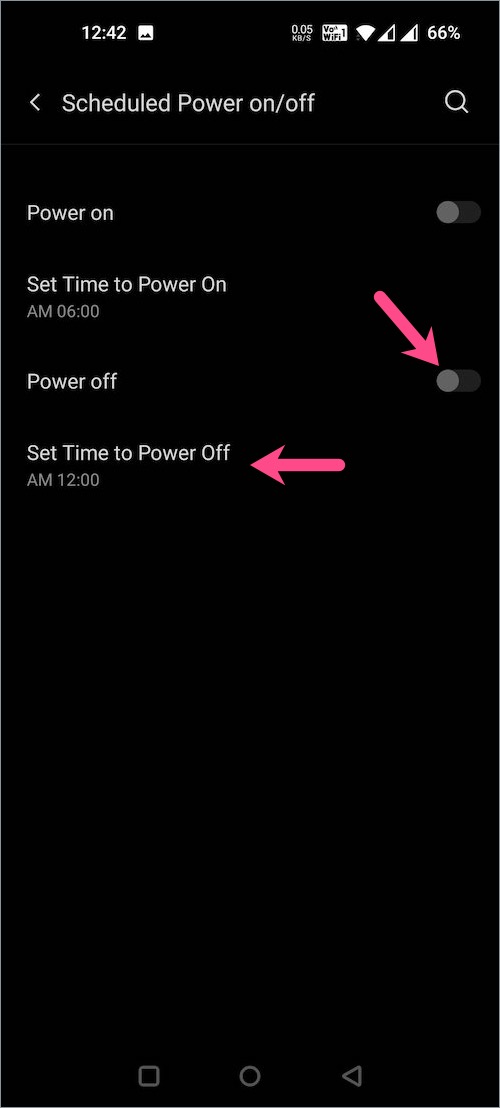
Альтернативный способ — Зайдите в Настройки> Утилиты>Включение / выключение питания по расписанию. Включите переключатель рядом с выключением питания. Затем установите время для автоматического выключения OnePlus Nord. В выбранное время на экране появится всплывающее окно с таймером обратного отсчета, нажмите «ОК», чтобы немедленно выключить устройство.
Как принудительно перезапустить OnePlus Nord
Бывают случаи, когда ваш OnePlus Nord может застрять в цикле загрузки, перестать отвечать на запросы или зависать экран. В таком случае обычная перезагрузка может не помочь. Чтобы решить эту проблему, вы можете попробовать принудительный перезапуск и вернуть устройство в нормальное состояние.
Чтобы принудительно перезагрузить OnePlus Nord, нажмите и удерживайте кнопку питания и кнопку увеличения громкости в течение 10 секунд. Телефон выключится. Затем нажмите кнопку питания, чтобы снова включить устройство.
Как исправить OnePlus 9 Pro, который не включается или зависает при загрузке
OnePlus наконец-то выпустила своего преемника серии OnePlus 8, известного как OnePlus 9 и 9 Pro, со значительно обновленной камерой, процессором, дисплеем, частотой обновления и дизайном. Устройство вышло из коробки с Android 11 из коробки.
С развитием технологий некоторые из распространенных проблем также довольно часто возникают на наших смартфонах. Иногда может возникнуть проблема, когда пользователь смартфона вообще не видит экран. По мнению многих пользователей форума OnePlus, экран OnePlus 9 Pro автоматически становится черным, а устройство не отвечает. Это могло произойти из-за аппаратного или программного сбоя. Вы можете решить эту проблему, выполнив полный сброс или загрузившись в безопасном режиме.
OnePlus наконец-то выпустила своего преемника серии OnePlus 8, известного как OnePlus 9 и 9 Pro, со значительно обновленной камерой, процессором, дисплеем, частотой обновления и дизайном. Устройство вышло из коробки с Android 11 из коробки. Поэтому после покупки этого устройства, если вы столкнулись с проблемой OnePlus 9 Pro, он не включится или не загрузится. Если да, то это руководство для вас. В этом руководстве мы поможем вам исправить OnePlus 9 Pro, который не запускает проблему.
Это довольно необычно для смартфона и даже для флагманского смартфона премиум-класса. Иногда любой системный файл или программное обеспечение дает сбой или конфликтует с любыми сторонними приложениями. Это может привести к тому, что устройство не отвечает. Прежде всего, мы с нетерпением ждем обновлений системы, и как только обновление становится доступным, мы переходим к нему. Плохая идея поддерживать устройство в актуальном состоянии. Вам следует дождаться стабильных обновлений и также проверить журнал изменений обновлений.
- Действия по устранению проблемы с OnePlus 9 Pro не решат.
- Загрузитесь в безопасном режиме:
- Очистите кеш и данные на телефоне OnePlus
- Принудительная перезагрузка
- Перезагрузка телефона во время зарядки
- Восстановление заводских настроек вашего устройства
Действия по устранению проблемы с OnePlus 9 Pro не решат.
Некоторые другие проблемы могут привести к тому, что на вашем устройстве «экран не включится». Это также может произойти из-за сбоя загрузчика устройства. Но не беспокойтесь об этом. Форум и служба поддержки OnePlus достаточно активны, и при необходимости вы также получите поддержку сервисного центра. Это не значит, что OnePlus 9 Pro или любые другие устройства OnePlus плохие. Наверное, устройства OnePlus — лучшие флагманские устройства-убийцы по характеристикам и цене.

Есть несколько способов решить проблему на вашем устройстве, которые указаны ниже:
Загрузитесь в безопасном режиме:
Если вы установили какое-либо стороннее приложение, зараженное вирусом или вредоносным ПО, оно может испортить драйверы дисплея на вашем смартфоне. Это может произойти в любой момент и легко исправить, загрузившись в безопасном режиме. После перезагрузки в безопасном режиме экран вашего устройства снова включится. Вот шаги:
- Нажмите и удерживайте кнопку питания на вашем устройстве.
- Вы увидите сообщение «Перезагрузить в безопасный режим». Подтвердите это, нажав на кнопку ОК.
- Теперь позвольте устройству перезагрузиться в безопасном режиме. Вы увидите символ безопасного режима в нижнем левом углу экрана.
- После успешной перезагрузки в безопасном режиме удалите зараженное приложение или файл, вызывающие эту проблему.
Очистите кеш и данные на телефоне OnePlus
Иногда эта проблема может возникнуть из-за неправильной конфигурации вашего устройства сторонним приложением. Также могут быть проблемы с кешем, которые легко исправить.
Мы в GetDroidTips не несем ответственности за любой ущерб во время или после следования руководству. Делайте это на свой страх и риск.
- Выключите OnePlus 9 Pro, нажав кнопку питания и выбрав «Выключить».
- Одновременно нажмите и удерживайте кнопки увеличения громкости + питания + главного экрана, пока не появится логотип Android.
- Используйте кнопки регулировки громкости для прокрутки вниз и перейдите к «Wipe Cache Partition». [Это не приведет к удалению ваших данных]
- Используйте кнопку питания, чтобы выбрать раздел стереть кеш и подтвердить.
- Прокрутите, чтобы перезагрузить систему, и снова нажмите кнопку питания для подтверждения.
- Теперь подождите несколько секунд, чтобы нормально перезагрузить устройство.
Принудительная перезагрузка
Если какой-либо из упомянутых шагов не работает для вас, попробуйте выполнить принудительную перезагрузку хотя бы раз.
- Чтобы выполнить принудительную перезагрузку, нажмите и удерживайте кнопку питания от 10 до 15 секунд.
- Когда на экране загорится логотип и телефон завибрирует, отпустите пальцы.
- Теперь подождите, пока устройство нормально загрузится в систему.
Перезагрузка телефона во время зарядки
Иногда мы не можем заметить или понять реальную проблему, будь то незначительную или серьезную. Если экран устройства обычно не включается, попробуйте зарядить телефон.
- Подключите зарядное устройство и подождите не менее 15-20 минут, чтобы зарядить устройство.
- Тогда не отключайте зарядное устройство. Оставьте его и нажмите и удерживайте кнопку включения в течение 10-15 секунд.
- Ваше устройство снова загрузится, и все будет в порядке.
Восстановление заводских настроек вашего устройства
Допустим, вышеперечисленные способы не применимы к вашему устройству. Обратите внимание, что сброс настроек вашего устройства к заводским вернет его к заводскому состоянию и удалит все внутренние данные и настройки. Итак, сначала сделайте полную резервную копию вашего устройства, а затем попробуйте исправить.
- Перейдите в меню настроек устройства> перейдите к параметру «Резервное копирование и сброс».
- Нажмите на опцию сброса заводских данных и нажмите на «Сбросить телефон» для подтверждения.
- Теперь дождитесь полного восстановления заводских настроек.
- Ваше устройство снова загрузится в систему, как новое.
В противном случае вам следует подумать о проверке вашего устройства в сервисном центре. Может быть какая-то серьезная проблема с вашим дисплеем или другим оборудованием.
Я надеюсь, что это руководство поможет вам, когда это потребуется. Не забудьте также проверить аккумулятор вашего устройства. Не стесняйтесь комментировать ниже.
How to Reset Oneplus 9 Pro — Hard (Factory) & Soft Reset
All of us have become addicted to phones and can’t bear if they are infected with bugs and in turn, become sluggish.
There are different ways to get rid of these unwanted issues in a phone and you can follow any of the three methods listed below depending on your need.
- Soft Reset
- Factory Hard Reset
- Hard Reset
Table of Contents

What is Soft Reset ?
This is an easy method and it involves soft resetting the phone to kill unnecessary background processes, temporary cache and it also clears the RAM of your Oneplus 9 Pro. This process involves rebooting your phone to achieve the end result.
It is very important that you need to take a backup of your data before performing the following two steps
What is Factory Hard Reset ?
- This method wipes out all the settings and all the data on your Oneplus 9 Pro and it restores all factory settings to make a near new device.
- This method is useful when you experience bugs, sluggish performance and other software-related issues on your Oneplus 9 Pro.
- The most important thing to use this step is when you forgot your pattern/PIN/pass code of your phone and need to bypass it
What is Hard Reset ?
- This hard reset method can be used to erase all the information on your Oneplus 9 Pro. Typically, people use this method when they want to intentionally wipe personal data on their phones before giving it to someone.
Soft Reset is the least risky of all the three methods as it doesn’t necessarily delete any data from the device.
But the other two methods involve data loss and the process is also not very easy for newbies.
So, after all the information shared, the onus is on you to choose which the best process is for you and what you would do
Now, let’s not waste one more moment of your crucial time and get an understanding about the prerequisites you need to remember before starting the process to reset Oneplus 9 Pro.
Pre-requisites
While resetting an Android phone, you need to go through some most required prerequisites.
Create a backup of your data
- Backup creation is the most significant thing you need to consider before resetting your Android phone.
- No one can endure losing all his data, and because the Android phone reset process takes away all your data to restart your phone initially, its important to backup your data.
- So before going on, take a complete backup of your data, including your contacts, videos, pictures, and all other things.
Unlink all the Google Accounts
- You must be thinking why unlinking or deleting Google accounts is mandated before resetting an Android phone, right?
- Yeah, it’s real, and you can also lose access to your phone if you aren’t careful with this prerequisite.
- Don’t get agitated, and just unlink all your Google accounts from your phone before resetting it.
- Primarily, Google secures your smartphone by checking your identity after resetting the phone.
- It’s not that tough if you remember your Google account ID and Password, but if you’re unaware, you must unlink your Google account before resetting your Android phone.
Charge your smartphone
- Lastly, Charging the phone is also equally significant as the above prerequisites.
- You won’t ever want to make your phone bricked, but you will unintentionally do that if your phone automatically gets switched off during the resetting process.
Hence, it would be best to charge your phone at least 40% before initializing the process to Reset Android phone.
Disclaimer – Please be careful about all your data before resetting your phone. At last, all the above methods, except Soft Reset, would clear the complete data from your Android phone.
Enable USB Debugging (Only while using Android SDK method – mentioned at the end of the article)
You would only need to enable USB Debugging if you’re going for Method 4 below or simply resetting your phone via Android SDK Tools.
Remember, it would be the exception for the first three methods because none of them require enabling USB Debugging.
- Firstly, open the Settings app on your phone.
- Afterwards, click the About Phone tab.


Ways to reset Oneplus 9 Pro Android Phone
You’ve finally completed the first level, i.e., completing the prerequisite steps. It’s time to get ready for the final process to reset Android phone. Check them below!
1. How to General System Factory Reset Oneplus 9 Pro
We’re working hard to keep everything simple. Initially, we presented you the easiest method in the first section – System Factory Data reset procedure.
The procedure works with every Android phone, running on any OS version and manufactured by any brand.
This way, let’s not waste more time and get forward towards the below steps –
Step 1 – Open the Settings app on your phone. You can open it either from the front page of your phone, via the Apps section, or the notification drawer.
Step 2 – Keeping it simple, you need to search the Factory Reset option. Xiaomi phones keep that segment on the About Phone section. Samsung phones preserve it on the System settings. If you’re using any other phone, you’ll likely get Factory Reset in the About Phone section.

Step 3 – So, Open the About Phone Section by scrolling down the Settings menu.
Step 4 – Later, find and click the Factory Reset tab.
Step 5 – You would now get a message from your phone settings about all the data that’d get deleted after reset success. (Again, Please create a backup of all your data if you haven’t made it yet.)
Step 6 – Ultimately, click Erase All Data or Reset button, and the process will get started soon.

Shortly, your phone will wipe the entire data and get rebooted after the process completion. Now you will operate a reset phone with all the prior services and system apps.
2. How to Hard Reset Oneplus 9 Pro Android phone
If the above procedure reckons complex for you or does not work well for you, you can employ this Hard Reset method below.
This is not a complex at all, as you just need to follow the below steps from here:
Step 1 – Firstly, Switch Off your phone by long-pressing the power button and clicking the Power Off tab.
Step 2 – Now, restart your phone, but utilizing the particular key pattern from the below list-
- Press and hold the Power key and Volume Down key together. (For most Android phones)
- Press and hold the Power key with the Home button. (For old Samsung phones with a Home button)
- Press and hold the Power key with the Volume down key and Bixby key. (For new Samsung phones having Bixby button.)
Step 3 – After choosing the respective method from the above list, you would observe a recovery menu on your phone screen. You can control this menu using below navigated controls –
- Volume up button – Navigating Up
- Volume down button – Navigating Down
- Power button – Choose an option
Step 4 – Press the Volume down button until navigating towards the Wipe cache/Factory Reset tab.

Step 5 – Finally, press the Power button to choose that option.
Step 6 – The process would end soon, and afterward, navigate towards the Reboot system now and press the power button.

3. How to Soft Reset Oneplus 9 Pro Android phone
The soft Reset method can also be termed Rebooting the Phone because it’s nothing but a simple reboot.
However, it lies in the Reset procedures because reboot also kills some stuck processes and clears RAM.
Step 1 – Click and hold the power button.
Step 2 – Click the Power Off option.
Step 3 – After observing the dark screen, press and hold the power button again.
That’s all; you’ve soft reset your Android phone!
4. How to Reset Android phone using Android SDK
The last method here can be said to be the most complex while analogizing with the three above procedures.
Furthermore, you require a PC to reset your phone using the Android SDK Tools.
You can also use this method if you cannot open recovery mode in the above Method 2.
First of all, you’ve to download and install the Android SDK tools from the below link because you would need them while employing this procedure –
Android SDK Tools – (LINK)
Finally, turn down to the below steps –
Step 1 – Firstly, download and install the Android SDK Tools on your Windows PC.
Step 2 – Now, enable USB Debugging on your phone. (You can learn the procedure to enable USB Debugging on the above prerequisites section.)
Step 3 – Connect your phone with your PC using a working USB cable.
Step 4 – Press the Window+R key on your PC, and inscribe the “cmd” command on the Run window.

Step 5 – Press the Enter button, and you’ll observe the Command Prompt.
Step 6 – Inscribe the location C:\Users\Your username\AppData\Local\Android\android-sdk\platform-tools on Command Prompt, and press the Enter button. (You would get an error if you haven’t downloaded and installed the Android SDK tools from the above section.)
Step 7 – Input the ADB reboot recovery command on the SDK screen.

Step 8 – Your phone would now get rebooted into recovery mode. After this, follow Step 4, Step 5, and Step 6 of Method 2 – Hard Reset above.
Frequently Asked Questions (FAQs)
How to reset an Oneplus 9 Pro Android phone without losing data?
It’s simple! If you don’t want to lose a single bit of your data, you can soft reset your phone using Method 3 from the above list.
Why reset Oneplus 9 Pro Android phone?
The urge to reset Android phones gets high when your phone contacts a lag issue, immense viruses/bugs, or if you want to clear all the third-party apps.
Where to get Android SDK tools to reset Oneplus 9 Pro mobile phone?
We’ve found and stored the Android SDK tools for techies like you. You can just click the above download link and download them merely.
Will the reset process delete data from my Oneplus 9 Pro phone?
Yeah, the reset process clears entire data from an Android phone. Please create a backup of your data first before resetting it.
How to create a backup of data on Oneplus 9 Pro Android mobile?
There are so many methods available to back up the data of Android phones. You can either use cloud storage, an external hard disk, or your computer to store data there and make the process simple.
What if I’m unable to make the default System Factory data reset?
We’ve listed four different methods in the above article to reset Android phones. You can use any of them if the first method doesn’t work for you.
How to enable USB Debugging on Oneplus 9 Pro phone?
Enabling USB Debugging isn’t rocket science. All you gotta follow all the steps prescribed in the above prerequisite section.
Is it mandatory to enable USB Debugging to reset Oneplus 9 Pro Android phone?
We’ve already mentioned that you won’t need to enable USB Debugging if you’re using the system default method, soft reset, or hard reset. You’ll only need it if you’re using the Android SDK tools to reset your Android phone.
How To Enter Fastboot & Recovery Mode on the OnePlus 9 & 9 Pro
Below you will learn how to boot your OnePlus 9/9 Pro into fast boot and recovery mode. If you are a power user who likes to install custom ROMs and custom builds, you most likely have booted your phone into recovery mode at least once. If you have gotten a brand new OnePlus 9/9 Pro, you might not know how to do it.
Below we will go into detail about what is Fastboot, recovery and how can you access them on your OnePlus 9/9 Pro.
How To Enter Fastboot and Recovery Mode on OnePlus 9/9 Pro
What is Fastboot?
Fastboot is a mode independent of the phone’s operating system. It can be accessed without loading the entire OS. Fastboot allows data to be written to the phone’s internal storage. This data can be a custom ROM, a custom kernel, or a recovery. Furthermore, the only way to take advantage of all the features mentioned above is to unlock the bootloader of the phone. OnePlus phones come with a locked bootloader which can be easily unlocked through fastboot.
What is recovery mode?
Recovery mode is an important part of all Android phones. It is a stand-alone piece of software that allows users to access a number of functions without having to boot the entire OS. This is a very useful feature, especially if the firmware or the OS of the phone is corrupted.
Enter Fastboot and Recovery Mode through Advanced Reboot
The fastest and easiest way to boot your OnePlus 9/9 Pro into Fastboot and Recovery mode is by using OnePlus’ own Oxygen Advanced Reboot Menu. This is an option that OnePlus has included to make it easier for power users to quickly enter these modes.
- Open the Settings menu on your OnePlus 9/9 Pro.
- Go to System and tap on Developer Options. You will have access to a number of special options.
- Scroll down until you find an option called Advanced Reboot. It should be disabled by default.
- Tap the toggle to enable it. The toggle should turn blue.
- Now press and hold the Power button. The Power menu will pop up on the right side.
- The menu includes the following options: Power off, Restart, Recovery, Bootloader and Screenshot.
- Tap on Recovery to enter recovery mode, or tap on Bootloader to boot into Fastboot.
That is it. If this method works and you are happy with it, you can stop here. But if you are running a custom ROM or you do not have the Advanced Reboot option, then check out the second method, which includes the traditional hardware keys.
Enter Fastboot and Recovery Mode using Physical Keys
The second method involves OnePlus 9/9 Pro’s physical buttons. This method is next in line in case the first one does not work. This is also easy to perform, even though it is a little trickier.
- Press and hold the power button. Tap on Power off to turn your OnePlus 9/9 Pro off.
- Once the phone is off, you have two options:
- To enter recovery mode, press and hold the volume down and power keys at the same time.
- To enter fastboot mode, press and hold the volume up and power keys at the same.
This is the second way to access fastboot and recovery on your phone. If for some reason this method does not work either, then follow the third one, which is also the last way.
Enter Fastboot and Recovery Mode using ADB commands
The third method is the last resort in case the first two do not work. If you are running a custom ROM and the physical keys are broken, then ADB commands are the only choice. For this you need to install the latest USB and ADB drivers for your OnePlus 9/9 Pro.
- Connect your phone to your computer using a USB cable.
- Open CMD/Powershell on your computer.
- Run the following command to make sure the computer recognizes your OnePlus 9/9 Pro:
- Now you have two choices again:
- If you want to boot your OnePlus 9/9 Pro into Fastboot Mode, use the following command:
- If you want to boot your OnePlus 9/9 Pro into Recovery Mode, use the following command:
Once you run the following commands, your OnePlus 9/9 Pro will turn off and go into Fastboot/Recovery Mode. That is all you have to do. Now you can flash factory images, custom ROMs, unlock the bootloader, and much more.