Как повернуть фигуру в inkscape
Чтобы повернуть фигуру в inkscape переключитесь в режим поворота. В этом режиме черные стрелочки по углам выделения не прямые, а загнутые. Поворот фигуры осуществляется этими стрелочками.
Для того чтобы поворачивать фигуру на угол кратный 15 градусам, удерживайте клавишу Ctrl.
Для того чтобы поворачивать фигуру вокруг противоположного угла выделения удерживайте нажатой клавишу Shift.
Центр вращения фигуры отмечен крестиком. Если выбрано для поворота несколько объектов, то центр вращения будет определяться по первому выбранному объекту. Чтобы изменить положение центра вращения фигуры, просто наведите на него курсор мыши и перетащите его в любое место холста. Центр вращения может находиться не только в пределах выделенной фигуры, а в любом месте холста, в котором вы захотите.
На приведенных ниже рисунках показан пример изменения положения центра вращения. В первом случае центр вращения находится по умолчанию в центре фигуры.
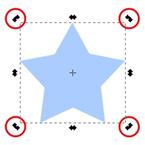
Рис. 16 Вращение фигуры
На следующем рисунке центр вращения перенесен в верхний правый угол фигуры.

Рис. 17 Вращение фигуры
Чтобы вернуть центр вращения назад в центр фигуры, как он расположен по умолчанию, наведите на него курсор мыши и, удерживая клавишу Shift, щелкните по нему.
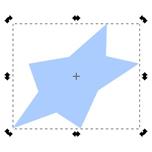

Рис. 18 Наклон фигуры
Для наклона фигуры в режиме вращения используйте стрелочки расположенные посередине контура выделения. На рисунке слева они отмечены красным.
В этом режиме можно также отразить фигуру слева направо или сверху вниз. Сделать это можно в верхней контекстной панели инструментов выделения или нажав на клавиатуре клавиши V или H, что бы, соответственно, отразить фигуру вертикально или горизонтально.
Отражение фигуры не приведет к изменению ее размеров внутри области выделения. В этом можно убедиться на примере, приведенном на рисунке ниже.

Рис. 19 Отражение фигуры
В то же время описанный выше поворот и наклон фигуры относительно точки вращения, в большинстве случаев приведет к изменению ее положения.

Рис. 20 Отражение фигуры
Существуют четыре параметра, которыми можно управлять при трансформации объекта.
 При изменении объекта менять в той же пропорции толщину обводки
 При изменении размеров прямоугольников менять в той же пропорции радиус закругленных углов
 Трансформировать градиенты в заливке или обводке вместе с объектом
 Трансформировать текстуры в заливке или обводке вместе с объектом
Они расположены в виде кнопок на верхней контекстной панели инструментов. Внешний вид кнопок приведен на рисунке. Это "При изменении объекта менять в той же пропорции толщину обводки", "При изменении размеров прямоугольников менять в той же пропорции радиус закругленных углов", "Трансформировать градиенты в заливке или обводке вместе с объектом" и "Трансформировать текстуры в заливке или обводке вместе с объектом". Нажатому положению кнопки соответствует включение данного параметра и наоборот.
Управление узлами
Инструмент для управления узлами предназначен для редактирования и выбора узлов, которые позволяют точно менять и управлять кривыми. Что бы активизировать инструмент для управления узлами, можно использовать боковое окно панели инструментов, этот инструмент расположен в нем вторым сверху или нажать клавишу F2. При этом изменится состав кнопок контекстной панели инструментов. Она станет выглядеть так, как показано на рисунке ниже.

Рис. 22 Инструмент для управления узлами
Если инструмент управления узлами активен, то по контуру активной фигуры могут отображаться узлы в виде квадратиков. Для того что бы выбрать узел, просто щелкните по нему. Щелчок по контуру между узлами выбирает оба этих узла. Если вы хотите добавить или удалить узел удерживайте при щелчке мыши клавишу Shift.
Если необходимо выбрать все узлы фигуры, то можно воспользоваться комбинацией клавиш Ctrl + A в этом случае будут выбраны се узлы кроме вложенных. Для того что бы выбрать все узлы, включая вложенные, следует использовать комбинацию клавиш Ctrl + Alt + A.
Перемещение узлов
Перемещать узлы можно с помощью мыши обычным образом. Если удерживать при перемещении узла клавишу Ctrl, то узел сможет перемещаться только по вертикали или по горизонтали. Удерживая комбинацию клавиш Ctrl + Alt, можно перемещать узел строго вдоль его направляющей.
Перемещать узлы можно также с помощью стрелок на клавиатуре. В этом случае объект будет перемещаться с шагом 2 пикселя (по умолчанию, но эту настройку можно изменить). Если удерживать при перемещении стрелками нажатой клавишу Shift, то узел будет двигаться с шагом в 10 раз большим, чем предыдущая настройка. При удержании нажатой клавиши Alt узел будет перемещаться с шагом в 1 пиксель, а Alt+Shift позволяют передвигать узел с шагом в 10 пикселей.
После того как узел в inkscape выбран, если это возможно для данного вида узла, то будет отображаться его направляющая. Расположение направляющей также влияет на вид кривой этого узла. С помощью маркеров на концах направляющей можно изменять ее длину и вращать ее. Удерживая при вращении направляющей клавишу Ctrl, можно вращать ее с интервалом 15 градусов. Удержание клавиши Alt блокирует изменение длины направляющей. Клавиша Shift позволяет перемещать обе направляющих.
Горячие клавиши
Shift удерживайте клавишу при выборе для выбора нескольких узлов.
Двойной щелчок или Shift+Alt на пути или кривой для создания нового узла. Создает в inkscape новый узел, не изменяя форму контура.
TAB выбирает следующий узел.
Shift +Tab выбирает предыдущий узел.
CTRL+Alt удаляет узел.
Ctrl + щелчок указателем мыши на маркер направляющей обнуляет ее длину. Что бы вытянуть направляющую назад из узла используйте клавишу Shift.
Инструменты фигуры
Инструмент прямоугольник
Как рисовать в inkscape прямоугольники и квадраты
Инструмент прямоугольник позволяет рисовать фигуры: прямоугольники и квадраты. Чтобы нарисовать прямоугольник или квадрат, выберите этот инструмент в боковом окне панели инструментов inkscape или по активируйте его кнопке F4. Чтобы нарисовать прямоугольник, перетащите курсор мыши с нажатой левой кнопкой из одного угла в другой противоположный угол. Чтобы рисовать квадраты, удерживайте при рисовании нажатой клавишу Ctrl. Этот способ позволяет также рисовать прямоугольники с целыми соотношениями высоты к ширине. Если удерживать при рисовании прямоугольника клавишу Shift, то начальная точка будет соответствовать не вершине, а центру прямоугольника.
Размер уже нарисованного в inkscape прямоугольника можно изменить, предварительно выделив его с помощью инструмента выделения и трансформации (подробнее см. в разделе инструкция inkscape). Если прямоугольник выбран, а инструмент "прямоугольник" активен, то в углах прямоугольника появятся специальные маркеры. Квадратные маркеры в противоположных углах служат для изменения размера прямоугольника, а круглый маркер в верхнем правом углу позволяет управлять скруглением углов.

Рис. 23 Прямоугольник
Круглый маркер управляет закруглением углов прямоугольника. Но на самом деле круглых маркеров два. Если потянуть видимый верхний круглый маркер вниз, то получится закругленный по окружности угол. При этом станет виден второй круглый маркер в углу. Если перетащить второй круглый маркер влево, то получится эллиптический закругленный угол. Если вы перетащили второй маркер влево, то радиусы кривизны в горизонтальной (Х) и вертикальной (Y) осях становятся независимыми. Каждый из маркеров начинает отвечать за свой радиус. Если второй маркер не трогать, то за оба радиуса отвечает первый маркер.
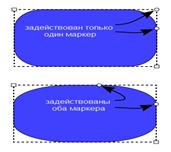
Рис. 24 Округление углов прямоугольника
Вернуть углы назад в первоначальное состояние можно, нажав на кнопку "убрать закругление углов" в контекстной панели этого инструмента (кнопка появляется, если инструмент "прямоугольник" активен). В этой же контекстной панели инструментов можно задать с помощью числовых параметров ширину и высоту прямоугольника.
Инструмент эллипс
Как рисовать в inkscape эллипсы, круги и дуги
Инструмент эллипс позволяет рисовать в inkscape эллипсы, круги и дуги. Чтобы нарисовать эллипс или круг, выберите инструмент в боковом окне панели инструментов inkscape или по кнопке F5 или E. Чтобы нарисовать эллипс или круг, перетащите курсор мыши с нажатой левой кнопкой из одной точки в другую. Чтобы рисовать ровные круги, удерживайте при рисовании нажатой клавишу Ctrl. Этот способ позволяет также рисовать эллипсы с целыми соотношениями высоты к ширине. Если удерживать при рисовании эллипса или круга клавишу Shift, то начальная точка будет соответствовать не контуру, а центру эллипса.
Если удерживать нажатой клавишу Alt то эллипс или окружность будут рисоваться так, что бы они проходили через начальную точку и точку курсора мыши. Допускается одновременное использование сочетания Alt + Ctrl. В этом случае будет нарисован круг с диаметром, равным расстоянию между начальной точкой и точкой, в которой находится курсор мыши.
Размер уже нарисованного в inkscape эллипса можно изменить, предварительно выделив его с помощью инструмента выделения и трансформации (подробнее см. в разделе инструкция inkscape). Если эллипс или круг выбран, а сам инструмент "эллипс" активен, то по контуру эллипса появятся специальные маркеры. Квадратные маркеры в верхней левой четверти служат для изменения размера эллипса, а круглый маркер слева позволяет управлять углом.
Эти маркеры будут также активны, если активен инструмент управления узлами (подробнее см. в разделе инструкция inkscape).
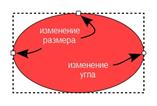
Рис. 25 Эллипс
Круглый маркер управляет углом сектора или дуги. Как и в инструменте прямоугольник (подробнее см. в разделе инструкция inkscape), круглых маркеров на самом деле два. Если потянуть видимый верхний круглый маркер вниз, то получится сектор и станет виден другой маркер, который можно перемещать вверх. Первоначально оба круглых маркера находятся друг над другом. Если удерживать клавишу Ctrl при перетаскивании круглых маркеров, то шаг изменения дуги будет ограничен 15-ю градусами.

Рис. 26
Если попробовать переместить круглый маркер внутрь эллипса (сам маркер, конечно, не переместится, но попробовать это сделать можно), то показанный выше режим рисования сегмента изменится на дугу, такую как показано на рисунке ниже. Для того что бы снова переключиться на сегмент, как на рисунке выше, надо попробовать переместить один из круглых маркеров за пределы контура эллипса.
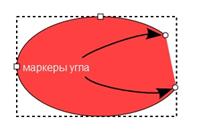
Рис. 27
Тоже самое можно сделать в настройках, которые есть в контекстной панели инструмента эллипс.

Рис. 28 Инструменты эллипса
Как видно из рисунка выше, в контекстной панели параметров инструмента эллипс можно с помощью числовых параметров настраивать значения угла круглых маркеров, выбирать режим: дуга или сегмент. Координаты начального и конечного круглых маркеров задаются в градусах, и измеряется в направлении по часовой стрелке, начиная с оси абсцисс (X). Так же можно вернуть все назад, нажав на кнопку "сделать фигуру целым эллипсом, а не дугой или сегментом".
Инструмент звезды
Как рисовать в inkscape звезды и многоугольники
Инструмент звезды позволяет рисовать в inkscape звезды и многоугольники. Чтобы нарисовать звезду или многоугольник, выберите этот инструмент в боковом окне панели инструментов inkscape или активируйте его по кнопке Shift+F9 или *. Чтобы нарисовать звезду или многоугольник, перетащите курсор мыши с нажатой левой кнопкой из одной точки в другую. Начальная точка будет соответствовать центру звезды, конечная точка одной из ее вершин. При рисовании звезды, если удерживать нажатой клавишу Ctrl, то угол поворота звезды будет ограничен 15-ю градусами.
Уже нарисованные звезды могут быть изменены с помощь маркеров узлов. Эти маркеры будут также активны, если активен инструмент управления узлами (подробнее см. в разделе инструкция inkscape).
Изменить параметры звезды можно с помощью этих маркеров и контекстного меню инструмента, пример которого приведен ниже. Это меню доступно при выбранном инструменте "звезды".

Рис. 29 Контекстного меню инструмента
Определить тип фигуры: звезда или многоугольник, можно только в этом контекстном меню. Для этого в меню есть два значка с соответствующим изображением желтого многоугольника и звездочки.
Второй параметр, который можно также изменить только через контекстное меню — это количество углов. По умолчанию inkscape рисует пятиугольные звезды.
Для изменения фигуры звезды или многоугольника есть два маркера узлов. Верхний узел служит для управления положением кончика звезды или углом многоугольника. При изменении положения этого узла, удержание нажатой клавиши Ctrl, позволяет перемещать узел строго по прямой лини.

Рис. 30 Инструмент звезда
Второй маркер — базовый узел контролирует положение "внутренней" вершиной звезды. При изменении положения этого узла, удержание нажатой клавиши Ctrl, позволяет перемещать узел строго по прямой лини. Обратите внимание, что в некоторых случаях, базовый радиус может быть отрицательным, как показано на рисунке ниже.

Рис. 31 Перемещение базового узла
Удержание клавиши Shift при изменении узлов звезды, позволяет управлять закруглением её углов.

Рис. 32 Округление углов
Удержание клавиши Alt при изменении узлов звезды, будет перемещать все вершины звезды или вершины многоугольника независимо друг от друга в произвольном порядке.

Рис. 33 Изменение положения узлов
Как уже упоминалось выше, контекстная панель параметров инструмента содержит возможность изменения параметров, отвечающих за вид фигуры: звезда или правильный многоугольник, количество вершин, а также содержит окно пааметра для установки соотношения радиусов.
Соотношение радиусов определяется как отношение основного радиуса к радиусу верхнего узла. Полезными могут оказаться типовые значения: для обычной 5-конечной звезды, соотношение 0,382, для правильной 6-конечной звезды 0,577, для 8-конечной звезды 0,541.
Кнопка с изображением кисточки или метелки позволяет сбросить все пользовательские настройки и вернуться к значениям по умолчанию.
Инструмент спирали
Инструмент спирали предназначен для рисования в inkscape спиралей Архимеда. Чтобы нарисовать спираль, выберите инструмент в боковом окне панели инструментов inkscape или по кнопке F9 или I. Чтобы нарисовать спираль, перетащите курсор мыши с нажатой левой кнопкой из одной точки в другую. Начальная точка будет соответствовать центру спирали. Нажатая клавиша Ctrl при рисовании будет ограничивать угол вращения спирали шагом в 15 градусов. Чтобы изменить направление спирали, переверните её как объект горизонтально (клавиша H) или вертикально (клавиша V).
Характеристики спирали определяются двумя узлами внешним и внутренним. Маркеры узлов будут также активны, если активен инструмент управления узлами (подробнее см. в разделе инструкция inkscape).
Спираль можно изменить, если перетащить маркеры этих узлов, предварительно выделив спираль с помощью инструмента выделения и трансформации (подробнее см. в разделе инструкция inkscape). Если спираль выбрана, а сам инструмент "спираль" активен, то эти маркеры будут видны. Пример на рисунке ниже.
Перетаскивание маркеров позволяет делать спираль длиннее или короче, или изменять радиус внутреннего и внешнего её концов. Удерживая клавишу Shift, при нажатии на внутренний узел, внутренний радиус будет обнулен.

Рис. 34 Спираль
Внутренний узел может быть использован для изменения нелинейности спирали, для этого перетащите этот маркер вверх или вниз, удерживая нажатой клавишу Alt. Нелинейность определяет, насколько быстро радиус изменяется по сравнению с углом. Нелинейность, равная единице, означает спираль с равным расстоянием между соседними витками (спираль Архимеда). Нелинейность меньше или больше единицы, создаёт спираль, у которой расстояние между соседними витками уменьшается или увеличивается. Щелчок мышкой с нажатой клавишей Alt по внутреннему узлу, вернет значение нелинейность к единице. На рисунках ниже слева приведен пример спирали с нелинейностью 2, а справа с нелинейностью 0,5 или 1/2.

Рис. 35 Спираль
Внешний узел может быть использован для изменения и поворота спирали. Если удерживать при этом нажатыми клавиши Shift+Alt, то спираль будет только вращаться, сохраняя фиксированный радиус. Число витков спирали, нелинейность, а внутренний радиус могут быть установлены также виде числовых параметров этого инструмента в контекстной панели инструмента спирали. Чтобы вернуть значения этих параметров в исходное состояние по умолчанию, нажмите кнопку с метелкой в этой панели справа.

Рис. 36 Контекстное панель инструмента
Чтобы понять, как происходит заполнение спирали цветом, надо рассказать, как inkscape рассчитывает заливку спирали. Спираль является открытым контуром. Однако заполнение цветом осуществляется так, как если бы контур был замкнутым отрезком между двумя узлами, внутренним и внешним. Наглядно можно продемонстрировать это на примере картинки ниже.
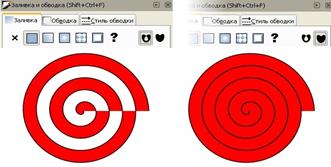
Рис. 37 Заполнение цветом
В первом случае заливка спирали осуществлена с нажатием кнопки "любые самопересечения или внутренние субконтуры используют дыры в заливке", во втором случае была нажата кнопка "заливка имеет дыру, только если внутренний субконтур направлен в противоположную сторону".
Как можно полностью закрасить спираль двумя разными цветами?! Хитрость заключается в использовании второй копии спирали расположенной сверху, но имеющей на один виток меньше. Для того что бы скопировать спираль используйте комбинацию клавиш Ctrl+D? А уменьшить количество витков ровно на один проще всего с помощью параметров в контекстной панели инструментов, описанной выше. Хотя, можно воспользоваться перетаскиванием внешнего узла, этот способ менее точен, но зато очень наглядный.

Рис. 38 Заполнение цветом
На картинке выше приведен пример двухцветных спиралей со сплошной и градиентной заливкой, созданных описанным выше способом.
Инструмент параллелепипед
Inkscape предназначен для создания векторных изображений в двух измерениях. Тем не менее, часто возникает необходимость нарисовать объект в перспективе. В этом может помочь инструмент рисования параллелепипедов inkscape. Он помогает выполнять такие рисунки, автоматизируя одну из наиболее популярных операций: создание параллелепипеда в заданной перспективе.
Как пользоваться инструментом рисования параллелепипедов inkscape
Для имитации трехмерного пространства Inkscape использует оси (XYZ), плоскости (XY, XZ, YZ), параллельные линии, сходящиеся линии и точки схождения.
Каждое измерение может лежать на параллельных или сходящихся линиях. У каждой из этих линий свой цвет, помогающий визуально отличить одну от другой:
· красные линии соответствуют оси X (ширина);
· синие линии соответствуют оси Y (высота);
· желтые линии соответствуют оси Z (глубина).
Если линии сходящиеся, то у них есть точка схождения, т.е. точка, в которой они пересекаются. Ниже приведена иллюстрация:

Рис. 39 Параллелепипед
При помощи инструмента параллелепипед вы можете делать следующее:
рисовать параллелепипед простым перемещением курсора мыши по холсту; с нажатой клавишей Shift перемещение сразу устанавливает объект по оси.
менять размер параллелепипеда в любом измерении простым перетаскиванием узлов и их маркеров на холсте: 4 маркера спереди меняют размер, 4 маркера сзади расширяют или уменьшают параллелепипед по оси Z. При нажатии клавиши Shift функции маркеров сторон на переднем и заднем планах меняются местами. При нажатии клавиши Ctrl маркеры, меняющие размер объекта, прилипают к осям координатам или диагоналям.
перемещать параллелепипед в перспективе, перетаскивая его за крестообразную метку центра; без клавиш-модификаторов перемещение происходит только в плоскости XY (удерживайте нажатой клавишу Ctrl для ограничения перемещения по диагоналям или по осям координат), с нажатой клавишей Shift параллелепипед движется параллельно оси Z.
корректировать точки схода перетаскиванием по холсту и переключать их состояние; эти изменения коснутся всех параллелепипедов, разделяющих эти точки схода.
Когда выделено несколько параллелепипедов, на холсте показываются все их точки схождения. Если точки схождения разных перспектив совпадают, то они объединяются под одним управляющим маркером. Перемещение этого маркера изменит положение всех этих точек схождения и внешний вид соответствующих параллелепипедов. Если какие-то из объектов, разделяющих те же точки схода, в этот момент не выделены, они все равно будут перерисованы. Перемещение управляющих маркеров с нажатой клавишей Shift разделяет ранее общие перспективы выделенных и невыделенных параллелепипедов. С другой стороны, если одну точку схождения подтащить очень близко к другой, они будут автоматически объединены.
В SVG параллелепипед представлен группой (svg:g) с дополнительным атрибутом в пространстве имен inkscape; эта группа содержит 6 четырехсторонних контуров, представляющих стороны параллелепипеда. Только инструмент рисования параллелепипедов воспринимает их как целостный объект. Для других редакторов это будет лишь группа контуров. Любой из этих контуров можно выбрать по отдельности щелчком с нажатой клавишей Ctrl, изменить его стиль, удалить и т.д. Разумеется, весь параллелепипед или любую его сторону можно изменять инструментом для выделения и правки узлов.
How do you rotate in inkscape?
How do i rotate is one of the most frequently asked questions for beginner Inkscape users. There are multiple ways to rotate in inkscape, and this FAQ will show you the basics for four of them. The three different ways for rotating objects are: the toolbar buttons, the on-canvas rotation handles, transform dialog, and the keyboard shortcuts.
Method 1, the toolbar buttons
Rotating with the toolbar buttons only lets you rotate objects 90 degrees at a time. To rotate with the toolbar buttons, first choose the select tool: 
Next, select the object that you want to rotate by simply clicking on it. Once you have clicked on the group once, arrows and a dotted line should appear around the object:

Finally, press the rotate button on the toolbar to rotate your selection in 90 degree increments.
Method 2, Rotate on Canvas
Using the toolbar buttons to rotate objects in inkscape is by far the easiest method to discover. However, it only lets you rotate in 90 degree increments.
For a wider range of motion, using the on-canvas rotate handles is the way to go. As with the previous method, choose the select tool, and then select the object that you wish to rotate. The select box and handles should appear as before:
Now that the resize handles are visible, simply click on the object again to display the rotate handles: 
Now that the rotate handles are visible, simply click on one of them, and drag it to rotate your object freely.
Method 3, the Transform dialog.
The free rotate that the on-canvas rotate controls (method 2) give are great, but what if you need more accurate control? When using method 2, you can hold down the ctrl key to limit the rotation to 15 degree increments, but what if you want to rotate the object by a specific, arbitary amount?
That is where the transform dialog comes in. First, as with the other methods, select the object that you want to rotate. Then open the transform dialog from the menu, Object > Transform. 
Switch to the “Rotate” tab of the newly opened Transform Dialog, enter in how many degrees you need your object rotated, and click apply to rotate.

Method 4, the keyboard shortcuts
This method is super simple. Select the object(s) that you wish to rotate, and press the square brackets key( [ or ] ) to rotate left and right by chunks.
For finer-grained rotation with the keyboard shortcuts, use the shortcuts alt + [ and alt + ] to rotate one degree at a time.
The four methods above outline the basics of rotating objects in inkscape. For further information about rotating and transforming objects in Inkscape the “Select Tool” chapter of the Inkscape Manual has more detailed information, including how to change the rotation point or rotation center of your object. The transforms chapter of Tav’s Inkscape Guide also provides some in-depth documentation of rotating in Inkscape.
How to rotate object in Inkscape
As a beginner to Inkscape one of the first things you would want to learn is rotating objects in Inkscape. As compared to other photo editing software and image manipulation applications, Inkscape does this operation differently. In Inkscape, you can use multiple rotation options for rotating your selected objects. This write-up will show you how to rotate objects in Inkscape using the toolbar buttons, Transform tool, and the on-canvas Rotate handles. So, let’s start!
How to rotate object in Inkscape using toolbar button
The toolbar buttons in the Inkscape permit you to rotate your selected objects 90 degrees at a time. To do so, firstly we will add the required object to the Inkscape canvas. In our case, we have selected an image for the rotation purpose:
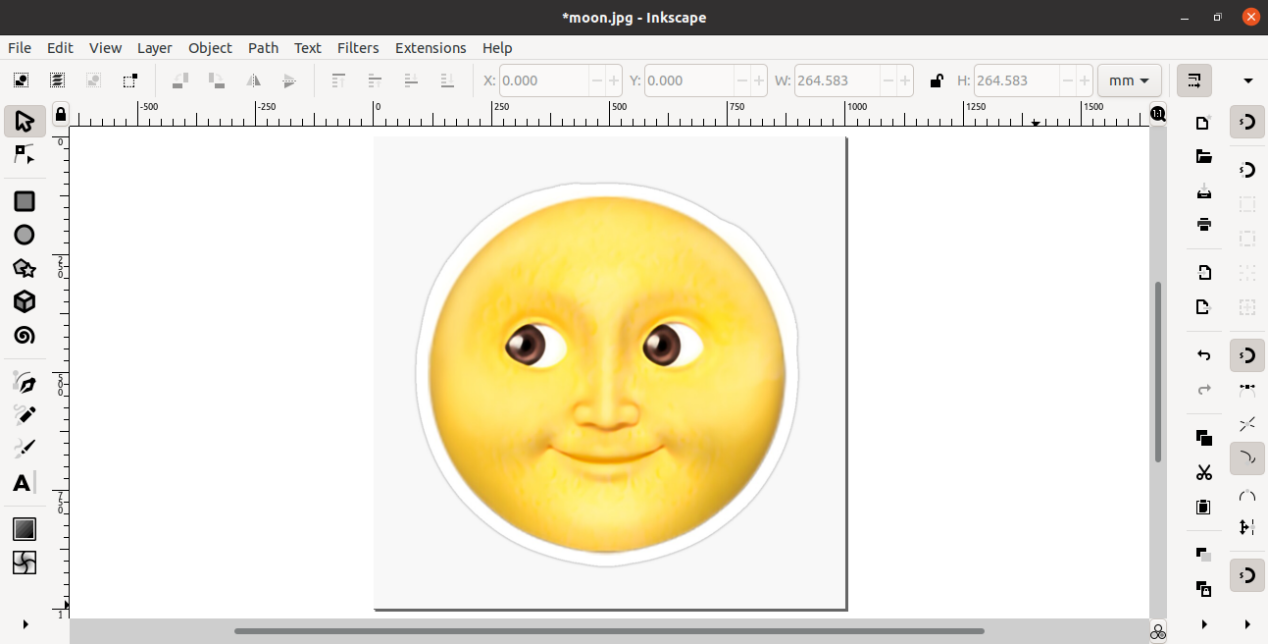
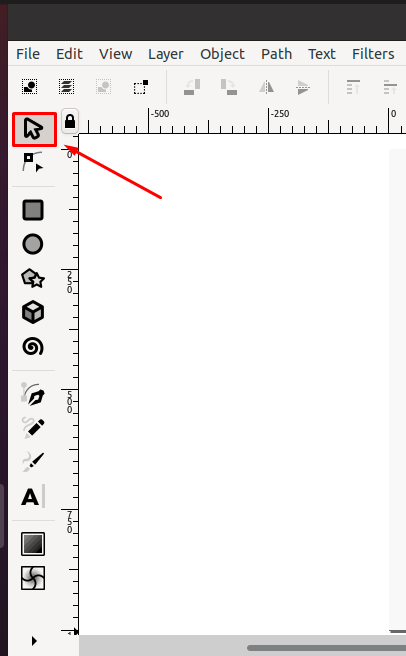
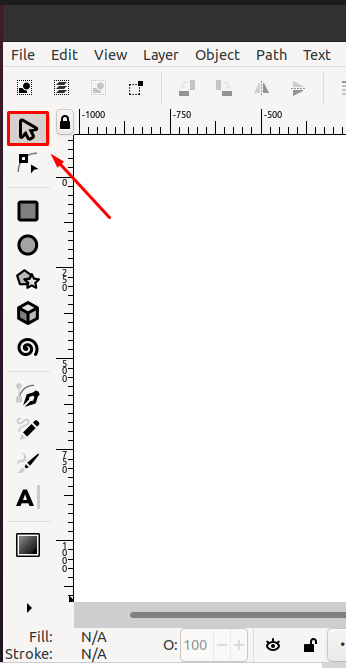
In the next step, choose the “Select and Transform” tool from the Inkscape toolbar, which is present at the left side of the Inkscape window:
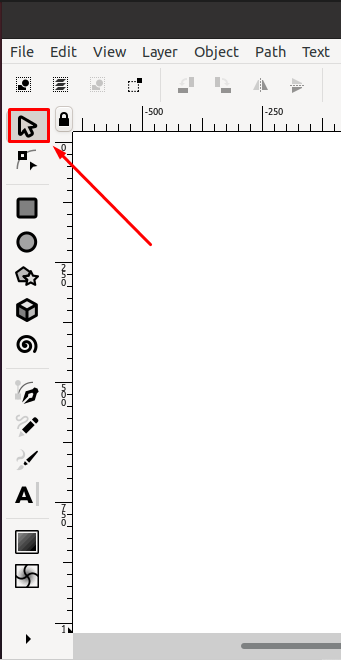
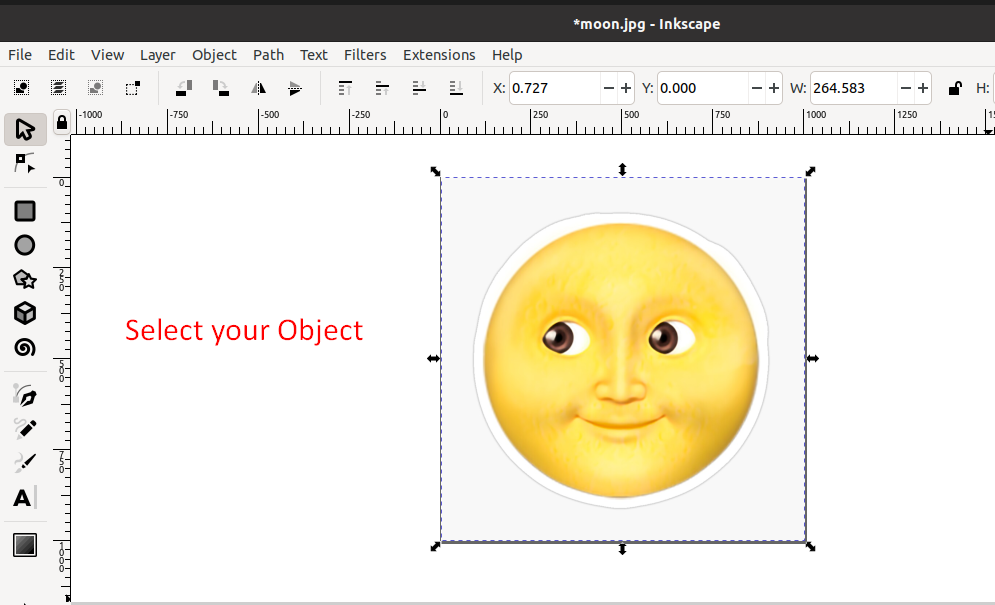
With the help of the “Select and Transform” tool, select the object you want to rotate. The dotted line around the object will confirm that it is selected:
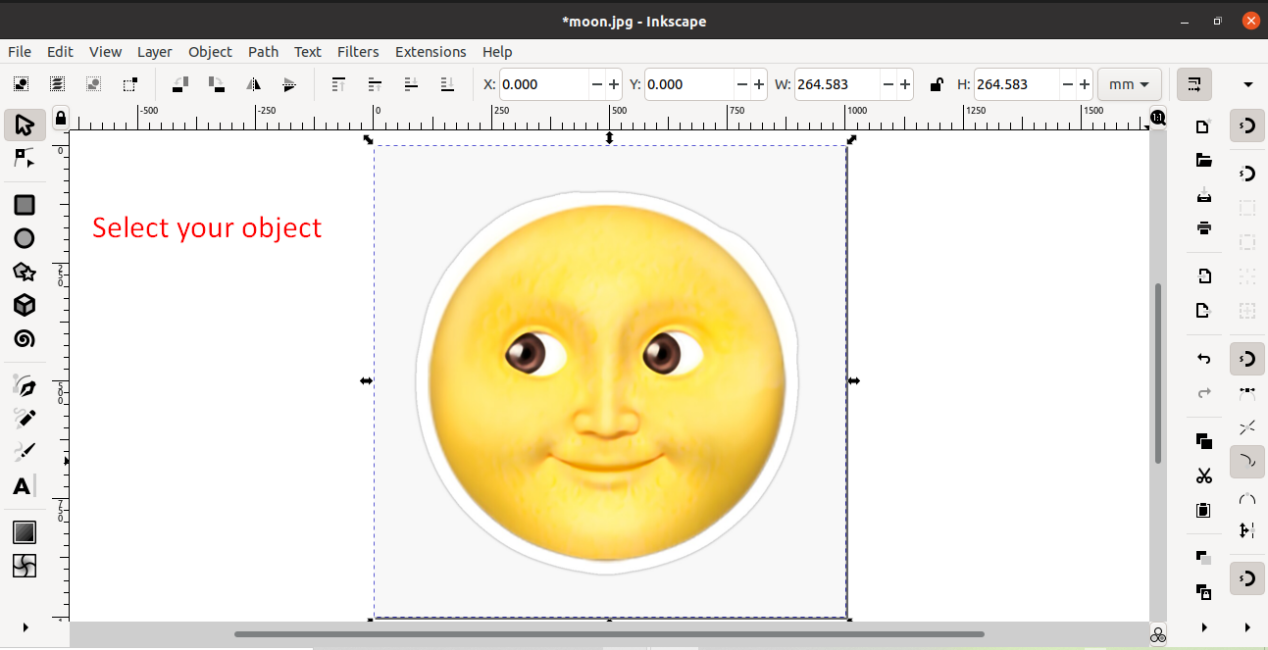
After selecting the object, look for the rotate buttons under the menu bar. Inkscape provides two rotate buttons, one to rotate the selection 90 degrees clockwise and the second to rotate 90 counter-clockwise :
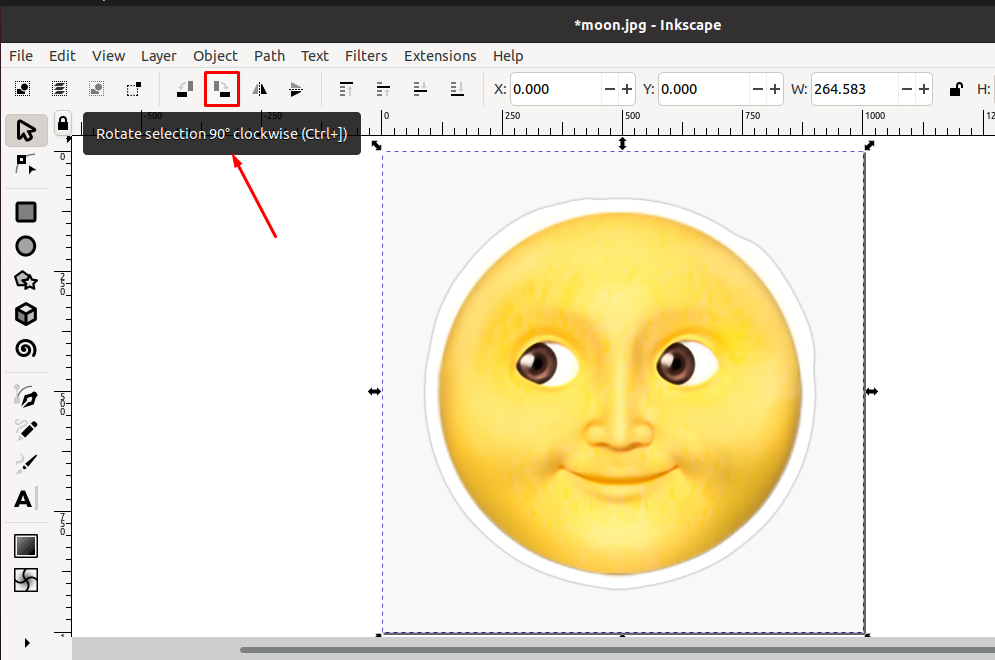
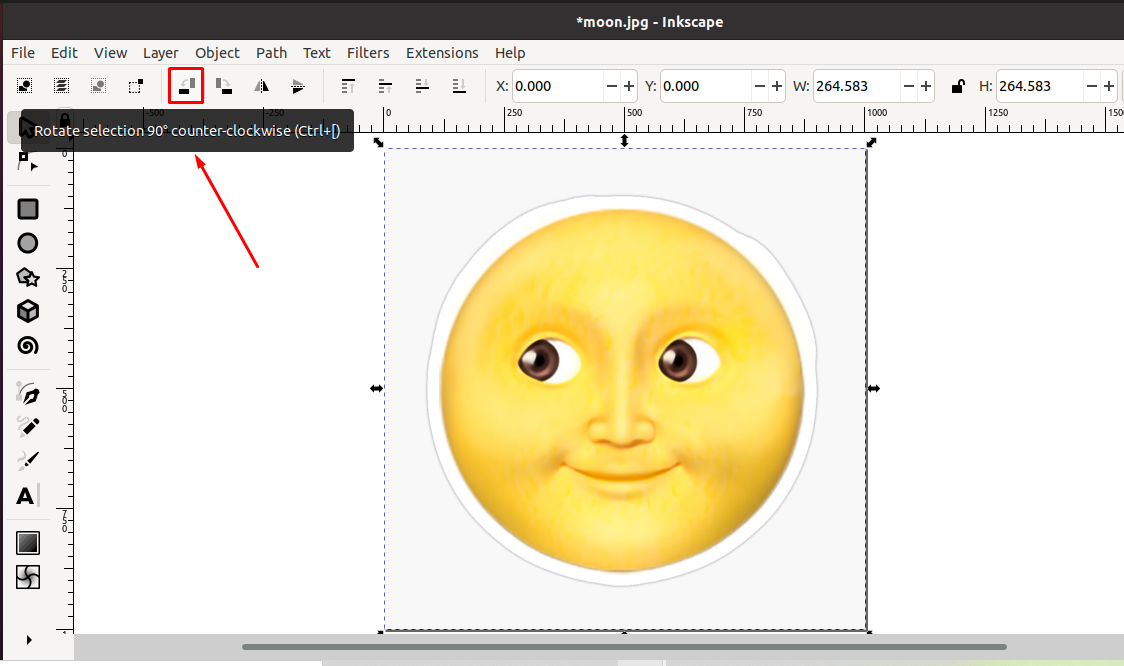
Now, select any of them according to your requirements. In our case, we have clicked the left button to rotate the selected object 90 degrees in the clockwise direction:
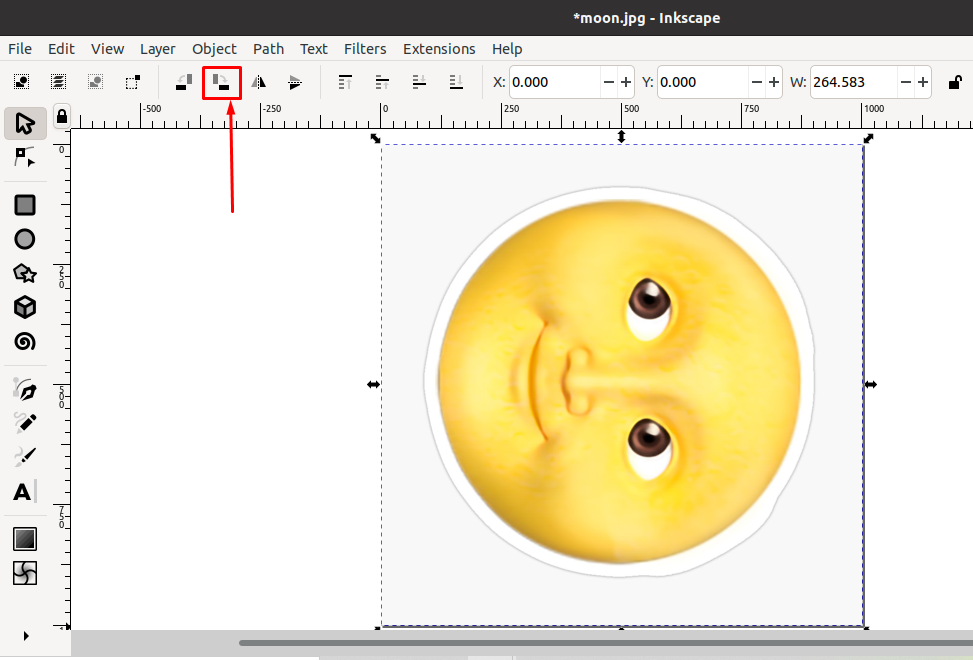
Clicking the same button again will rotate it in the following way:
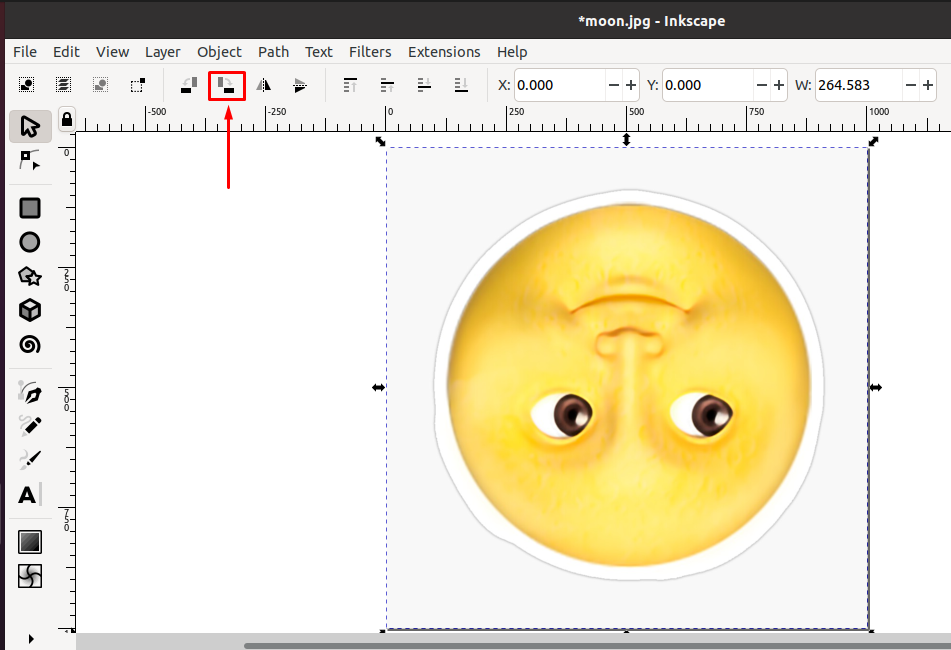
How to rotate object in Inkscape using on-canvas rotate handles
The “Rotate button” only allows you to rotate in a 90 degrees increment, whether in a clockwise or counter-clockwise direction. Using the on-canvas rotate handles provides a wider range for the rotation purpose.
To utilize the specified option, firstly choose the “Select and Transform” tool from the Inkscape toolbar and then select the object which we want to rotate:
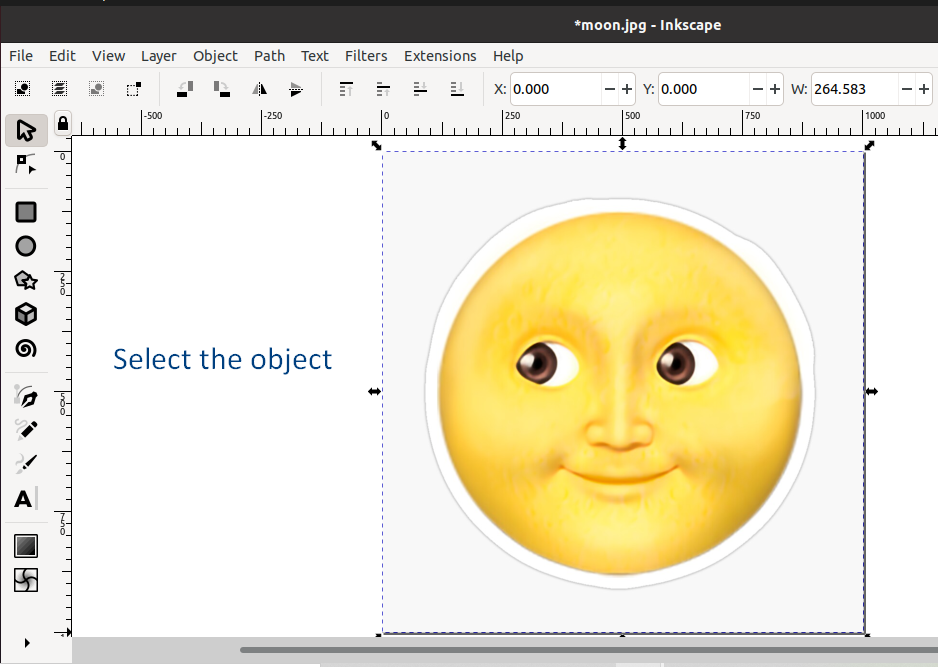
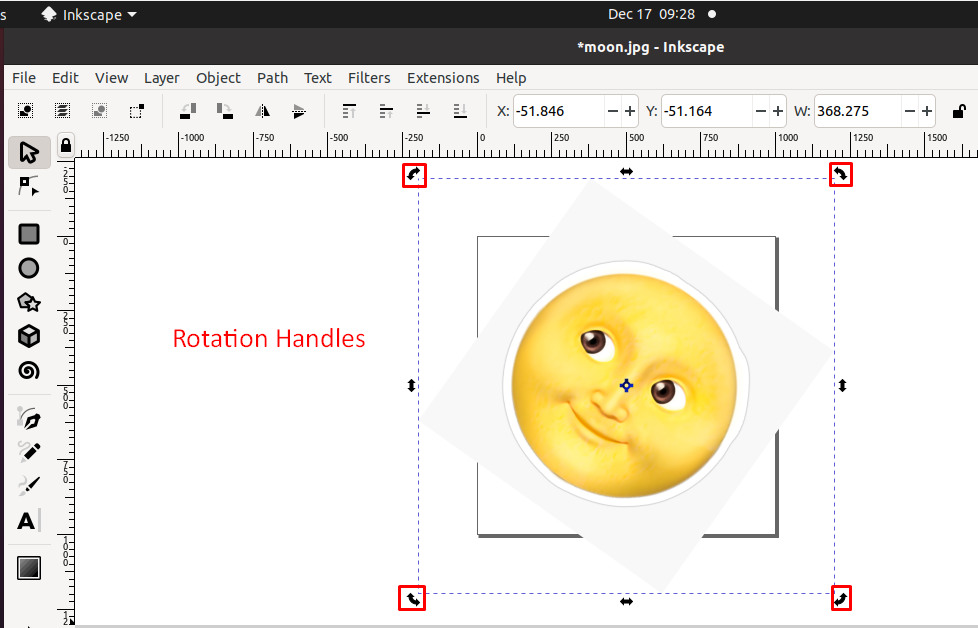
After selecting the object, click on the “Object” again for viewing its rotation handles:
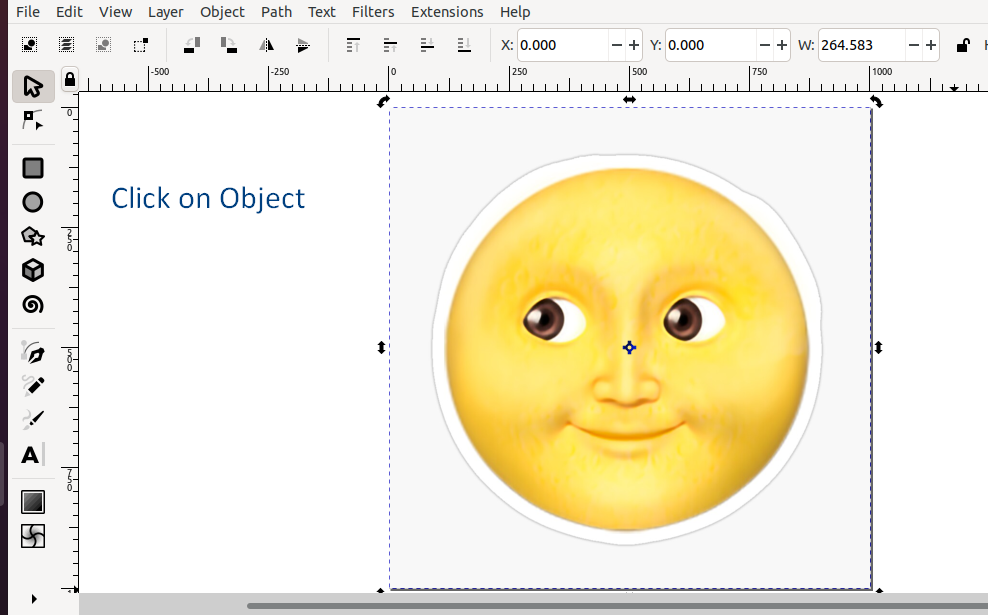
From the below-given image, you can see that four rotation handles will be now visible on the selected object. Utilize any of them to rotate the object at the required position:
How to rotate object in Inkscape using Transform tool
What if you want to set an object by specifying the number of degrees? The previously given method will not allow you to do so. However, using the Inkscape transform tool, you can add the number of degrees for the rotation.
To start the rotation procedure, firstly select your object with the help of the “Select and Transform” tool:
After selecting your object, look for the “Object” option in the Inkscape menu bar:
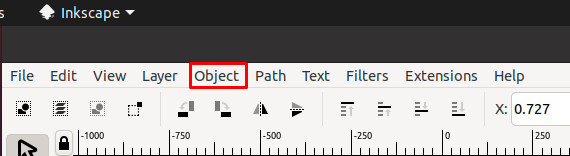
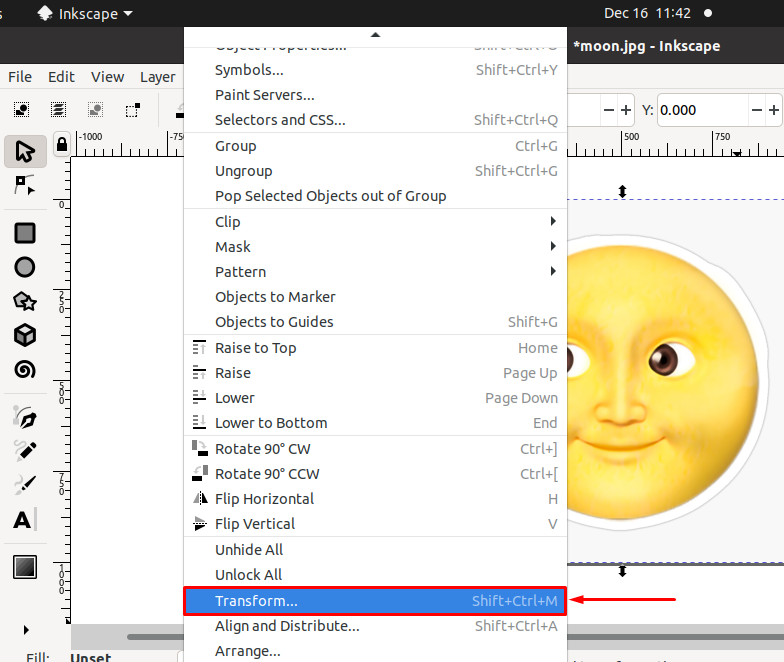
Now, choose the “Transform” option from the “Object” menu, or you can press “SHIFT+CTRL+M” for the same purpose:
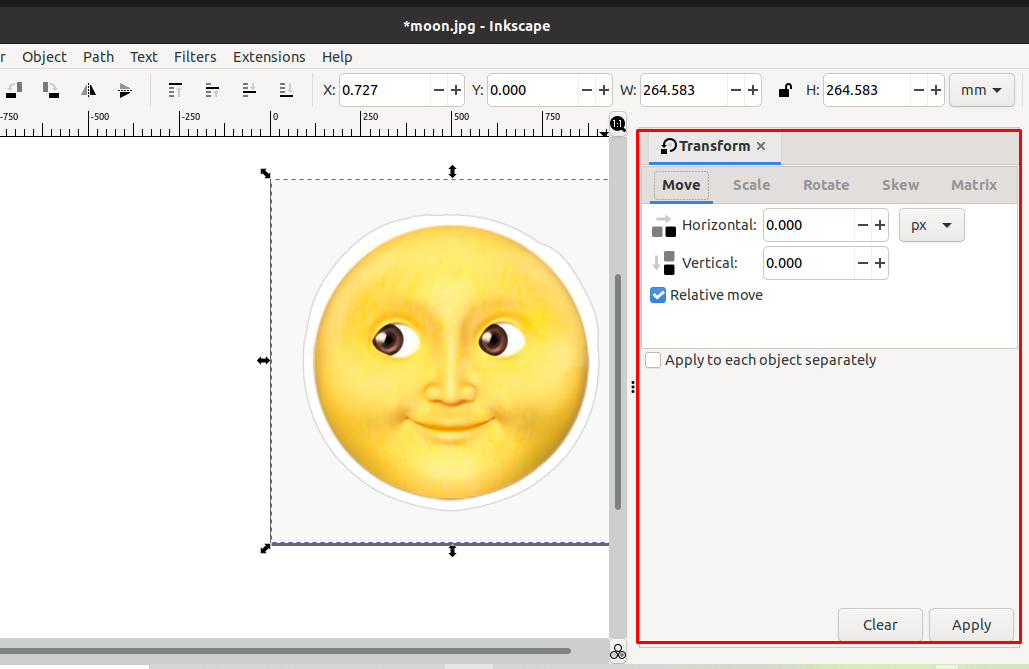
The “Transform” window will appear at the right-side of the Inkscape window:
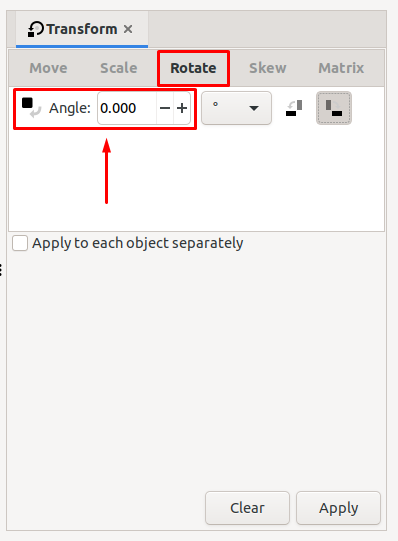
Clicking on the “Rotate” tab of the “Transform” window will permit you to enter the number of degrees for object rotation in the “Angle” input field:
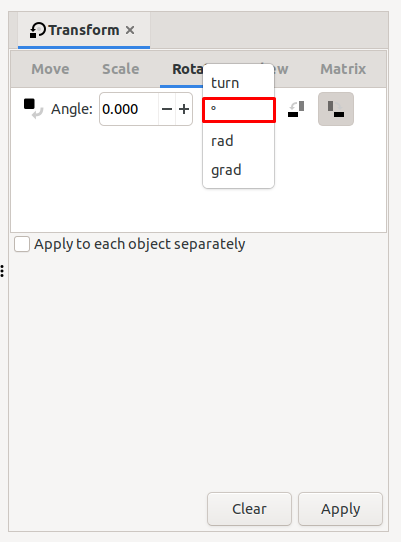
By utilizing the highlighted drop-down menu, you can set the rotation measurement unit as “turn”, degree “°”, “rad” or “grad”:
The two buttons next to the “drop-down” menu are used to rotate the selected object in counter-clockwise and clockwise directions:
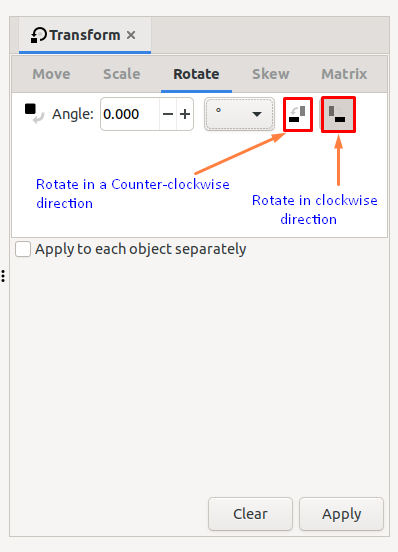
After knowing the usage of each option, enter the number of degrees of rotation and mark the “Apply to each object separately” to apply the added settings to all of the objects:
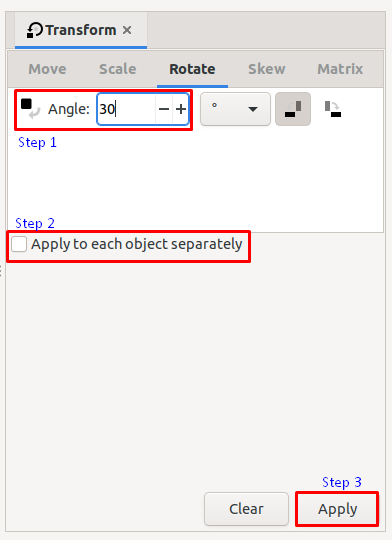
Here is the preview of our selected object after rotation:

Conclusion
Inkscape lets users rotate objects at any required angle. It does not provide a separate tool for the rotation purpose; however, you can utilize other options such as the toolbar buttons, transform menu, and the on-canvas rotate handles for rotating the selected object. This write-up demonstrated how to rotate an object in Inkscape using the mentioned options. We recommend you use the Transform menu method as it will assist in adding a custom value for the rotation.
About the author

Sharqa Hameed
I am a Linux enthusiast, I love to read Every Linux blog on the internet. I hold masters degree in computer science and am passionate about learning and teaching.
Tutorial 7 – Transforming Objects
You can modify objects in many ways as you create your artwork – including quickly and precisely controlling their size, shape, and orientation. In this lesson, you’ll explore the various transform tools, commands, and palettes as you create three pieces of artwork.
In this tutorial, you’ll learn how to do the following:
- Select, scale, move, rotate, and shear individual objects and objects in a group.
- Rotate objects using default rotation centers and centers that you have moved.
- Use the Transform palette to modify the shape of an object with precision.
- Work with snap guides and snap objects to guide lines.
Getting Started
In this lesson, you’ll transform parts of a logo to use in three pieces of artwork to create a letterhead design, an envelope, and a business card template.
Download and File > Open file Composite.svg. This file contains a composite of the three pieces of finished artwork. The Citrus Bath & Soap logo in the top left corner of the letterhead is the basis for all the modified objects. The logo has been resized for the letterhead, envelope, and business card.
Note: You can also view the individual pieces of finished artwork by downloading and opening files Tutorial07EndLetterhd.svg, Tutorial07Envelope.svg, and Tutorial07EndBusCard.svg.
If you like, use the Zoom tool () to reduce the view of the finished artwork, adjust the window size, and leave it on your screen as you work. (Use the mouse wheel with and without pressing the <Shift> key to move the artwork where you want it in the window.) If you don’t want to leave the image open, choose File > Close.
To begin working, you’ll open an existing file set up for the letterhead artwork.
Download and File > Open file Tutorial08StartLetterhd.svg. This start file has been saved with the rulers showing in inches, custom swatches added to the Swatches palette, and blue guidelines for scaling the logo and objects on the letterhead.
Scaling Objects
You scale objects by enlarging or reducing them horizontally (along the x axis) and vertically (along the y axis) relative to a fixed point of origin that you designate. If you don’t designate an origin, the objects are scaled from their center points. You’ll use three methods to scale the logo and two objects copied from the logo.
First, you’ll use the Transform palette to scale down the logo by entering new dimensions and designating the point of origin from which the logo will scale.
Make sure that the Scale stroke width icon and Move gradient with object icon are active at the right end of the Commands Bar:
Scale stroke width
and Move gradient with object
icons active.
Using the Select tool () in the toolbox, click the logo to select the group of objects (type, background, lemon, orange slice, lime slice) that make up the logo.
Choose Object > Transform to display the Transform palette. The Transform palette appears docked on the right side of the screen.
The Transform palette contains options for moving, scaling, rotating, skewing, and distorting an object by manipulating the handles of its bounding box. You can move an object relative to a point of origin of your choosing or absolute position on the artboard, scale an object keeping or not keeping aspect ratio, and distort an object by editing its matrix or creating a new matrix. For more information than what is presented in this tutorial, choose Help > Inkscape Manual > Positioning and Transforming > Transformations.
Click on the Scale tab. Set the unit of measurement to points (pt) if it is not set to points already. Set the width to 83.75 points and the height to 88.5 points. Click on the Apply button. The logo is now resized to your measurements.
You will now move the logo to the upper left-hand corner of the page.
If the Snap Controls Bar is not visible, choose View > Show/Hide > Snap Controls Bar. A check mark will appear to the left of the Snap Controls Bar option when you click on the option and the bar will appear.
If the Enable snapping (%) icon () isn’t highlighted, click on it to activate it. Then, click on the Snap guides icon () to activate its functioning.
Note: The Enable snapping feature acts as a master switch that allows activating all other snapping features under it, including the Snap guides function. If the particular snapping feature you want to use is not highlighted, check to see whether the Enable snapping (%) icon is highlighted. If it’s off, turn it on, then turn your option on.
Click on the logo with the Select tool () and drag the logo to the upper left-hand corner of the artboard where it fits into the small square defined by four guide lines.
Logo moved to upper left-hand corner.
The upper part of the page should appear similar to the figure below.
Upper part of page showing ruler.
Next you’ll copy the background object in the logo and scale the new object by dragging its bounding box to fit the background of the letterhead.
With the logo still selected, choose Object > Ungroup to ungroup the larger group in the logo. See how the smaller subgroups remain grouped.
If desired, use the Zoom tool () to zoom in on the logo.
Using the Select tool (), click away from the logo to deselect it, and then click below the word “Bath” to select the light-blue background object in the logo. Press <Ctrl>-D to duplicate the background image. All the objects in the logo become darkened a little bit because there is now a copy of the background color, which is actually a gradient, on top of all the objects. Now drag the copy the background to the bottom left corner of the page, aligning it with the snap guides. You can press the arrow keys to nudge it into place.
Move the background object.
Next, you’ll make this background object the background for the page.
With the Select tool (), drag the top right corner of the new object’s bounding box up to the top right side of the blue letterhead guide, to just below the return address.
Scaling the background object to the page. Background object scaled to the page.
With the background object still selected, choose Object > Object Properties, and click on the Lock checkbox in the Object Properties palette to lock the object. Click away from the background object to deselect it. Locking the background object makes it easier to select other objects you’ll add to the artwork without accidentally the background.
You can also lock all artwork above the selected object – for example, if you want to edit an object in the background that has objects on top of it – or all objects on other layers. In addition, you can use the Layers palette to lock objects. Once objects are locked, they cannot be selected or edited. You can quickly lock multiple objects, groups of objects, and sublayers by locking the parent layer.
The lemon in the logo is comprised of two objects grouped together. Now you’ll copy and move the lemon and place it at the bottom of the letterhead.
Click on the collection of citrus fruits in the lower part of the logo and choose Object < Ungroup to separate them into three distinct objects. If the logo text is also included in the selection, Choose Object < Ungroup again to separate the text from the fruit objects. If the fruits are grouped, ungroup them. Now, select the lemon in the logo, press <Ctrl>-D to copy it, and move the new lemon to the bottom right corner of the letterhead guide.
Move the copy of the lemon to the lower right corner of the page.
You’ll use the Scale tool to resize the new lemon.
Select the copy of the lemon if it isn’t selected already.
Click on the Scale tab in the Transform palette, set the unit of measurement to percent (%), set the width to 300 (300 percent), and click on the Scale proportionally checkbox to maintain the aspect ratio of width to height.
Click the Apply button.
Move the lemon so it clears the side and bottom of the page by about half an inch.
Rotating Objects
Objects are rotated by turning them around a designed point of rotation. You can rotate objects by clicking on them twice, first to display their bounding boxes and handles to allow resizing, and second to display handles to allow rotation and shearing. When the center of rotation appears after the second click, you can rotate the object about that point. You can also drag that center of rotation to any other location you want where it will still act as a center about which your object will rotate.
You can rotate objects using the Transform palette to set a point of origin and a rotation angle. You can also rotate objects using the Rotate palette to set its rotation angle. In the examples below, the middle figure shows a lemon object rotated about its default center of rotation. In the third example, the center of rotation has been dragged outside the lemon and a rotation of 30 degrees applied using the Rotate palette in the Transform palette.
Original lemon object
showing rotation
and shear handles. Original lemon object
rotated about default
center of rotation. Original lemon object
rotated about external
center of rotation. Rotate palette, 30°, clockwise
direction icon selected.
You’ll rotate the lemon 30° anticlockwise around its center point using the Rotate palette.
With the lemon selected, click on the Rotate tab to bring up the Rotate palette.
Type 30 in the Angle: text field, select the Rotate anticlockwise icon, and click on the Apply button.
Click away from the lemon object to deselect it. Your page will appear similar to the figure below.
Now you’ll create a flower. You will first create the sepals by distorting the edges of a star. You will then create the petals by rotating copies of an ellipse, converting them into paths, and then merging them into one object using the Union option for paths.
Select the Star tool () in the toolbox, type 5 into the Corners text box to make a five-pointed star, leave the other settings at their default values, and position the pointer in the artwork next to the lemon. Drag the tool to draw a five-pointed star that’s about the same size as the lemon.
Make a five-pointed star.
The star is painted with the paint attributes of the last selected object (in this case, the lemon).
With the star still selected, click on the Lime Green swatch in the Color palette. Leave the stroke set to None.
Change the star’s fill color to lime green.
Now you’ll distort the star by converting it from an object into a series of paths that you can manipulate individually.
Choose Path > Object to path.
Select the Node tool (). Choose Path > Object to path. Note how the star shape changes to show individual paths and nodes.
Select each side of the star and drag the middle to the right a little bit to produce a twirl effect. When you’re done, choose Edit > Deselect to deselect the distorted star. You have created the flower sepals, which are the backmost part of the flower.
Curving the sides of the star with the Node tool. Result of distorting star object.
Now you’ll make the flower petals. You’ll create a white ellipse, move its center of rotation to one end, and use a combination of <Ctrl>-D to duplicate the ellipse and the Rotate palette to create the remaining four petals to create a five-petaled flower. You’ll then convert the five ellipses into paths and then use the path Union option to merge them into one object.
Make an ellipse and color it white.
With the ellipse still selected, choose Path > Object to Path. Click on the ellipse again to bring up the rotate and shear handles. The center of rotation should (of course) appear in the center of ellipse. Drag the center of rotation to one end of the ellipse.
Change color of ellipse from lime green to white.
Then convert it into a path. Drag the center of rotation of the ellipse to one end.
With the ellipse still selected, bring up the Rotate palette in the Transform palette. Type 72 in the Angle: text field (An angle of 72° represents one-fifth of a full 360° rotation). It doesn’t matter which direction of rotation you choose.
Press <Ctrl>-D to make a copy of the ellipse and click the Apply button in the Rotate palette. The copy of the petal is now rotated 72 degrees about its end.
With the second petal still selected, press <Ctrl>-D to make a copy of that petal and click on the Apply button in the Rotate palette to rotate the newly copied petal. Repeat these steps two more times to create the remaining two petals.
Now shift-click all the unselected petals, or marquee-select them to group them. Choose Path > Union to merge all the individual ellipse paths into one path.
Move, magnify, and rotate the flower petal object on top of the lime-green sepal object. Enlarge the petal object so it is approximately the same size as the sepal object and rotate it so the petals are situated between the sepals.
Now you’ll complete the body of the flower by adding an orange center. Using the Circle tool in the toolbox, create an ellipse about the same size and shape as a single petal. Move to the center of the flower.
Shearing Objects
You will now shear the flower. Shearing an object slants, or skews, the sides of the object along the axis you specify, keeping opposite sides parallel and making the object nonsymmetrical.
Marquee select the whole flower and choose Object > Group to group them into one object.
Click on the Skew tab in the Transform palette. Enter -10 in the Horizontal: text field, leave the Vertical: text field at 0, and select ° (degrees) in the unit of measurement field. Click on the Apply button. The flower now appears to have been turned a little to the left and up.
The flower is about the same size as the lemon. You’ll rescale it so it’s smaller. Click on the Scale tab, enter 0.75 in both the Width and Height text fields. Choose in (inches) for the unit of measurement. Click on the Apply button. The flower now has a more reasonable size compared to the lemon.
Using the Select tool (), drag the flower next to the lemon in the bottom right corner of the page. Then group the flower and lemon, and move them as a unit closer to the lower right corner of the letterhead.
Group the flower and lemon objects.
Then convert it into a path. Move the flower and lemon objects.
Choose Edit > Deselect to deselect the artwork, and then choose File > Save.
You’ve completed the letterhead artwork. Keep the file open so that you can use its artwork later in the lesson.
Positioning Objects Precisely
You can use guide lines with snapping capabilities and the Transform palette to move objects to exact coordinates on the x and y axes of the page and to control the position of objects in relation to a trim edge.
For this portion of the tutorial, you will create a new svg file that will contain artwork for an envelope. This artwork will be a modified version of the letterhead logo you just finished.
A new Inkscape window appears with a blank artboard.
Using the File > Save As… dialog window, navigate to a convenient location to store the file and save it as envelope.svg.
Choose File > Document Properties.
Select Page Size: US #10 Envelope 4.1 × 9.5 in. and uncheck the checkbox for Border: Show border shadow. The artboard drop shadow might be a distraction whereas a simple border might define your working area more clearly in this case.
X out of the Document Properties palette.
Click on the Zoom to fit page in window (5) icon in the Commands Bar.
Choose Extensions > Render > Layout > Printing marks… Click on the Marks tab if that tab isn’t already active. Check the Crop Marks checkbox if it isn’t already checked and deselect any other checkboxes. Crop marks appear automatically at the corners of the envelope-shaped artboard.
Now you will make three guide lines to help in positioning the logo and address label on the envelope. To create the top guide line, click on the ruler at the top of the work window, left-click to create the guide line and drag it down until it is one quarter of an inch down from the top edge of the envelope. The line should be aligned at the 4⅛-inch mark on the left vertical ruler. The line turns blue when you release the left mouse button.
Do the same thing to create a guide line for the bottom part of the envelope. Click on the ruler at the top of the work window again and drag the new guide line down until it is ¼ of an inch from the bottom edge of the envelope. It will be aligned with the ¼-inch mark on the vertical ruler at the left side of the work window.
Create a vertical guide line for the left side of the envelope. Click on the ruler on the left side of the work window and drag that new guide line to the right until it is ¼ of an inch from the left edge of the envelope.
Make the remaining guide lines.
We don’t need to make a guide line for the right end of the envelope. We will not be putting any artwork there. The envelope artboard is ready to receive artwork from the letterhead file.
For more information on rulers, see Help > Inkscape Manual. In the table of contents, choose 1. Quick Start > The Anatomy of the Inkscape Window. For more on guide lines, see 5. Positioning and Transforming > Snapping > Guides.
Bring the letterhead artwork file that you were working on earlier. You can use the <Alt>-<tab> key combination to switch to the other active Inkscape window.
Using the Select tool (), draw a marquee around the logo so that all the objects in it are selected.
Choose Edit > Copy to copy the logo to the Clipboard.
Press <Alt>-<tab> again so you can switch back to the envelope Inkscape window.
You’ll move the pasted logo to within ¼-inch of the top left corner of the envelope by specifying the x and y coordinates in relation to the ruler origin. The ruler origin is the point where 0 appears on each ruler. The ruler origin in this file begins at the lower left corner of the envelope, and the ruler units are in inches.
If the Snapping Toolbar isn’t visible, then choose View > Show/Hide > Snap Controls Bar. Click on the Enable snapping (%) icon () and the Snap guides icon () to make them active.
Drag the logo artwork to the upper left corner of the envelope where the guide lines intersect. A tooltip window appears when the upper left corner of the logo image is very close to the guide line intersection, signaling you of the image’s proximity and that snapping to the corner will take place.
Release the mouse key and the logo image snaps into place.
Now go back to the letterhead artwork using <Alt>-<Tab>, marquee select the top two lines of the address and copy the block to the Clipboard using Edit > Copy.
Return to the envelope artwork (<Alt>-<Tab>) again and use Edit > Paste to paste the address onto the artboard.
Select in for unit of measurement if it isn’t selected already, set both the Horizontal and Vertical placement to 0.25 so the lower left corner of the address block will be placed where the left-hand and bottom guide lines intersection. Uncheck the Relative move checkbox. You will move the lower left corner of the logo block to the absolute coordinates x = 0.25 inches, y = 0.25 inches, as you will see when you check where the guide lines intersect the left and top rulers.
The two lines of address text need to be aligned. You will use the Align and Distribute function to left-justify them.
With the address block still selected (reselect it, otherwise), choose Object > Align and Distribute…. Click on the Align baseline anchors of texts horizontally icon. The two lines of address text line up against the left guide line.
Left-justifying the address block using the Align and Distribute function.
The Align and Distribute function is a very powerful feature of Inkscape that allows you to arrange text and art objects with great precision. To find out more about it, see Help > Inkscape manual > 5. Positioning and Transforming > Alignment and Distribution of Objects.
Reflecting Objects
You can make mirror reflections of objects by flipping them across an invisible vertical or horizontal mirror. There are two reflect functions available when the Select tool () is active. They are located in the Commands Bar.
Now you’ll use the Vertical Reflect tool () to make a mirror image of the orange slice in the logo.
Use the Select tool () to select the orange slice in the logo.
Zoom in if necessary.
Press <Ctrl>-D to make a copy of the orange slice. You’ll see the image flicker a little bit as the copy is made and placed directly on top of the original orange slice.
With the duplicated orange slice still selected, click on the Vertical Reflect tool () to make a mirror image of the object. Drag it off to the side where you will continue to manipulate it.
With the reflected orange slice still selected, move it down below the logo, <Ctrl>-dragging it to constrain the move vertically downward. Then <Ctrl>-drag a handle on the bounding box to enlarge the orange slice (as shown in the illustration below).
Changing the Perspective
Now you’ll use the Perspective tool to change the perspective of the orange slice.
The Perspective Tool
The Perspective tool distorts a path or paths that have been grouped so that an object’s original bounding box is mapped to the edges of a quadrilateral (square, rectangle, parallelogram, trapezoid, etc.) and a perspective operation is applied to the path.
To use this function,
create the envelope box (transformation quadrilateral) that will govern how the object will be distorted. Use the Line tool (), the Bézier pen tool (), or the Rectangle tool (). Make sure that the first corner created is the lower left corner of the quadrilateral.
Then, convert the envelope box and the object or objects to paths. Use the Path > Object to Path and Path > Stroke to Path functions.
If you used the Rectangle tool and converted it to a path with Path > Object to Path, you will most likely have to rotate the quadrilateral 90° anticlockwise to position the first corner node from the upper left to the lower left corner. This is an idiosyncratic feature of the Perspective tool we have to work with.
To check for proper orientation, make the Node tool () active, select the quadrilateral if it has been deselected, and press the <Tab> key. The lower left node of the rectangle should become highlighted, indicating that the rectangle is oriented corrected. If another node is highlighted instead, then rotate the rectangle until the highlighted node is the lower left corner.
The Perspective tool is idiosyncratic in how it works. Before transforming your object, both it and the transformation quadrilateral must be converted into paths. Click on your object and choose Path > Object to Path. Do the same with the quadrilateral.
If your object is a group of objects, convert the individual objects into individual paths by:
ungrouping them by choosing Object > Ungroup or by clicking the Ungroup selected groups icon () in the Commands Bar. Then,
with the separate objects still group-selected, convert them into separate paths by choosing Path > Object to Path.
Now regroup these paths with Object > Group or by clicking on the Group selected groups icon () in the Commands Bar.
Select the grouped paths to be transformed (as a single object now), then select the transformation quadrilateral, in this order (important!), by <Shift>-clicking with the Select tool ().
Now and finally, choose Extensions > Modify Path > Perspective.
If you forget to convert the distortion envelope into a path or any of the objects, the Perspective tool will stop and give you a warning message that one or both objects weren’t converted.
One way to check whether an object was or wasn’t converted is to choose the Node tool (). All path nodes show up when this tool is selected. You can determine whether any object hasn’t been converted by the shape and color of its path nodes.
Sometimes, the Perspective tool doesn’t perform the way you want it to. To troubleshoot, experiment with different techniques, such as grouping all the path objects you want to transform, and then using the Perspective tool. If items are already grouped and you still receive a warning message, ungroup them and then regroup them again – this technique works in various cases. Outline view (choose View > Display mode > Outline) can be used to identify ghost outlines from objects with fills and strokes set to None. Delete them. They can produce unexpected results that show up in the transformed object.
Remember: the Perspective tool works only with paths.
Important: Start drawing the trapezoid from the lower left corner. Then continue to make edges in a clockwise direction. You are creating an ordered sequence of corner points that the Inkscape Perspective function understands and can work with.
Draw the distortion box.
To check if the lower left corner is the first made corner, click on the trapezoid with the Node tool (). Then, press <Tab>. If the first corner is highlighted, then the envelope box is correctly oriented.
Draw the template trapezoid. Testing for Corner No. 1 at lower left corner of trapezoid. The first corner is highlighted.
Select the orange slice image, then <Shift>-select the trapezoid to group-select it.
With the trapezoid and orange slice selected, choose Extensions > Modify Path > Perspective.
The Perspective function takes a number of seconds to do its number-crunching. The original shape disappears and then reappears as a distortion of itself in the trapezoid.
Click on the trapezoid with the Select tool () and press the <Delete> key to delete it.
Click on the distorted orange slice with the Select tool () and fine-adjust its shape and position as you desire. You can resize it, shear it, and rotate it to suite your taste in the design.
Choose File > Save. You can either minimize the file and leave it open on your desktop, or close the file. You’ll use it later in this tutorial.
You can find out more about how the Perspective tool works by choosing Help > Inkscape Manual > 22. Extensions > Modify Path > Perspective.
Further Using the Perspective Tool
The Perspective tool is a multipurpose tool that, besides letting you change the perspective of an object, combines the functions of scaling, shearing, reflecting, and rotating.
Now you’ll use the Perspective tool to transform objects that you copy from the logo into a business card.
Tutorial07BusinessCard file contents.
You will finish the business card design and then make duplicates of the card to fill up the remaining spaces on the artboard.
Choose File > Save As, name the file Buscards.svg, navigate to your storage location of choice, and click Save.
Click on the Zoom tool () in the toolbox and draw a marquee around the image in the upper left corner of the artboard to magnify it.
Choose the Select tool (), and click to select the logo.
The logo is a grouped image. You will ungroup it to isolate the image of the full lime slice in the background, copy it, and distort the copy.
Use the hot key combination <Shift>-<Ctrl>-G to ungroup the first of several groups of logo images.
Ungroup the first level of groups.
Note how the upper text and lower fruit images are in their own separate groups. Dashed bounding boxes define their borders.
Click off the logo to deselect the groups and then click on the fruit image to select it.
The fruit image is a group of three individual fruit images. Press <Shift>-<Ctrl>-G to ungroup them.
Click off the image to deselect it and then click on the background lime slice in the logo to select it.
Press <Ctrl>-D to make a copy of the object. Note how the copy appears topmost over the over fruit objects.
Now you’ll use the <Ctrl> and <Shift> keys in combination with the Select tool to scale the new lime slice. Note that using the <Ctrl> and <Shift> keys together with the Select tool allows you to resize an object from the center of its bounding box and maintain its aspect.
With the lime slice still selected, hold down both the <Ctrl> and <Shift> keys and drag the bottom right corner handle down to scale the object from its center and make the lime slice bigger.
You will now distort the lime slice using the Perspective tool.
You need to prepare the lime slice object for the Perspective function before you apply it. You will ungroup the component parts of the image, eliminate the color gradient (the Perspective tool does not work with gradients at this point in time, only solid colors), convert the individual objects into paths, and then distort.
With the lime slice image still selected (reselect it if it is deselected), use the <Ctrl>-<Shift>-G hot-key combination to ungroup the component parts that make up the slice.
Select one of the lime sections in the image. Bring up the Color palette, click on the Fill tab if it isn’t active already, and click on the Flat color icon. The gradient is now a solid color. The Perspective function can work with the image more effectively now.
You will now make a shape consisting of the rib «spokes» and the white inner circle. Start by selecting only the individual ribs using the <Shift>-Select tool and color them red by <Shift>-clicking on the Red swatch. You <Shift>-click on the Red swatch on the Color palette in this case because the spokes are lines having a significant thickness, not two-dimensional objects that can have a color fill, such as long rectangles. So, instead of clicking on the Red swatch (nothing will happen), <Shift>-click on the Red swatch. Red is a good color to work with here because the spokes can get lost against any white background. Red prevents that from happening.
Draw a red circle that completely covers the inner white circle and ribs.
Set the circle’s stroke to 4 pixels and the fill to None.
<Shift>-select the red circumference and the red ribs. You will now convert them into paths.
With the red components selected, click on the Node tool () so you can see how the conversion process works. Choose Path > Object to Path and then choose Path > Stroke to Path. You can see individual nodes when the Node tool is active.
You will now convert the individual rib and circumference paths into one path using the Union function. With the paths still selected, choose Path > Union. The individual paths combine into one path, something that the Perspective function can work with more effectively.
The outer lime-colored circle has a lime-colored stroke and a white fill. Change the white fill to lime so the background circle has just one color.
Select the combined red spoke-and-red figure and change its fill color to white.
Because the image originally had a gradient in its make-up, there might be a remnant figure left behind when you replaced the gradient with a solid color. An artefact like this can produce unexpected and undesired side-effects in the distortion process. To find out, choose View > Display mode > Outline. If you see a figure like the one below, select the inner spurious circle while you’re still in Outline mode and press the <Delete> button on the keyboard.
Spurious circle left from original gradient function. Spurious circle removed.
Choose View > Display mode > Normal to return to normal view. Draw a bounding box around the lime slice object and choose Path > Object to Path convert the box into a path. Here, the bounding box is colored lime green, which was the last color used from the Color palette. Group the converted box (now a path) and the lime slice object using the <Ctrl>-G hot key combination.
If you haven’t done so already, draw a distortion bounding box starting from the lower left corner of the box shape. You can use the Line tool () or the Bézier Pen tool (). If you use the the Rectangle tool, you’ll need to rotate the rectangle or square anticlockwise by 90° so the initial corner (consider it as Corner #1) is the bottom left corner. Test to see if this is the case by choosing the Node tool () while the box is still highlighted and pressing the <Tab> key. If the lower left corner is highlighted, then the distortion box is oriented correctly.
At long last, you will distort the slice of lime. Select the lime slice plus box (it is grouped now, so it is all one object) and <Shift>-select the trapezoid. Choose Extensions > Modify Path > Perspective. The Perspective function will chug away for several seconds and the ‘Perspective working’ diagnostic box will flicker as the program performs geometrical calculations behind the scenes.
Then, the lime figure will disappear and reappear inside the trapezoid distortion box.
You will now fine-tune the shape. Start by moving the lime shape out of the bounding trapezoid. Select the lime shape with the Select tool () and then choose Object > Ungroup.
Click on the Node tool (). Nodes that define all the various paths appear.
Click on the leftmost node on the lime skin and move it further to the left until it touches the left edge of the bounding trapezoid.
Click on the Select tool (), then click on the bounding trapezoid box. Press the <Delete> key to delete the box.
With the lime image still selected, choose Object > Transform > Rotate. Type 70 into the text field and click on the Rotate Anticlockwise icon ().
With the lime figure still selected, bring up the Color palette, click on the Fill tab, and change the transparency to 25 percent. Then move the figure onto the logo. You can still fine-tune the shape of the lime slice as you see fit.
Move the lime slice to the bottom of the logo image stack by clicking on the Lower Selection to Bottom icon () in the Command bar.
Click away from the logo to deselect it and choose File > Save.
Making Multiple Transformations
Now you’ll create multiple copies of the business card in a few easy steps.
Click on the Zoom tool () and press the 5 key to fit the artboard in the work window.
Choose Edit > Select All to select all the objects on the business card.
Press <Ctrl>-D to make a duplicate of the card figure.
Choose Object > Transform. Click on the Move tab in the Transform palette.
The Move option in the Transform palette lets you move objects in a specified direction either relative to a selected object or in an absolute direction relative to the origin specified by the horizontal and vertical rulers. Now you’ll move the duplicate of the selected objects down 2 inches from the original objects.
Type -2 in the Vertical: text field. A negative number means that you are moving an object either down or to the left, as if they were on a number line. Make sure that the Relative move checkbox is checked and that the unit of measurement is in. Click on the Apply button.
Press <Ctrl>-D to duplicate the card you just moved. It is still selected so the copy function will work on it. Click on the Apply button.
Deselect the card figure by clicking away from it. Now group select the lower two card figures, press <Ctrl>-D to duplicate them, and type -4 in the Vertical: text field.
Click on the Apply button to move the duplicate card pair down 4 inches.
Duplicate and move the selected two cards.
The first column of card images is completed. You can duplicate the entire column and fill in the second column with the copy.
Click off the images to deselect them. Then marquee-select all the card objects in the column you just created.
In the Move palette, change the Horizontal: entry to 3.5 (3½ inches) and the Vertical: entry to 0. Click on Apply. The second column is instantly populated.
Click off the artwork to deselect the second column.
Choose View > Guides. The Guides option is checked. You uncheck it when you click on it.
Choose File > Save to save your artwork.
Review Questions
How do you resize an object?
What transformations can you make using the Transform palette?
How do you copy an object from one Inkscape file to another?
How can you change perspective or distort an object?
Review Answers
There are two ways you can resize an object:
-
You can select an object with the Select tool () and drag a directional handle. To rescale an object proportionately as you change its size, hold down the <Ctrl> key as you drag the directional handle.
You can resize an object using the Scale option in the Transform palette. You can enter its exact height, width, unit of measurement (inch, percent, millimeter, centimeter, pixel, pica), and resize individual objects separately. The object is resized relative to the center of its bounding box.
The Transform palette allows you to make the following transformations:
- Move: by moving or strategically placing objects in your artwork (by specifying the x and y coordinates and the point of origin).
- Scale: by specifying the width and height of selected objects, and whether proportionally or not.
Matrix: by editing the entries in a transformation matrix that controls the amount of translation, scaling, rotation, and skewing, all in one operation.
You can copy an Inkscape object by:
- selecting it in the source file with the Select tool ), and then choosing Edit > Copy or pressing the hot key combination <Ctrl>-C (C for Copy) to make a duplicate,
- making the destination file active by bring up its Inkscape window, and
choosing Edit > Paste or pressing the hot key combination <Ctrl>-V to paste the object into its new home.