Adobe XD и Figma. Сравнение, мнение
Figma и XD программы для разработки и прототипирования интерфейсов. У обоих программ есть свои плюсы и недостатки, о которых мне бы хотелось рассказать. Сразу скажу, что сказанное выше субъективное мнение и может отличаться от вашего.
По функционалу программы похожи. Но в то же время сильно отличаются. Для тех, кто уже работал в других графических редакторах, разобраться в работе обеих программ не составит труда, у меня после иллюстратора на освоение базовых инструментов Фигмы ушел один вечер, еще меньше времени потребовалось на XD.
О гибкости работы. В отличие от XD, в Figma есть работа с плагинами, что ускоряет процесс разработки. Некоторые плагины использую на постоянной основе, например, Material design icons, незаменимая вещь при разработке приложения. Так же упомяну material palette, что значительно ускоряет создание палитры цветов.
Так же огромный плюс Figma – это возможность совместного редактирования документа. Этот момент окончательно превратил Фигму в мой основной инструмент для работы.
Теперь поговорим про XD. Я обожаю Illustrator и ждал от XD как минимум такого же комфорта работы и инструментария. Но уже через пару часов, XD стал казаться урезанной версией иллюстратора. Это касалось как инструментов, так и возможности работы с текстом. И все же, XD так же удобен для прототипирования, как и Figma, хоть и со своими оговорками. В плане копирования векторов из иллюстратора с Фигмой порой возникают проблемы (сколько раз у меня неправильно копировались объекты с обтравочной маской даже вспоминать не хочу).
Для разработки дизайна, отдам предпочтение Фигме из-за возможностей. Но XD показался в разы удобнее при работе с компонентами. С чем это связано, ответить не смогу, программы я начал осваивать в одно и то же время, но в Фигме почему-то забывал о компонентах и под конец работы выходило нагромождение сотни ненужных элементов и объектов, из-за чего уже готовый проект приходилось нещадно чистить от мусора.
Удобство работы субъективная вещь, поэтому какая программа лучше вас, решайте сами.
Несмотря на преимущества Фигмы, XD еще долго будет оставаться в списке обязательных для работы программ лично для меня. Конечно, Figma неидеальный инструмент, как и остальные, но планку комфортной работы определенно задает именно она. Хотелось бы видеть некотрые фичи в моем любимом иллюстраторе, надеюсь, с покупкой Фигмы Адобом, это скоро станет возможным.
Adobe XD Vs Figma – The Most Loved Design Tool in 2023

Adobe XD and Figma are major players in UI/UX Design, competing closely in the market.
Figma is a real-time, collaborative online design and prototyping tool. On the other end, Adobe XD provides a well-designed user interface that collaborates well with other Adobe apps. Both Adobe XD and Figma are reliable design tools, but have distinct differences.
Let’s compare UI design tools and determine the best option for designers.
User Stats
UX Tools conducted a survey in 2021 that revealed Figma as the leading software for UI Design, widely used globally.
Supported Platforms
While both Adobe XD and Figma are leading design software in neck-to-neck competition, Figma’s internet browser support raises the bar.
Figma, a browser-based software, operates on all desktop operating systems including macOS, Linux, and Windows. There’s also a desktop application version accessible on macOS and Windows. Figma has a mobile app, Figma Prototype Mirror, for iOS and Android which lets users preview designs on their mobile devices, share files/prototypes and play prototypes without being tethered to a computer. However, it does not allow for editing.
Adobe XD is only supported on Windows and macOS, not on Linux. It can be used with Creative Cloud for syncing. A mobile app version is also available for iOS and Android for quick previews.
At present, Adobe XD doesn’t facilitate viewing design on mobile browsers or on Windows 7 and Windows 8.
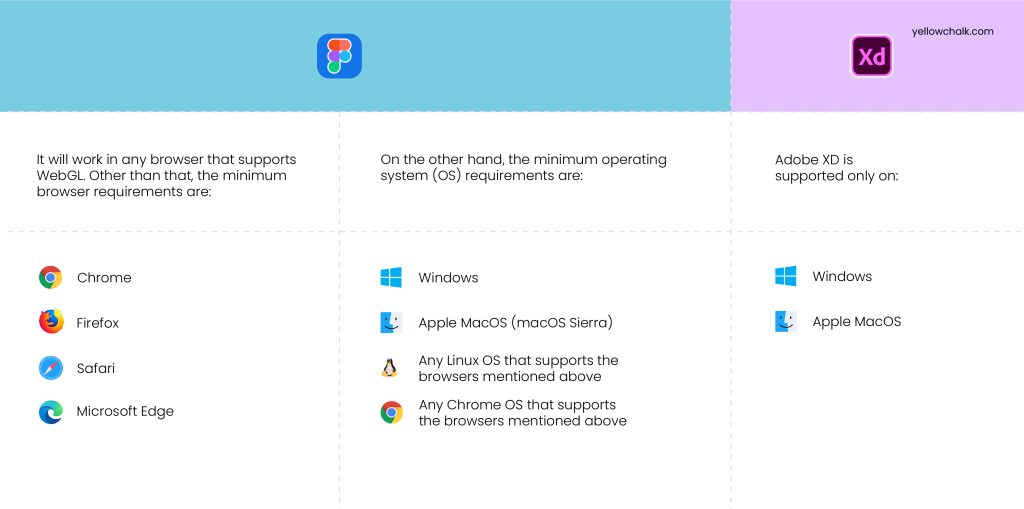
It’ll work in any browser that supports WebGL. Other than that, the minimum browser and Operating System requirements are:
Ease of Use
Adobe XD users may struggle to transition to Figma, as it takes time to understand the tools and features such as auto layout and components. A strong internet connection is also required.
The learning curve for both tools is similar and depends mostly on prior experience. The transition may require time and patience.
- Onboarding
Get started by visiting their official websites, downloading the software or signing in.
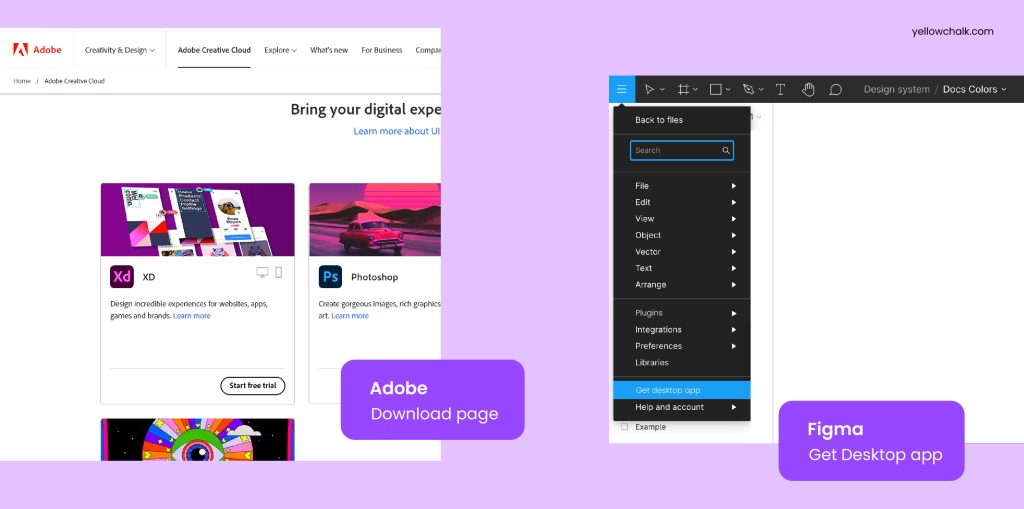
Figma
The download section of Figma’s official website contains the desktop app. Since Figma is a web-based software, one can also run it directly online.
The file size of the application is 85.8 MB.
Adobe XD
Adobe’s website has a direct link to download XD with easy onscreen instructions, which includes installation of Creative Cloud app if needed.
The file size for Adobe XD is 2.40 MB.
- Learning Resources
Both Figma and Adobe provide online resources, including video tutorials on their official websites, to help beginners master the basics before moving on to more complex levels.
Here’s a link to two of the most popular websites you can visit to learn more about both Figma and Adobe XD:
| Figma | Adobe XD |
| Learn Figma – UI/UX Design Essential Training Course | Udemy | User Experience Design Essentials – Adobe XD UI UX Design | Udemy |
| Get Started with Figma (coursera.org) | Responsive Web Design in Adobe XD | Coursera |
However, one can refer to any number of other websites online to get a more in-depth understanding of both these tools.
- Community Forums
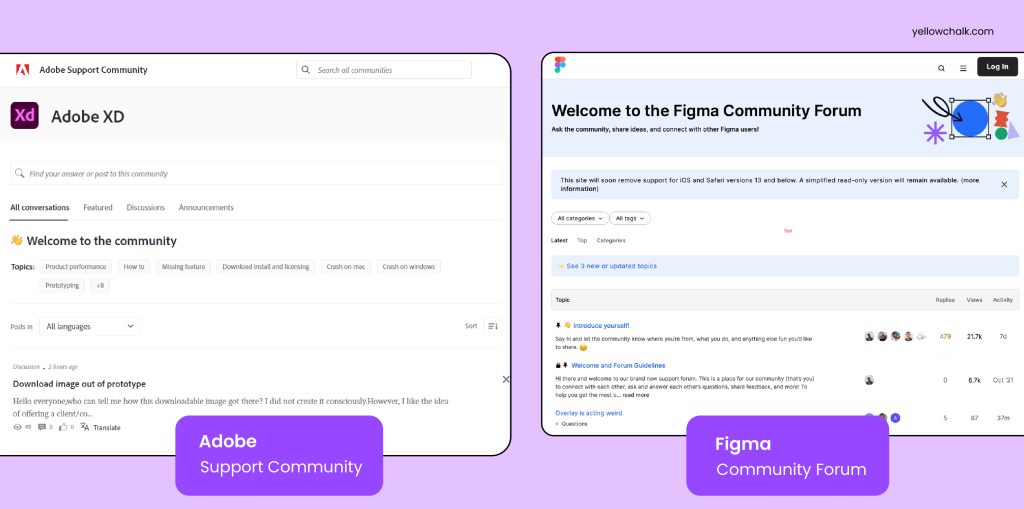
In the Figma community, one can find a lot of useful resources like design files, icons, mockups, illustrations, and more. However, this feature is missing in XD.
Features
While both these tools come equipped with neat and effective features for a designer, what Adobe XD doesn’t seem to have yet are usability testing and version control, features that are already available on Figma for use.
Figma additionally has a FIGJAM dashboard that has features for brainstorming design ideas, online presentations, and diagrams. The dashboard is a really strategic move on Figma’s part.
Toolbars
In Figma, the toolbar can be accessed at the top of the screen, while in Adobe, it is located towards the left side.
Interactions
The two popular designing tools host a wide selection of interaction options.
Adobe XD allows defining two interactions per UI element, such as click and hover options, while Figma only permits defining one interaction per UI element. –
Image Editing
Figma
In Figma, users can make basic edits to images like adjusting brightness, contrast, exposure, and saturation. But for advanced features, external image editing tools must be utilized.
Adobe XD
On the downside, in XD, there exists no direct feature to edit images then and there. Instead, there’s a redirect option to “Edit image in Photoshop”. While this is a drawback as not everyone who has XD will have Photoshop, there’s also a positive side to this.
Users can make advanced edits in Photoshop, and the updated image will automatically sync with the image in Adobe XD once saved.
Bullets and Numbering in Text Fields
A simple feature that allows one to make bulleted and numbered lists, it is an inbuilt part of Figma. This is important to note, because Adobe, one of the most top-rated design tools, doesn’t seem to have that feature. On Adobe XD, in order to make numbered and bulleted lists, one has to create and align them manually. Making changes to text in Adobe XD requires manually reordering everything, which can be a time-consuming and tedious task.
Arranging Elements
For arranging several elements, Figma possesses the Smart Selection feature whereas Adobe XD has a Repeat Grid feature.
While the Smart Selection feature allows the user to pick many elements and then arrange them by spacing them out uniformly or by dragging and dropping them, Adobe’s Repeat Grid feature lets one duplicate instances of a shape or an object.
Resizing Elements
For resizing elements, there is Figma’s Auto Layout feature and Adobe XD’s Responsive Resize feature.
Figma also possesses a nifty feature that lets you adjust the dimensions of the artboard by either Alt + dragging across a field or alternatively using the middle mouse button. You can continue sliding across the edge of the screen too, whereas adjusting dimensions in XD is completely manual.
Figma
Figma’s Auto Layout feature works for both horizontal as well as vertical layouts. This feature allows the user to do the following:
- Users can create buttons that expand or compress as they edit the text.
- Apply automatic layout to already existing components.
- Users can efficiently create lists that adapt as they add new items.
Adobe XD
Responsive Resize in Adobe XD allows individuals to resize items and objects while maintaining their position and scale.
Components
Components are elements that assist in creating and managing uniform designs across different projects and designs. A component can be anything, from a simple button to a header. While making structural changes to the main component ensures a shift in the rest of the components as well, it is possible to separate the “parent” component from its segments so as to override the latter’s properties.
Previewing & Prototyping
Using the inbuilt features on Figma and XD, you can prototype your idea after finishing the design. It is important to have an idea about the final look of the project, so it makes the workflow smoother.
Figma
In Figma, you can share the actual file with viewing access to prevent unwanted changes. It allows users to send a link that upon viewing displays a live prototype in the browser. The user has the option of making the link read-only so that no one makes unintentional edits or allowing people to directly interact with the document to make changes such as adding copy or text.
For those who prefer to preview designs in a different way, Figma now allows you to embed documents within Web pages. If you’re on the browser, Figma allows you to test the prototype directly without downloading it, by simply clicking on the play button. The loading time for images or prototypes on Adobe XD can be significantly longer as it relies on internet connection.
Adobe XD
Adobe XD allows users to add voice commentary to their presentations and, as it runs locally on the user’s computer, prototypes load at a relatively fast pace .Its local computer operation leads to fast prototype loading speed. It also allows one to add voice commentary to the presentation. Because Adobe XD runs locally on the user’s computer, prototypes also load at a relatively fast pace.
Figma Frames vs Adobe Artboards
On Figma, users can generate pages that are essentially sets of artboards. In contrast, Adobe XD does not allow that, and the designer working on XD can only build artboards without being able to add pages, regardless of the size of the project.
XD follows a mobile-first design approach which basically refers to designing for the smaller screens first, and then gradually working their way up to bigger screens which empower designers to focus on the core functions of their product.
Figma Frames
Simply put, frames are just canvases with design prototypes on them, which are extremely useful because they allow the users to see what’s going on around them. Users can build two or more frames on a single canvas using Figma. Users can also nest frames and use them for creating buttons and navigation bars.
Apart from these functionalities, there are quite a number of predefined frame sizes available for use on Figma which are compatible with many systems from Windows and Mac desktop computers to mobile phones, tablets, watches, and social media platforms. Furthermore, one can create custom frame sizes easily by clicking “Frame” and then drawing a frame of the desired size on the canvas, which is especially useful for creating frames in both landscape and portrait mode for smartphones.
Adobe Artboards
Artboards on Adobe XD are containers that carry the design prototypes. Adobe provides a significant advantage to designers by allowing them to create an innumerable number of artboards to contain designs and linking them together.
In Adobe XD, one can find a multitude of frame size options and the ability to create custom frame sizes as well. In Adobe XD, the user can create custom-sized artboards, which is a major advantage for designers. However, unlike Figma, Adobe XD only allows the creation of artboards for portrait viewing mode on smartphones.
Shapes
A wide range of shapes is available on both tools to incorporate into one’s design. Figma however allows users to carve out pies and donuts from ellipses, which is a unique property that Adobe fails to possess.
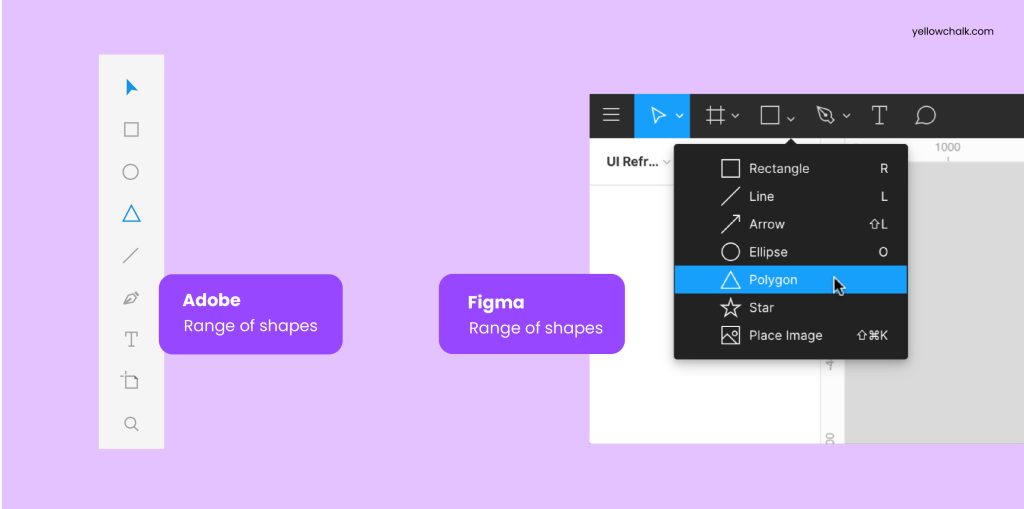
Figma
From rectangles to polygons to stars and more, all the basic shapes exist on Figma for use. The count parameter lets the user add points to the star shape – ranging from a minimum value of 3 to a maximum value of 60. The user can use the ‘Place Image’ option to upload an image to a frame, and then edit its attributes such as exposure, contrast, temperature, saturation, tint, shadows, and highlights. Alternately, the user can directly copy-paste the image into the frame.
Adobe XD
XD has shapes ranging from rectangles and polygons to lines and text. In Adobe XD, users can copy and paste images directly and apply properties such as blurring the background or object.
Fonts
Figma uses Google Fonts, which are widely more popular and accessible than Adobe XD’s Adobe Fonts. However, one has to download the font files separately onto their desktop to be able to sync them with Figma.
Access to Adobe Fonts comes along with a subscription to the Creative Cloud. Seamless integration with XD allows users to automatically add synced fonts to projects and individual designs.
Vector Graphics
Before we delve into the differences in vector graphics used by Figma and Adobe XD, it’s important to understand what vector graphics are. Simply put, vector graphics are digital images created by arranging lines and shapes in a 2D or 3D space using a series of commands or mathematical expressions.
Both Adobe XD and Figma are equipped with the Pen tool as they are both vector-based tools.
Additionally, Figma also has a pencil tool that allows one to draw free-form shapes. One can copy a vector element from the illustrator artboard and paste it onto Figma straightaway. The user can directly edit the vector element in Figma, such as changing its color or shape, creating mirrored vectors, and converting a Pen-drawn vector to a component, which cannot be done in Adobe.
Animations
Animation features are important for any website, whether it be through subtle transitions or full-fledged interactive characters. Our vector-based design tools understand the importance, and hence both Figma and Adobe XD offer animation features.
Figma supports using animated GIFs in its projects, which can go live in presentation mode. Adobe XD lacks this feature. If the user wants to show a complex interaction, perhaps something designed on Adobe After Effects, they can use an animated GIF with Figma and incorporate it into the design, which wouldn’t be possible in XD.
Figma
Figma uses Smart Animate which permits the user to connect frames and animate the differences in their properties such as scales, position, rotation, opacity, solid fill, and gradient fill.
It assists UX designers in identifying the difference and animating the layers between frames in a prototype. With Smart Animate, one can make touch gestures, expand content, parallax scrolling, loading sequences, toggles, sliders, and other modern UX.
Adobe XD
Adobe on the other hand uses Auto-Animate and the user can edit up to 11 properties on it. The 11 properties are border size, opacity, rounded corners, X/Y positioning, size by width and height, rotation, text size, character spacing, paragraph spacing, line spacing, and paths. The auto-animation feature in UX design has more advanced capabilities, thanks to its AI-based nature.
Plugins & Integrations
When it comes to developing ready-to-test prototypes, Adobe XD appears to be the most powerful program. Adobe XD comprises features such as sound integration and automatic animations.
Figma’s prototypes can be easily shared through a simple connection and despite the addition of plugins for more complex functionality, it still outperforms Adobe’s product.
Value for Money
- Free Plan
Figma for starters comes absolutely cost-free with unlimited personal files and collaborators, 3 Figma and Figjam files each, and also provides plugins and templates.
Adobe on the other hand provides a 7-day free trial after which one can choose to commit to their monthly or annual paid plans.
- Paid Plan
Figma
Figma’s Professional and Organizational versions are charged on a yearly basis.With the Professional plan, an individual can get access to unlimited files, team libraries, audio conversations, and version history, along with the ability to share permissions and private projects. On the other hand, with the Organizational plan, there are also some additional perks from org-wide libraries to design system analytics and more.
What’s more, if an educator or a student wants to use Figma, they can register for their Education plan, and not pay a single dime for getting on the Professional version.
Adobe XD
Adobe offers 100 GB of cloud storage, Adobe portfolio, and Adobe fonts as perks for its paid version of Adobe XD, which can be subscribed to monthly or yearly based on the chosen plan.
- Pricing
Figma offers a free starter kit, and its Professional and Organization plans are billed monthly or annually, depending on the chosen plan.
To fully utilize Adobe XD, a separate subscription for the Creative Cloud apps must be obtained, which are charged separately.
- Cost-Effectiveness
For freelance designers, Figma works best, since they can register for the free plan. In order to use Adobe XD, one has to purchase the entire Creative Cloud package.
Team Collaboration
Figma is a web-based design platform that enhances team collaboration compared to Adobe. Both Adobe and Figma offer live cursors, and access levels can be controlled for both.
Figma also integrates with Slack, sending immediate notifications for client comments on the document, promoting connectivity.
Figma
Figma allows multiple people to log in and edit the same document simultaneously through multiple sharing.
In Figma, there are two ways for working collaboratively.
- One is through creating and managing teams whose members all have access to joint projects (a great approach for studios).
- Another option for collaboration is sharing documents, which is great for community-based cooperation with more freedom.
Adobe XD
Introduced in 2021, the new and much-improved version of XD allows for collaboration in real-time as well, but only when one is working on the cloud.
The cloud has a feature that enables real-time co-editing, similar to Figma, and is automatically available for all shared documents in the cloud.
Exporting
Figma and Adobe both offer various export formats, including PNG, JPG, SVG, and PDF, for assets such as bitmap images, icons, background patterns, text, and artboards optimized for use with iOS, Android, and web apps. Figma allows for restrictions on viewer’s export abilities, while in Adobe XD, access to the file is either granted or denied, with no option for view-only access except for prototypes.
Adobe XD
In XD while exporting multiple artboards as a PDF, there is the option of exporting a combination of all of them in a single pdf file or exporting as multiple individual files. This is far more user-friendly than Figma’s one and only default feature of exporting pdf as multiple files.
Figma
Figma too provides the “export as single PDF” feature but it is limited to including all the frames in a file, not just a few selected ones.
The highlighted differences in exporting between the two can be grouped below.
Importing
Imported File Format on XD: You can import the following file formats in this software: PSD, Ai, Sketch, PNG, JPG, GIF, TIFF, SVG, BMP, and TXT.
Import File Format in Figma: You can import different file formats in this software. They are as follows: Fig, Sketch, PNG, JPG, GIF, and SVG.
Compatibility With Other Design Tools
Figma is compatible with any OS that runs a web browser, whereas Adobe can only collaborate with other Cloud-based applications such as Illustrator, Photoshop, Indesign, Lightroom, and so on.
Developer Handoff
Closing the gap between designers and developers is crucial for efficient project creation. Easy communication between the two is necessary to ensure constant synchronization. Design tools like Figma and Adobe make the developer handoff process easier in real-time by providing distinct handoff functionalities. The specific handoff functionalities of these tools are described below.
Figma
With the hand-off functionality in Figma, developers can embed specifications in a document. Updates can be made to content without republishing or redistributing the document by publishing the link.
Figma generates CSS, Swift for iOS, and XML for Android, and allows users to directly copy CSS or SVG. When changes are made to the document, the code is automatically regenerated. Figma integrates with Zeplin, making it easier for teams with advanced needs beyond basic CSS display and measurements.
Adobe XD
Adobe XD, on the other hand, offers distinct specification sheets that the user can share as a link with others. XD generates CSS codes, but one has to first generate a developer link and then open it in a browser. Unlike in Figma, if the document changes here, the user will need to regenerate the link and refresh it.
Document Sharing
In Figma, it is now possible to share password-protected files, a feature that Adobe XD already had.
Figma
In Figma, users can share their files in three ways:
- By sharing the file URL
- By sending an email invitation and
- By publishing to the community.
Adobe XD
Adobe XD has always allowed sharing right from the start, be it prototypes or design specs. In 2019, they introduced a new mode called “Share,” where users can create and manage shared links.
Adobe’s latest update includes Multiple Flows, allowing users to create and share links to various parts of a design from the same document. They plan to simplify the sharing process by offering shareable links directly from the design canvas.
However, Adobe XD requires local files to be synced to Creative Cloud for sharing. Updates to the local file must be resynchronized and reshared. Adobe XD has limitations on sharing and cloud storage, with the Starter plan allowing for one shared file and 2 GB of storage. In contrast, Figma offers unlimited sharing and cloud storage.
Reviewing & Commenting
Figma allows direct commenting while Adobe XD sends notifications via email with unique comment numbers. Adobe XD has limited sharing and storage.
Post-Sales Support
Both tools also contain emails and forums specifically provided for placing Inquiries.
Figma
Users on the Professional and Organizational Plan have access to email support.
Figma offers a support forum, Help Center FAQs, and regularly updated video tutorials on YouTube for easy feedback sharing and quick tip access.
The support team for Figma is available from Monday to Friday during regular business hours.
Adobe XD
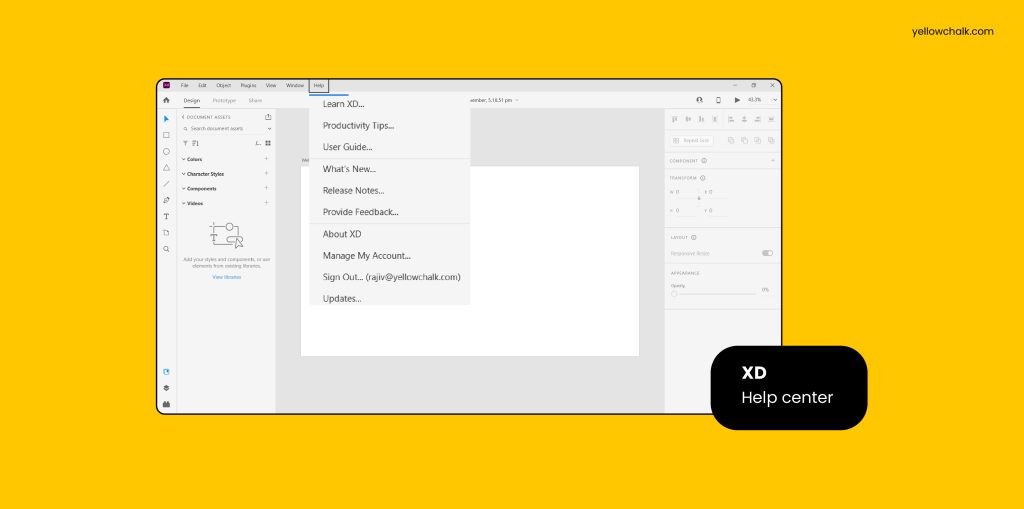
There are the obvious FAQs on Adobe. They also have a help center and support community (on creative cloud forums) as well as helpful videos on YouTube. There is also a phone chat and live support. Adobe has a Technical Communication Support team, live chat assistance, and a community forum.
User Reviews
A New Age of Collaboration
Adobe announced a deal to acquire Figma for $20 billion on September 15, 2022, to expand its product portfolio.
Adobe’s new acquisition will help them with their goal of being a complete design tool. Adobe’s acquisition will also help them achieve their goal of becoming a complete design tool. It’s a major step for Adobe, offering designers more tools. Figma’s web-based and multiplayer capabilities enable real-time collaboration with other designers or clients worldwide. This unification allows both Adobe and Figma to digitally transform the world together.
Even so, Figma remains a free platform while Adobe remains subscription-based with no recent significant changes to pricing.
Conclusion
After comparing the features of Adobe XD and Figma, we found no one tool is superior. This blog provides readers with specific differences between the two tools, so they can make an informed decision before trying them out.
Our recommendation for achieving efficient and excellent results in design work is to utilize both Adobe XD and Figma. If you have the means and access, combining both tools will yield the best results. For beginners in design, it’s recommended to start with the free version of Figma for a basic understanding before moving to Creative Cloud apps.
This is all we have so far. We will continue to update it with any new and noteworthy features that emerge. Until then, keep on designing!
Что лучше Figma или Adobe XD. Сравнение программ

В это статье пойдет речь об основных отличиях между Figma и Adobe XD. Оба редактора идут ноздря в ноздрю с самого момента их релиза. В каких-то областях выигрывает ХД, где-то Фигма. В этой статье я постарался собрать все самые важные и нужные факторы для работы веб дизайнера и сравнил их работу в каждой из программ. Все данные актуальны на декабрь 2019 года. Все оценки выставлены исключительно субъективно и не претендуют на звание истины.
Если у тебя есть свое мнение на те или иные аспекты — велкам ту комментс
Среда работы
Adobe XD может работать на Windows и MacOS
Figma работает на любой системе, которая способна установить браузер. На данный момент это : Mac, Windows, Linux и Chrome OS. Конечно, такая себе разница, но все же. Есть браузер – есть фигма.
Не очевидное отличие
Среди разработчиков крайне популярен Linux и соотвественно им гораздо лучше принимать макеты и работать с дизайнерами в фигме, а не в адобе хд
 0 : 1
0 : 1
Распространение и комьюнити
В русскоязычной среде явно доминирует Figma, во многом потому, что она дает богатый функционал и не просит за это денег на начальном уровне. В западном мире популярней XD. Бесплатно он дает явно мало возможностей, но для тамошней публики это не проблема и они пользуются платными версиями, о чем русский дизайнер даже думать боится.
Только не печатай в комментах, что ты купил весь пакет адоб за 40к в год, значит все так делают и привыкли к такому. Нет, все так не делают. Все скачали фотошоп с торрента и автоматически записали себя в веб дизайнеры.
В Этом пункте не будет оценок ибо тут и оценивать нечего. Все сугубо субъективно и зависит от ареала обитания пользователя.
Figma тарифы в $ : 0/12/45
Adobe XD тарифы в $ : 0/10/23 (включая CC 53$)
Несложный расчет говорит нам, что ХД дешевле, но как всегда, есть НО.
Фигма дает гораздо больше на каждом тарифе. Давай разбираться:
Бесплатный тариф:
| Figma | Adobe XD | |
| Места на диске | Не ограничено | 2Гб |
| Возможность делиться | Есть | Только 1 проект |
| Возможность сохранять локально | Есть | Нет |
Средний тариф
Адобе ХД тут дешевле на 2 бакса, но все, что он предлагает на этом тарифе уже есть в бесплатном тарифе от Фигма. Так же в XD добавляется шрифты Creative Cloud. Как ты помнишь у фигма гугл шрифты доступны сразу же.
Фигма позволяет создавать общие библиотеки и более четко следит за правами пользователей в документе + контроль версий на вечно.
Дорогой тариф
Адобе добавляет: кончоль админа и расширенную тех поддержку. Стоит тариф на 22уе дешевле, чем у Figma
Фигма добавляет: систему аналитики, частные плагины и шрифты, администрирование, командные системы проектирований, более могучие методы защиты и организации проектов.
Естественно, что для простого веб дизайнера высший тариф в большинстве своем бесполезен. Для команды – это отличное решение.
0 : 2
Несмотря на то, что каждый тариф Фигма дороже, он дает гораздо больше возможностей.
Холсты и страницы
В Figma ты можешь создать документ, в котором может содержаться масса разных страниц и на каждой страничке ты можешь создавать массу артбордов(холстов/фреймов).
В Adobe XD есть все то же, кроме возможности создавать многостраничные документы. Важно ли это? Если выполнять простые работы типа лендосов и простых сайтов – нет. Для работы над большими проектами и создания дизайн систем и библиотек компонентов возможность создавать многостраничные документы – крайне важна.
0 : 3
Артборды/холсты/фреймы
В обеих программах есть предустановленные размеры холстов под разные устройства и есть возможность задавать размер самостоятельно. Да только Figma умеет вставлять один холст/фрейм в другой и создавать сложные конструкции из них, что дико круто и значительно расширяет возможности работы.
0 : 4
Сетки
И там и там ты можешь накладывать кастомные сетки поверх артборда, но фигма еще и умеет создать бесконечное множество разных сеток на одном артборде + она умеет создавать разные сетки у вложенных артбордов. На первый взгляд в этом нет смысла, но… поверь, смысл есть. Подробнее об этом напишу в будущей статье.
А еще Adobe XD не умеет в горизонтальные «колонки». И может науладывать только одну сетку на артборд. Важно это или нет – решай сам. но в этом раунде балл улетает к Figma
0 : 5
Привязки
Никто не станет спорить с тем, что именно Figma впервые реализовала свойство contstraints, а скетч и Adobe XD уже подхватили эту идею.
Мы тут не оцениваем прошлое. На данный момент обе программы отлично умеют в привязки(ограничения) и обе получают за это балл

1 : 6
Вектор
Adobe XD имеет возможность создавать стандартные векторные фигуры и рисовать пером. Но при этом ты не можешь редактировать точки предустановленных форм да и работа с созданными векторными изображениями то же несколько ограничена. Тут нужно сделать ремарку, что при желании поработать с вектором – нужно отправляться в люстру, что вполне логично и удобно сделать из Adobe XD. Тем более у них общий «корень».
У Figma же нет общего корня с векторными монстрами и, наверное поэтому, она может редактировать классические фигуры и в ней более совершенно реализован инструмент перо + есть еще и карандаш, для фанатов порисовать. Всего этого на 90% хватает для того, чтобы закрыть потребности в векторной графике для веб дизайнера. За всем остальным — однозначно дорога в иллюстратор.
1 : 7
Потому что Фигма закрывает большинство задач для веб дизайнера и не требует использования сторонних ресурсов. Даже таких знакомых, как люстра.
Шрифты
Не секрет, что Figma дружит с Google Fonts, а XD — с Adobe Fonts. Оба умеют подтягивать шрифты с локальной машины.
Скрипело сердечко мое, но что поделать. Балл уходит фигме потому что оба инструмента для веб дизайна. Шрифтов для веб в гугл фонте гораздо больше, чем в Adobe Fonts. Да и вообще идея интегрировать ХД с Adobe Fonts более похожа на попытку еще глубже затянуть пользователя в экосистему Адоб, вместо того, чтобы открывать перед ним весь прекрасный мир веб дизайна и разработки.
1 : 8
Заливка и обводка
Стили есть и там и там. Ниже расскажу про различия. Чего не упомянул – есть в обоих программах.
У Фигма есть внутренняя тень, возможность создавать несколько заливок как для фона, так и для обводки. У фигмы есть более расширенные настройки в работе с обводкой.
1 : 9
Тут конкуренты идут ноздря в ноздрю. Различия минимальны, но все же у фигмы больше фишек и еще один балл в активе.
Компоненты
Еще полгода назад без колебаний дал бы балл Фигме и продолжил бы писать статью дальше. Но сейчас (декабрь 2019) дела на фронте кардинально изменились. Adobe XD сильно подтянулся в плане компонентов и сегодня различия в работе с компонентами в обеих программах нет
2 : 10
Стили
Adobe XD умеет сохранять цвета в палитру (цвет заливки и обводки). Их можно сортировать переиспользовать.
Figma умеет создавать стили цвета, эффектов и лайаутов, умеет их удобно организовывать (primary / info, secondary / info), что сильно помогает в работе и проектировании дизайн систем.
2 : 11
Стили текста
Тут паритет за исключением одного пункта – ХД умеет сохранять в стиль текста еще и цвет, а фигма этого не умеет. Справедливости ради скажу, что логика сохранения стиля для текста у программ несколько отличается, но нам, как пользователям плевать как там все организовано – главное , что XD умеет цеплять цвета к стилю текста, а Фигма — нет

3 : 11
Прототипирование
Что ни говори, а Figma всегда отставала в этой дисциплине. Хотя ввод Smart Animate и новых триггеров несколько сократил разрыв, но тем не менее тут победитель однозначно Adobe XD
Потому что у него есть больше триггеров, есть возможность вешать несколько триггеров на один объект. Есть «вшитые» состояния наведения у объектов, что гораздо упрощает прототипирование. В отличии от фигмы не нужно городить 100500 одинаковых кнопок с разными заливками Auto Animate на голову выше, чем аналог у Фигма.
4 : 11
Adobe XD помогает разрабам с кодом. Тебе нужно сгенерировать ссылку для разработчика и открыть ее в браузере. При этом если что-то измениться в макете по ссылке изменения ты не увидишь – нужно генерить новую. Такие пироги
Figma же прямо в макете на отдельной вкладке показывает css код, а еще умеет показывать код для разрабов iOS и Android. Жаль, что код препроцессоров еще не научилась показывать. Совсем другое дело, что показывает она не всегда все самое нужное и иногда дает много лишнего. Ну то такое – верстак разберется.
Ну и вишенка на торте, что ты можешь вытащить css и svg код любого элемента просто кликнув правой кнопкой по нему и выбрав соответствующей пункт.
4 : 12
Экспорт картинок
Форматы экспорта одинаковые. Оба умеют относительно увеличивать исходную картинку и уменьшать ее при экспорте (0,5х, 1х, 2х и тд) Фигма тут чуть гибче, но это все нивелируется возможностью Adobe XD выбирать качество сохраняемого изображения, что намного важнее его размеров.
5 : 12
Сохранение работы
Оба умеют хранить работы в облаке и локально в форматах .xd и .fig соответственно. И тут вступает денежная составляющая. Сохранять документ локально хд начинает только на платных тарифах + на бесплатном, да и на среднем платном у него есть ограничения по дисковому пространству в облаке. У Фигма же единственное ограничение – это контроль версий на бесплатном тарифе 30 дней. Autosave в Figma – вообще все конкуренции. С такой фичей про… потерять данные невозможно.
5 : 13
Автономность работы
Фигма работает в интернете. Нужно хотя бы подключиться к файлу через сеть, а после выходить офлайн. После завершения работы сохранить док локально на пк. Сильно много действий в 2020 году, не правда ли?
Адобе ХД умеет работать офлайн, но при этом сохраняться локально можно только на платном тарифе.
Долго думал. Лично для меня не критична зависимость фигмы от сети, я и так сутками в интернете, но во чатах и на форумах на эту тему регулярно поднимаются стоны, мол дайте полноценный оффлайн фигме. Ведь тот же хд и ее прямые конкуренты Sketch и PS умеют работать без сети.
6 : 13
Работа с другими форматами
Оба умеют работать с файлами Sketch, открывать их, изменять и все такое. Но сохранять как .sketch не могут.
Ну а теперь о вопросе века – как Figma Adobe XD работают с PSD?
Фигма никак не работает. Есть костыли как открыть psd в Figma или наоборот – сохранить работу из фигма в psd, но это все фигня. На момент написания этой статьи (декабрь 2019) вменяемого способа объединить эти два редактора нет.
Adobe XD может открывать psd. Так же ты можешь редактировать любые картинки из своего хд файла прямо в фотошопе. Достаточно выбрать соотв пункт в контактном меню и картинка откроется в фш. Ты ее там поправишь, сохранишь и она тут же обновится в хд. Удобно – ничего не скажешь.
Об интеграции с Illustrator и After Effects даже говорить не стану. Это не удивительно, ведь все проги созданы одним создателем и отлично совмещаются друг с другом.
7 : 13
Фигма легла на лопатки
Интеграция со сторонними программами
Только что говорили об интеграции с программами непосредственно для веб дизайна, а теперь давай рассмотрим программы которые люди работающие в Figma и Adobe XD могут использовать для «пост» работы.
PS учитываю только официальные интеграции, без плагинов и костылей от умельцев.
| Figma | Adobe XD |
| Figma Community (beta) Dribbble Zeplin Avocode ProtoPie Principle Flinto Jira Trello Zeroheight Dropbox Возможность получать уведомления в Slak |
Behance Zeplin Avocode Sympli ProtoPie Kite Compositor Jira Microsoft Teams Slack |
Как видишь у фигма несколько больше возможностей, но это , как говорится «такое». Дело не в количестве, а в том нужны ли тебе в работе все эти интеграции? Я поставлю по баллу каждой проге в этом вопросе.
8 : 14
Эти три буквы могут и не быть знакомы средне статическому дизайнеру, но! Для веб разработки – это чуть ли не самые главные три буквы.
Благодаря открытому API Figma, при чем он открыт как для платного, так и для бесплатного аккаунта, становится более предпочтительной средой для веб разработки. Подчеркиваю – для разработки, а не только для дизайна.
API Figma используют, например GitHub. Они создали такую среду, из которой можно управлять всеми своими иконками из одного файла.
Майкрософт так же активно юзает API для автоматизированной передачи проекта. Как уверяют подчиненные Мистера Гейтса – это сократило рабочий процесс на 70, КАРЛ, на 70%!
О возможностях тесной дружбы Figma с Json промолчу.
Adobe XD вообще не имеет никакого API
8 : 15
Плагины
До Августа 2019 у фигмы вообще не было плагинов, а у Adobe XD были. Теперь же все выровнялось и тут у нас паритет. Вопрос стоит только в том, насколько тебе нужны эти плагины и как часто ты их используешь в своей работе.
9 : 16
Результаты сравнения Figma и Adobe XD

Результат сравнения ты видишь. Результат исключительно субъективный и не может быть истиной в последней инстанции. Я старался быть максимально объективным и справедливым. Как ни крути, но на данный момент времени Фигма более предпочтительная программа для веб дизайнера. Возможно, за 2020 год многое поменяется и в следующем году я напишу статью на эту же тему с другими результатами.
Introduction:

Adobe XD and Figma is two of the most popular design tools on the market. They both offer a wide range of features, but which one is the best for you? In this article, we’ll compare Adobe XD and Figma, so you can decide which one is right for you.
We’ll also take a look at some other great options like Sketch App or Omnigraffle that might be worth checking out if you’re looking to create your own designs in an alternative way.
Design Capabilities:
Adobe XD is better equipped for designing user interfaces, while Figma is more versatile for complex illustrations and graphics.
— User Interfaces & Prototypes :
Adobe XD has built-in prototyping capabilities that allow users to quickly mock up new ideas without having to code them first. This makes UX design faster than ever before. It also allows designers to work together with developers to iterate on prototypes easily.
On the flip side, Figma offers a variety of different tools within its interface that can be used to prototype any idea or concept you have. You’ll find plenty of options such as Sketch plugins, Photoshop brushes, and even CSS stylesheets.
If your team is more about designing and building functional web pages, then InVision’s website builder will provide all the functionality needed for creating beautiful websites in no time at all.
The best part? Everything is built right into one place, so it saves time and effort when working on multiple projects simultaneously.
Ease of Use:
Adobe XD is easier to learn and use, but Figma has more features. Both are easy-to-use design collaboration platforms with a focus on visual communication.
They both offer intuitive user interfaces and workflows that make them great choices if you’re looking for an online tool set. Adobe XD offers additional mobile app integration, while Figma includes native apps for iOS and Android…