Создание вогнутой фаски в Blender
Вы же умеете создавать фаски в Blender? Напомню, для их создания необходимо выделить нужные грани и нажать комбинацию Ctrl + B . После этого движением мыши можно задать размер фаски, а вращением колеса мыши (или клавишей + ) — скруглить фаску созданием нужного количества дополнительных граней.

Так вот, это еще не все возможности. После такой операции можно нажать клавишу P и двигать мышью для изменения кривизны фаски, в том числе можно создать вогнутую фаску.
Инструмент Bevel (фаска)
В реальном мире, практически, нигде не существует острых углов. Даже лезвие ножа нельзя считать идеально острым. Также множество объектов намерено сглажены, чтобы об них нельзя было порезаться. Поэтому, чтобы добиться более реалистичного вида, часто приходится округляться (создавать фаску) на различных объектах. Для этих целей в blender существует инструмент Bevel. Он очень прост в использовании и позволяет всего в несколько кликов создавать скос в тех местах, в которых необходимо.
13 комментариев на «“Инструмент Bevel (фаска)”»
Полное описание инструментов и модификаторов, вот чего не хватало ру блендеру, даешь детальный разбор всех функций, потом в один большой интерактивный справочник объединим, и это будет благостно)
Я этот Blender по винтикам разберу. (:joy:)
Спасибо за очередной урок) Скажите, а у Ctrl+A в объектном режиме есть ещё какое-то предназначение? Вроде как масштабировал всё время и не было нужды, а тут с бевелом играться стал, и без этого костыля не выходит.
НУ вот сколько пунктов меню появляется — столько и предназначений. (:smile:)
В смысле, она вообще нужна, кроме как исправлять косяк bevel? Я просто не вижу более смысла в этой штуке, ибо новичёк. Вдруг, её тоже для каких-нибудь финтов используют. Почти на нашёл инфы в инете.
Конечно используют! Перечислить их все не могу. Со временем разберешься.
О, уже интрига) Спасибо!
Это не косяк бевел. Это происходит, если в объектном режиме был изменён масштаб объекта. CTRL+A позволяет сбросить масштаб к единице.
Добрый день!
Можно ли сделать фаски разного размера,разных ребер одной плоскости,например — верхняя крышка стола,у которой боковые фаски 0.4мм,а передняя 2мм ?
Можно, только не для плоскости. Ей вообще нельзя фаску сделать.
Добрый день! Подскажите пожалуйста как отменить фаску, построенную с помощью данного оператора Bevel после сохранения файла
Авторизация

Рубрики
О сайте
На данном сайте Вы сможете найти множество уроков и материалов по графическому
редактору Blender.
Контакты
Для связи с администрацией сайта Вы можете воспользоваться следующими контактами:
Следите за нами
Подписывайтесь на наши страницы в социальных сетях.
На сайте Blender3D собрано огромное количество уроков по программе трехмерного моделирования Blender. Обучающие материалы представлены как в формате видеоуроков, так и в текстовом виде. Здесь затронуты все аспекты, связанные с Blender, начиная от моделирования и заканчивая созданием игр с применением языка программирования Python.
Помимо уроков по Blender, Вы сможете найти готовые 3D-модели, материалы и архивы высококачественных текстур. Сайт регулярно пополняется новым контентом и следит за развитием Blender.
Bevel Edges
The Bevel tool allows you to create chamfered or rounded corners on geometry. A bevel is an effect that smooths out edges and corners.
Real world edges are very seldom exactly sharp. Not even a knife blade edge can be considered perfectly sharp. Most edges are intentionally beveled for mechanical and practical reasons.
Bevels are also useful for giving realism to non-organic models. In the real world, the blunt edges on objects catch the light and change the shading around the edges. This gives a solid, realistic look, as opposed to un-beveled objects which can look too perfect.
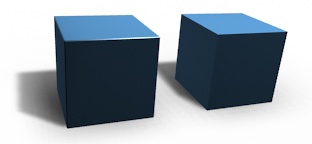
Cubes with and without bevel.
Usage
The Bevel Edges tool works only on selected edges with exactly two adjacent faces. It will recognize any edges included in a vertex or face selection as well, and perform the bevel the same as if those edges were explicitly selected. In “vertex only” mode, the Bevel Vertices tool works on selected vertices instead of edges, and there is no requirement about having any adjacent faces. The Bevel tool smooths the edges and/or “corners” (vertices) by replacing them with faces making smooth profiles with a specified number of segments (see the options below for details about the bevel algorithm).
Use Ctrl — B or a method listed above to run the tool. Move the mouse to interactively or type a number to specify the bevel offset, and scroll the Wheel to increase or decrease the number of segments (see below).
Selected edge before beveling.
Result of bevel (one segment).
Result of bevel (vertex only).
Normal (edge) beveling only works on edges that have exactly two faces attached to them. Vertex beveling has no such restriction.
Options
Only the areas near vertices are beveled, the edges remain unchanged.
Bevel the edges, creating intersections at vertices.
Selects how the Width value controls the size of the bevel. According to the selection, the width is:
The distance from the new edge to the original.
The distance between the two new edges formed by the bevel (or the edges on either side of the bevel if there is more than one segment).
The percentage of the length of adjacent edges that the new edges slide.
The exact distance along edges adjacent to the beveled edge. A difference from Offset is visible when the unbeveled edges attached to beveled edges meet at an angle besides a right angle.
For vertex-only bevels, the Offset and Depth types measure from the original vertex. The Width type is measured from a new vertex to the center of the new face (as half the Width).
You can change the bevel width by moving the mouse towards and away from the object, a bit like with transform tools. The exact meaning of the value depends on the Width Type option (see above). As usual, the scaling can be controlled to a finer degree by holding Shift to scale in 0.001 steps. LMB finalizes the operation, RMB or Esc aborts the action.
When multiple edges are beveled at the same time, it is sometimes impossible to make the width match the above definition on all edges simultaneously. Bevel tries to compromise in such cases. Sometimes turning off Loop Slide (see below) can make it easier for Bevel to make the widths as specified.
The number of segments in the bevel can be defined by scrolling the mouse Wheel to increase or decrease this value. The greater the number of segments, the smoother the bevel. Or press S to change the number with mouse movements, as well as numeric input.
Alternatively, you can manually enter a segment number value while using the tool, or in the Mesh Tool options panel after using the tool.
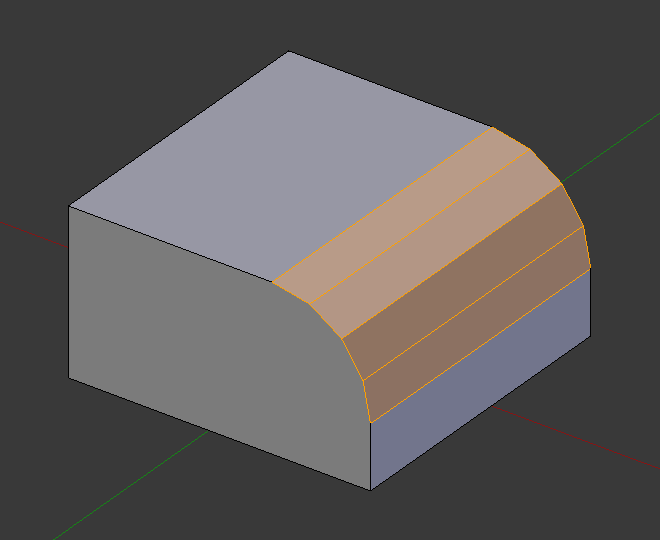
Bevel with four segments.
This is a number between 0 and 1 that controls the shape of the profile (side view of a beveled edge). The default value, 0.5, gives a circular arc (if the faces meet at right angles). Values less than that give a flatter profile, with 0.25 being exactly flat, and values less than that giving a concave bevel. Values more than 0.5 give a more convex profile. Similarly as Segments it can be set with mouse movements and numeric input after toggling P .
The Material number specifies which material is assigned to the new faces created by the Bevel tool. With the default, -1, the material is inherited from the closest existing face (“closest” can be a bit ambiguous). Otherwise, the number is the slot index of the material to use for all newly created faces.
Harden Normals H
When enabled, the per-vertex face normals of the bevel faces are adjusted to match the surrounding faces, and the normals of the surrounding faces are not affected. This will keep the surrounding faces flat (if they were before), with the bevel faces shading smoothly into them. For this effect to work, custom split normals need to be enabled, which requires Auto Smooth to be enabled (see Normals ). As a convenience, that option will be enabled for you if it is not already when you enable Harden Normals here.
Clamp Overlap C
Limits the width of each beveled edge so that edges cannot cause overlapping intersections with other geometry.
If there are un-beveled edges along with beveled edges into a vertex, the bevel tries to slide along those edges when possible. Turning the option off can lead to more even bevel widths.
If a seam edge crosses a non-seam one and you bevel all of them, this option will maintain the expected propagation of seams.
Similar to Mark Seams, but for sharp edges.
A miter is formed when two beveled edges meet at an angle. On the side where the angle is greater than 180 degrees, if any, it is called an outer miter. This option specifies the pattern that Blender uses at an outer miter.
Edges meet at a sharp point, with no extra vertices introduced on the edges.
Edges meet at a sharp point but in addition, two extra vertices are introduced near the point so that the edges and faces at the vertex may be less pinched together than what occurs in the Sharp case.
Two vertices are introduced near the intersection, and a curved arc joins them together. The Spread slider controls how far the new vertices are from the intersection. The Profile curve widget controls the shape of the arc.
The current choices are shown in this diagram, where the outer miter is along the horizontal surface.
Sharp outer miter.
Patch outer miter.
Arc outer miter.
An Inner Miter is formed when the angle between two beveled edges is less than 180 degrees. This option specifies the pattern Blender uses at an inner miter. The options are the same as for Outer Miter, except that Patch makes no sense and is therefore omitted. Inner miters are shown in the following diagram, where two inner miters are on the vertical surfaces.
Sharp inner miter.
Arc inner miter.
The value used to spread extra vertices apart for Outer and Inner Miters. This option is available when Miter Inner is set to Arc.
Intersection Type N
When more than two beveled edges meet at a vertex, a mesh is created as a way to complete the intersection between the generated geometry. This option controls the method used to create that mesh.
The default method for building intersections, useful when a smooth continuation of the bevel profile is desired. Without Custom Profile enabled, the curve of the profile continues through the intersection, but with a custom profile it just creates a smooth grid within the intersection’s boundary.
Creates a cutoff face at the end of each beveled edge coming into the vertex. This is most useful for custom profiles when the new intersection is too complex for a smooth grid fill.
With a three way intersection, when the inner corners of the cutoff profiles faces meet at the same location, no center face is created.
The direction of the cutoff faces depends on the original vertex’s normal.
Grid fill intersection method.
Three way cutoff intersection where the inner vertices are merged.
Cutoff intersection method with a center face.
Set Face Strength on the faces involved in the bevel, according to the specified mode. This can be used in conjunction with a Weight Normals Modifier (with the Face Influence option checked).
Do not set face strength.
Set the face strength of new faces along edges to Medium, and the face strength of new faces at vertices to Weak.
In addition to those set for the New case, also set the faces adjacent to new faces to have strength Strong.
In addition to those set for the Affected option, also set all the rest of the faces of the model to have strength Strong.
Profile Type Z Superellipse :
Creates a bevel with a uniform concave or convex curve.
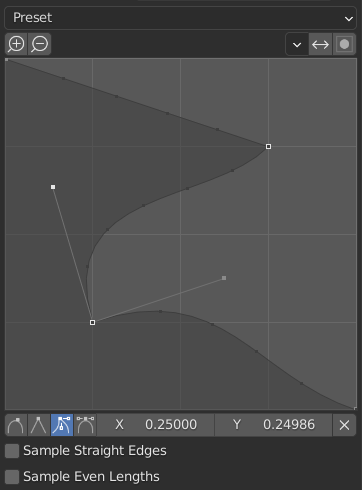
Custom :
The custom profile widget.
This Curve Widget allows the creation of a user-defined profile with more complexity than with the single profile parameter. The modal tool allows toggling the custom profile, but the shape of the profile is only editable in the options panel after the operation is confirmed.
The profile starts at the bottom right of the widget and ends at the top left, as if it were between two edges intersecting at a right angle. Control points are created in the widget and then the path is sampled with the number of segments from the Bevel modifier.
The Profile curve widget stays active when miters are enabled because it still controls the shape of the miter profiles.
The Support Loops and Steps presets are built dynamically depending on the number of segments in the bevel. If the number of segments is changed, the preset will have to be re-applied.
Samples will first be added to each control point, then if there are enough samples, they will be divided evenly between the edges. The Sample Straight Edges option toggles whether the samples are added to edges with sharp control points on either side. If there aren’t enough samples to give each edge the same number of samples, they will just be added to the most curved edges. So it is recommended to use at least as many segments as there are control points.
Examples
Result of beveling multiple edges.
Another example of beveling multiple edges.
An example using Profile=0.150.
The Bevel Modifier is a non-destructive alternative to the Bevel tool.
© Copyright : This page is licensed under a CC-BY-SA 4.0 Int. License. Last updated on 08/02/2023.
How to bevel in Blender using the tool and modifier
When you 3D model in Blender, you will soon realize that your edges are very sharp. To round them of, we can use a bevel. A bevel will add more geometry on the edges, giving us an angled area where light can interact more naturally. In most cases this improves the look and realism of our models a lot.
There are two primary ways we can bevel in Blender. The first option is through the bevel tool found in edit mode for a mesh object also accessed with the CTRL+B shortcut. The second method is by using the bevel modifier. Add it in object mode by going to the modifier tab and choose the bevel modifier from the dropdown menu.
In the rest of this article, we will explore both methods to give you a complete understanding on how to bevel and best practices for when to use the tool and when to use the modifier.
For more modeling tools, also check out this article:
What is beveling in Blender?
Before we start, for those of you who come from another software package, if you are looking for a chamfer tool, chances are that beveling is what you are looking for in Blender.
So, what is beveling?
Beveling is a tool or modifier that changes the geometry so that we get one or more surfaces between two other surfaces. Often these two surfaces are on an angle, and we use beveling to smooth out the transition from one surface to another, creating a rounder profile.
A bevel can be made with one or more segments, each segment is just a loop of faces that goes around between the two faces that we bevel. With more segments, we can get a smoother transition between two surfaces, but we also add more geometry that leads to a higher performance cost.
We usually use beveling in one of two ways, either as a tool to create smooth edges with nice transitions that can catch highlights and add realism. Or we use it to shape our object. In the latter example, we can think of the bevel tool as an extension to the loop cut tool that expands the loop cut in both directions and ads additional cuts as needed.
When do we use the bevel tool?
We should primarily use the bevel tool when we want to create shapes and expand geometry rather than when creating detail. We leave the detailing and making edges look good to the bevel modifier so that we can control the beveling procedurally and after it is applied if we need to make changes.
Here is an example. A cylinder with a loop cut running down the middle, if we use the bevel tool with Ctrl+B here we can quickly create more and symetrical geometry. From here we could use extrude or similar to continue developing our shape.
When do we use the bevel modifier?
The bevel modifier on the other hand is much more geared towards adding detail to an object to create those nice highlights on a smooth mesh with corners.
In this image I have developed our cylinders a bit more and added some detail. On the right side I also added a bevel modifier that you can see creates a highlight on the edges compared to the left model that has no such highlights.
It is much better to do this kind of changes with the bevel modifier because now we have all the controls of the modifier to be able to make adjustments if we need.
Here is an image of the bevel modifier and all of its features and settings. We will go through how they work together with the options for the bevel tool in the rest of this article.
How does the bevel tool work?
Let’s first go over our bevel tool options, it is simpler than the modifier but none of the methods are really rocket science even though there are a lot of options for both. At its core, they are both simple and most settings are only occasionally used in various edge cases. Heh, edge cases, funny, moving right along.
You can watch this video for a demonstration. But I will also continue to cover it in the article below.
Here is an example where I select an edge loop, press Ctrl+B to bevel and click to confirm. If I wanted to, I could add more segments by scrolling my mouse wheel.
The operation is simple enough, but in the operator panel we have a huge array of settings. Let’s go over some of them.
The first option is affect, giving us either vertices or edges. By default, this is set to edges. If we bevel vertices, we get this kind of effect instead. This is with a handful if added segments to round off the effect.
The width type together with the width slider determines how wide the bevel is. There are a handful of width types we can use to tell Blender how the width should be calculated.
The segments will tell how many subdivisions or loop cuts will be added along the bevel. We can change this value during transformation by scrolling our mouse wheel. Keep in mind that an uneven number produces triangles and ngons at intersections and corners.
The shape value changes the profile sharpness, and we can even make it go inwards. You can also say that it changes the profile.
At the bottom we can also set the profile type to custom to draw the profile we want in a curve widget.
The material index will use the material for the new faces that we give an index for here. Index is zero based, so the material first in the object’s material list will be at index zero. With a value of -1 the material on adjacent faces is used.
The harden normals setting allow us to keep falt shading on adjacent faces while the bevel can get a smooth shade. Enabling this option also enables auto smooth from the object data properties normal section in the properties panel.
Next, we have clamp override, this makes sure that we don’t overshoot the bevel and clamp it at the widest possible bevel. It sounds like something you always want to have but it can limit the bevel quite heavily. Often a slight overshoot isn’t a big deal.
The loop slide option can be a bit hard to understand but basically, turning it off can lead to more even beveling if you have a problem with that were beveled edges meet non-beveled edges. Loop slide use some data from the position of the adjacent non-beveled edge to create a smoother transition.
After that we have the option to mark the bevel as seams or as sharp.
Next, the miter values. These values will determine how non beveled edges and beveled edges connect.
The intersection type can be changed to cutoff for the beveled intersection to simply not contain geometry. The other option, grid fill, creates a bridge between bevels at intersection vertices.
The face strength is for the normal weight modifier. It helps to even out smoothing and this option gives us the opportunity to control the weight or importance of the faces created by the bevel tool.
You can read more about the bevel tool in the blender manual found here:
How does the bevel modifier work?
If you need an overview of how the modifier stack works you can read this guide.
If you are interested in learning more about other common modifiers and how to use them, you can learn a lot of that here:
In this article there is also a video about the bevel modifier and how it works. You can watch it here as well to learn how the modifier works.
The settings on the bevel modifier are the same as for the bevel tool with one exception, the limit method. The limit method tells the bevel modifier what edges to bevel with the settings given in the rest of the modifier.
The interface has had some updates and changes lately while the underlying functionality is pretty much the same.
This is what the settings looks like now.
We will focus on the limit method here since we covered the other settings earlier.
By default, we limit what edges gets beveled by their angle. This is likely the most common way to limit beveling. The higher the angle limit the fewer edges are beveled.
The option giving you most control is weight. With this option we can mark edges with a value from 0-1. The amount will tell how wide the beveling will be according to the width type setting.
You can mark an edge by selecting it, press Ctrl+E and choose edge bevel weight. Then either drag your mouse and click to set a value or type the value with the numpad or number row.
You can also access the value from the right-side panel in the 3D viewport. Press N to open it, navigate to the item tab, and expand the transform section. The value you are looking for is bevel weight.
Another option is none. This simply bevels all edges.
We can also use a vertex group to tell what edges should be beveled. Notice here that we don’t get complete control and some edges that wasn’t intended for beveling might still be beveled. This is because we base beveling on vertex data rather than edge data directly.
Why is bevel not working in Blender?
The most common problem when the bevel modifier is not working is that the scale is not applied properly. To apply the scale to an object, select it, press Ctrl+A and choose scale. You can read more about what this does here:
For a more detailed explanation on possible problems and solutions regarding bevels, you can read more here:
Final thoughts
In this article we covered the two ways we bevel in Blender. The bevel tool and the bevel modifier. We learned that the bevel tool is accessed with Ctrl+B and it is best of creating shapes.
The bevel modifier is the better option if we intend to create detailed edges that catches highlights and make the edges of an object pop.
The modifier is a more involved feature, but it can also be quite simple, and we can just add it to our modifier stack to get an immediate effect.