VMWare: Virtual Machine Disks Consolidation is Needed
The warning ‘Virtual Machine disks consolidation is needed’ in the Summary tab of a virtual machine in the VMware vSphere Client console means that when deleting snapshots (using the Delete or Delete All options), there were files left on the disk that could not be merged (committed) with the main virtual disk file (vmdk). As a result, you cannot backup such a virtual machine, and its performance is degraded.
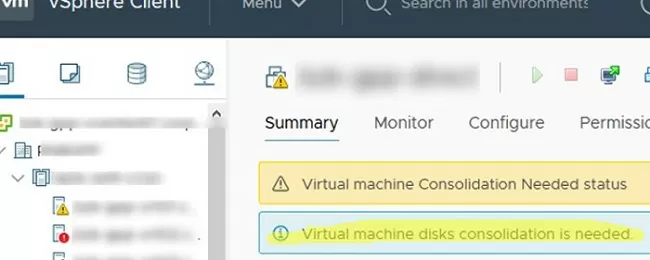
The most typical causes of the ‘Virtual Machine disks consolidation is needed’ error are:
- Poor storage performance, due to which snapshots cannot be deleted/consolidated due to a timeout or a large size of a snapshot;
- There is not enough free space on the VMFS datastore to perform consolidation, there must be at least 1 GB free (see how to increase VMFS datastore capacity in VMware ESXi);
- Snapshot files are locked by vSphere or a third-party app (typically by a backup app, such as HP DataPtotector, Veeam, or Netapp VSC). Make sure there are no running VM backup processes;
How to Consolidate Disks in VMware?
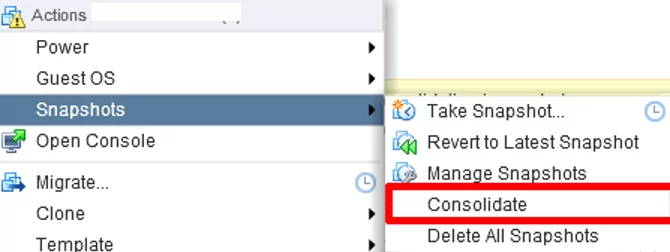
To fix the error ‘Virtual machine Consolidation Needed’, right-click on the virtual machine and select VM -> Actions -> Snapshots -> Consolidate.
A window with the following request appears:
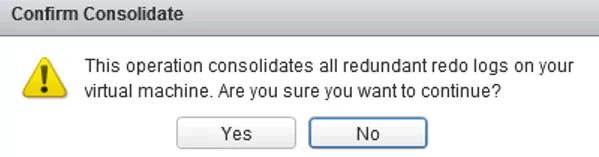
Confirm that you want to delete the redundant logs. Then vCenter will consolidate disks and clear the logs. The consolidation process can take a long time depending on the size of the VM, the number of snapshots, and the current host/datastore load. During consolidation, VM performance may degrade. Wait for the “Consolidate virtual machine disk files” task to complete.

When consolidation is performed, data from the delta disks are merged with the main disk and unnecessary files on the storage are removed. After that, the warning of the VM consolidation will disappear.
Disk Consolidation File Lock Errors
In some cases, when performing a consolidation you may see this error in the vSphere console:
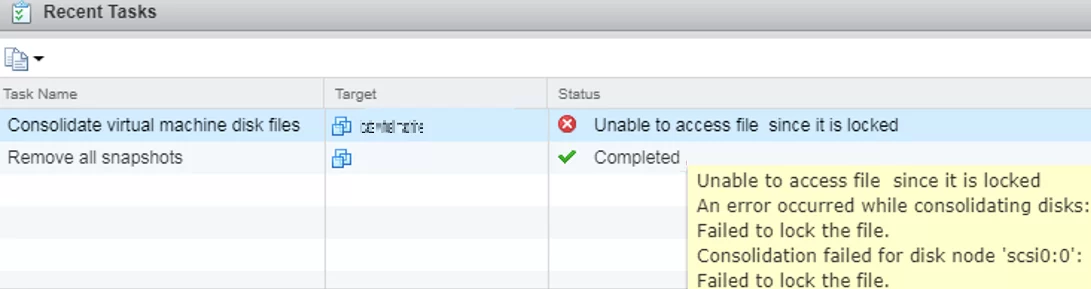
In this case, VMware recommends restarting Management agents on the ESXi server. To do it, connect to the ESXi host via SSH and run this command:

If this doesn’t help, check who has locked the virtual machine files.
- Go to the VM directory on the VMFS datastore: # cd /vmfs/volumes/xxxxxx-xxxxxx-xxxx-xxxxxxx/WINSRV1
- List locked VM files and which ESXi hosts hold these files: # for i in `ls`; do vmfsfilelockinfo -p $i ;done|grep ‘is locked in\|Host owning the lock\|Total time taken’ | sed ‘s|Host owning the lock on file is||g’|sed ‘s|Total time|—|g’ | awk ‘
‘ |uniq - The previous command will return something like this:
- In this example, you can see that the WINSRV1-flat.vmdk file is locked by two hosts. To release the file lock from the second host, connect to Esxi02 via SSH and run the commands:
# /etc/init.d/hostd restart
# /etc/init.d/vpxa restart - Run the consolidation from the vSphere Client interface.
Also, you can try to unlock the VM files as follows:
- Shutdown the VM if it is possible;
- Create a new snapshot;
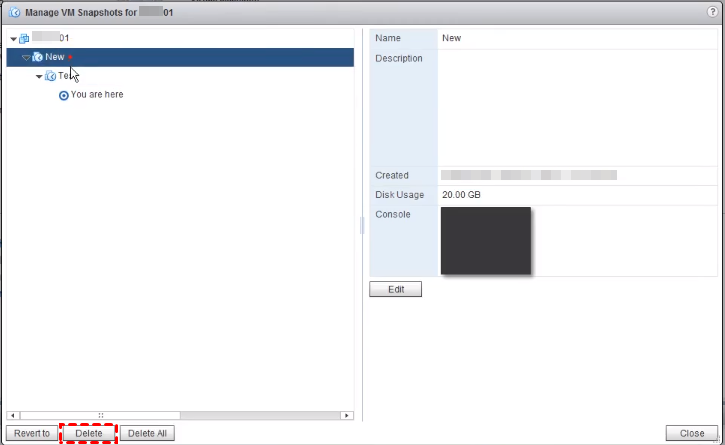
- Remove all the VM snapshots using the ‘Delete All’ option; ;
- Try to consolidate snapshots as described above.
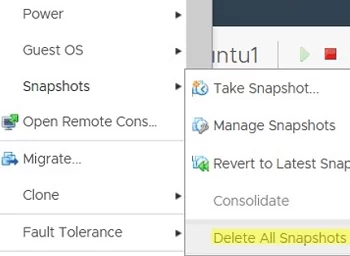
If the Consolidate option is inactive in the VM menu (grayed out button), and there are still a large number of delta snapshot files in the datastore, the integrity of the snapshot chain is most likely broken (error: Unable to enumerate all disks ).
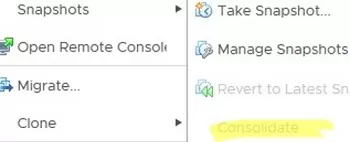
Try to manually remove the VM from the list (Remove from Inventory) and re-register the VMX file of the virtual machine from the Datastore Browser. If this doesn’t help, check and fix the errors in the snapshot chain as described here: The parent virtual disk has been modified since the child was created (https://kb.vmware.com/s/article/1007969).
Consolidate VM Snapshots with PowerCLI
You can find all virtual machines that require consolidation using PowerCLI (this module allows you to manage VMware infrastructure). To do it, connect to your vCenter server or ESXi host:
Get the list of all VMs with the status ‘Virtual machine disks consolidation is needed’:
Now you can consolidate the disks of all virtual machines in the list:
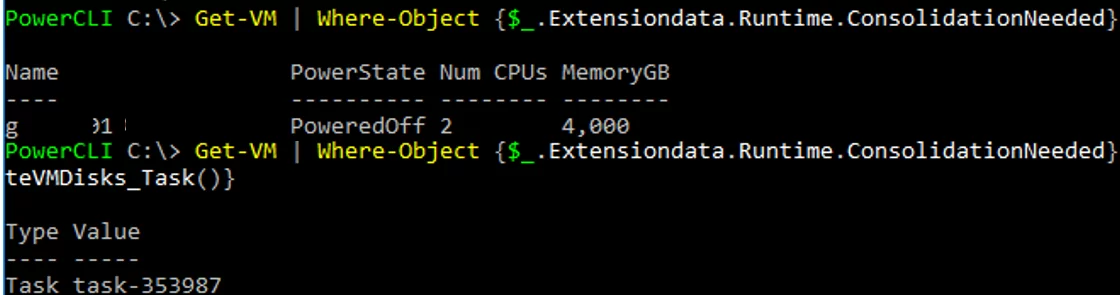
You can automatically consolidate VM snapshots older than 30 days using the following PowerShell script:
VMware Snapshot Consolidation | What, When & How
Do you know that you still need to perform VMware snapshot consolidation after the failure of reverting or deleting a snapshot? Do you know what’s the difference between snapshot consolidation and deletion? This article will introduce it to you in details.

By Crystal  / Last Updated March 8, 2023
What is snapshot consolidation
Snapshot consolidation is used to merge the snapshot delta disk files to the VM base disk.
In vSphere 5, VMware introduced the Consolidation option, which is used when the associated disks are not committed back to the base disk after you revert or delete VMware snapshots.
If the option “consolidate snapshots” is greyed out , you may have an active task running on the VM now.

VMware consolidate snapshot vs delete snapshot
Deleting a snapshot: You will merge the data written to the snapshot’s delta disk files to the VM base disk, and remove the snapshot from the snapshot chain.
Consolidating a snapshot:
You will remove redundant delta disk files that are left over from failed snapshot restore, delete, or delete all operations. It can improve the VM performance and save storage space.
Space & time requirements of snapshot consolidation
- Snapshot consolidation space requirement
Snapshot consolidation does not require additional free disk space if all VM disks are thick provisioned . But if your VM disks are thin provisioned , it may require up to the same size of free space as the snapshot size.
- How long does snapshot consolidation take
In general, the larger the snapshot is, the longer the snapshot consolidation process will take.
But it is not easy to determine exactly how long it will take. Many other factors may affect it directly or indirectly, including the depth of the virtual disk snapshot chain, the type of data, the storage array performance, etc.
You can estimate the time required for snapshot consolidation by monitoring the throughput on the datastore, monitoring throughput for snapshot consolidation only, or estimating the time on a test VM. For more you can refer to VMware’s official tutorial: Estimate the time required to consolidate virtual machine snapshots
When to perform snapshot consolidation
If a VM requires snapshot consolidation, you will get a VMware error: virtual machine disks consolidation is needed to inform you that there are redundant delta disk files.
The most typical reasons for ‘virtual machine disks consolidation is needed’ error:
- Snapshots failed to be consolidated after completing backups .
- There is no free space on the datastore to perform consolidation.
- Third-party backup application is performing backups thus locked snapshot files .
- vCenter server and the ESXi host connectivity issues.
- You have too many snapshots (up to 32 recommended by VMware).
- You have one large snapshot is consolidating now .
How to perform snapshot consolidation
To solve the VMware error: virtual machine disk consolidation is needed, you just need to perform the snapshot consolidation as required. In addition, it can further save storage space and improve VM performance.
In this section, I will introduce 3 different ways to consolidate snapshot.
How to perform snapshot consolidation via ESXi web client
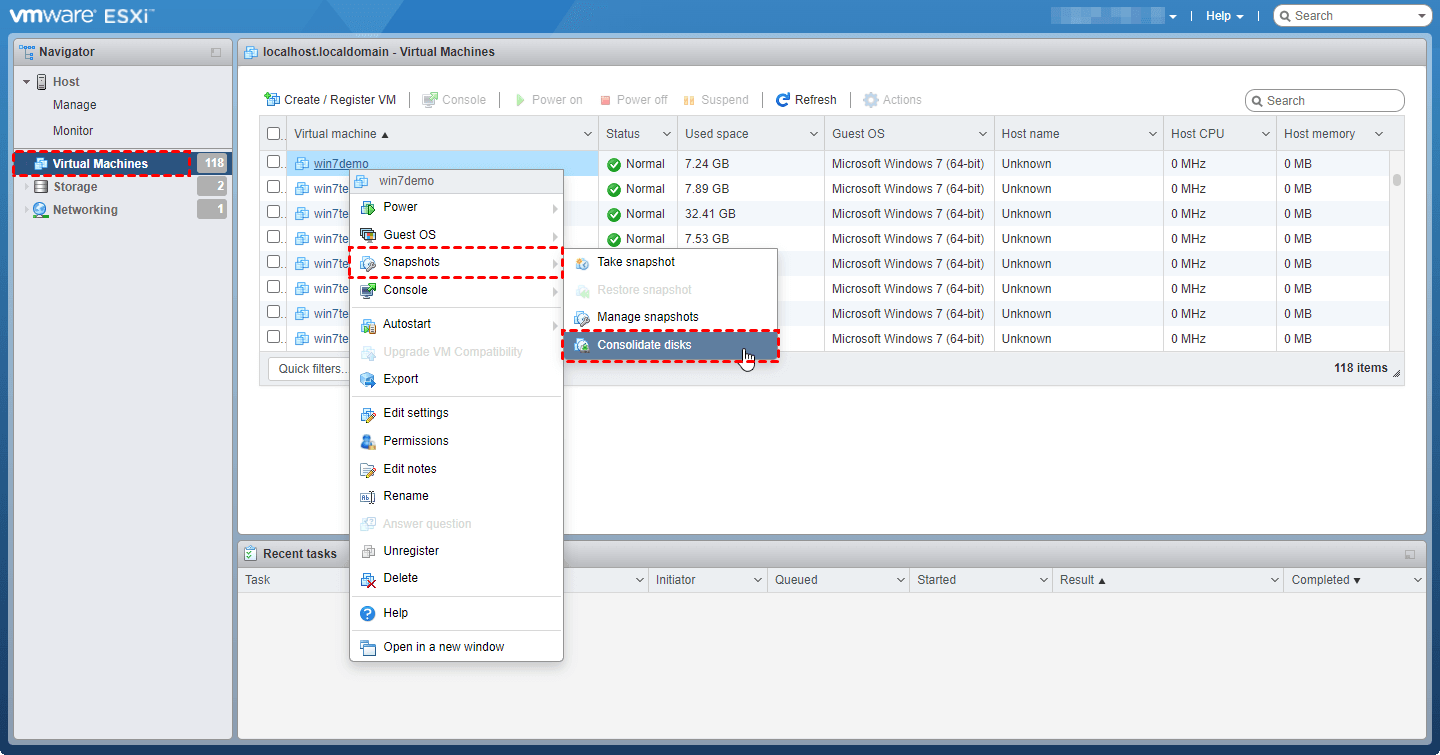
1. Access the VMware ESXi web client, and navigate to Virtual Machines tab.
2. Right-click on the VM name and select Snapshots > Consolidate disks.
How to consolidate snapshot via PowerCLI
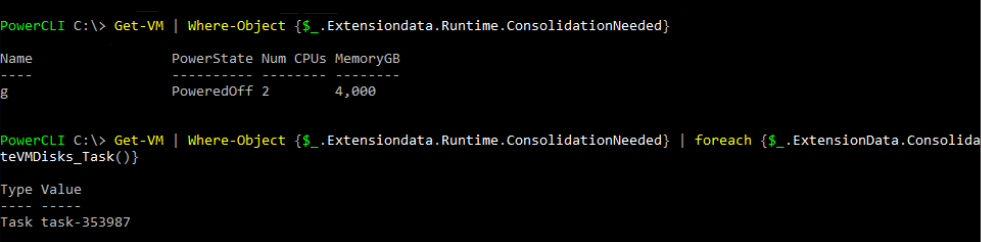
- Check which VM needs snapshot consolidation:
- Consolidate snapshot of a specific VM:
(Get-VM -Name «MyVM»).ExtensionData.ConsolidateVMDisks()
- Consolidate snapshots of all VMs that need it:
How to monitor snapshot consolidation status
1. Open an SSH shell session to the host that is performing the consolidation and snapshot deletion task by running the following vim-cmd command:
2. Run the following command in the SSH shell:
vim-cmd vimsvc/task_info haTask-9-vim.VirtualMachine.removeAllSnapshots-304060994
If the snapshot consolidation is successfully completed, it will show the text: state = «success».
The reasons why snapshot consolidation failed and solutions
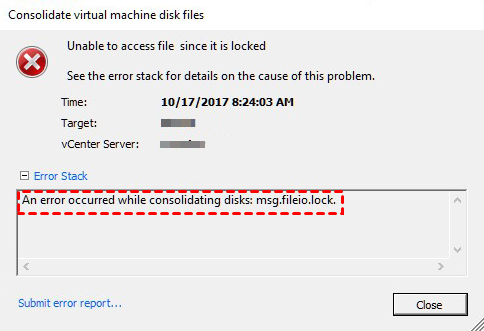
If you encounter the VMware error: An error occurred while consolidating disks. Here are the possible reasons and their solutions:
- Failed to lock the file or one or more disks are busy – identify the existing locked file and remove the lock
- A required file was not found – you may rename the specified file or accidentally deleted snapshot, you can rename the file back , or recover the deleted snapshot
- Input/output error – troubleshooting connectivity of LUN, fibre channel storage, iSCSI arrays, and NFS datastore.
- The content ID of the parent virtual disk does not match the corresponding parent content ID in the child – correct the CID of the disks reference each other using text editor.
- The free space is not enough – free space on the datastore
- msg.snapshot.error-FALL – consolidate the disks manually
Backup VMs to protect data, instead of taking snapshots
As you can see, taking too many snapshots, or keeping them for long can both lead to many errors, even data loss. This is because the snapshots are dependent on the parent disks.
Therefore, snapshots are often used as quick failsafe before performing development or testing, capable of rolling back in case of any problem. But if you want a VM data protection measure in production environments, it is much better to take a VM backup than a snapshot.
A virtual machine backup is an independent copy of the VM that can be safely stored offsite, cloud, or other locations. By restoring from a VM backup you will get an instantly usable VM.
Here I recommend you a professional and free VM backup software, AOMEI Cyber Backup for the following benefits:
✦ 3-Step Quick Backup: with 3 easy steps you can quickly create a complete automatic backup task of multiple, or even all VMs on the host.
✦ Backup Schedule: capable of auto backup virtual machines on a daily, weekly, monthly schedule.
✦ Restore Entire VM: capable of restoring the entire VM from any backed up history versions.
It supports both paid and free versions of VMware ESXi and Hyper-V. You can click the following button to download and enjoy this perpetual free edition:
*You can choose to install this VM backup software on either Windows or Linux system.
Summary
If you encountered the VMware error: virtual machine disks consolidation is needed, it is informing you that you need to perform snapshot consolidation manually after the snapshot revert, delete, or delete all operations.
In this article, I introduced what is VMware snapshot consolidation, when and how you can perform it on your VMs, analyzed the reasons why the snapshots consolidation fails and the relevant solutions.
Snapshot consolidation often fails because of the improperly usage of VM snapshots. therefore, please do not keep snapshot for long, or take too many snapshots. Most importantly, please do not take VM snapshot as backup.
Best Enterprise Backup Solution

- VMware and Hyper-V Backup
- SQL Server/Workstation Backup
- Scheduled Automatic Backup
- Flexible Backup Cleanup Policy
- Backup and Manage Centrally



Still Need Help?
Have your problem been solved? If not, please input query in the search box below.
Consolidate disk vmware что делает
You are using an outdated browser. Please upgrade your browser to improve your experience.
The presence of redundant delta disks can adversely affect the virtual machine performance. You can combine such disks without violating a data dependency. After consolidation, redundant disks are removed, which improves the virtual machine performance and saves storage space.
Snapshot consolidation is useful when snapshot disks fail to compress after a Revert , Delete , or Delete all operation. This might happen, for example, if you delete a snapshot but its associated disk does not commit back to the base disk.
Prerequisites
Required privilege: Virtual machine . Snapshot management . Remove Snapshot
Procedure
- Navigate to a virtual machine in the vSphere Client inventory and click the Snapshots tab.
- Perform the necessary snapshot operations.
- Navigate to an inventory object that contains a list of virtual machines, for example a vCenter Server instance, a host, or a cluster.
- Click the VMs tab and click Virtual Machines .
- Click
 .
.
Consolidate disk vmware что делает

- Amelia John
- October 29, 2021
- 3:52 pm
Virtual machines in VMware vSphere appreciate many advantages. They work constantly with predominant execution if the appropriate gear is used and the right programming course of action is applied. “VMware Virtual Machine Disk Consolidation is Needed”, Now and again the virtual machine cementing required status is displayed in the VMware vSphere Client, and a system director needs to fix this error.
This blog passage explains why VMware virtual machine circles cementing is required and how this slip-up can be fixed. Around here at ARZHOST , “VMware Virtual Machine Disk Consolidation is Needed”, we have seen a couple of such VMWare-related Errors as a part of our Server Management Services for the web has and online expert centers.
Today, “VMware Virtual Machine Disk Consolidation is Needed”, we will examine the establishments for this error and see how to fix it.
Table of Contents
What Is VMware Disk Consolidation?
Virtual circle mix is the strategy engaged with mixing virtual plate archives made ensuing to taking VM sneak peeks. You can begin circle association on solicitation to avoid execution debasement and various issues. “VMware Virtual Machine Disk Consolidation is Needed”, Exactly when you take a review, delta circles are made and changes stay in contact with the appropriate delta plate (the latest delta circle obviously, until one of the past portrayals is picked to restore the virtual machine).
Along these lines, overabundance data is accessible in the virtual machine amassing because each delta circle contains all movements made when stood out from the past delta plate state, “ VMware Virtual Machine Disk Consolidation is Needed ”, and the parent plate stays unaltered. Right when the chain of portrayals and related virtual circle records ends up being tremendous, execution corrupts.
Right, when you perform VMware plate cementing, data from delta circles is met to a single circle, and no tedious data is left on the DataStore where this current VM’s records are found. “VMware Virtual Machine Disk Consolidation is Needed”, Additional room is cleaned after you join virtual machine plate records. Recall that VMware proposes using near 32 sneak peeks for each VM.
Expected Reasons for the VMware Disk Consolidation Error
The VMware virtual machine circles hardening is required mix-up message is displayed in the VM Summary tab in the VMware vSphere Client (screen catch underneath). One of the typical clarifications behind this Error message is erroneously eradicating a VM review, “VMware Virtual Machine Disk Consolidation is Needed”, which can leave VMDK records related to portrayals and log archives on the DataStore (for example, after you played out the Delete All or Delete action for VM portrayals).
The most generally perceived explanations behind the virtual machine association required status:
- Inadequate plate space on the VMFS DataStore to consolidate VM reviews and union virtual circle records. If there is under 1 GB of free space on the DataStore, “VMware Virtual Machine Disk Consolidation is Needed”, this error may occur.
- Low execution of a limit structure attached to an ESXi has on which a VM is running. If the portrayal size is gigantic or times out, “VMware Virtual Machine Disk Consolidation is Needed”, the review mix can miss the mark.
- Connection issues between an ESXi host and vCenter.
- Portrayal records are locked by a pariah application, for example, a support application. This may occur if a support application didn’t finish a support work and locked the see (support applications can make a temporary portrayal of a virtual machine when running support). Support applications can’t quiesce circle without using the sneak peek strategies to make dependable support of a running VM.
Basically, “VMware Virtual Machine Disk Consolidation is Needed”, you should restore the consistency of VM plate records.
People Also Ask
Question # 1: What is consolidated in VMware?
Answer: Deleting a snapshot leaves the current state of the virtual machine or any other snapshot untouched. Deleting a snapshot consolidates the changes between snapshots and previous disk states and writes to the parent disk all data from the delta disk that contains the information about the deleted snapshot.
Question # 2: Why do we need snapshot consolidation?
Answer: The warning ‘Virtual Machine disks consolidation is needed in the Summary tab of a virtual machine in the VMware vSphere console means that when deleting a snapshot (using the option Delete or Delete All), the snapshot VMDK files or logs have not been deleted correctly (remain on the storage).
Question # 3: What happens when you consolidate snapshots?
Answer: This option commits a chain of snapshots indicated by the delta files to the original virtual machine and then removes them. If you do not perform the snapshot consolidation, the snapshot delta files could continue to grow and consume all space on the datastore. In the Confirm Consolidate window, click Yes.
Question # 4: What is a snapshot in VMware?
Answer: A VMware snapshot is a copy of the virtual machine’s disk file (VMDK) at a given point in time. Snapshots provide a changelog for the virtual disk and are used to restore a VM to a particular point in time when a failure or system error occurs. Snapshots alone do not provide backup.
Question # 5: What is VMware consolidation?
Answer: What Is VMware Disk Consolidation? Virtual disk consolidation is the process of merging virtual disk files created after taking VM snapshots. You can initiate disk consolidation on demand to avoid performance degradation and other issues.
How to Fix the Error?
To fix the virtual machine association required status, right snap the VM name in the VMware vSphere Client, and in the menu that opens, click Snapshots > Consolidate.
Snap Yes to avow and join virtual machine circle records. If there is a concern that a couple of data can be lost during VMware circle association, make a VMware VM support, “VMware Virtual Machine Disk Consolidation is Needed”, for example, copy all VM reports to another envelope on a DataStore and subsequently perform VMware plate mix.
Deferral until the VMware circle cementing is done and the logs are cleared. You can see the task improvement in the task board at the lower part of the VMware vSphere Client interface. In case the VM is running, “VMware Virtual Machine Disk Consolidation is Needed”, VM execution can ruin during this movement. The time expected to finish this action depends upon the VM size, the number of reviews, and VM load.
After the VMware plate association undertaking is done, “VMware Virtual Machine Disk Consolidation is Needed”, the counsel that VMware virtual machine circles hardening is required should evaporate.
The error that May Occur
A portion of the time, another error can occur during VMware plate hardening and the going with botch message is shown:
 Unsuitable to will record since it is locked. “VMware Virtual Machine Disk Consolidation is Needed”, An error occurred while consolidating circles: Failed to lock the record. Mix failed for plate center point ‘scsi0:0’.
- Locks can be in like manner made when support applications use the hot-add circle decision for support while using portrayals. “VMware Virtual Machine Disk Consolidation is Needed”, The VM record lock is relied upon to avoid synchronous stays in contact with the report by various ESXi has.
The effort to play out the going with exercises to fix this Error.
Restart the board experts on the ESXi server on which the VM stays. “VMware Virtual Machine Disk Consolidation is Needed”, Open ESXi shell or interface with the ESXi have through SSH and run the request as root:
- sh restart
- of course
- /, etc/init. d/hostd restart
- /, etc/init. d/vpxa restart
You can in like manner open the ESXi direct control place, go to Troubleshooting Options, and select Restart Management Agents (press Enter to order the necessary decision, then, press F11 to certify).
Truly investigate the locked archive with the request:
- vmfsfilelockinfo — p/vmfs/volumes/vm_datastore/vm_name/vm_name.vmx
Check the hosted log record assuming you needed to separate the way on the DataStore where the VM archives are found.
- cat/var/log/hostd.log |grep — I vm_name
Go to the VM inventory on the DataStore when you understand the VM reports’ region:
- circle/VMS/volumes/datastore name/vm_name
Run the request to list ESXi has that are locking the VM records:
- for I in ‘ls’; do vmfsfilelockinfo — p $i ;done grep ‘is locked in\|Host having the lock\|Total time taken’ | sed ‘s|Host guaranteeing the lock on record is||g’|sed ‘s|Total time| — |g’ | awk ‘
‘ |uniq
Restart ESXi the board subject matter experts, including hosted and vpxa as explained above, “VMware Virtual Machine Disk Consolidation is Needed”, or run these orders on the ESXi have locked the VM records:
- /, etc/init. d/hostd restart
- /, etc/init. d/vpxa restart
Another strategy to open VM records
As another choice, “VMware Virtual Machine Disk Consolidation is Needed”, Effort these means to fix an error that occurred while joining circles: Failed to lock the archive.
- Close down the virtual machine.
- Take another VM circle see.
- Delete all current VM sneak peeks. Right snap the VM name in vSphere Client, select Snapshots, and snap Delete All Snapshots.
- Clone the VM or move the VM to another ESXi have with vMotion if the slip-up has not been fixed now.
- The effort to join portrayals without a doubt, as explained beforehand.
- In case these exercises didn’t help, Effort to shut down the VM, open VM settings, select the VM decisions tab, then, develop the Advanced region, and snap Edit Configuration.
In the Configuration limits window, click Add Configuration Params. Add the asyncConsolidate.forceSync limit and put down this limit to TRUE. “VMware Virtual Machine Disk Consolidation is Needed”, On occasion, the virtual machine association required status can be achieved by clashing – stick. vmdk records that are made for changed square after (by VM support programming, for example).
The effort to delete CTK archives. They are not needed to see hardening. Make sure to back up VM archives before deleting CTK records. Then, “VMware Virtual Machine Disk Consolidation is Needed”, Effort to harden virtual machine circle records again.
The Consolidate decision is torpid
In case the VMware join portrayal decision is become dark out (idle), a working Effort can be running on the VM now. If you see the “recognized an invalid portrayal arrangement” botch, a couple of sneak peeks can be broken or there are separated chains of reviews. For the present circumstance, Effort to do the going with exercises.
Partner with the ESXi server through SSH and go to the list where the VM records are arranged on the DataStore.
- conservative circle vmfs/volumes/Datastorename/Foldername
You can check the VM reports’ “VMware Virtual Machine Disk Consolidation is Needed”, the region in the VMware vSphere Client, and find the space of virtual plates by auditing VM settings.
Recognize what circle portrayals are being pointed to:
- cat VM-name.vmx | grep SCSI*
See the respect check virtual plate records including virtual circle portrayal archives. For example, the name of the virtual circle archive is displayed in the line. “VMware Virtual Machine Disk Consolidation is Needed”, This isn’t a portrayal:
- SCSI 0:0. filename = «VM-Name. Vmdk»
In the yield line, the name of the virtual plate see the record is shown, and you are pointing to the portrayal:
- SCSI 0:0. filename = «VM-Name-000002.vmdk»
“VMware Virtual Machine Disk Consolidation is Needed”, A SCSI virtual plate controller is used in the VM plan in this model.
The accompanying request truly sees what each see is featuring. Use this request to perceive which portrayal is featuring the accompanying plate record (the see vmdk archive or a base circle vmdk report) in the review chain.
- cat VM-Name-000002.vmdk | grep parentFileNameHint
You may need to execute this request again for other vmdk records (like VM-Name-000001.vmdk in this model) until you track down the necessary base circle. “VMware Virtual Machine Disk Consolidation is Needed”, This methodology helps you with finding the inconsistency.
If you have found the abnormality, for example, VM-Name-000002.vmdk is featuring VM-Name-000001.vmdk which is featuring VM-Name. Vmdk, run vmkfstools on the most raised spot of the circle see chain (VM-Name-000002.vmdk for the present circumstance):
- vmkfstools — q — v10 VM-Name-000002.vmdk
This request Efforts to open and close all vmdk archives in the chain and illuminates you where disillusionment occurs.
Using PowerCLI
As a choice as opposed to executing VMware plate hardening in the VMware vSphere Client graphical UI, “VMware Virtual Machine Disk Consolidation is Needed”, you can use vSphere PowerCLI with the request line interface.
- Partner with the vCenter Server that arrangements with the ESXi have with the VM that has the virtual machine cementing required status. Enter capabilities when incited.
- Partner VI Server vcenter01.test.com
- Get the overview of VMs with the virtual machine cementing required status:
- Get-VM | Where-Object
- Perform VMware plate cementing.
Get-VM | Where-Object <$. Extensiondata.Runtime. Consolidation Needed>| “VMware Virtual Machine Disk Consolidation is Needed”, for each
Conclusion
This blog passage has explained ideas that can help you with fixing the virtual machine cementing the required status. “VMware Virtual Machine Disk Consolidation is Needed”, VMware virtual machine plates hardening is commonly required when one of the portrayals is tainted, a see chain is clashing, or a portrayal is locked by another ESXi have. Make a point to reliably run VMware VM support for virtual machines running in VMware vSphere.