How do I access the current guild name and ID that my bot is running in?
You can just use message.guild to get the full guild object. If you want the name or id you can use this object to get them.
-
The Overflow Blog
Related
Hot Network Questions
Subscribe to RSS
To subscribe to this RSS feed, copy and paste this URL into your RSS reader.
Site design / logo © 2023 Stack Exchange Inc; user contributions licensed under CC BY-SA . rev 2023.8.2.43556
By clicking “Accept all cookies”, you agree Stack Exchange can store cookies on your device and disclose information in accordance with our Cookie Policy.
Как мне получить идентификатор гильдии в discord.py?
Я пытаюсь сделать некоторые серверные команды для частного бота, но я не могу понять, как привести идентификатор гильдии в состояние, которое я могу использовать для сравнения. Бот находится на нескольких частных серверах, но команды в основном являются шутками, поэтому они должны работать только на определенных серверах.
Мой текущий код таков:
Команда и ответы на данный момент являются заполнителями, просто примерами.
Код здесь всегда отвечал оператором else, даже если он находится в соответствующей гильдии. Есть идеи?
2 ответа
Вы имеете в виду сам класс, а не экземпляр. Получить ID гильдии
Вы делаете это так:
Если вы пытаетесь сделать это в событии on_message , это будет выглядеть так:
Setting up the Discord Backend
The Discord backend works similar to Slack’s; messages are received from Discord via WebSocket constantly monitoring the channels that the bot has been added to. Responses are sent back to Discord via REST API call. Listing channels and users are also handled via REST.
Prerequisites
- A Discord account and your own Discord server
- If you haven’t created one yet, go to Discordapp.com and create one.
- If you do have one, log in to your account and open up the server in which you want your bot to live.
Create an Application on Discord
First, you will need to create an application on Discord. Open a text editor to copy some information down as you follow these steps:
- Open https://discordapp.com/developers/applications to view the Applications section on the Discord Developer Portal
- Log in to your account if you need to
- Click the purple New Application button on the top-right of the page to create a new application:
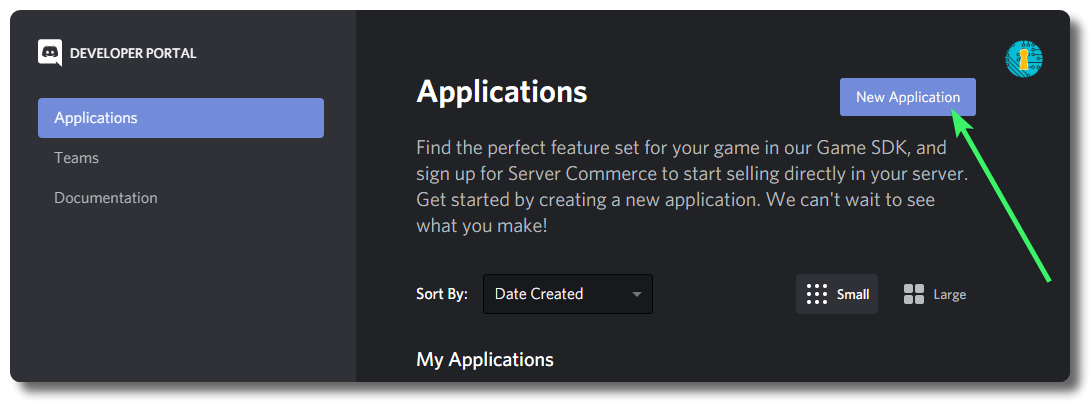 3. Provide a memorable name for your bot when prompted, then click the purple Create button on the bottom-right:
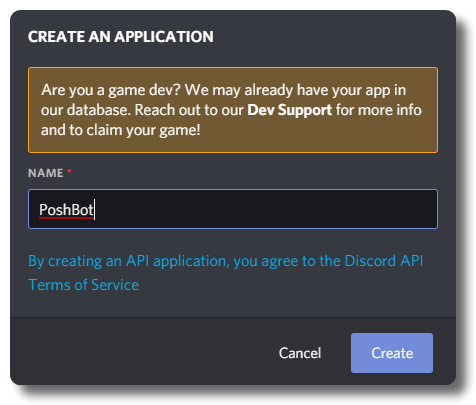 4. You will be placed on the General Information page for your application. Copy the Client ID listed on this page to your text editor for later 5. On the left-hand menu, click the Bot section, then click the purple Add Bot button:
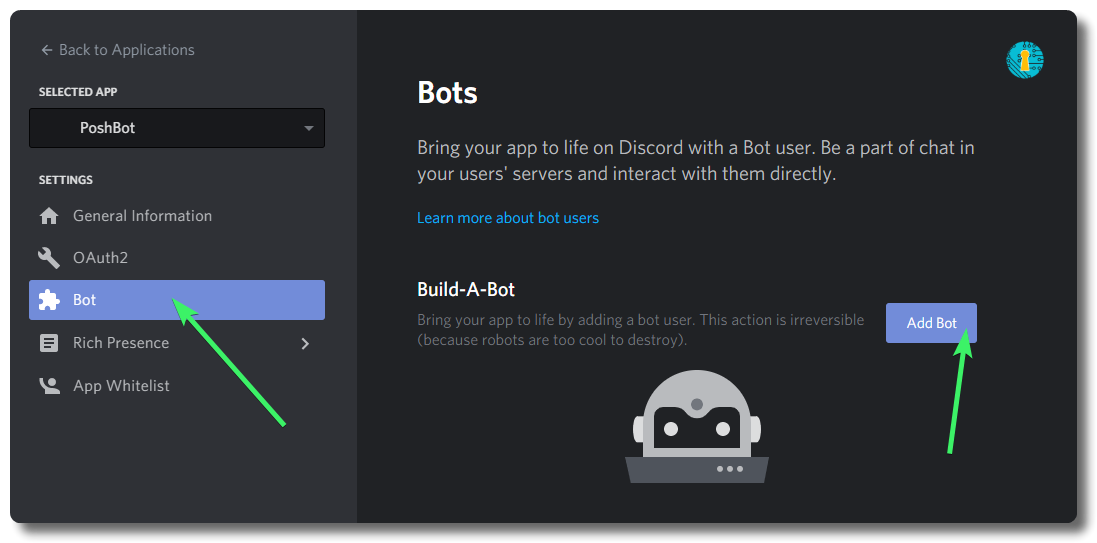 6. You will be placed on the Build-A-Bot page.
Authorize your Bot
With your text editor still open, follow these steps:
On the Build-A-Bot page.
- Set your Bot’s username to something other than the application name, if desired. This is the username your Discord users will see.
- Under Token , click the blue link to Click to Reveal Token . Copy the Token listed and paste it on your text editor for later
- Recommended: Under Public Bot , click the purple toggle to disable making the bot publicly available. This will ensure that only you can join the Bot to servers.
- Leave Requires OAuth2 Code Grant un-toggled.
- The bottom Bot Permissions section is where we can calculate the appropriate permissions integer to use when authorizing your Bot to your server shortly.
- If you are testing, you can select Administrator ( 8 )
- PoshBot will need at least the following permissions to run in Discord:
- View Channels
- Send Messages
- Read Message History
- Add Reactions
- Recommended additional permissions:
- Send TTS Messages
- Embed Links
- Attach Files
- Mention Everyone
- Once you have your permissions selected, copy the Permissions Integer listed and paste it on your text editor for later
- In a new browser tab, go to the below link, replacing CLIENTID with the Client ID copied from the General Information page and PERMISSIONINTEGER with the Permission Integer copied in the last step: https://discordapp.com/oauth2/authorize?&client_id=CLIENTID&scope=bot&permissions=PERMISSIONINTEGER
- Your URL should look something like this, but with your client ID and permissions integer in place of the ones added below: https://discordapp.com/oauth2/authorize?&client_id=000000000000000001&scope=bot&permissions=8
- That’ll take you to a website where you can tell Discord where to send your bot. You’ll know it worked if you open Discord in an app or in your browser and navigate to your server. The channel will say a bot has joined the room, and you’ll see it on the right side menu under the list of members.
Find your Guild ID (Server ID)
You will need the full Server ID (not the name) to continue. Follow these steps to find your Server ID:
- In Discord, open your User Settings by clicking the Settings Cog next to your user name on the bottom.
- Go to Appearance and enable Developer Mode under the Advanced section, then close User Settings.
- Open your Discord server, right-click on the server name, then select Copy ID
- Paste the Server ID on your text editor for later
- If desired, you can disable Developer Mode now.
Create PoshBot Startup Script
The following example script shows how to create a new Discord backend using the values create above.
Note that with the Discord backend, Bot Admin names should be JUST the username, i.e. superman . Do not include the @ before (e.g. @superman ) or the unique identifier (e.g. superman#1234 ), otherwise permissions will fail to resolve correctly.
Start PoshBot
Once the backend has been created, create a new instance of PoshBot and start it.
How to Find a Server ID in Discord on a PC or Smartphone
By Aaron Donald Aaron Donald Author Aaron Donald is a passionate technology writer with a distinct emphasis on gaming and electronic gadgets. His extensive knowledge of gaming hardware and keen eye for technical details equip him to provide thorough, in-depth how tos and reviews of the latest gaming gear and games. Read more September 14, 2021
Practically everything you see on Discord has a unique 18-digit number assigned to it. Users, messages, channels, and Discord servers all have special IDs. These numbers are typically used by developers to reference individual items.

While you can enjoy Discord life without knowing any of these IDs, there are times when a server ID is required to help investigate or resolve an issue. Read on to learn how to find a Discord server ID.
Before retrieving any ID, you must first enable “Developer Mode.” This gives you the ability to copy IDs and makes other information available. We’ve included the steps on how to do that. Our FAQs also include how to find your user ID, other user’s IDs, and message and channel IDs – just in case.
How to Find a Discord Server ID on a PC
To locate the server ID, you’ll first need to turn on “Developer Mode.” Here’s how from the desktop app and web browser access:
- Sign in to Discord.

- Beside your username at the bottom left, click the “Settings” icon.

- From the menu on the left, choose the “APP SETTINGS” option.

- Scroll down to the “Advanced” section then click on the slider beside the “Developer Mode” option.

- Now press ESC or click X to close the settings.

Note: “Developer Mode” is enabled once the slider is blue and disabled when gray.
Now to find a server’s ID:
- Above the text channel list, right-click on the server’s name to open it.

- Choose “Copy ID.”

- Paste the ID somewhere for later use.
- You can disable “Developer Mode” now if you wish.

- You can disable “Developer Mode” now if you wish.
How to Find a Discord Server ID on an iPhone
Before copying a server ID, you’ll need to enable “Developer Mode.” Here’s how to use your iPhone or any iOS device:
- Sign in to your Discord account.

- From the top left, tap the three-lined menu icon to access the menu panel.

- At the bottom right of the menu, tap your profile icon.

- Swipe up to find the “APP SETTINGS,” then tap “Appearance,” look for “ADVANCED.”

- Next, tap the slider beside the “Developer Mode” option to enable it.

- Exit the “Appearance” menu.

Note: When the slider is gray “Developer Mode” is disabled; it’s blue when enabled.
Now to find a server’s ID:
- Above the channel list, find the server’s name then tap the three-dotted icon next to it.

- At the bottom of the drop-down menu, choose “Copy ID.”

- The server ID will be copied to your clipboard.
How to Find a Discord Server ID on an Android Device
Before retrieving a server ID, you’ll need to turn on “Developer Mode.” To do this, complete the following steps on your Android device:
- Sign in to your Discord account.

- Tap the hamburger menu icon.

- Tap your profile icon at the bottom right.

- Choose “User Settings,” “App Settings,” then “Behavior.”

- Now enable “Developer Mode” by tapping the slider beside it, under the “CHAT BEHAVIOR”

- Exit the “Behavior” menu.

Note: “Developer Mode” is enabled once the slider is blue and disabled when it’s gray.
To copy a server’s ID:
- Above the channel list, long-press on the server’s name.

- From the drop-down menu, tap “Copy ID.”

- The server ID will be copied to your clipboard.

- The server ID will be copied to your clipboard.
Additional FAQs
How to Find a Discord Channel ID?
From the desktop with “Developer Mode” enabled:
1. Right-click on the channel.
2. Select “Copy ID” from the menu.
· The channel’s ID will be copied to your clipboard.
From an iOS device with “Developer Mode” enabled:
1. Find the channel then long-press it.
2. Tap “Copy ID” from the menu options.
From an Android device with “Developer Mode” enabled:
1. Locate the channel and long press it.
2. Select “Copy ID” from the menu.
How to Find a Discord Message ID?
From the desktop with “Developer Mode” enabled:
1. Find the message, then right-click anywhere within the text.
2. Click “Copy ID” from the menu.
· The channel’s ID will be copied to your clipboard.
From an iOS device with “Developer Mode” enabled:
1. Find the message, then long press anywhere within its text.
2. Tap “Copy ID” from the menu.
From an Android device with “Developer Mode” enabled:
1. Find the message and long press on the text.
Discord Server ID Retrieval
To identify specific Discord elements like users, text or voice messages, channels, and servers, a unique number is assigned to it This makes things easier when Discord needs to resolve a problem or carry out an investigation.
Obtaining a server ID, or any other ID for that matter is easy from the desktop or mobile app. Once “Developer Mode” is enabled under “Advanced” settings, by right-clicking or long-pressing the item you’ll have the option to “Copy ID.” The item’s ID is then copied to your clipboard.
What type of topics do you enjoy talking about on Discord? What do you think about Discord in general? Do you use other similar platforms – if so, how do they compare? Share your thoughts in the comments section.