Как побороть нагрузку Adobe CEF Helper и Creative Cloud на процессор Mac OS X Yosemite

Так уж сложилось, что каждый раз при установке приложения Photoshop на компьютер Mac происходила невиданная проблема, которая постоянно вынуждала решать ее вручную. Речь идет о постоянной недоступности программы Adobe CEF Helper, которая вызывает 100% нагрузку на процессор MacBook или iMac. Завершить такой процесс и убрать эту нагрузку можно только если полностью прекратить работу всего Creative Cloud.

Политика компании Adobe совсем непонятна — зачем навязывать людям десятки каких-то ненужных приложений и скриптов, которые устанавливаются вместе с установщиком Creative Cloud. Само обидное в том, что Adobe не хочет решать эти проблемы уже на протяжении нескольких лет, и миллионы пользователей вынуждены терпеть все эти неудобства.

Установить какие-то приложения от Adobe без установки Creative Cloud и мусора к нему не получится, а значит приходится искать альтернативные пути решения проблем. После 5 месяцев ежедневного ручного закрытия приложения Creative Cloud постоянна нагрузка на процессор надоела и было решено раз и навсегда побороть эту развращающую проблему.

Для решения этой проблемы понадобится буквально пара минут. Первые делом необходимо навести мышку на иконку Creative Cloud в верхнем правом углу OS X. Затем нажать на шестерёнку в появившемся меню программы. В меню выбрать пункт «Установки», и открыть его. Во вкладке «Общее» нужно выбрать раздел «Учетная запись», и нажать кнопку «Выйти из Creative Cloud». Проблема успешно решена. Желательно после этих манипуляций полностью выйти из Creative Cloud.

Остается только надеяться, что Adobe решит эту и множество других проблем в своем программном обеспечении как можно скорее.
How to Fix Adobe CEF Helper High Memory or CPU Usage?
Adobe CEF Helper is a background process to render components by Adobe Creative cloud. However, the Adobe CEF Helper can sometimes consume high CPU or Memory resources due to the missing adobe creative cloud components files, interference of third-party software, and other reasons. Even though it might not be from the adobe creative cloud, there can be several other reasons behind this issue.

How to Fix Adobe CEF Helper High Memory or CPU Usage?
Even if the adobe creative cloud does not run in the background, the issue can still be triggered, as the Adobe CEF helper can idle in the background, waiting to keep components updated.
Before moving to the solution, we recommend taking a look into the causes, which we have listed here:-
- Corrupt System files – Corrupt system files can lead to this issue and it may not be specifically from the Adobe Creative Cloud. Repairing the system files might help.
- Adobe Creative Cloud Might be Damaged – There is a chance that your Adobe Creative Cloud is broken or damaged, as some users have reported that it can cause this issue. To avoid it, either repair or reinstall the Creative Cloud.
- Interference of Antivirus – High Memory usage due to Adobe CEF Helper can also result from unnecessary interference from third-party antivirus software. You can try disabling your antivirus program to fix this issue.
1. Repair Adobe Creative Cloud
The issue is most likely to occur when the Adobe Creative Cloud files are broken or damaged by third-party programs. Therefore, try repairing Adobe Creative Cloud by following the instructions below to fix this issue:
- Download the Creative Cloud Uninstaller from the link according to the Windows version
- Right-click the downloaded ZIP folder and clickExtract to “Creative_Cluoud_Uninstallerwin”
2. Kill The Task From the PowerShell
You may not be able to fix this issue by simply end-tasking Adobe CEF Helper, as this process will run automatically even if you do so. However, once you have repaired the adobe creative cloud files, you will be able to end its process via Powershell. Follow the steps:
- Press the Windows Key and type PowerShell
- Right-click the PowerShell and click Run As Administrator
3. Disable Launch Creative Cloud At Login
If the issue has not been resolved, you can uncheck the option called Launch Creative Cloud At Login, which will prevent the Creative Cloud from opening at the startup. However, it won’t disable the processes that are required by the Creative Cloud. As per the affected users, disabling the Creative Cloud at login has fixed their issue. Therefore, follow the steps to do that:
- Click Settings in the top right
- Go to Preference and click the General
- Untick Launch Creative Cloud at Login
You can also prevent the Adobe CEF Helper from running by disabling the Adobe Creative Cloud process at the startup. After disabling Creative Cloud, you will not see the Adobe CEF Helper in the Task Manager unless you launch the Creative Cloud or its components. Below are the steps to disable Adobe CEF Helper the startup.
- Open Task Manager by pressing Ctrl + Shift + Esc
- Go to Startup from the top
- Select Adobe Creative Cloud and click Disable
4. Perform a Clean Boot
If the above method did not help fix this issue, try disabling all the unnecessary services along with the third-party applications by performing a clean boot. This process is used to diagnose which third-party applications could be causing the issue. In this case, we don’t need to diagnose any application directly. However, we need to disable all the programs that are not necessary for booting Windows, including Adobe Creative Cloud and its processes.
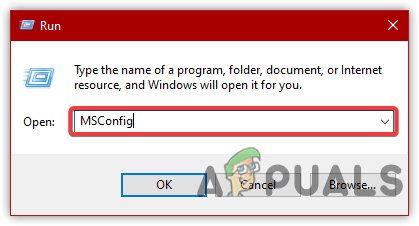
- To perform a clean boot, press the Win + R to launch Run Program
- In the search box, type msconfig in the box and hit EnterOpening MS Configuration
- Select the Selective Startup, then go to Services
6. Disable Third-Party Antivirus
The issue can also be caused by third-party antivirus software as it can conflict with the Adobe CEF Helper, which can cause high memory or CPU usage. Hence, try disabling the third-party antivirus temporarily. Below are the steps to disable third-party antivirus:
- Right-click on your antivirus icon from the bottom right of the system tray
- Hover the mouse over Avast Shields Control
- Click Disable For 10 Minutes
7. Reinstall Adobe Creative Cloud App
If neither of the solutions worked, the final option you can try is to reinstall Adobe Creative Cloud, as it might fix this issue. According to several users, reinstalling Adobe Creative Cloud can help. Follow the steps to reinstall Adobe Creative Cloud: To uninstall Adobe Creative Cloud, you must first uninstall all the Adobe software. To do that:
- Open the Adobe Creative Cloud and click on Installed
- Click the three dots on the right side of the application
- Then, click Uninstall, then click Remove
[Solved] Adobe CEF Helper.exe Causing High CPU on Windows 10/11 [MiniTool Tips]
This post on MiniTool Website mainly discusses how to fix Adobe CEF Helper.exe causing high CPU on Windows 10/11. Read it carefully, and you will benefit a lot from it. Hope you will get a superb experience when using your PC.
Adobe CEF Helper.exe Causing High CPU on Windows 10/11
Adobe CEF Helper.exe is a process that is required by Adobe Creative Cloud. Many of you may find that this progress can cause your PC to slow down. It takes up substantial CPU resources even if you don’t launch it. At the same time, if not installed properly, Adobe CEF Helper.exe causing high CPU on Windows 10/11 might occur. Therefore, you must check if all your programs are the latest.
How to Solve Adobe CEF Helper.exe Causing High CPU on Windows 10/11?
As mentioned above, when you run Creative Cloud, you will catch sight of a weird phenomenon – a large number of processes with the same or similar names are running in the backstage. Some anti-virus software might think it is a virus while actually, it is not.
What if Adobe CEF Helper.exe is causing high CPU on Windows 10/11?
Fix 1: Restart Your Computer
If you are facing Adobe CEF Helper.exe causing high CPU on Windows 10/11, the first method that comes to your mind should be restarting your PC.
Step 1. Close all the progress that you are running.
Step 2. Click the Windows icon to launch the menu.
Step 3. Press Power and choose Restart.
Fix 2: Run the SFC Scan
SFC is one of the most useful Windows inbuilt tools because it can look for and repair corrupted system files for you. Each of you can make full use of it when facing different issues on Windows.
Step 1: Type cmd in the search box to list Command Prompt.
Step 2. Right-click it to select Run as administrator.
Step 3. In the command line, type sfc /scannow and hit Enter.
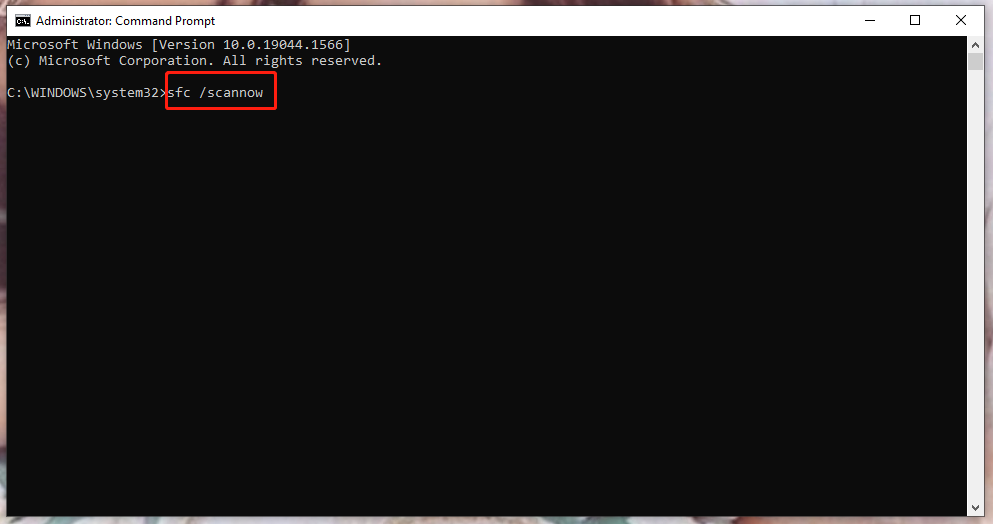
Step 4. After the progress is done, you can reboot your computer to see if this issue is fixed.
Fix 3: Update Windows
Keeping an up-to-date version of Windows is of vital importance when you try fixing Adobe CEF Helper.exe high CPU error hence you are supposed to check it in time.
Step 1. Press Win + I at the same time to open the Settings interface.
Step 2. Scroll down to find Update & Security and click it.
Step 3. In the popping-up window, select Windows Update.
Step 4. Tap on Check for updates under Windows Update.
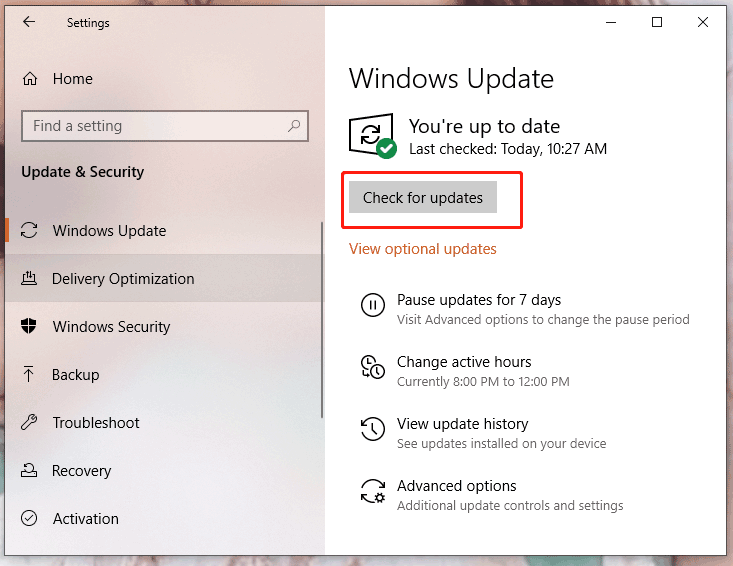
Step 5. The system will search, install and download the latest Windows version for you if you have an available update.
Fix 4: Disable Your Antivirus Temporarily
As reported, many of you may experience screen freezing, glitches and lags alike hence your antivirus software might regard Adobe CEF Helper.exe as a virus. In fact, it is not a virus at all. To solve Adobe CEF Helper.exe causing high CPU on Windows 10/11, what you should do now is to suspend your antivirus software.
Step 1. Right-click the taskbar to open Task Manager.
Step 2. In Processes, find all virus-related programs and right-click them one by one.
Step 3. Select End Task.
Step 4. Reboot your computer to examine if this workaround takes effect.
Fix 5: Uninstall Adobe CEF Helper
Uninstalling Adobe CEF Helper can also help to cope with Adobe CEF Helper.exe causing high CPU on Windows 10/11, but it is the least recommended solution unless you are sure that you don’t need Adobe CEF Helper anymore.
Step 1. Type file explorer beside the magnifier icon and open File Explorer.
Step 2. Copy and paste the following path:
C\:Program Files>Adobe Systems>Adobe CEF Helper or Adobe Creative Cloud >Adobe CEF Helper_uninstall.exe

Step 3. Double-click the executable to launch it and the system will uninstall Adobe CEF Helper for you.
Final Words
Now, you must have a full picture of how to deal with Adobe CEF Helper.exe causing high CPU on Windows 10/11. Welcome to tell us which fix works best for you in the comment section below.
About The Author
Aurelie is a passionate soul who always enjoys researching & writing articles and solutions to help others. Her posts mainly cover topics related to games, data backup & recovery, file sync and so on. Apart from writing, her primary interests include reading novels and poems, travelling and listening to country music.
Adobe cef helper как отключить
Reddit and its partners use cookies and similar technologies to provide you with a better experience.
By accepting all cookies, you agree to our use of cookies to deliver and maintain our services and site, improve the quality of Reddit, personalize Reddit content and advertising, and measure the effectiveness of advertising.
By rejecting non-essential cookies, Reddit may still use certain cookies to ensure the proper functionality of our platform.
For more information, please see our Cookie Notice and our Privacy Policy .