Dell E7250 User Manual
NOTE: A NOTE indicates important information that helps you make better use of your computer.
CAUTION: A CAUTION indicates either potential damage to hardware or loss of data and tells you how to avoid the problem.
WARNING: A WARNING indicates a potential for property damage, personal injury, or death.
Copyright © 2015 Dell Inc. All rights reserved. This product is protected by U.S. and international copyright and intellectual property laws. Dell ™ and the Dell logo are trademarks of Dell Inc. in the United States and/or other jurisdictions. All other marks and names mentioned herein may be trademarks of their respective companies.
1 Working on Your Computer.
Before Working Inside Your Computer .
Turning Off Your Computer .
After Working Inside Your Computer .
2 Docking Your Computer.
3 Removing and Installing Components.
Removing the Battery .
Installing the Battery .
Removing the Base Cover .
Installing the Base Cover .
Removing the mSATA SSD Card .
Installing the mSATA SSD Card .
Removing the WWAN Card .
Installing the WWAN Card .
Removing the WLAN Card .
Installing the WLAN Card .
Removing the Keyboard Trim .
Installing the Keyboard Trim .
Removing the Keyboard .
Installing the Keyboard .
Removing the Palmrest .
Installing the Palmrest .
Removing the SIM Board .
Installing the SIM Board .
Removing the Speakers .
Installing the Speakers .
Removing the Display-Hinge Cover .
Installing the Display-Hinge Cover .
Removing the Display Assembly .
Installing the Display Assembly .
Removing the System Board .
Installing the System Board .
Removing the Heatsink Assembly .
Installing the Heatsink Assembly .
Removing the Coin-Cell Battery .
Installing the Coin-Cell Battery .
System Setup Options .
Updating the BIOS .
System and Setup Password .
Assigning a System Password and Setup Password .
Deleting or Changing an Existing System and/or Setup Password .
Enhanced Pre-Boot System Assessment (ePSA) Diagnostics .
Device Status Lights .
Battery Status Lights .
7 Contacting Dell.
Working on Your Computer
Before Working Inside Your Computer
Use the following safety guidelines to help protect your computer from potential damage and to help to ensure your personal safety. Unless otherwise noted, each procedure included in this document assumes that the following conditions exist:
• You have read the safety information that shipped with your computer.
• A component can be replaced or—if purchased separately—installed by performing the removal procedure in reverse order.
WARNING: Disconnect all power sources before opening the computer cover or panels. After you finish working inside the computer, replace all covers, panels, and screws before connecting to the power source.
WARNING: Before working inside your computer, read the safety information that shipped with your computer. For additional safety best practices information, see the Regulatory Compliance Homepage at www.dell.com/regulatory_compliance
CAUTION: Many repairs may only be done by a certified service technician. You should only perform troubleshooting and simple repairs as authorized in your product documentation, or as directed by the online or telephone service and support team. Damage due to servicing that is not authorized by Dell is not covered by your warranty. Read and follow the safety instructions that came with the product.
CAUTION: To avoid electrostatic discharge, ground yourself by using a wrist grounding strap or by periodically touching an unpainted metal surface, such as a connector on the back of the computer.
CAUTION: Handle components and cards with care. Do not touch the components or contacts on a card. Hold a card by its edges or by its metal mounting bracket. Hold a component such as a processor by its edges, not by its pins.
CAUTION: When you disconnect a cable, pull on its connector or on its pull-tab, not on the cable itself. Some cables have connectors with locking tabs; if you are disconnecting this type of cable, press in on the locking tabs before you disconnect the cable. As you pull connectors apart, keep them evenly aligned to avoid bending any connector pins. Also, before you connect a cable, ensure that both connectors are correctly oriented and aligned.
NOTE: The color of your computer and certain components may appear differently than shown in this document.
To avoid damaging your computer, perform the following steps before you begin working inside the computer.
1. Ensure that your work surface is flat and clean to prevent the computer cover from being scratched.
2. Turn off your computer (see Turning off Your Computer).
3. If the computer is connected to a docking device (docked), undock it.
CAUTION: To disconnect a network cable, first unplug the cable from your computer and then unplug the cable from the network device.
4. Disconnect all network cables from the computer.
5. Disconnect your computer and all attached devices from their electrical outlets.
6. Close the display and turn the computer upside-down on a flat work surface.
NOTE: To avoid damaging the system board, you must remove the main battery before you service the computer.
7. Remove the main battery.
8. Turn the computer top-side up.
9. Open the display.
10. Press the power button to ground the system board.
CAUTION: To guard against electrical shock, always unplug your computer from the electrical outlet before opening the display.
CAUTION: Before touching anything inside your computer, ground yourself by touching an unpainted metal surface, such as the metal at the back of the computer. While you work, periodically touch an unpainted metal surface to dissipate static electricity, which could harm internal components.
11. Remove any installed ExpressCards or Smart Cards from the appropriate slots.
Turning Off Your Computer
CAUTION: To avoid losing data, save and close all open files and exit all open programs before you turn off your computer.
1. Shut down the operating system:
• In Windows 8 (touch-enabled device):
1. Swipe in from the right edge of the screen, opening the Charms menu and select Settings.
2. Select the  and then select Shut down.
1. Point to upper-right corner of the screen and click Settings.
2. Click the  and select Shut down.
1. Click Start  .
.
2. Click Shut Down.
1. Click Start  .
.
2. Click the arrow in the lower-right corner of the Start menu as shown below, and then click
Shut Down 
2. Ensure that the computer and all attached devices are turned off. If your computer and attached devices did not automatically turn off when you shut down your operating system, press and hold the power button for about 6 seconds to turn them off.
After Working Inside Your Computer
After you complete any replacement procedure, ensure you connect any external devices, cards, and cables before turning on your computer.
CAUTION: To avoid damage to the computer, use only the battery designed for this particular Dell computer. Do not use batteries designed for other Dell computers.
1. Connect any external devices, such as a port replicator or media base, and replace any cards, such as an ExpressCard.
2. Connect any telephone or network cables to your computer.
CAUTION: To connect a network cable, first plug the cable into the network device and then plug it into the computer.
3. Replace the battery.
4. Connect your computer and all attached devices to their electrical outlets.
Dell Latitude E7250-7250 Laptop Network Driver
Dell Latitude E7250-7250 Laptop Network Driver for windows 7 8 8.1 10

Driver Installation (via Win Zip) with Network driver.exe File for Dell Latitude E7250-7250 Laptop Network Driver.EXE
Dell Latitude E7250-7250 Laptop Network Driver Download
1.Click Network driver Download from below link to download the Network driver setup file.
2.When the Network File Download window opens, click Save the driver file to disk and click OK.
3.From the file Save In: field, click the down arrow then click to
select Desktop and click Save. The Network file will download to your desktop.
4.After the Network driver file, Download Complete window appears, click Close. The setup file
icon will be on your desktop.
Dell Latitude E7250-7250 Laptop Dell Wireless 380 1550 1560 Bluetooth Driver for windows 10 32 bit Download (180.99 MB)
Dell Latitude E7250-7250 Laptop Dell Wireless 1550 1560 WiFi Driver for windows 10 32 bit Download (99.17 MB)
Dell Latitude E7250-7250 Laptop Intel Device Manager Diagnostics DMIX Driver for windows 10 32 bit Download (24.28 MB)
Dell Latitude E7250-7250 Laptop Intel I2xx 825xx Gigabit Ethernet Network Controller Drivers for windows 10 32 bit Download (34.06 MB)
Dell Latitude E7250-7250 Laptop Dell Wireless 1707 1506 1601 WiFi Bluetooth Driver for windows 10 32 bit Download (97.71 MB)
Dell Latitude E7250-7250 Laptop Intel 17265 7265 3165 7260 3160 WiFi Driver for windows 10 32 bit Download (163.18 MB)
Dell Latitude E7250-7250 Laptop Intel 18260 17265 8260 7265 3165 WiFi Driver for windows 10 64 bit Download (181.72 MB)
Dell Latitude E7250-7250 Laptop Dell Airplane Mode Switch Driver for windows 10 64 bit Download (6.01 MB)
Dell Latitude E7250-7250 Laptop Dell Wireless 1560 1550 1540 WiFi Driver for windows 10 64 bit Download (39.61 MB)
Dell Latitude E7250-7250 Laptop Intel 17265 18260 WiGig Application Driver for windows 10 64 bit Download (103.12 MB)
Dell Latitude E7250-7250 Laptop Dell Wireless 1802 1707 1601 WiFi Bluetooth Driver 1506 WiFi Driver for windows 10 64 bit Download (115.41 MB)
Dell Latitude E7250-7250 Laptop Intel 8260 7265 3165 7260 Bluetooth Driver for windows 10 64 bit Download (21 MB)
Dell Latitude E7250-7250 Laptop Dell Wireless 380 1550 1560 Bluetooth Driver for windows 10 64 bit Download (180.99 MB)
Dell Latitude E7250-7250 Laptop Intel I2xx 825xx Gigabit Ethernet Network Controller Drivers for windows 10 64 bit Download (34.06 MB)
Dell Latitude E7250-7250 Laptop Intel Device Manager Diagnostics DMIX Utility Driver for windows 10 64 bit Download (25.39 MB)
Dell Latitude E7250-7250 Laptop Intel 7265 3165 Bluetooth Application Driver for windows 10 64 bit Download (19.47 MB)
Dell Latitude E7250-7250 Laptop Intel 17265 18260 WiGig Application Driver for windows 8 8.1 Download (103.13 MB)
Dell Latitude E7250-7250 Laptop Intel 18260 17265 8260 7265 3165 WiFi Driver for windows 8 8.1 Download (213.23 MB)
Dell Latitude E7250-7250 Laptop Intel 8260 7265 3165 7260 Bluetooth Driver for windows 8 8.1 Download (20.58 MB)
Dell Latitude E7250-7250 Laptop Intel Device Manager Diagnostics DMIX Utility Driver for windows 8 8.1 Download (26.12 MB)
Dell Latitude E7250-7250 Laptop Intel I2xx 825xx 10 100 1000 Ethernet Network Drivers for windows 8 8.1 Download (30.03 MB)
Dell Latitude E7250-7250 Laptop Dell Wireless 1550 1560 WiFi Bluetooth Driver for windows 8 8.1 Download (260.34 MB)
Dell Latitude E7250-7250 Laptop Dell Wireless 1802 1707 1601 1506 WiFi Bluetooth Driver for windows 8 8.1 Download (280.38 MB)
Dell Latitude E7250-7250 Laptop Intel 7265 7260 3160 WiDi Utility Driver for windows 8 8.1 Download (141.68 MB)
Dell Latitude E7250-7250 Laptop Intel 7265 3165 Bluetooth Application Driver for windows 8 8.1 Download (18.97 MB)
Dell Latitude E7250-7250 Laptop Dell Airplane Mode Switch Driver for windows 8 8.1 Download (6.35 MB)
Dell Latitude E7250-7250 Laptop Intel 18260 17265 8260 7265 3165 WiFi Driver for windows 7 32 bit Download (150.57 MB)
Dell Latitude E7250-7250 Laptop Intel 18260 17265 8260 7265 7260 3165 Bluetooth Driver for windows 7 32 bit Download (45.37 MB)
Dell Latitude E7250-7250 Laptop Dell Wireless 1802 1707 1601 1506 WiFi Bluetooth Driver for windows 7 32 bit Download (308.59 MB)
Dell Latitude E7250-7250 Laptop Intel 17265 18260 WiGig Application Driver for windows 7 32 bit Download (103.13 MB)
Dell Latitude E7250-7250 Laptop Intel Device Manager Diagnostics DMIX Utility Driver for windows 7 32 bit Download (24.90 MB)
Dell Latitude E7250-7250 Laptop Intel I2xx 825xx 10 100 1000 Ethernet Network Drivers for windows 7 32 bit Download (30.03 MB)
Dell Latitude E7250-7250 Laptop Dell Wireless 1550 1560 WiFi Bluetooth Driver for windows 7 32 bit Download (364.55 MB)
Dell Latitude E7250-7250 Laptop Intel 7265 7260 3160 WiDi Utility Driver for windows 7 32 bit Download (141.68 MB)
Dell Latitude E7250-7250 Laptop Intel 7265 3165 Bluetooth Application Driver for windows 7 32 bit Download (44.66 MB)
Dell Latitude E7250-7250 Laptop Intel 18260 17265 8260 7265 3165 WiFi Driver for windows 7 64 bit Download (168.84 MB)
Dell Latitude E7250-7250 Laptop Intel 18260 17265 8260 7265 7260 3165 Bluetooth Driver for windows 7 64 bit Download (48.15 MB)
Dell Latitude E7250-7250 Laptop Dell Wireless 1802 1707 1601 1506 WiFi Bluetooth Driver for windows 7 64 bit Download (308.59 MB)
Dell Latitude E7250-7250 Laptop Intel 17265 18260 WiGig Application Driver for windows 7 64 bit Download (103.13 MB)
Dell Latitude E7250-7250 Laptop Intel Device Manager Diagnostics DMIX Utility Driver for windows 7 64 bit Download (26.12 MB)
Dell Latitude E7250-7250 Laptop Intel I2xx 825xx 10 100 1000 Ethernet Network Drivers for windows 7 64 bit Download (30.03 MB)
Dell Latitude E7250-7250 Laptop Dell Wireless 1550 1560 WiFi Bluetooth Driver for windows 7 64 bit Download (364.55 MB)
Dell Latitude E7250-7250 Laptop Intel 7265 7260 3160 WiDi Utility Driver for windows 7 64 bit Download (141.68 MB)
Dell Latitude E7250-7250 Laptop Intel 7265 3165 Bluetooth Application Driver for windows 7 64 bit Download (47.23 MB)
1.Double-click the new icon on the desktop mark Dell Latitude E7250-7250 Laptop Network Driver.EXE.
2.The Self-Extracting window appears and prompts you to extract or
unzip to C:DELLDRIVERS create an Network driver folder. open this path to access application setup
3.After finishing the Dell Latitude E7250-7250 Laptop Network Driver extraction, if the self Extractor
window is still open, close it.
4.browse for C:DELLDRIVERS Network folder.
5.open the folder inside Network driver folder
6.run the setup to began the installation
7.Follow the on-screen installation instructions finish .
Dell e7250 как поставить модуль трм

Loading Latitude E7250 Memory, Please Wait.
Dell Latitude E7250 Laptop Memory Questions.
What type of memory does the Dell Latitude E7250 Laptop take?
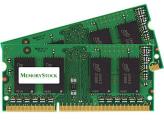
The Dell Latitude E7250 Laptop takes the DDR3L PC3L-12800 1600 MHz SODIMMs memory type, and comes installed with 4 GB memory.
How much memory does the Dell Latitude E7250 Laptop take?
You can upgrade your Dell Latitude E7250 Laptop to up to a maximum memory capacity of 16 GB Memory.
How many total memory slots to install memory?
The Laptop has 2 Slots to install memory, already with 4 GB standard memory installed. For best Latitude E7250 Laptop performance use the maximum amount of 16 GB, fill all the slots with the max allowed memory per slot for your Laptop.
What is the warranty on these memory? What if the memory is not compatible?
We give a guarantee that these memory will be compatible on your Latitude E7250 Laptop. If you have any issues, we provide you with a life-time replacement warranty . We have a 14 days return policy , and you can return the memory if you are not satisfied.
Do you have these memory in stock? What shipping options do you provide?
All memory listed here are in stock. We ship your memory the same day we receive your order. We ship via FedEx and USPS. We have fast and cheap shipping options available. Receive this memory by tomorrow, choose guaranteed FedEx one-day delivery option (place your order before 3PM PST). Check all the shipping options and rates we provide.
Why choose MemoryStock for your memory?
We have been shipping memory RAM since 1999. When it comes to Laptop memory, quality and compatibility are important. Generic memory suppliers do not ensure memory compatibility. When you place an order with us, it goes through a 3-step process 1) Memory Compatibility Check 2) Memory Quality Check 3) Quality Shipment Packaging. We make sure the memory you receive is top quality and 100% compatible with your Laptop. Our expert after sales team provides you with support for installation and troubleshooting anytime you require it.
Our customers can’t be wrong.
How to upgrade, install or replace memory on Latitude E7250 Laptop?
Installing memory on a Laptop is quick and easy. Please check this Dell Laptop Memory Installation Video, this is a generic memory installation procedure for Dell Laptop. For more help on adding extra memory on Latitude E7250 contact our live support.
Dell Latitude E7250 MB ZBZ00 LA-A971P Rev 1.0 Bios Bin
Dell Latitude E7250 MB ZBZ00 LA-A971P Rev 1.0 Bios Bin. You can find various types of Bios at our site. You can download it freely and easily without any difficulty of tough registration. Our all Bios are 100% working. Here, you will download LA-A971P Rev 1.0 motherboard bios dump file in just only one click. There are various websites that will ask you to first register or pay for downloading the Bios. But, at our site, you are free from all these useless things.
What is Bios?
Generally, it is a computer program that helps in starting your pc after turning it on. It is an important and integral part of the computer system. Bios manage all the data flow in your computer system. It is installed on the EEPROM Ic. The basic advantage of installing the Dell Latitude E7250 MB ZBZ00 LA-A971P Rev 1.0 bios bin file is that you can repair your dead laptop. After every try of repairing up your laptop, try to install new bios in it. Surely, it will start working again. Programme the EEPROM Ic through a programmer with a particular bios bin file. If your laptop is password protected, you can unlock the password by programming the EEPROM chip with new bios dump file.
If your desired Bios is not on our list, just inform us. We will try to update as soon as possible.
Point To Ponder:-
– It is to be noted that when you search for your particular Bios; Search the Bios with respect to the mother part number. Many people install the Bios by following up the laptop or motherboard model number, which is not the right way. By doing this, you will not find the right Bios for your laptop and it will also not work.
– If our any Bios do not work, please let us know by commenting at forum.laboneinside.com ; And, if you have any Bios please share it with us at forum.laboneinside.com . So that your little step might resolve someone problem.
The link for downloading the LA-A971P Rev 1.0 motherboard bios bin file is given. By clicking the button, you will be redirected to the link of the bios dump file.