What is the Logitech Download Assistant & How to Disable it?

If you see the Logitech download assistant appearing on the computer screen time and again, there can be many reasons for it, like the associated drivers getting auto-installed and auto-updated.
The program emerging on the screen after system startups also gets very annoying as it uses the system resources.
This article aims to help you deal with LDA issues. Read on.
Know More About Logitech Products And Software
Many companies in the market have emerged that manufacture cutting-edge hardware for computer systems. Logitech is one of them, and they produce certain computer accessories that are best buys.
Be it a mouse, keyboards, headsets, or webcams; there are so many other products by Logitech that have managed to win the trust of millions of users worldwide.
The best thing is that many of these products are accompanied by software called the Logitech download assistant.
This software helps you to download whatever updates are launched for the concerned updates during the Windows startup. You can automatically update your hardware, like the mouse and keyboard.
PS: If your MacBook camera is not working, don’t worry; here are the top solutions.
The Reasons Behind the Logitech Download Assistant Popping up
We thoroughly and carefully studied the user reports and their experiences regarding the various repair strategies they adopted.
We found that many reasons are associated with the LDA window issue. Let us tell you the major ones.
- Notifications related to the new updates: As it turned out from a lot of cases, the issue can be a result of the situation where any new update might be launched for the Logitech device that you are using. All those users who were facing a similar grievance said that they were able to fix the issue by removing the file altogether from the system directory or just by disabling its startup option.
- Notification for software installation suggestions: Sometimes, you might also face the issue due to the LDA window popping up for giving suggestions regarding any optional or related software that needs to be downloaded for the Logitech package installed on the system.
Now we will talk about the possible ways you can try to fix the issue of LDA blocking the screen.
You need to know that disabling the application or even uninstalling it wouldn’t cause any problems or hinder the functioning of the Logitech devices that you are using. The application is a mere utility provider related to the updates.
Disable the Logitech Download Assistant from the Startup
It’s always good to start with simple solutions when you are going to troubleshoot any program.
We will follow the same approach and start by giving you the easiest method to help you eliminate the problem of the Logitech assistant opening up whenever the system starts.
The reason behind this issue is that sometimes the Startup option gets enabled without you having any knowledge of it.
The task manager has the startup tab that displays a list containing all the applications that have permission for self-startup on the PC that you are using.
If you find that the LDA program is there on the list, then you will have to proceed with disabling the program from starting up through the Task Manager itself.
You need to follow the steps given below to do that:
1. Press the keys Windows + R together to launch the Run dialogue box open. Now enter the command taskmgr in the popped-up box. Hit the button OK to open the Task Manager window finally.
2. Hit the Startup tab. Search for the program Logitech Download Assistant. Upon finding the option, hit a right-click over it and then click on the tab Disable.

3. Reboot the PC.
Now see if the LDA pop-up is still appearing on the screen or if it is gone.
Besides, let’s unravel the steps on how to screenshot on a Logitech keyboard. This all-inclusive guide walks you through the essentials of screenshot capture, ensuring a smooth and productive digital experience.
Disable the Logitech Download Assistant from the Windows Settings
If the above method wasn’t the right solution for you, then the cause behind it might be a different one.
A lot of user reports suggested that they were able to get rid of the issue of LDA starting up by turning the notifications of the LDA application off. They did this by opening the Windows settings.
We suggest you check the Notifications & actions settings of Windows for the program LDA.
If you see that the application is turned on in the given list, you may turn the notifications off.
This will help you prevent Windows from showing the application to the user:
1. Press the keys Windows + I together to launch the computer’s Settings. You will see the option of the System and click over it.

2. Look at the left window pane, and you will see the option of Notifications & actions. Click on that option. Now navigate through the list and find the option of the LDA program.
3. If the toggle bar next to the Logitech option (if you find it in the list) is turned on, then slide the bar to turn it off. This will prevent the notifications related to the particular option from popping up.

4. Reboot the PC.
While the system starts now, see if the LDA pops up again. If it doesn’t, then the method worked for you. If it does, then move to the next step.
Also, if you didn’t happen to see the option present in the list of settings, then the reason was different, and you have to try another option.
Delete the File Named LogiLDA.dll from the Folder System32
This method will work for you if nothing else works. We will proceed with a method where we will delete the file LogiLDA.dll, which is present in the folder System32.
This will help prevent the Logitech download assistant from opening up after the Startup. The users who tried this method shared their experience and said that removing the file from the system made no big difference or even generated any issues with the main module of the Logitech program.
The only drawback associated with this solution is that once you delete the said file, all the products of Logitech will only get updated when you do the task manually.
Follow the given steps below to delete the file:
- Press the keys Windows + E to launch the window of File Explorer.
- You will need to find the file LogiLDA.dll in the following directory by entering the address – C:\Windows\System32.
- Upon finding the file, hit a right-click over it. Then click the option of Delete.
- Restart the PC.
In all probabilities, the Logitech download assistant window will stop popping up after your system starts.
Remove or Deactivate the Logitech Download Assistant
Follow the steps given below:
- Open the Start menu. Select the option of the Computer.
- Hit Manage, and this will lead you to the Device Manager.
- Under the HID or Human Interface Devices, find the entry of Logitech.
- Hit right-click over the option and click Properties.
- Open the tab Driver and then hit the button Uninstall. A prompt will come up that will ask you to decide if you want to remove the related drive files too.
- Tick the option for a yes. This will not let Windows reinstall the software ever again automatically.
- Go back to Device Manager and right-click over your computer’s name. Select the option Check for Hardware changes.
This will finally make Windows install the Windows default driver and remove the LDA altogether. You must know that you may have to perform this method separately for the various Logitech drivers.
Delete the Key of Logitech Download Assistant in the Registry
This is one very effective method to try, and the steps for doing it are as follows-
1. Press the keys Windows + R to launch the Run box.
2. Enter the command regedit. Hit OK.

3. Now enter the following address into the Registry Editor Text box
4. Hit a right-click over the button of Logitech Download Assistant and then finally click Delete.

FAQs (Frequently Asked Questions)
Q1. Will disabling Logitech Download Assistant prevent me from receiving important updates for my Logitech devices?
No, disabling Logitech Download Assistant will not prevent you from receiving important updates. You can still manually download and install the latest drivers and software updates from the Logitech website or use alternative methods like Logitech G HUB or Windows Device Manager.
Q2. Can I re-enable Logitech Download Assistant after disabling it?
Yes, if you change your mind or want to revert to automatic updates, you can re-enable Logitech Download Assistant. Simply follow the same steps mentioned earlier in this article and enable the automatic updates feature for your Logitech devices.
Q3. Is Logitech Download Assistant compatible with all Logitech devices?
Logitech Download Assistant is designed to work with most Logitech devices that require software and driver updates. However, it’s always a good idea to check the specific requirements and compatibility of your Logitech device on the Logitech website.
Q4. Does Logitech Download Assistant run in the background all the time?
Yes, Logitech Download Assistant runs in the background to check for updates periodically. However, it consumes minimal system resources and should not significantly impact the performance of your computer.
Q5. Can I uninstall Logitech Download Assistant?
Logitech Download Assistant is typically installed alongside Logitech’s main software, and it doesn’t have a separate uninstallation option. If you uninstall the Logitech software, Logitech Download Assistant will be removed along with it.
Conclusion
We hope that any of these solutions will definitely get you success in dealing with the Logitech Download Assistant that keeps emerging on the post-startup screen on the system.
Choose whatever works for you by deleting the drivers, stopping auto-update, or disabling the program altogether.
Ten years of experience in information and computer technology. Passionate about electronic devices, smartphones, computers, and modern technology.
Logitech download assistant что это?
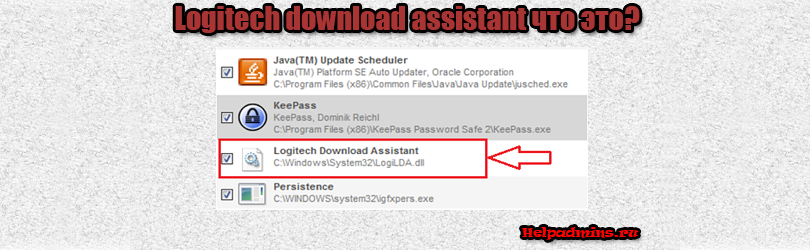
Что такое Logitech download assistant и можно ли его удалить?
Asrock Motherboard Utility что это?
Intel Computing Improvement Program что это?
Среда выполнения Microsoft Edge WebView2 Runtime что это?
Что такое Logitech download assistant в автозагрузке?
Некоторые пользователи обнаруживают в автозагрузке своего компьютера программу с именем Logitech download assistant. После этого возникают вполне уместные вопросы о ее назначении и возможности отключения из автозагрузки, чтобы компьютер загружался быстрее.
В данной статье мы расскажем вам что представляет из себя Logitech download assistant и можно ли его убирать из автозагрузки.
Для чего нужен Logitech download assistant?
Данное приложение, как правило, присутствует на компьютерах или ноутбуках, в которых установлено или было установлено оборудование фирмы Logitech. Чаще всего это мышки, клавиатуры или веб камеры.
Очень часто с устройством идет установочный диск, где находятся программы для него.
Если говорить о мышках и клавиатурах, то это приложения, которые активируют и позволяют переназначать дополнительные функциональные клавиши.
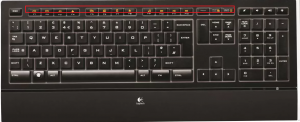
Функциональные клавиши на клавиатуре Logitech
Если говорить о веб камере, то это различные фирменные утилиты по обработке изображений и фото с веб камеры.
Так вот Logitech download assistant это одно из таких фирменных приложений, которое следит за наличием обновлений драйверов и этих самых программ для своих устройств. В нашем случае от фирмы Logitech.
Оно при включении компьютера сверяется в официальными серверами обновлений и в случае их обнаружения выдает соответствующее уведомление.
Можно ли отключать Logitech download assistant?
Если у вас нет мышек, клавиатур и веб камер от производителя Logitech, то убирать Logitech download assistant из автозагрузки не просто можно, но и нужно.
Если же у вас имеются устройства данного производителя, то отключив Logitech download assistant ничего страшного не произойдет. Просто, скорее всего не будут проверяться обновления.
В любом случае попробовать можно и если что – либо перестанет работать, то всегда можно повторно зайти в автозагрузку и активировать Logitech download assistant.
Как удалить Logitech Download Assistant из автозагрузки
Logitech Download Assistant — одна из самых раздражающих программ, которая появляется при каждом запуске и обычно не влияет на ваш компьютер. Несколько пользователей смотрят, смогут ли они удалить Logitech Download Assistant из автозагрузки.
Logitech Download Assistant — удобное программное обеспечение для тех, кто использует аксессуары Logitech. Он специально разработан для обнаружения и обновления программ Logitech, установленных на ПК. Ему удается поддерживать все программное обеспечение Logitech в актуальном состоянии, обеспечивая максимальную доступность при использовании таких устройств Logitech, как мышь, клавиатуры, геймпад, динамики Bluetooth и т. Д.
Удаление Logitech Download Assistant из автозагрузки — не сложная задача, однако большинству пользователей сложно удалить помощник загрузки. Однако мы исследуем вопрос, почему пользователь хочет удалить эту программу со своего ПК.

-
1 Удалите Logitech Download Assistant из автозагрузки
- Прежде всего, вам нужно нажать и удерживать Окна + р кнопка, чтобы открыть поле поиска Run prompt .
- Теперь просто заполните Taskmgr в текстовом поле поиска и нажмите В ПОРЯДКЕ кнопка. Это откроет Диспетчер задач .

- После этого нужно переключиться на Вкладка «Автозагрузка». Затем найдите значок « Помощник загрузки Logitech “ , и щелкните его правой кнопкой мыши. Затем в раскрывающемся меню выберите Запрещать вариант.
- Наконец, когда вы успешно выполните описанные выше шаги, вам необходимо перезагрузить компьютер, а затем проверить, появляется ли всплывающее окно Logitech Download Assistant при запуске или нет.
- Изначально нужно нажать и удерживать кнопку Ключ Windows + Я ключ одновременно, чтобы открыть настройки Windows и перейти к « Системный вариант. “
- После этого нужно навести курсор на Уведомления и действия и прокрутите вниз, чтобы найти Logitech из списка.
- Поэтому, если вы найдете его в списке, вы можете переключить кнопку на Выключенный уведомления.
- Теперь перезагрузите компьютер и проверьте, появляется ли Logitech Download Assistant при запуске или нет.
- Во-первых, вам нужно зайти в свой Проводник используя Windows + E кнопка.
- Теперь просто узнайте LogiLDA.dll Файл из C: \ Windows \ System32 .
- После этого щелкните правой кнопкой мыши по LogiLDA.dll Файл и выберите Удалить вариант из раскрывающегося списка.
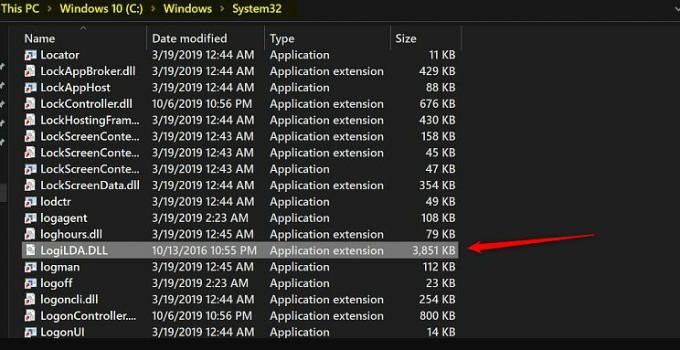
- Наконец, перезагрузите компьютер и посмотрите, будет ли больше отображаться окно LDA при запуске или нет.
- В первую очередь нужно зажать и нажать клавиша Windows + I кнопка одновременно, чтобы открыть окна Настройки .
- После этого просто перейдите к Вкладка «Приложения» . Это приведет вас к списку установленных приложений на вашем ПК. В этом списке вам нужно выбрать Logitech Download Assistant.
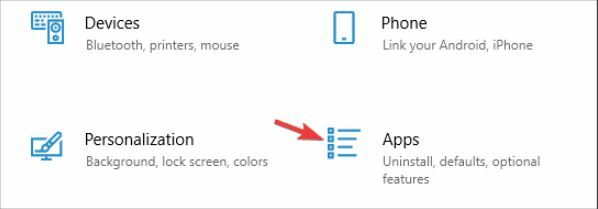
- В раскрывающемся меню вы просто выбираете Удалить возможность стереть его с вашего ПК с Windows.
- Press Windows + R key to launch the Run option.
- Type ‘taskmgr’ and press ok, or press enter.
- This will launch the Task Manager. Go to the Startup Tab. Find ‘Logitech Download Assistant’ from the options.
- Right-click on it and click on Disable.
- Go to Windows settings. You can search for it in the search bar or press Windows + I keys.
- Then go to ‘Notifications & Actions’
- Find Logitech Download Assistant from the list and disable it setting.
- All you need to do is switch it off.
- Go to the File Explorer. It is located at the bottom. If you can’t find it, press Windows + E. This will launch File Explorer.
- Now follow with the directory – C:/Windows/System32.
- There, you will find a Logitech folder. You can use the search bar given in the top-right corner. Type ‘LogiLDA.dll’ to find the file.
- Once you find it, you can right-click LogiLDA.dll and delete it. You can also press SHIFT + Delete to permanently delete it.
- Go ahead and restart your windows.
-
1.1 Шаг 1. Отключите помощник загрузки Logitech при запуске
Удалите Logitech Download Assistant из автозагрузки
В новом обновлении добавлен Уведомление о новых обновлениях и Предложение по установке сопутствующего программного обеспечения. Эти две функции раздражают, и пользователь сталкивается с любой проблемой. Итак, мы советуем вам следовать приведенным ниже методам, чтобы удалить Logitech Download Assistant из автозагрузки. Посмотрим как.
Шаг 1. Отключите помощник загрузки Logitech при запуске
Это один из простых способов полностью остановить запуск Logitech Download Assistant при запуске. Все, что вам нужно сделать, это выполнить простые шаги, указанные ниже:
Шаг 2. Отключите помощник загрузки Logitech в настройках
Многие пользователи сообщили, что успешно решают проблему, просто отключив уведомление для LDA в настройках Windows. Вы можете попробовать один раз и этот процесс. Итак, чтобы отключить помощник загрузки Logitech в настройках, вам необходимо выполнить следующие действия:
Шаг 3: удалите файл LogiLDA.dll в System32
Шаг 4. Удалите Logitech Download Assistant.
Заключение
Наличие автоматизированного инструмента для проверки драйверов мыши и клавиатуры Logitech иногда может быть довольно удобным. Однако это может быть очень неприятно, когда вы работаете, смотрите фильмы или другие развлечения. Вот почему важно избавиться от таких инструментов и удалить помощника загрузки. Поскольку вы можете вручную обновлять драйверы через обновление Windows, вам не нужно беспокоиться об устаревших драйверах.
How to Disable Logitech Download Assistant Startup
Before you get to the task, it is essential to understand if you should. What is Logitech Download Assistant? Do cons outweigh the pros? Users report that it slows down the computer and it is better to install updates manually. So, how can you remove LDA? Let’s begin immediately:
What Is Logitech Download Assistant?
Logitech Download Assistant is a remarkable utility tool. If you use Logitech hardware, you will gain access to the Logitech download assistant. It collects relevant information about the devices to provide you the latest updates. What are these updates?
These can be driver updates for the hardware you’re using. For example, if you use a keyboard and mouse, you will get updates. Similarly, you will also get updates if you are using Logitech software.
Logitech Download Assistant: Pros and Cons

The best way to remove the LDA is by accessing the Control Panel. You will find the software installed list in the Programs. There, you can go and right-click the LDA and click Uninstall. It’s that easy for you to do.
There is no need for you to access settings or any other thing. But remember, this will completely uninstall the software from your system. If you don’t want to do that, but change a couple of things, you can try another method.
Given below is the list of fixes you can use for LDA. It covers everything from disabling the notifications to getting rid of the automatic features. Let’s give it a go:
Disable Logitech Download Assistant in Startup
The main problem with the Logitech download assistant is the startup pop-up. It shows a pop-up and is also launched with each startup. Thus, it can hinder a lot of other processes and take a load on booting. You can check the Task Manager and find the startup tab there to see all the apps that launch with it.
Follow these steps to disable LDA startup from Task Manager:
Now all you need to do is reboot the system and see if it works.
Disable Logitech Download Assistant Notification

Are you not looking to disable the Logitech Download Assistant? Maybe you just want to disable the notifications. You can conveniently do it and also make things easier for yourself.
Follow these options:
Remember, this option won’t disable the download assistant. It will only disable the notifications. The program will still run in the background.
Delete the LogiLDA.dll file in System32

LDA window will still work with the startup. It will still pop up and that can be problematic. Can you remove LDA thoroughly? Use the uninstall feature of the programs in the Control Panel.
If you don’t want to do that, you can also delete the LogiLDA.dll file in System32. It won’t impact your system performance. But remember, any automatic feature will stop. You will have to go through a manual process to update any driver for the keyboard, mouse, monitor, etc.
This should fix the start-up pop-up error.
Abdul Rahim has been working in Information Technology for over two decades. Learn how Abdul got his start as a Tech Blogger , and why he decided to start this Software blog. If you want to send Abdul a quick message, then visit his contact page here.