How to Read SD card Serial Number from Windows 11, 10, 8, And 7
Please refer to this page to learn more about SD card serial number and how to read SD card Serial number from Windows without formatting.
By Dervish  / Last Updated May 12, 2023
Navigate Content
What is SD card serial number?
SD card serial number is a string of codes that are automatically created when the card is originally produced or during the processing of formatting the SD card for identifying this device.
An SD serial number needs not be strictly numerical and probably consisted of numbers, letters, and special symbols. In addition to SD card, many other storage devices, such as HDD, SSD, and USB flash drives, also have serial numbers.
Sometimes, you may need to know what your SD card serial number is so that make full use of your GPS, smartphone, and other devices. Well, you can read SD card number from Windows. Next, lets us see how to get SD card serial number on Windows 11, 10, 8, and 7.
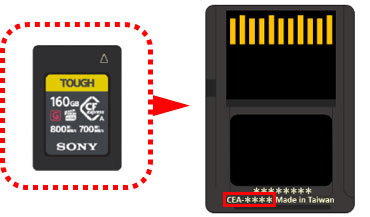
How to read SD card serial number from Windows
First of all, connect the SD card to the computer and make sure it can be detected. If there is no SD card slot on the computer, you need to prepare an SD card reader. Then, connect it to your computer.
Step 1. Press «Windows + R«, type in «cmd» and click «OK» to open the Command Prompt.
Step 2. Type “dir d:(d is the drive letter)” and press Enter. Then, you can read the SD card serial number on the following result.
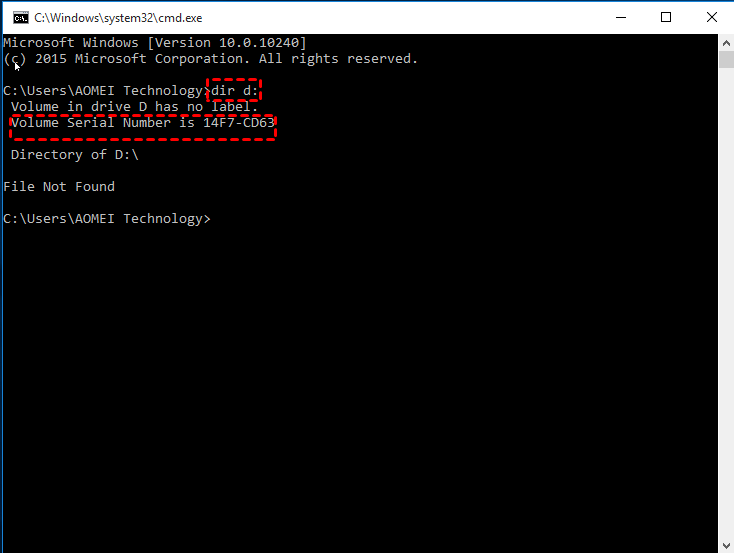
Warning: The Command Prompt is a professional built-in disk management tool, please type the commands line shown in the guide exactly, otherwise there will be a risk of data loss.
How to read/change SD card serial number easily and safely
Sometimes, you may need to change SD card serial number. As mentioned above, you need to format your SD card to reassign it a serial number by Windows, but you will lose all data on this SD card.
Fortunately, here is a GUI tool for you-AOMEI Partition Assistant Professional, whose easy-to-use interface allows you to easily change or read SD card number without formatting. It is compatible with Sandisk SD card, Samsung SD card, Sony SD card, Kingston SD card and others.
Meanwhile, it also has other functions to help you manage SD card more flexibly, such as removing write protection on SD card, wiping SD card completely, checking SD card for errors, copying SD card to SD card, recovering lost data on SD card, etc. You can download its Demo version and follow these steps to see how to operate it.
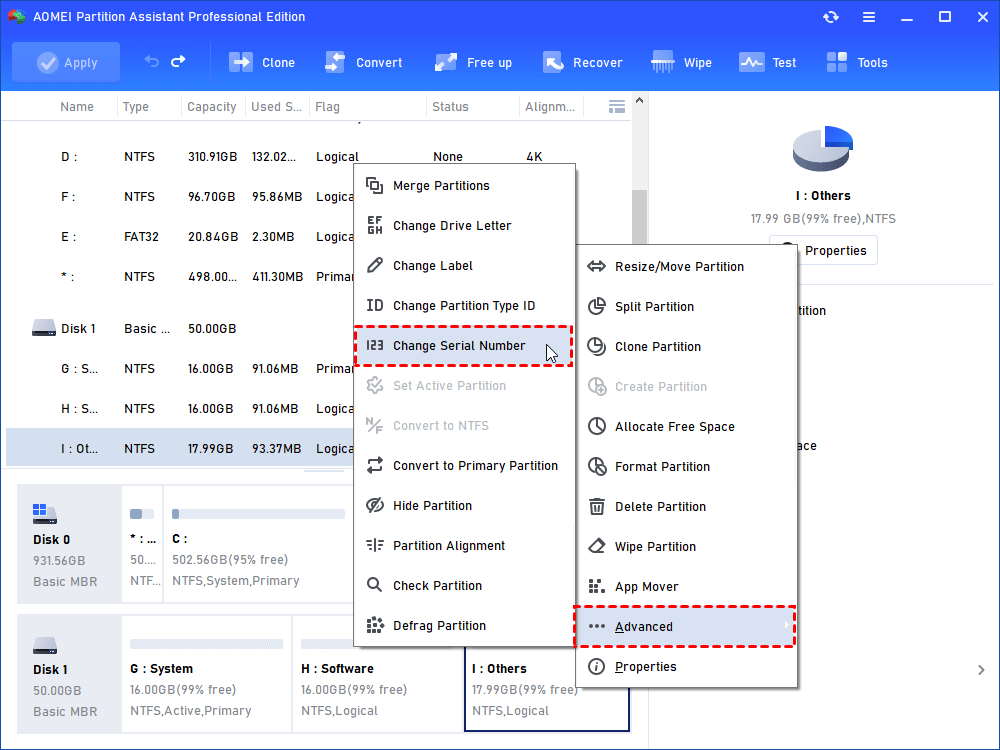
Step 1. Connect the SD card to the computer with the SD adapter, and open AOMEI Partition Assistant Professional. Right-click the SD card and click “Advanced” > “Change Serial Number”.
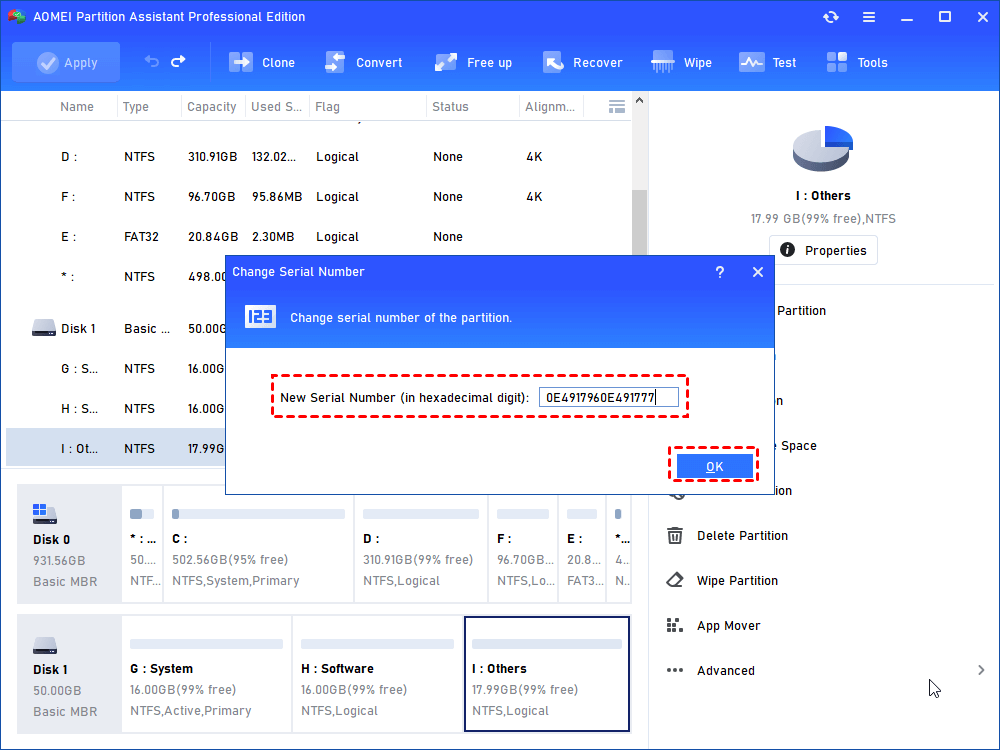
Step 2. And in the pop-up window, the serial number (the last 8 letters and numbers) will be shown in the box. And you can also edit a string of numbers to change the serial number.
Step 3. Then click “Apply” on the left top of the main interface.
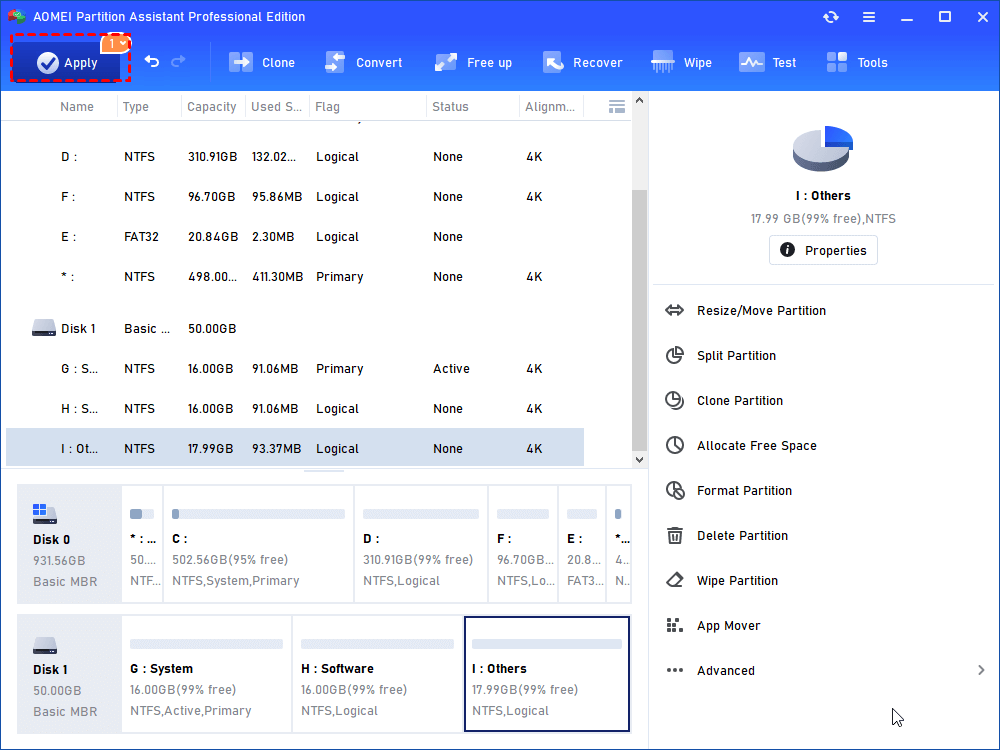
Just wait for a second, the serial number of your SD card will be changed.
Bonus tip: Recover lost files on the SD card
If you accidentally format an SD card and don’t have a backup, then you are likely to lose important data. Please don’t worry, the «Recover Data» function of AOMEI Partition Assistant Professional supports recovering all types of files on your SD card, including videos, audio, photos.
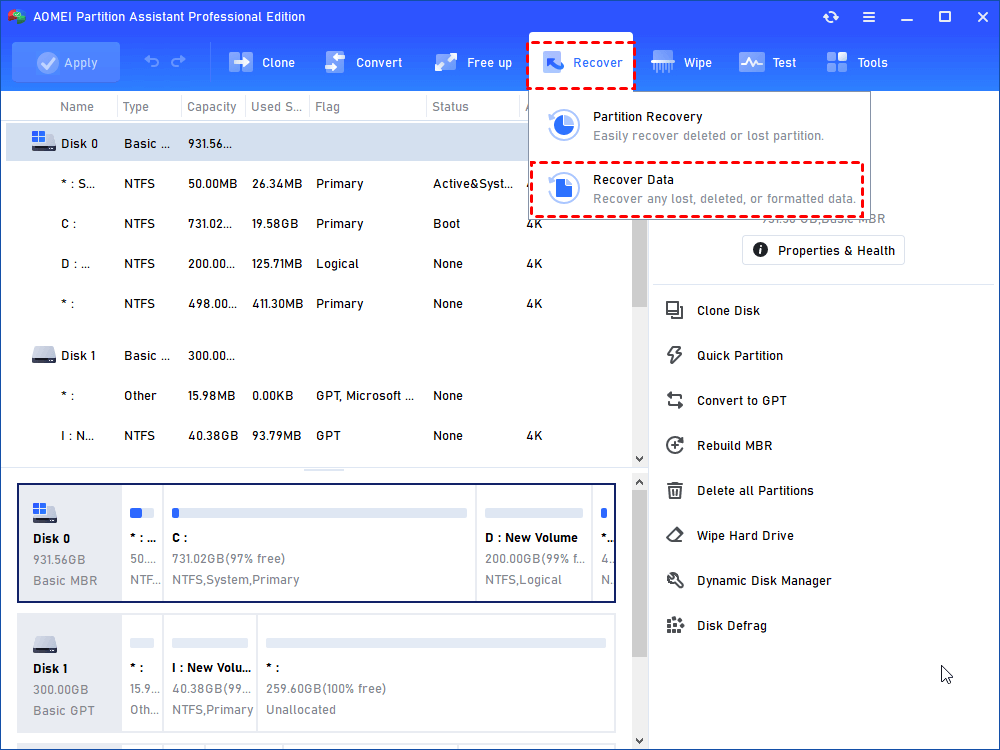
Step 1. On the main interface, click «Recover» and select «Recover Data».
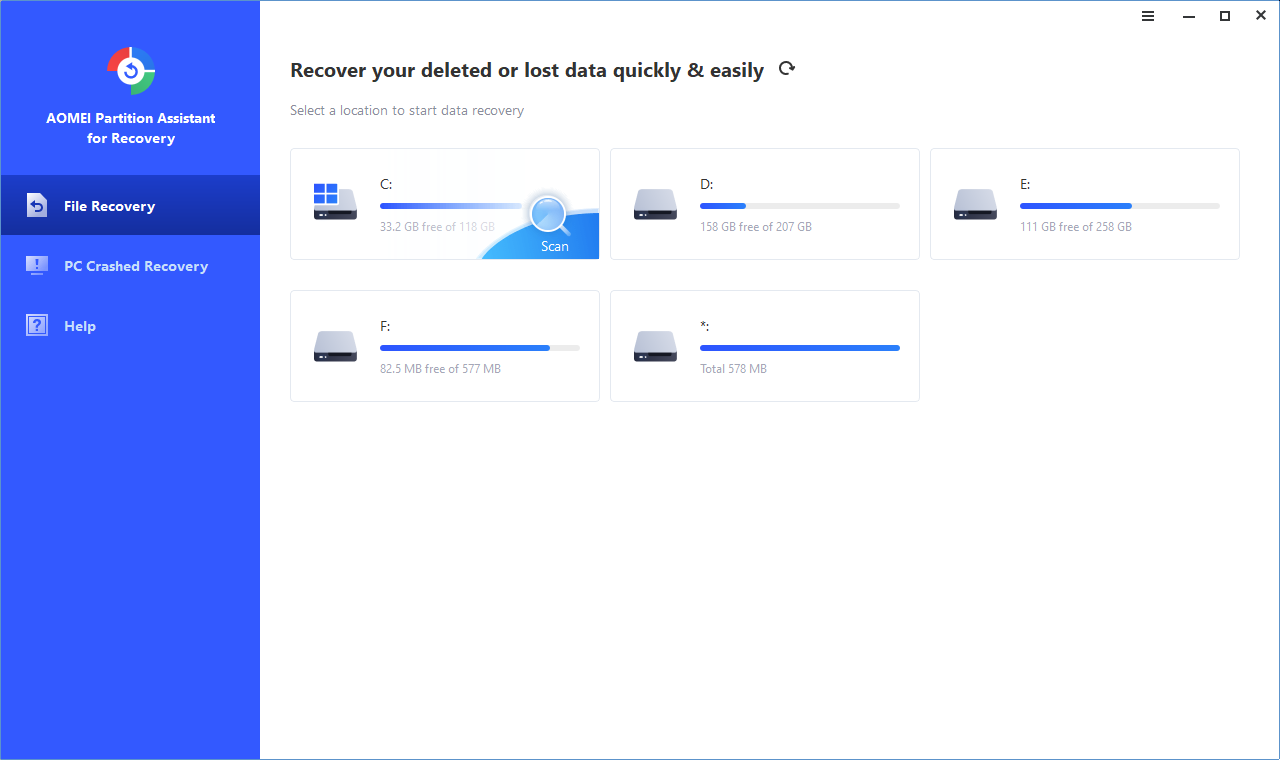
Step 2. Select the SD card and click «Start Scan».
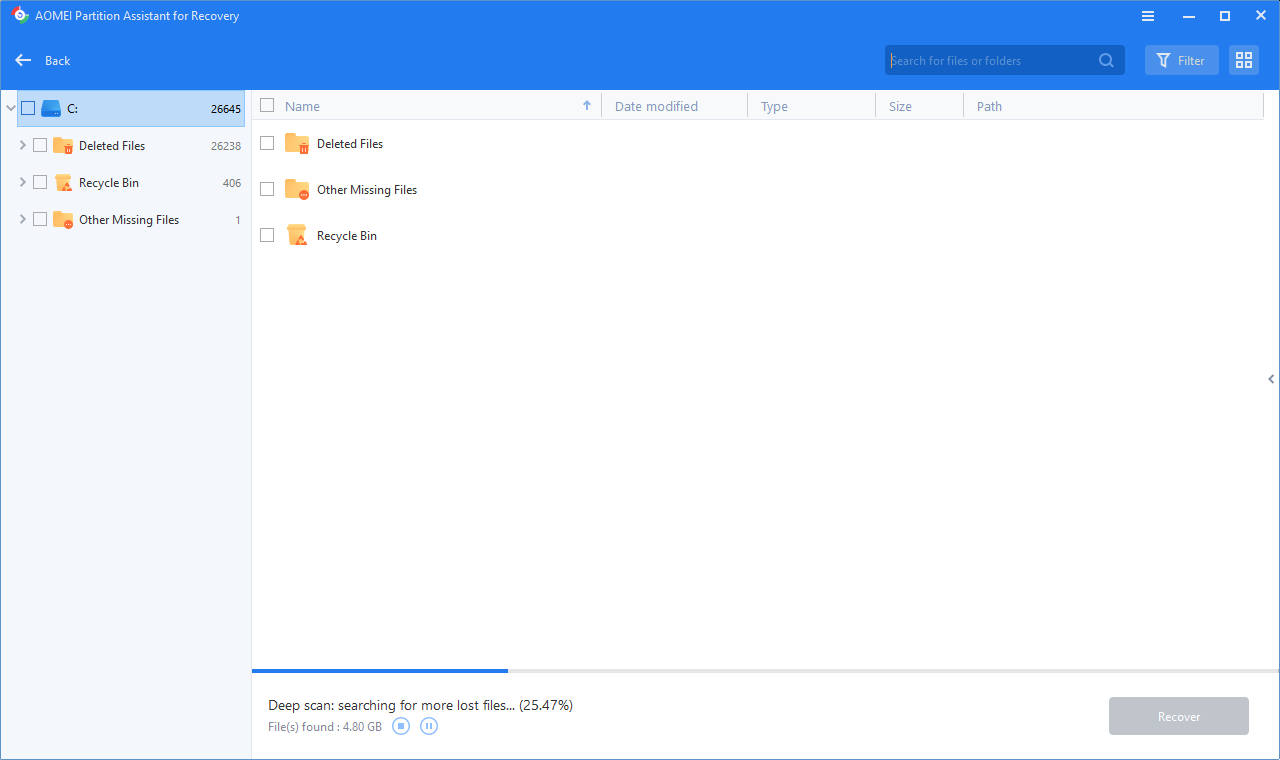
Step 3. When the scan is over, all deleted files on this SD card will be listed. Please select the target files you want to recover and click «Recover File».
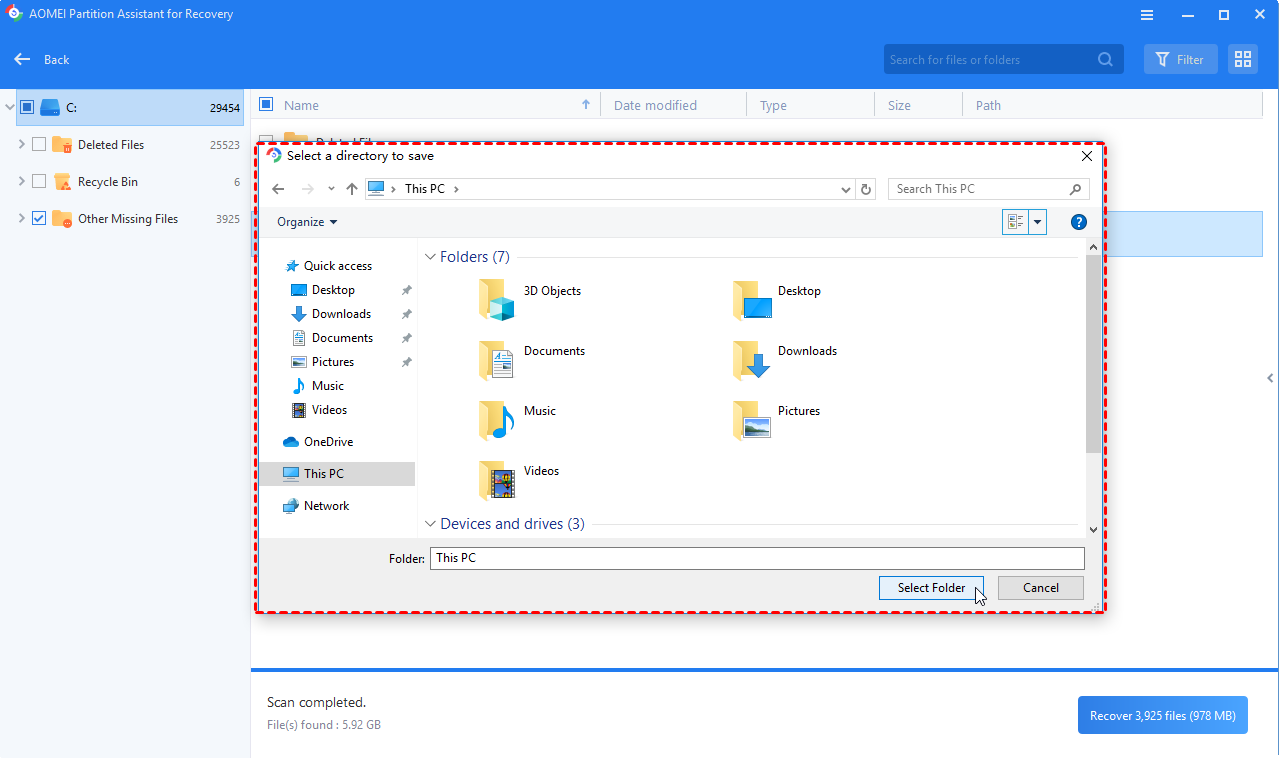
Step 4. Then, you should select a path to save the recovered data.
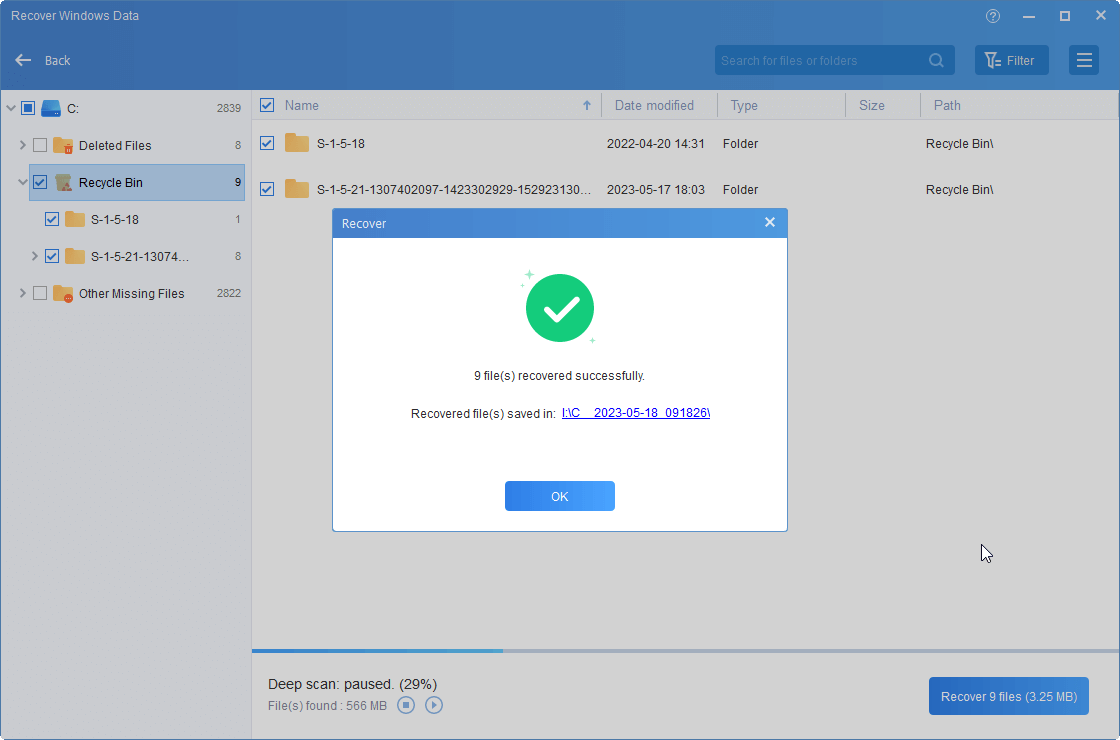
Step 5. When recovery finishes, click «OK» to exit it.
Conclusion
That is all about how to read SD card serial number from Windows PC and change the SD serial number. With its intuitive interface, AOMEI Partition Assistant seems more convenient for most people.
If you are running Windows Server 2022/2019/2016/2012/2008/2003, AOMEI Partition Assistant Server can be helpful for well-managing disks and partitions on the Server PC.
Как узнать серийный номер SD карты?
Как можно узнать следующие данные? :
1. Точный размер SD карты (в блоках)
2. Серийный номер устройства (20 знаков, начинается на EP8)
3. Серийный номер (8 HEX символов, выглядит, например, так: 0xa0efaea1) или CID карты памяти (выгдядит так: 035344535530324780A0EFAEA100C39A
Пробовал командой:
cat /sys/class/block/mmcblk1/device/serial
но, в моём случае на /sys/class/block/sdb вообще не было файла serial.
Пробовал с помощью Gold Card Tool (www.klutsh.com) — пишет «Не удалось получить CID»
Пробовал вставлять в android-телефон и программой SD-Booster — но по какой-то причине в окне info просто пустота и Ok.
Как узнать Id новой Sd-карты?
Надписи на карте не поддаются однозначному дешифрированию даже под сильной лупой,
в свойствах ничего похожего на ID не отображается.
Надо — для регистрации в Навителе и получения ключа (замена карты на бОльшую).
#3 OFFLINE vsv
Прикрепленные изображения
#4 OFFLINE GUKOL
Похоже там двойной тягой шифруются, и к железу и к карте.
Вчера строго по инструкции запросил ключ, ввел вот это,
система не заработала. Пояснили, что вводить надо ID карты.
Где рыть этот ИД спрашивать в столицах неудобно,
сюда запостил.
#5 OFFLINE denisk
В INTERLAGOS-е.
Где рыть этот ИД спрашивать в столицах неудобно,
сюда запостил.
Купил SD-шку 8 Гб
Прошу снять активацию со старой SD-шки, что бы я мог активировать на
новую.
Новый серийный номер устройства 415B00030B00
ответили на следующий день
Регистрация снята. Пожалуйста, зарегистрируйте программу повторно на
нашем сайте http://activate.navi. ivate_ru_s.html. В первом
поле введите лицензионный ключ на программу, ниже – ID новой SD-карты,
который появляется на экране при запуске программы. Будьте внимательны
при вводе Вашего нового ID.
Убедитесь, что данная карта памяти поддерживается Вашим устройством.
#6 OFFLINE vsv
Новый серийный номер устройства 415B00030B00
Имею основания полагать, что у моей sd-шки другой номер.
Очень хочется его узнать.
#7 OFFLINE GUKOL
Имею основания полагать, что у моей sd-шки другой номер.
Очень хочется его узнать.
#8 OFFLINE vsv
В том и дело, что это походе ИД самого аппарата, а не карты.
М.б., есть способ засунуть эту карту в комп и в нем ОДНОЗНАЧНО посмотрет
именно ИД карты?
Как узнать id sd карты
Camera Memory Speed
Memory Card Comparison & Performance Tests for Digital Cameras
Internal SD Card Information
Information about an SD card is encoded in its internal card registries. One of these is the Card Identification (CID) Register, a 16 byte code that contains information that uniquely identifies the SD card, including the card serial number (PSN), manufacturer ID number (MID) and manufacture date (MDT). The CID register is set when the card is manufactured and cannot be changed after it is set. (According to SD card specification the information is only to be written once, however if a card does not conform to the specification this information could be changed!)
How to read the CID from an SD card
One way to read the CID is to use a laptop with an SD card slot. Card readers in laptops are usually connected directly through the PCI bus (or IDE bus). This will not work through a USB card reader because the command to retrieve the card information is intercepted and not understood by card readers. Not all computers with built-in card slots will work, some internal card readers are connected through a USB bus.
Assuming you have the proper hardware, there are several methods you can use to get the card information. With Linux, reading the internal SD card information is simple. Insert the card and look under /sys/block/mmcblk0/device/ (this location may change depending on your platform, it may be mmcblk1 or in a different location). Under this location you will see several attributes available that include the CID and CSD registers and the information inside it.
To view the CID, the command is cat /sys/block/mmcblk0/device/cid (the exact location may be different)
What information is in the CID?
The following information is stored in the CID:
| Name | Field | Linux attribute* | Description |
|---|---|---|---|
| Manufacturer ID | MID | manfid | Assigned by SD-3C, LLC. |
| OEM/Application ID | OID | oemid | Identifies the card OEM and/or the card contents. Assigned by SD-3C, LLC. |
| Product Name | PNM | name | 5 characters long (ASCII) |
| Product Revision | PRV | hwrev, fwrev | Two binary coded decimal (BCD) digits. Each is four bits. The PRV is in the form x.y. The PRV can also be found by using the hwrev and fwrev, where x=hwrev and y=fwrev |
| Serial Number | PSN | serial | This 32 bit field is intended to be read as an unsigned integer |
| Manufacture Date Code | MDT | date | Manufacture date is stored in the form yym (offset from 2000) |
| CRC7 checksum | CRC | 7 bit code used for checking errors in the card register |
* these are the attribute titles used for the card in Linux
List of Common Manufacturer ID (MID)
Manufacturer ID (MID) are assigned by the SD Assoication (SD-3C LLC). They consider this information confidential so an official list is not published.
The following list was compiled by reading the CID on numerous SD cards. Many card brands are produced by OEM suppliers, and the MID and OEMID may reflect this, or in some cases they appear to show the producer of the card controller. For example, PNY cards have been found with 0x000028 and BE (Lexar) or 0x000027 and PH (Phison).
| Company | MID | OEMID | Card brands found with this MID/OEMID |
|---|---|---|---|
| Panasonic | 0x000001 | PA | Panasonic |
| Toshiba | 0x000002 | TM | Toshiba |
| SanDisk | 0x000003 | SD (some PT) | SanDisk |
| Samsung | 0x00001b | SM | ProGrade, Samsung |
| AData | 0x00001d | AD | AData |
| Phison | 0x000027 | PH | AgfaPhoto, Delkin, Integral, Lexar, Patriot, PNY, Polaroid, Sony, Verbatim |
| Lexar | 0x000028 | BE | Lexar, PNY, ProGrade |
| Silicon Power | 0x000031 | SP | Silicon Power |
| Kingston | 0x000041 | 42 | Kingston |
| Transcend | 0x000074 | JE or J` | Transcend |
| Patriot(?) | 0x000076 | �� | Patriot |
| Sony(?) | 0x000082 | JT | Gobe, Sony |
| 0x00009c | SO | Angelbird (V60), Hoodman | |
| 0x00009c | BE | Angelbird (V90) |
How can I use the information from the CID?
The CID information can be helpful in identifying counterfeit memory cards. We include the CID data in our SD card reviews so you may compare it with your cards.