Синхронизация календаря Outlook с iPhone (3 лучших способа)
Microsoft Перспективы является хорошим помощником для пользователей, чтобы организовать их занятую жизнь. Он может управлять контактами и задачами, а также делать заметки. Особенно, календарь работает так же, как сигнал тревоги, чтобы напомнить людям о запланированном графике.
Когда вы включаете компьютер, напоминание календаря Outlook, которое отображается на экране, очень четко указывает вам, что делать. Но когда вы находитесь в командировке или в отпуске, вам очень сложно читать календарь Outlook на вашем компьютере.

Тогда iPhone с синхронизацией календаря Outlook будет хорошим вариантом для вас. Так как синхронизировать календарь Outlook с iPhone? Три простых способа синхронизировать календарь Outlook с iPhone будет представлен в этом посте.
Способ 1: синхронизировать календарь Outlook с iPhone в iTunes
Если вы хотите синхронизировать календарь Outlook с iPhone или выполнять другие действия с устройствами iOS, первым инструментом, который вы думаете, является iTunes. Прежде чем следовать приведенным ниже инструкциям, вы должны убедиться, что iTunes включена в вашем Outlook.
Шаг 1 Подключите iPhone к ПК, запустив iTunes на своем компьютере, и найдите значок iPhone.
Шаг 2 Нажмите ваш iPhone> «Информация»> Получить галочку в «Календарь» и выберите «Outlook» из выпадающего списка. Здесь вы можете выбрать все календари или выбранные календари для синхронизации с вашим iPhone.
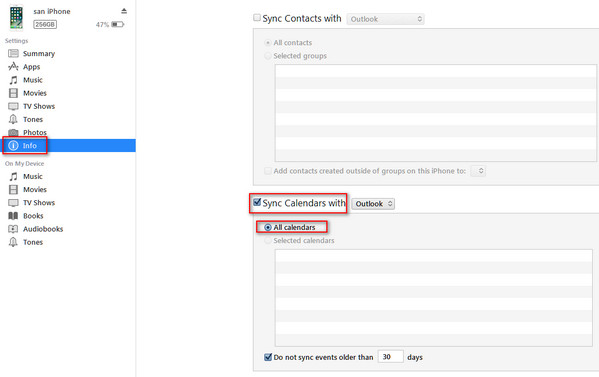
Шаг 3 Нажмите «Готово», чтобы синхронизировать календарь Outlook с iPhone.

резервное копирование ITunes это обычный способ для пользователей iPhone синхронизировать календарь Outlook с iPhone. Но это все еще имеет недостаток. Это односторонняя синхронизация с iPhone. Это означает, что вы можете просматривать только синхронизированные календари Outlook на вашем iPhone. Если вы хотите читать календари iPhone в Outlook, вы не получите к нему доступ.
Способ 2: синхронизировать календарь Outlook с iphone через iCloud
iCloud — это альтернатива синхронизации календаря Outlook с iPhone. iCloud не может отправлять календарь Outlook на iPhone напрямую. Сначала необходимо загрузить календари Outlook в iCloud, а затем отправить календарь Outlook на iPhone из iCloud.
Шаг 1 Загрузите iCloud для ПК на свой компьютер, войдите в свою учетную запись iCloud на компьютере.
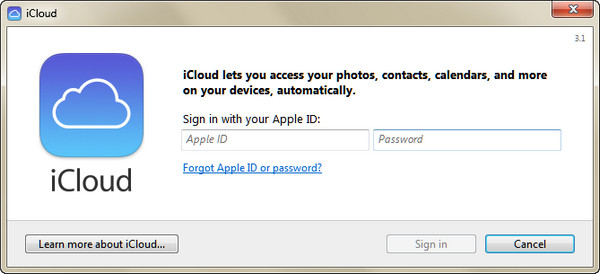
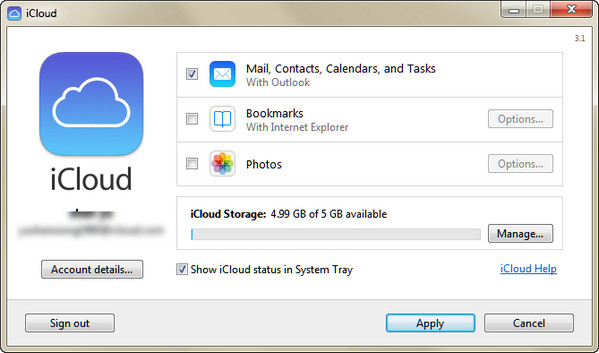
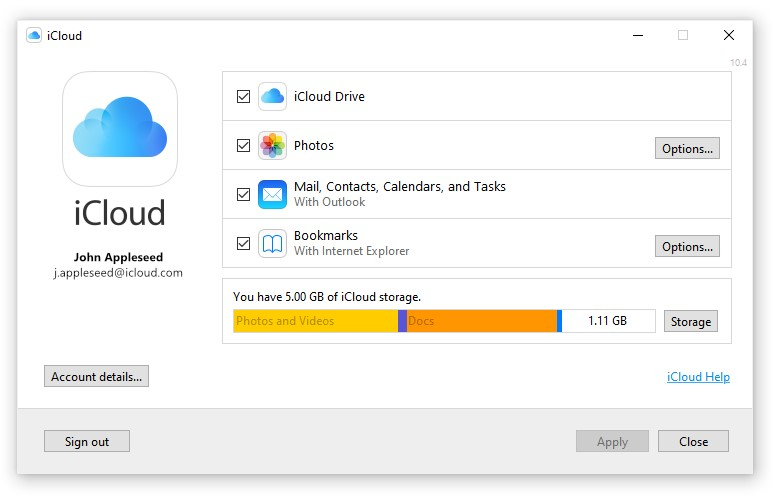
Шаг 2 Нажмите «Mail, Контакты, Календари и Задачи», чтобы разрешить настройку Outlook для iCloud. На этом этапе вам нужно отключить Outlook для синхронизации календарей с iCloud.
Шаг 3 Восстановите iPhone из iCloud для импорта календаря Outlook, который хранится в iCloud, на iPhone. Здесь вы можете выбрать весь календарь или несколько календарей.
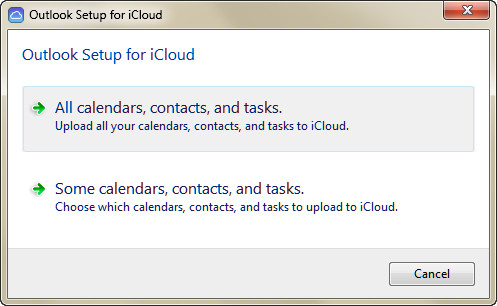
Таким образом, вы наконец-то получаете свой календарь Microsoft Outlook на iPhone, но вы также вынуждены синхронизировать свои контакты и задачи. Более того, вы не можете просматривать эти календари Outlook, контакты и т. Д. В iCloud. Вам также понравится читать: Три метода синхронизации контактов Outlook с iPhone.
Способ 3. Синхронизация календаря Outlook на iPhone напрямую
Разблокируйте свой iPhone, вкладка «Настройки»> «Календари»> «Outlook»> войдите в свою учетную запись Outlook Exchange> Переместите «Календари» с «ВЫКЛ» на «ВКЛ». Если ваш iPhone подключен к сети Wi-Fi, вы автоматически синхронизируете календари Outlook с iPhone. Если вам нужно синхронизировать контакты с iPhoneПросто сдвиньте «Контакт» с «ВЫКЛ» на «ВКЛ»
Таким образом, сначала вы должны получить свою учетную запись Exchange, но Exchange Server — это корпоративный продукт, стоимость которого составляет тысячи долларов. Поэтому мы искренне рекомендуем вам синхронизировать календари Outlook с iPhone.
Синхронизация календаря Outlook с iPhone кажется простой, но это отнимает много времени. Однако, если вы хотите синхронизировать календарь iPhone (в том числе удаленный и существующий на iPhone) в Outlook для просмотра на компьютере, вам потребуется профессиональная программа для извлечения календаря iPhone, FoneLab.
- Календарь экспорта FoneLab с вашего iPhone на компьютер.
- Он получает удаленный календарь iPhone непосредственно с iPhone и резервную копию iTunes / iCloud.
- Вы можете просмотреть календари на вашем iPhone и выбрать то, что вы хотите именно на компьютер.
- Он поддерживает восстановление контактов, фотографий, сообщений, напоминаний, закладок и т. Д.
Мы в основном говорили о как синхронизировать календарь Outlook с iPhone в этом посте. 3 эффективных решения помогут вам скопировать календарь Outlook на ваше устройство iOS. Оставьте нам сообщение, если у вас есть идея получше.
Что вы думаете об этом посте.
Рейтинг: 4.8 / 5 (на основе голосов 156)

11 января 2021 года 10:56 / Обновлено Луиза Уайт в Передача данных iOS
В этой статье рассказывается, как импортировать контакты в Gmail. Вы можете узнать, как импортировать контакты Outlook / Yahoo / iPhone в Gmail после прочтения
Как скачать музыку с iPod на iPhone? С iTunes? Да. Но вы также можете добавить музыку с iPod на iPhone без iTunes в этом посте.
Резервное копирование iPhone на компьютер легко с iTunes. Однако синхронизация iPhone с новым компьютером без удаления является проблемой для многих пользователей.
How to Sync iCloud Calendar to Outlook 2016
Cloud provides you with an online calendar that you can use to schedule your plans, add new meetings and view the existing ones, and do basically everything that you would with a normal calendar app. What’s more, the calendar syncs across all of your Apple devices so all your plans are available on your iPhone, iPad, Macs, and other linked Apple devices.
Although many users are now shifting towards online calendars like iCloud, there are users who still use Outlook calendars to schedule their days and months. If you’re one of those users, you might want to learn how you can keep your iCloud calendar in sync with Outlook.
Fortunately, iCloud offers you a way to sync its calendar with Outlook on your computer. Doing so is extremely easy and the following guide shows how you can sync your iCloud calendar with Outlook 2016.
Syncing iCloud Calendar with Outlook 2016
Make sure the Outlook app is installed on your computer and also keep your iCloud logins handy as you are going to need those to access your calendar.
The first thing you’ll need to do is go to the iCloud website and log-in with your username and password. Then, when you see the standard iCloud dashboard, click on the option that says Calendar and you’ll be taken to your iCloud calendar.
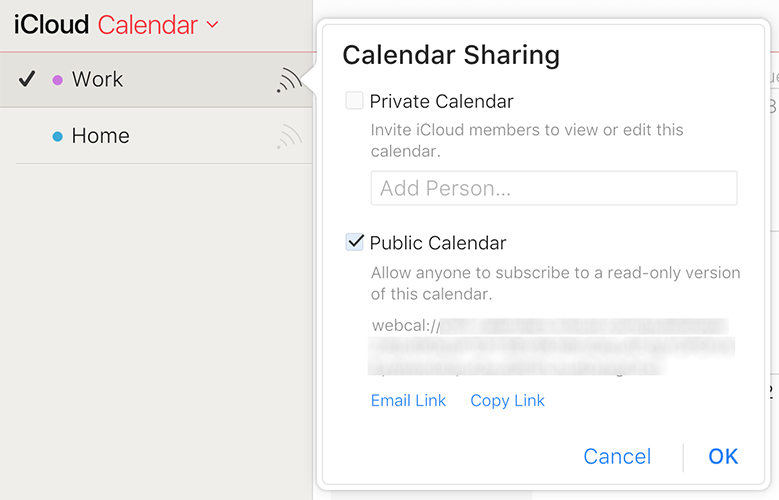
On the calendar page, select the calendar you want to sync with Outlook, click on the feed icon next to it, checkmark Public Calendar and then click on the Copy Link option to copy the link of your calendar. Paste the link of the calendar in a new tab in your browser and replace webcal in the URL with http and hit enter.
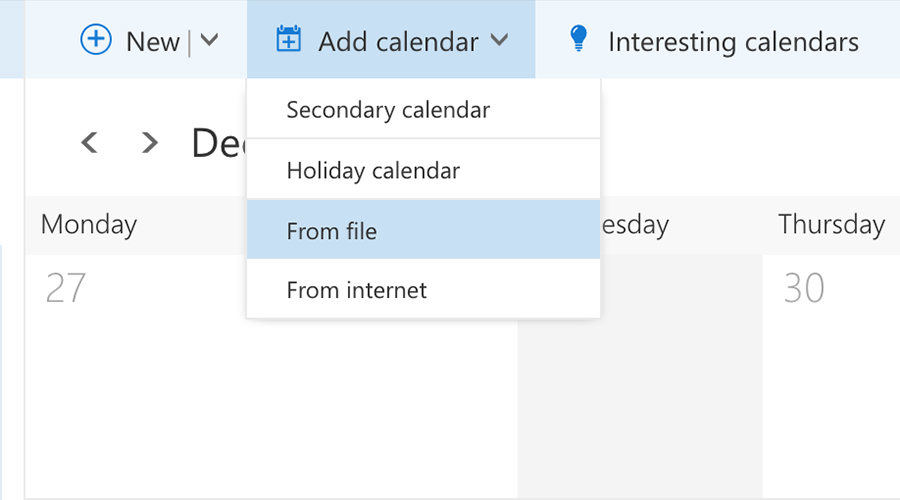
What it will do is download the calendar ICS file to your computer. Once the file has been downloaded, open Outlook 2016 and click on Add new calendar followed by From file. Select the downloaded file and your iCloud calendar will start syncing with Outlook. What’s more, you can also simply copy Outlook calendar to iPhone.
Sync iCloud Calendar with Outlook 2016 using a Link
If you’d rather prefer syncing the iCloud calendar with Outlook 2016 using a link and not a file, then following are the steps you need to follow:
Head over to the iCloud website and select calendar. Copy the link for the calendar but do not remove webcal this time. Keep it as it is.
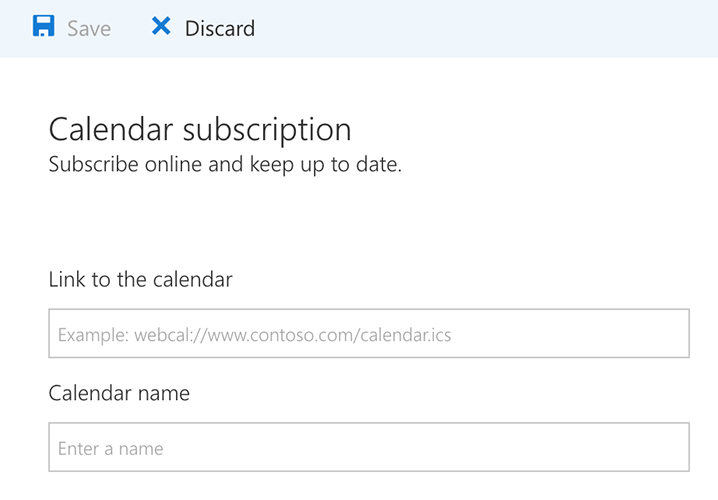
Open Outlook calendar and click on Add new calendar followed by From Internet. Paste in the link you copied before on the following page and your iCloud calendar will be start syncing with Outlook 2016 on your computer. That was how you could sync an iCloud calendar with Outlook on your computer.
While syncing a calendar is a good idea, it’s also good to have backups of your calendars so that you have something to fall back on in case things go wrong. In some cases, you can use iTunes to backup your iOS device but you now have even better apps to help you create calendar backups of your device using iCareFone. This iOS management tool allows you to export and import Calendars to iPhone from/to computer.
In Files Manager of iCareFone, you can choose Calendar to load all Calendars on your iPhone/iPad, and then tick all or selectively select Calendars to export to computer as backup.
Как синхронизировать календарь iCloud с Outlook: 2 пошаговых метода.

Если у вас есть iPhone или Mac, вы, возможно, знакомы с различными предложениями iCloud. Многие пользователи прибегают к помощи календаря iCloud на своем iPhone или Mac, чтобы все было организовано. Хотя иногда нам приходится добавлять календарь iCloud в Outlook и, возможно, даже делиться им с другими. К счастью, есть несколько умных способов синхронизации календаря iCloud с Outlook. В этом посте я расскажу вам о двух способах открыть календарь iCloud в Outlook, как профессионал.
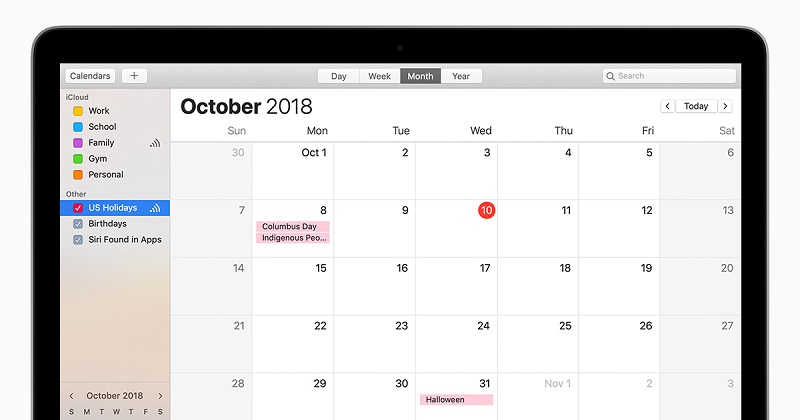
Часть 1: Как синхронизировать календарь iCloud с Outlook: через приложение iCloud и веб-сайт
Если вы хотите, вы можете воспользоваться помощью приложения iCloud или посетить его веб-сайт, чтобы экспортировать календарь iCloud в Outlook. Поскольку Outlook не поддерживает импорт файлов CalDEV на Mac, на Mac может быть реализовано только веб-решение. Вот как вы можете добавить календарь iCloud в Outlook через его приложение или веб-сайт.
Способ 1: Синхронизируйте календарь iCloud с Outlook через его приложение
Чтобы этот метод работал, вам просто нужно использовать настольное приложение iCloud, чтобы связать его с вашей учетной записью Outlook. В этом случае вы можете либо синхронизировать все календари iCloud, либо просто выбрать календари по вашему выбору. Чтобы узнать, как добавить календарь iCloud в Outlook, просто выполните следующие действия:
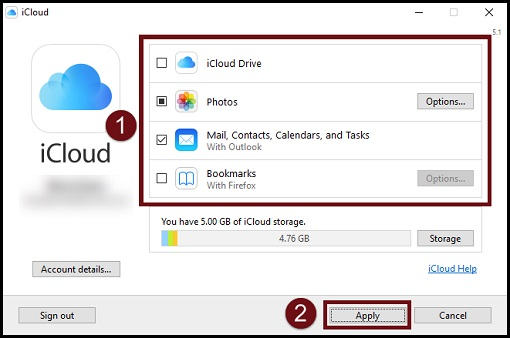
Шаг 1: Включите синхронизацию Outlook в iCloud
Если у вас в Windows не установлено приложение iCloud, сначала установите его, посетив его веб-сайт. После этого запустите приложение iCloud и войдите в свою активную учетную запись iCloud, введя правильные учетные данные. Из доступных параметров в приложении включите функцию синхронизации контактов, почты, календаря и задач с Outlook.
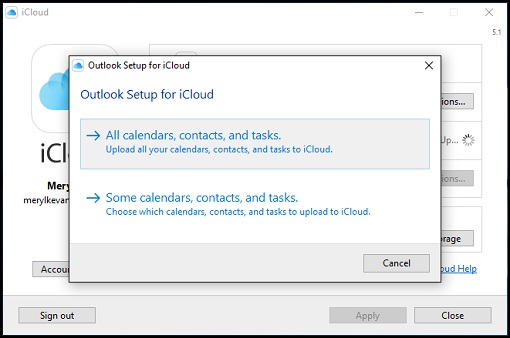
Шаг 2: Выберите данные для синхронизации с Outlook
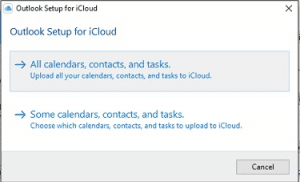
Откроется специальный мастер настройки, в котором вы сможете выбрать, что вы хотите синхронизировать со своей учетной записью Outlook. Вам нужно будет войти в свою учетную запись Outlook, чтобы завершить синхронизацию, а затем получить доступ к календарю iCloud через Outlook web или его приложение.
Способ 2: Добавьте календарь iCloud в Outlook через iCloud Web
При использовании настольного приложения для синхронизации календаря iCloud с Outlook многие люди сталкиваются с проблемами. Если ваш календарь iCloud не синхронизируется с Outlook, сделайте это вручную, посетив веб-сайт iCloud и Outlook. Вы можете выполнить это простое упражнение, чтобы легко открыть календарь iCloud в Outlook.
Шаг 1: Скопируйте ссылку на календарь iCloud
Во-первых, вы можете просто посетить официальный сайт iCloud на своем компьютере и войти в свою учетную запись. Из предоставленных опций на его домашней странице перейдите к функции “Календарь” и выберите календарь, который вы хотите экспортировать, на боковой панели.
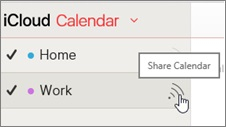
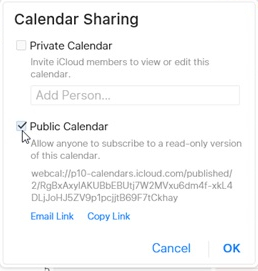
Вы можете просмотреть значок общего доступа сбоку от каждого календаря. Просто нажмите на него и убедитесь, что ваш календарь iCloud помечен как общедоступный. При включении функции общедоступного календаря будет отображаться уникальный URL-адрес календаря, который вы можете скопировать отсюда.
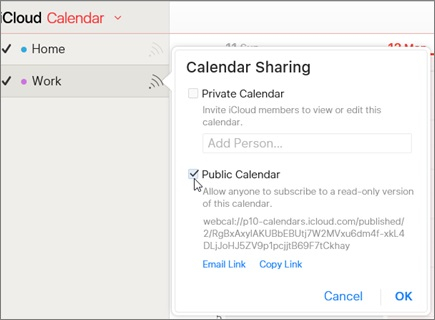
Шаг 2: Добавьте календарь iCloud в Outlook
Как только ссылка на календарь iCloud будет скопирована, просто перейдите на веб-сайт Outlook и войдите в свою учетную запись (или используйте настольное приложение Outlook). Нажмите на значок календаря, который теперь можно просмотреть на нижней панели.
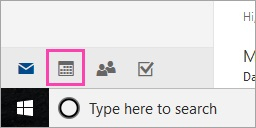
Это откроет специальную функцию календаря в Outlook. Теперь, чтобы синхронизировать календарь iCloud с Outlook, нажмите на опцию “Добавить календарь”, которая находится в верхней части интерфейса.
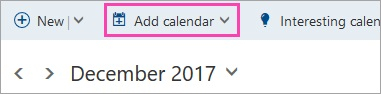
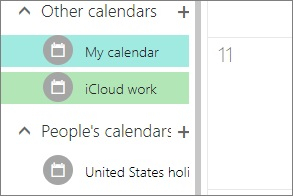
Поскольку будут предоставлены различные варианты импорта календаря, выберите функцию “Из Интернета” и просто вставьте URL-адрес календаря iCloud, который вы ранее скопировали. Дайте вашему календарю iCloud имя и подождите, пока он автоматически синхронизируется с вашей учетной записью Outlook.
Часть 2: Как исправить проблему с синхронизацией календаря iCloud с Outlook?
С помощью вышеперечисленных методов вы сможете открыть календарь iCloud в Outlook. Однако, если календарь iCloud не синхронизируется с Outlook, вы можете попытаться устранить его следующим образом.
Исправление 1: Проверьте дату и время на связанных устройствах
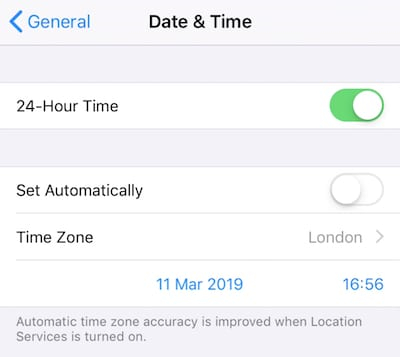
Если ваш календарь iCloud синхронизируется на нескольких устройствах (например, на ПК и iPhone), вам необходимо один раз проверить их данные и настройки времени. Если какое-либо из устройств имеет неправильные настройки, это может привести к проблемам с синхронизацией календаря iCloud. Помимо вашей системы, вы также можете перейти в Настройки вашего iPhone > Общие > Дата и время и убедиться, что функция настроена на автоматический режим.
Исправление 2: Сбросьте учетную запись iCloud в приложении
Скорее всего, учетная запись iCloud может быть неправильно синхронизирована с установленным приложением. Чтобы исправить это, вы можете просто запустить приложение iCloud в своей системе и нажать кнопку “Выйти”. Выйдите из своей учетной записи, перезагрузите систему и снова войдите в систему, чтобы проверить, исправлена ли проблема с синхронизацией календаря iCloud с Outlook.
Исправление 3: Обновление программного обеспечения Apple в Windows
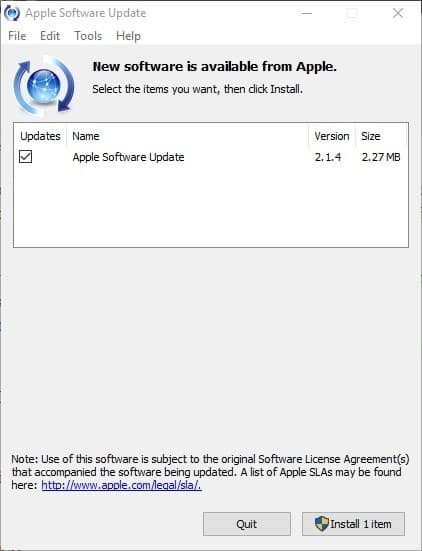
Если вы пытаетесь синхронизировать календарь iCloud с Outlook в Windows, этот метод может устранить любую нежелательную проблему. Просто перейдите на панель управления, чтобы просмотреть установленное приложение или найдите “Apple” в опции поиска. Отсюда вы можете запустить окно обновления программного обеспечения Apple и обновить установленное встроенное ПО.
Исправление 4: Добавление календаря iCloud в Outlook через Интернет
Как вы можете видеть, существует два различных способа синхронизации календаря iCloud с Outlook. Если календарь iCloud не синхронизируется с Outlook через его приложение, рассмотрите веб-подход. Это более простой метод, который может занять больше времени, но позволит вам легко открыть календарь iCloud в Outlook без каких-либо проблем.
Я уверен, что, следуя этому руководству, вы сможете синхронизировать календарь iCloud с Outlook, как профессионал. Чтобы вам было проще, я перечислил два различных решения для добавления календаря iCloud в Outlook через его приложение или веб-сайт. Кроме того, если календарь iCloud не синхронизируется с Outlook, вы можете попробовать одно из следующих решений, которые я включил, и устранить эту проблему в один миг.
How To Sync iCloud Calendar With Outlook?
A lot of users tend to use the iCloud calendar on their iPhone or Mac to keep things organized, it enables them to access their Outlook data from multiple devices or may even help move their Outlook profile to a new computer. However, if you want to add an iCloud calendar to Outlook to make it sharable via Outlook or just for keeping track of your schedule, you need to add the calendar to Outlook.
Many users asked this question if iCloud is supported in Office 365. So the answer is yes, Office 365 will work with iCloud. However, you don’t need to sync iCloud with Office 365 Exchange or Outlook.com mailboxes. Users with these accounts do not need to sync calendars manually as they support syncing your calendars between the server, the phone, and Outlook on your desktop.
Thus, you will get your calendar, contacts, and email on your iPhone or iPad or any other device over the air on the device you are accessing Office 365 from.
You do not need iCloud to share Office 365 data between computers and should not enable it. Because if you enable iCloud, then it moves the calendar and contacts to the iCloud folders, removing them from the Office 365 server.
How Do I Sync My iCloud Calendar with Outlook?
1. Sync iCloud Calendar with Outlook through the iCloud PC app
This method is one of the easiest ways to make iCloud default calendars in Outlook. You just need to use iCloud’s desktop application to link it to your Outlook account. Syncing Outlook with your cloud storage will enable you to access your Outlook data on other devices and help you to transfer Outlook data to a new computer with ease. You will have the choice of either syncing all iCloud calendars or just selecting specific calendars that you would like to sync. Follow the below-mentioned steps to learn how to sync iCloud calendar with Outlook:
Enable Outlook sync in iCloud
- Install the iCloud laptop application. Then launch the iCloud application and log in to your active iCloud account.
- Next, enable the feature to sync your contacts, emails, calendar, and tasks with Outlook.
Select the Calendar data you want to sync with Outlook
- Once you enable the sync feature a new setup wizard will open up from where you can select what are the things you want to sync with your Outlook account.
- Next, log in to your Outlook account to complete the syncing process.
Then to check if you can access iCloud calendar via Outlook, go to Outlook web or Outlook email application and verify.
However, many users encounter issues while using the desktop application to sync an iCloud calendar with Outlook. If you also faced the same trouble and were unable to sync the iCloud calendar with Outlook using the iCloud app, then follow the next method.
2. Sync iCloud Calendar with Outlook via iCloud Web
Follow the below-mentioned steps to open an iCloud calendar in Outlook:
Copy the iCloud Calendar link
- Open the iCloud website on your computer and log in to your account.
- On the home page search for the Calendar feature and then select the calendar you want to export from the sidebar.
- Then click on the share icon at the side of each calendar. However, to do the same you need to check if your iCloud calendar is marked as public.
- Once you enable the Public Calendar feature, a unique URL of the calendar will be displayed. Just copy the calendar URL from there.
Add the iCloud Calendar URL to Outlook
- After copying the iCloud calendar link, go to the Outlook website or open the Outlook desktop app and log in to your account.
- In Outlook, under the Home tab, you will find one calendar icon on the bottom left panel. Click on the calendar icon.
- You will see a calendar window that will open up in Outlook.
- Next, click on the Add Calendar option and select From internet from the list.
- Next, a Calendar subscription dialog box will pop up. Here you have to paste the link that you copied earlier. Then enter a unique name for the calendar and Save it.
- Now you will see the iCloud calendar with the name that you have given it under the Other calendars list in Outlook.
Open the same Outlook account added on your Mac, this subscribed calendar will also appear in Outlook for Mac calendar.
Note: It will take some time for the iCloud calendar to sync with Outlook for Mac. In order to view the synced calendar in Outlook, you have to restart Outlook for Mac.
Is your iCloud Calendar not Syncing with Outlook? How To Fix?
After following the above-mentioned methods, you should be able to add an iCloud calendar to Outlook. However, if the iCloud calendar is still not syncing with Outlook, then you can try to troubleshoot it in the following ways.
- Verify that your computer is online and that it satisfies the iCloud system requirements.
- Use your Apple ID to download iCloud for Windows and log in. Check to make sure you’re signed into iCloud for Windows with the same Apple ID that you use on your other devices if you use multiple Apple IDs with iCloud.
- For information on any known problems affecting iCloud Mail, Contacts, or Calendars, visit the System Status page.
- Verify that your computer’s date and time settings are accurate.
- Create duplicates of the data you keep in iCloud.
Now follow the troubleshooting methods to fix iCloud calendar not syncing with Outlook.
1. Check the Date and Time on the Linked Devices
Your iCloud calendar might be synced to multiple devices like your other PC and your iPhone. You need to verify once with their data and time settings. If either of the devices has the wrong settings, then it can cause the iCloud calendar not syncing with Outlook error.
To fix the wrong date and time settings on your iPhone, follow the below-mentioned way.
- Go to Settings > General > Date and Time
- Set the feature to automatic.
2. Reset your iCloud Account on the app
If there is no issue with the time and date settings of the iCloud linked devices then this indicates that the iCloud account might not be synced properly with the installed app. To fix this,
- Launch the iCloud application on your system.
- Click on the “Sign Out” button.
- After you log out of your iCloud account, restart your system
- Again sign in to iCloud
NOTE: Whenever you sign out from your iCloud account, you’ll receive a message asking if you want to keep a copy of the iCloud data or Delete them from the computer. It won’t matter much if you are going to re-enable the iCloud in Outlook as everything will sync back when you enable iCloud again. However, if you are removing the iCloud from your computer, you should keep a copy or backup items of Outlook regularly.
Rebooting the system and logging in again to your account might fix the iCloud calendar not syncing with Outlook issue. This troubleshooting will also help in fixing some other issues like “Cannot expand the iCloud folder” error.
3. Update the Apple Software on Windows
This method is for those users who are trying to sync an iCloud calendar with Outlook on Windows.
- Open Control Panel on your PC.
- Search for “Apple” from the search option.
- Once you get the application just open it. This will open a new window for Apple Software Update. If any new update is available for the firmware this window will show you that message.
- Hit Install to upgrade the Apple Software.
What to do if you are not Seeing any Recent Changes in Outlook?
- Select reload in Outlook if you recently made changes in Outlook that aren’t updating on other devices or changes on other devices that aren’t updating in Outlook.
- Uninstall the Office version you downloaded from the Windows store if you are getting a message saying ‘that the installed version of Outlook is not supported by iCloud’.
What To do if the iCloud Sync with Outlook Stops Working?
Many a time users complain that after the iCloud was successfully synced to Outlook, it suddenly stopped working.
Some of the possible symptoms are:
- Changes made on the iPhone or iPad are not syncing to Outlook.
- Outlook calendars disappearing from Outlook’s «iCloud Calendar» folder and new calendar items not showing in Outlook.
To rectify the Outlook iCloud sync issues with Outlook you need to first close Outlook. Then follow the below-mentioned solutions:
1. Re-enable iCloud Calendar sync
First, go to the iCloud control panel and deselect Calendar sync in the iCloud control panel and click on Apply. Then again re-enable it and hit Apply.
2. Sign out of the iCloud application and then sign back in
Just sign out from your iCloud application and sign in again to fix the issue.
3. Repair the Outlook installation
You may need to repair your Outlook PST file or the Outlook application if none of the other methods help rectify the issue.
- Go to the Start button in Windows 10 and search for Apps and Features.
- Select Outlook from the apps list and click on Modify
- Then follow the instructions on the screen to complete the repair process.
- Restart your system once the repair process is complete.
The application should run fine now. However, if the iCloud calendar is properly synced with Outlook and is working fine after the repair but you are not able to send or receive messages, then you would have to repair Outlook using the Inbox repair tool. If that fails, I would recommend that you get one of the best Outlook PST Repair software such as Remo Repair PST, and try again after scanning your PST file.
Extra info: Did you know there is an automated tool to repair Outlook and recover all Outlook data safely? Check out Remo PST Repair Tool which fixes majorly all Outlook-related errors and fixes corrupted PST files.
Conclusion:
Hopefully, after following this guide to add the iCloud calendar to Outlook, you would be able to sync an iCloud calendar with Outlook easily. We have listed two different solutions to sync iCloud calendar with Outlook.
However, it is recommended to go for the second method and use the iCloud website to sync the calendar. This method might look long but it is easier and will successfully sync the iCloud calendar in Outlook. Additionally, you will also get to know about a few methods on how to fix the iCloud calendar not syncing with Outlook issues.
Frequently Asked Questions:
There might be chances that you might have not enabled the Sync Calendar option on the iPhone ios 15 or the versions. Follow the steps below to do so.
● To check for the apps settings you can go to the Settings and then navigate to the Account.
● Now select the Exchange and tap your email address.
Note: You will need to remove it and upload it again as an Exchange account if it was added as an IMAP account. Ensure that «Sync Calendar» is turned on. Check your calendar tool after a while.
You can modify the options in Outlook to have emails sent directly from your iCloud Mail account. In Outlook 2010 or later, take these steps to set iCloud Mail as the default account:
● Go to Account Settings from the File.
● Select Set as Default after selecting your iCloud Mail account from the drop-down menu. Your iCloud Mail account is already the default account if you are unable to pick Set as Default.
Your information is moved between iCloud and Outlook by the iCloud Outlook Add-in. To verify and activate the add-in in Outlook 2010 and later, follow these steps:
● Go Options from the File menu and select Add-ins.
● Check for the list of Add-ins, if the iCloud Add-ins is inactive or disabled. Make sure Com Add-ins.
● Select the OK option by selecting the checkbox in iCloud Outlook Add-ins and then Restart the Outlook again.
To Import calendar into Outlook follow the steps below.
● Go to the File tab and then select Open and Export
● And then select the Import/Export option.
● Select Import an iCalendar(.ics) and then select Next.
Follow the steps below to get an iCloud calendar to sync with Mac Ventura or the earlier versions.
● On macOS Ventura 13, select the Apple menu > System Settings, click [your name] at the top of the sidebar, click iCloudon the right, and then turn on Calendars.
● Older than macOS 12: Select Calendars by selecting Apple menu > System Preferences, Apple ID, and iCloud.
Follow the steps below to get an iCloud calendar to sync with the iPhone.
● Navigate to Settings > [your name] > iCloud on your iPhone, iPad.
● iOS 16 and later on an iPad iOS16: After selecting Show All, toggle on Calendars.
Follow the steps to view the calendars on iCloud on iPhone.
● iPhone or iPod touch: choose Calendars at the bottom of the screen, then choose the iCloud and the calendars you wish to view.
Also Read:
Tony Landry
Tony Landry is a Web Content Editor at Remo Software. He loves to write, edit, and manage content for users trying to troubleshoot and fix problems on Windows, Outlook, storage drives and Cloud storage networks.
He has published more than 200 articles in Remo Software blog. He actively engages in research and problem-solving techniques to consistently generate great web content. Fixing various hardware problems on computer and storage devices along with a great knack for fixing Outlook errors, Tony is also the fun-time IT guy for all his work friends. He lives in the San Francisco Bay Area and enjoys cycling.