How To Install Python on Your Windows
Download, Setup & Install Python on Windows Computer
How To Install Python on Your Windows
Download, Setup & Install Python on Windows Computer
Python is an interpreted programming language that may be used for web development, machine learning, and complicated data processing. Python is often regarded as one of the easiest programming languages to learn for a novice. You might use it as a Software Testing Professional to automate your day-to-day work.
Quick Link to Specific Topic:
How to download python
Installing Python on your system is the first step to becoming a Python developer. There are many ways you can get started with setup and installation: you can download official Python distributions from Python Official Site.
I propose that you download the most recent Python installer for Windows (Python 3.10.7).
- If you have a different operating system, download binaries for it.
- If you have a 64-bit machine, you can select an x86-64 installer.
- If you have a 32-bit machine, select an x86 installation. However, you may also download by clicking on the download button in the page header..
It Extremely important: when you install it, make sure to check Add Python to PATH.
Install Python on Windows 11 or Windows 10
After downloading, double-click the downloaded item (.exe) to begin installation.
- Next, it gives you a set of advanced options:
- Install for all users
- Associate files with Python (requires the py launcher)
- Create shortcuts for installed applications
- Add Python to environment variables
- Precompile standard library
- Download debugging symbols
- Download debug binaries (requires VS 2015 or later)
- You may also specify the location to install the directory at.
Post Installation
Python is now installed. Now you should see a list of programs in the start menu.
After installing Python, you can run the cmd.exe program. This is a command line interface to your computer. Just type python here and the Python program will start.
You can use the integrated development environment (Python IDLE) to code in Python, which is installed during installation, without having to install an advanced IDE. If you’re using a Python shell, you can use it as your interpreter. Otherwise, you can create a new file to create your Python program. You can save it later and run the program by clicking Run.
You can always type python name_of_file.py at any point during the course. This will run code from a file named name_of_file.py.
Python Code Editor
The best way is to use a real code editor. Some people prefer an integrated development environment (IDE), but a much simpler code editor is better for learning purposes.
why? When learning something new, you want to peel off as many layers of complexity as possible. Simplify things. Adding a complex IDE to the mix that you have to learn to use just adds more layers and makes the Python learning task even more difficult.
Picking Up The Best Python IDE
A Python program, in its basic form, is a simple line of text (code) stored in a file with the .py file extension. Python code can be written in something as simple as Notepad, but there are far better options out there, so there’s no reason to go through such an ordeal. Basically, a code editor should provide a set of features that help programmers create programs (in this case, Python scripts and modules). In most cases, code editors allow users to customize programs to suit their own needs and style.
What should you look for in a code editor?
- Ease of use
- Syntax highlighting
- Auto-indentation
- Tabbed views
- Line numbering
- Ability to customize the look and feel of the editor
- Availability of add-ons
- Code Formatting
Which one should I pick?
I’ve tried tens of python IDE over the years. where I found some are very useful & handy. These are my favourites:
- Most Popular Python IDE
- Anaconda Python IDE: Download Anaconda
- PyCharm IDE: Download Pycharm
- Pydev : Download Pycharm
- Light Weight Python IDE
- Visual Studio Code : Download Visual Studio Code
- Sublime Text : Download Sublime Text
- Notepad ++ : Download Notepad ++
Use Any of them as concindering your system compatability. Or you can just use your Built in Python IDLE with Python Installer no hassel.
Enjoyed this post!
Your support helps me create more valuable content. Thank you!
About Content Creator:
Hi, This is Rafayet Hossain
A Seasoned Business Systems Analyst, Project Manager, and SQA Engineer with experience in driving digital changes within organizations. I specialize in understanding business needs and developing software solutions to improve processes and drive growth. I am skilled in managing projects, analyzing data, and ensuring quality in the final product. I am passionate about using my expertise to help organizations reach their goals and succeed. Let’s work together to improve your business and drive success.
How to Install Python on Windows 11 and Fix Python not Recognized
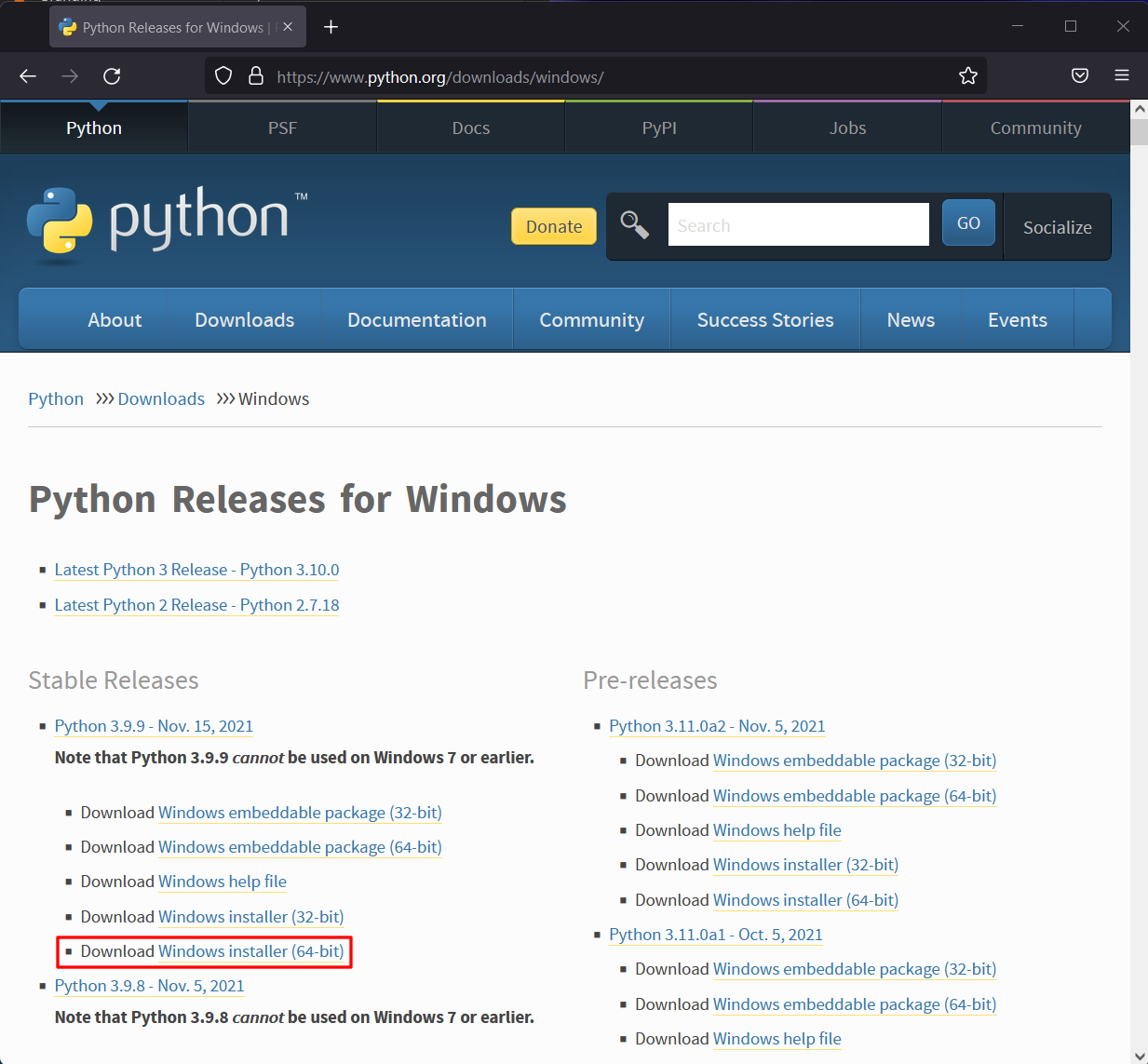
To install the latest version of Python on Windows 11, head over to the Python download website and choose Windows Installer (64-bit) under the Stable Release section:
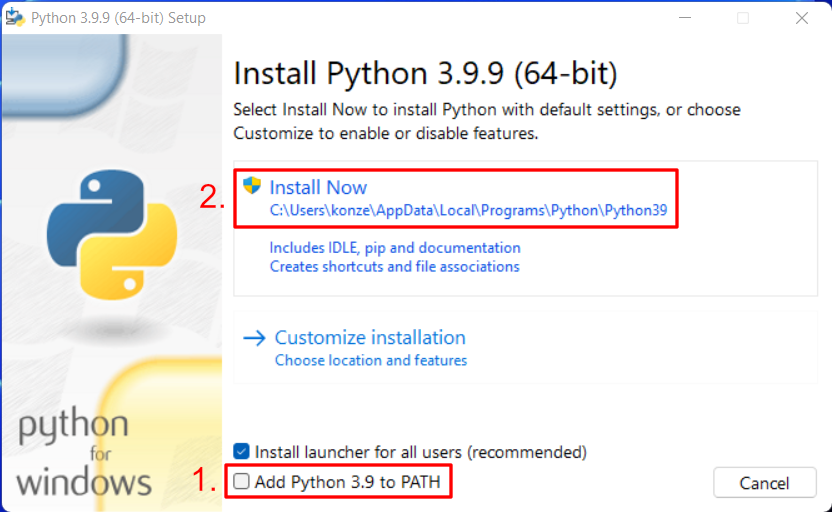
When the download has finished, open your downloads folder and double click on the installer. In the installer window, make sure to check Add Python 3.X to PATH this enables you to use the python , pip , etc. commands on the command line. Then press Install Now to install Python together with additional Python tools such as pip on your computer:
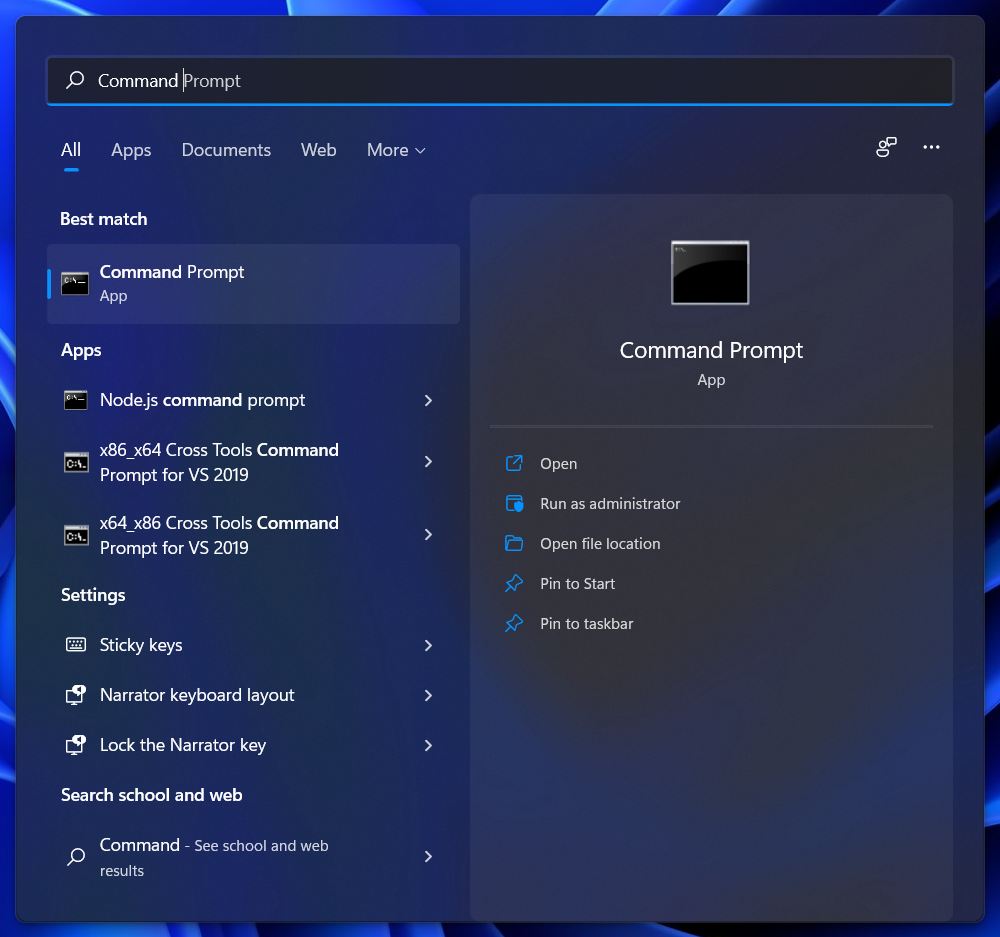
When you finish the installation successfully, you can close the Python installer. To check if your installation was successful open the Windows Command Prompt. You can search for it in the Windows 11 start menu by typing Command Prompt and press Enter to open it:
In the Command Prompt enter python —version to check if the Python version you downloaded and installed was setup successfully. If the command python —version responds with the correct version everything is working now:

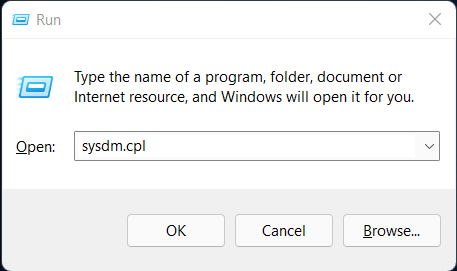
If the Command Prompt responds with an error Python was probably not added to the Path environment variable. To edit the Path environment variable press Win+R to start Run and in the field Open enter: sysdm.cpl and click on OK.
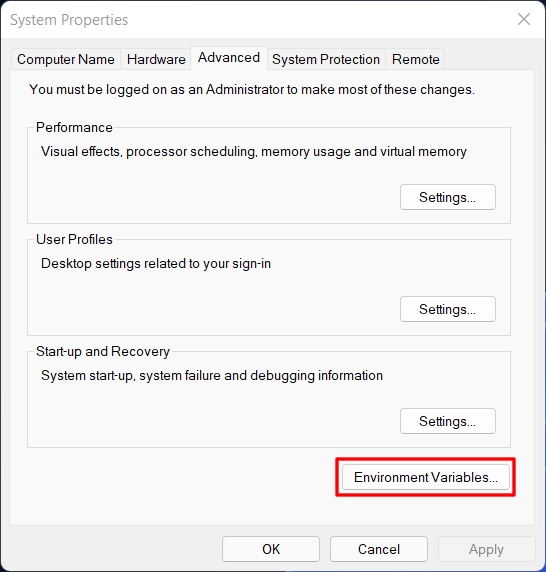
This will open the System Properties dialog. In the System Properties dialog switch to the tab Advanced and click on Environment Variables … at the bottom:
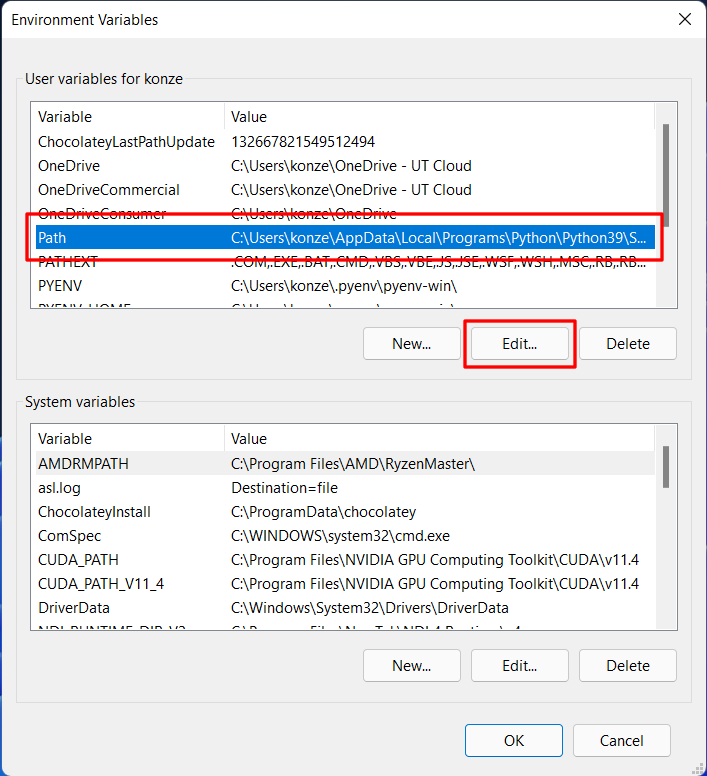
In the Environment Variables dialog choose the row Path and click on Edit …:
Now you can see all the paths set in the Path variable. Here you have to add two paths. First press on New and insert the following path and press Enter ( YOUR_USER_NAME has to be replaced by your user name):
Press New a second time and enter the following path, and press Enter ( YOUR_USER_NAME has to be replaced by your user name):
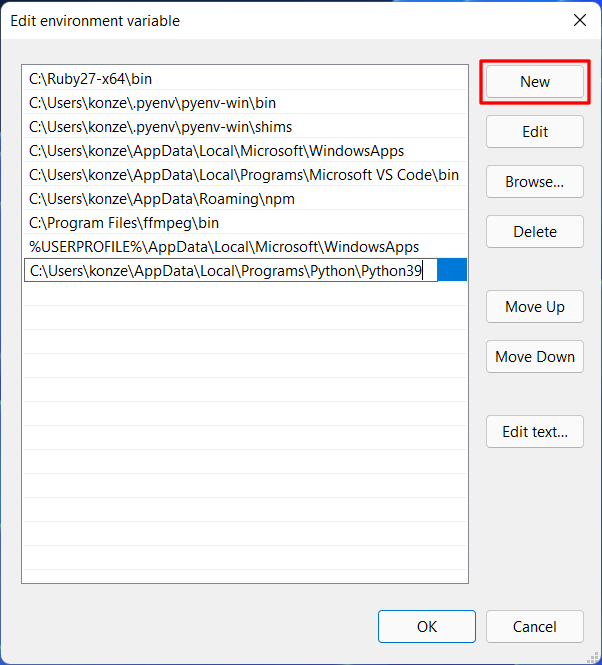
Now you can click on OK in all three dialogs to close them.
Restart the Command Prompt and enter python —version once again, and you should now see the Python version you installed.
If you want to install and run multiple Python versions on Windows 11 using pyenv check out this article and video:
If you have any questions about this article, feel free to join our Discord community to ask them over there.
Как скачать Python на Windows 11
Скачивание официальных средств работы с Python в Windows 11 доступно через Microsoft Store. В фирменном магазине операционной системы присутствуют все последние версии языка программирования, а их установка осуществляется нажатием всего нескольких кнопок. Единственным минусом такого способа скачивания является отсутствие дополнительных настроек при инсталляции, которые есть у фирменного установщика.
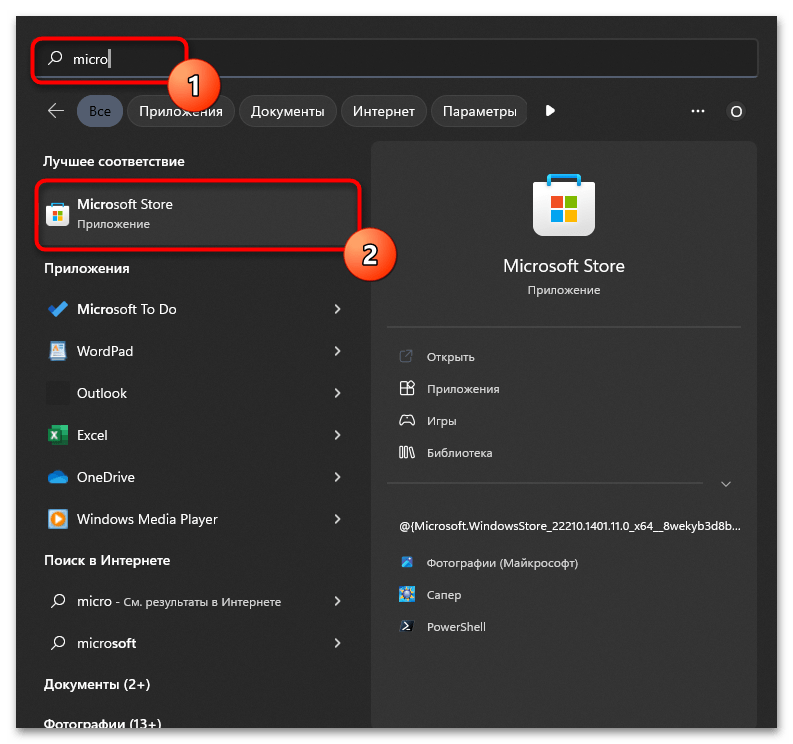
- Если вам подходит такой метод скачивания Python со стандартными параметрами установки откройте меню «Пуск», отыщите «Microsoft Store» и запустите данное классическое приложение.
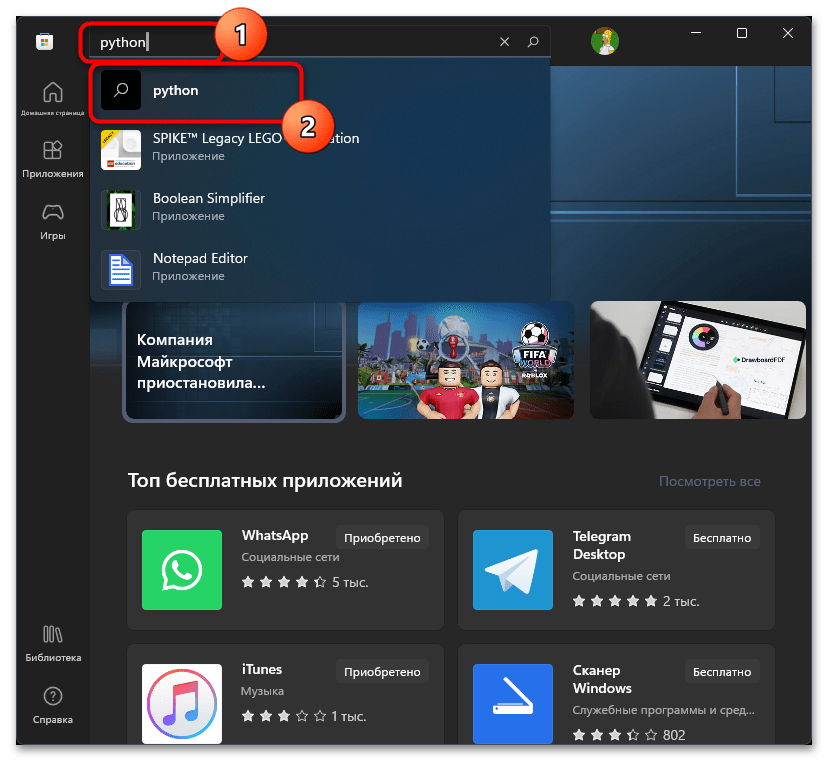
- В нем используйте поиск, чтобы отыскать необходимый язык программирования.
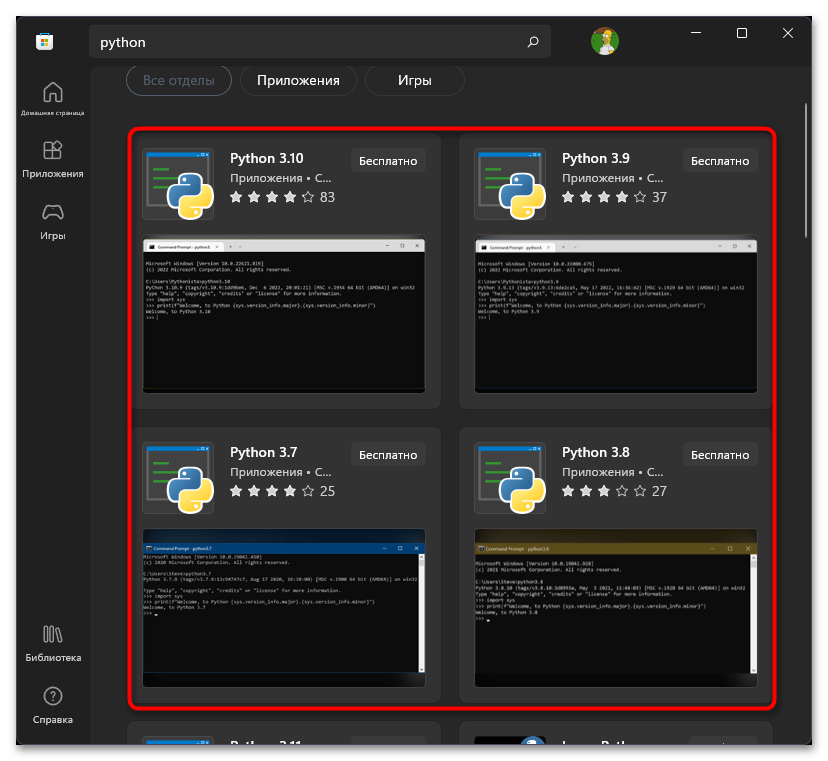
- Среди результатов отыщите версию, которая нужна именно вам. Учитывайте, что выгрузка обновлений в этом магазине не такая быстрая, как на официальном сайте, поэтому появление новых версий может осуществляться с задержкой.
Способ 2: Официальный сайт
Если вы скачиваете установщик Python с официального сайта, то можете самостоятельно выбрать его тип, версию, а также настроить дополнительные параметры при инсталляции. Сюда относится не только выбор места расположения файлов, но и изменения в PATH, добавление PIP и другие настройки, необходимые при активной разработке на Пайтоне.
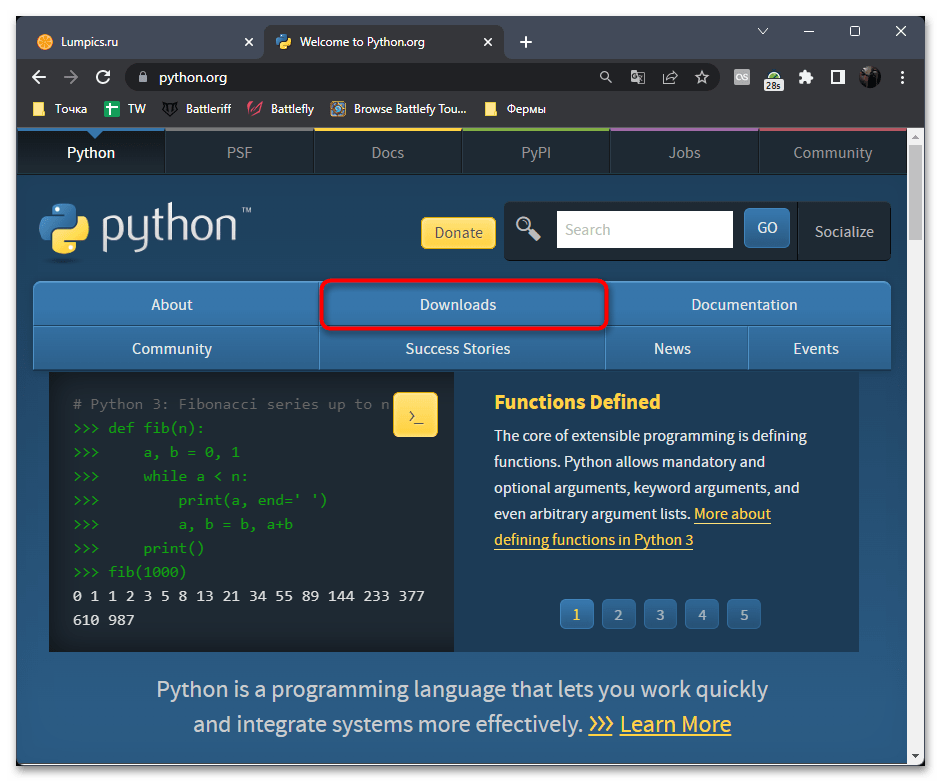
- Воспользуйтесь ссылкой выше, чтобы попасть на официальный сайт. На нем нажмите кнопку «Downloads», чтобы перейти в интересующий нас раздел.
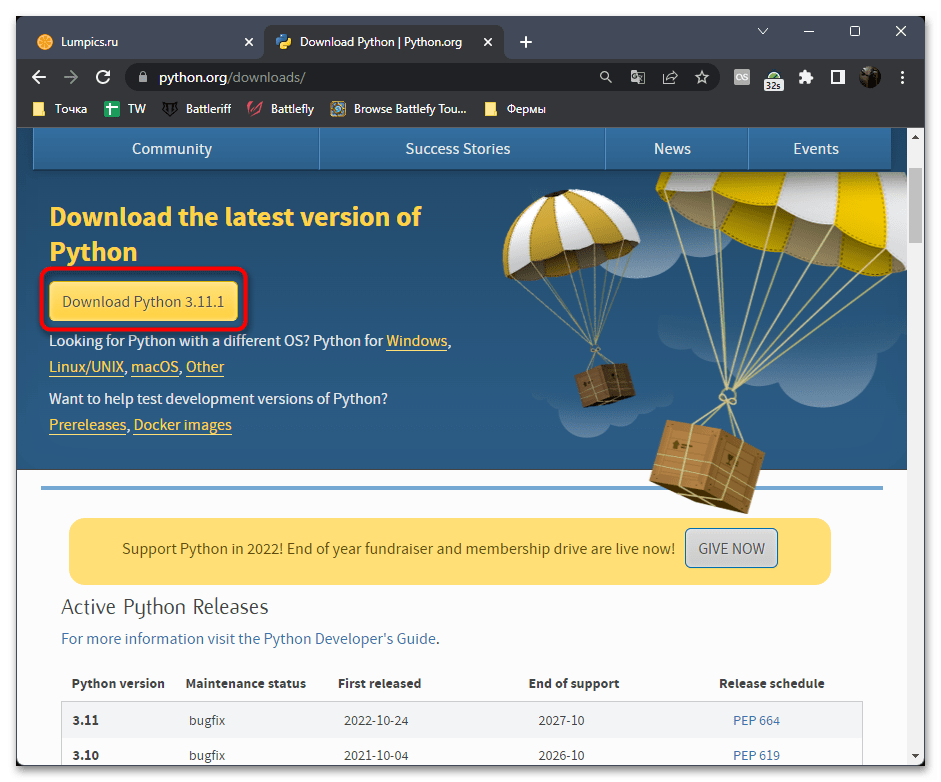
- Щелкните по кнопке «Download Python» для скачивания последней актуальной версии для вашей операционной системы.
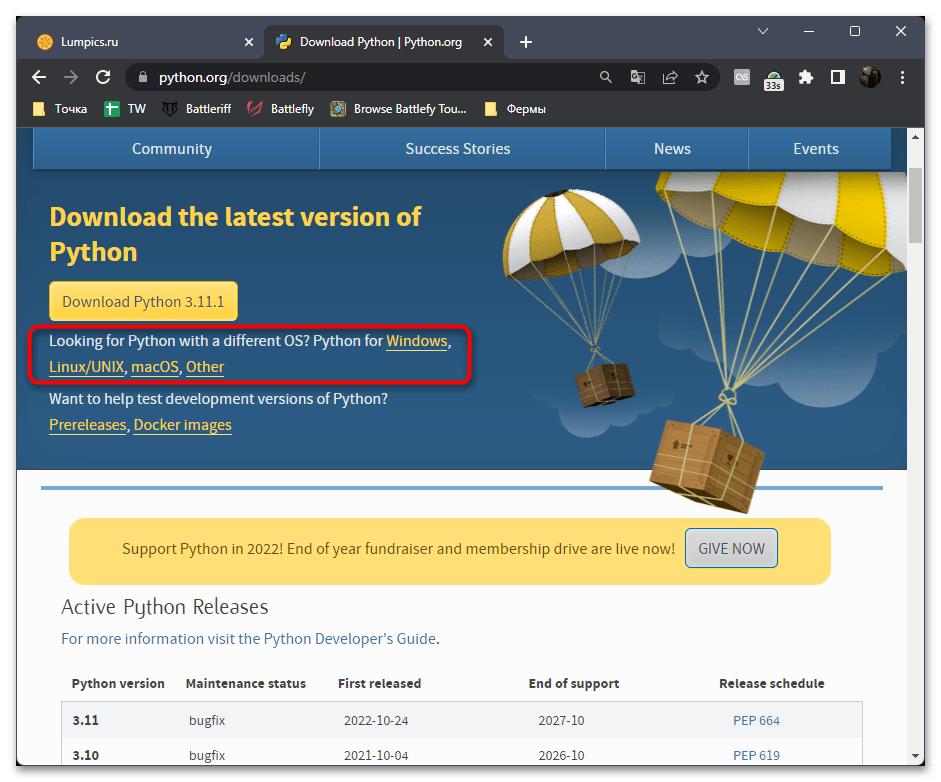
- Если хотите перейти к просмотру всех библиотек, нажмите по ссылке с Windows в строчке ниже.
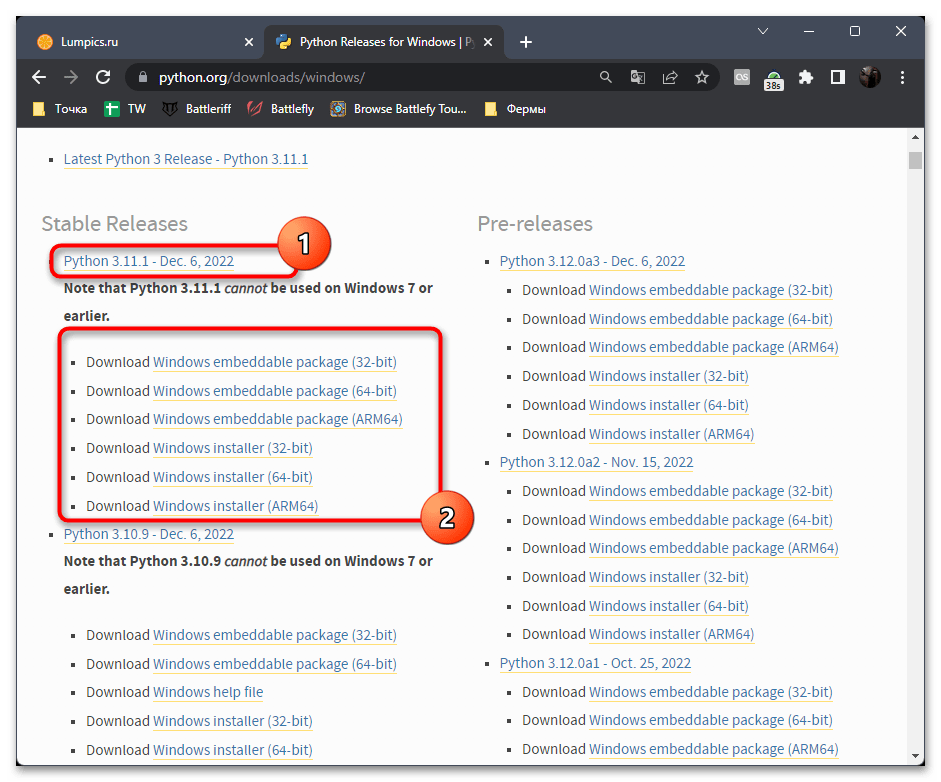
- Теперь вы можете выбрать не только стабильный релиз или пререлизную версию, но и определиться с типом установщика, который будет оптимальным конкретно для вас.
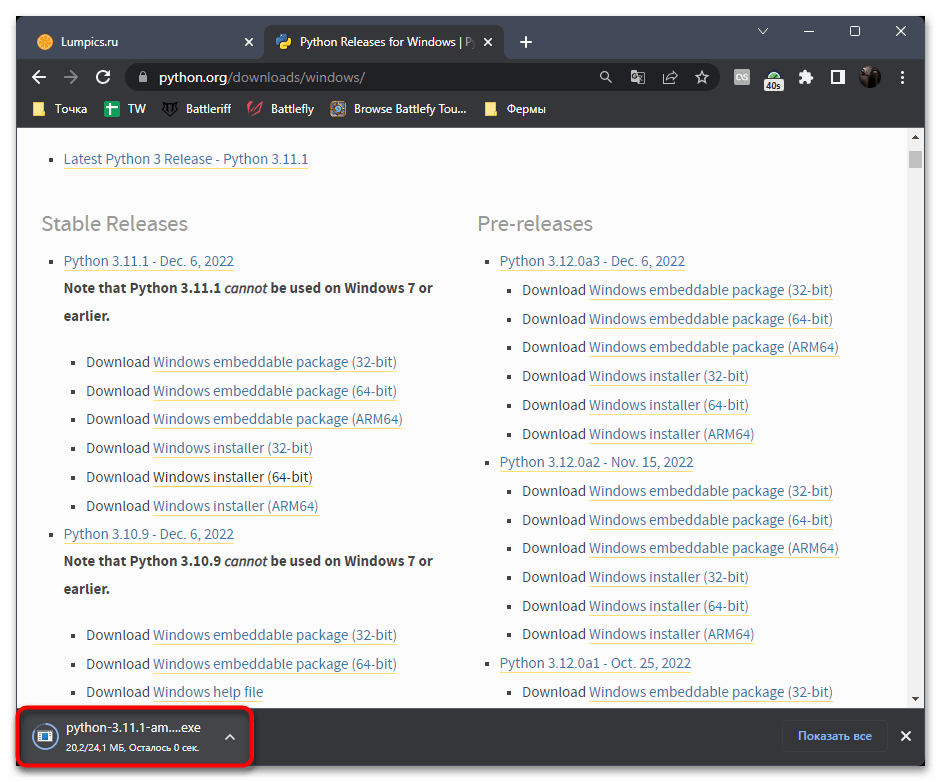
- После начала скачивания ожидайте окончания получения EXE-файла или архива, затем запустите его.
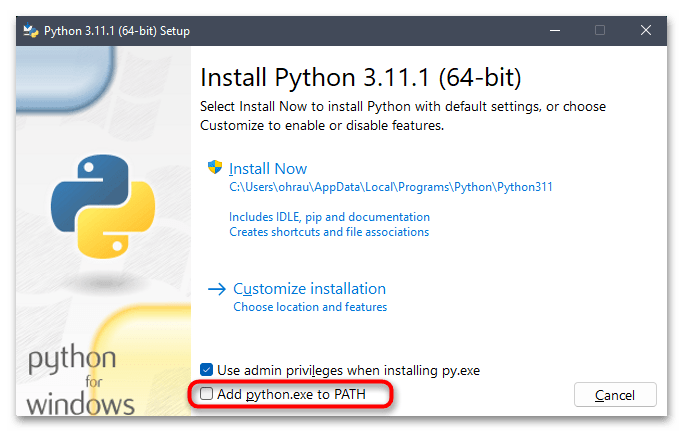
- В инсталляторе вам сразу будет предложено добавить python.exe в PATH. PATH — набор системных переменных, необходимых для работы с исполняемыми файлами в «Командной строке».
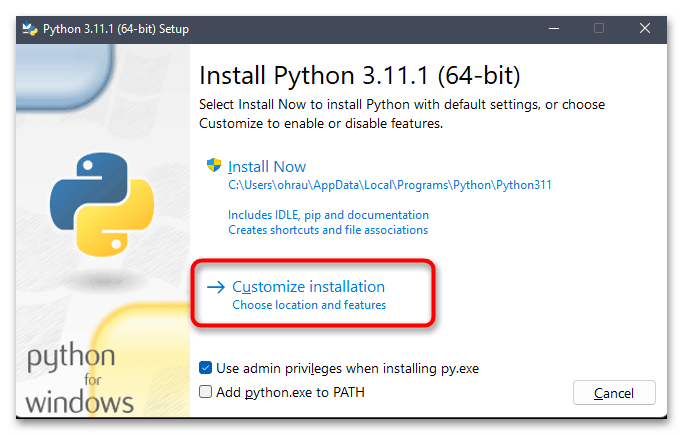
- Для получения всех параметров установки нажмите кнопку «Customize installation».
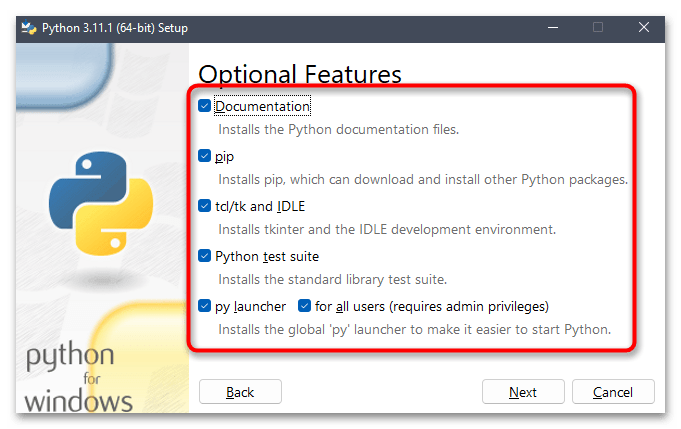
- Снимите галочки с тех компонентов, установка которых не требуется. Это могут быть файлы документации, PIP, сама среда разработки, библиотеки тестирования и лаунчер.
- После выбора переходите к следующему шагу, чтобы выбрать дополнительные библиотеки и решить, нужно ли скачивать средства тестирования и проверки кода. Далее определите место расположения файлов и переходите к следующему шагу.
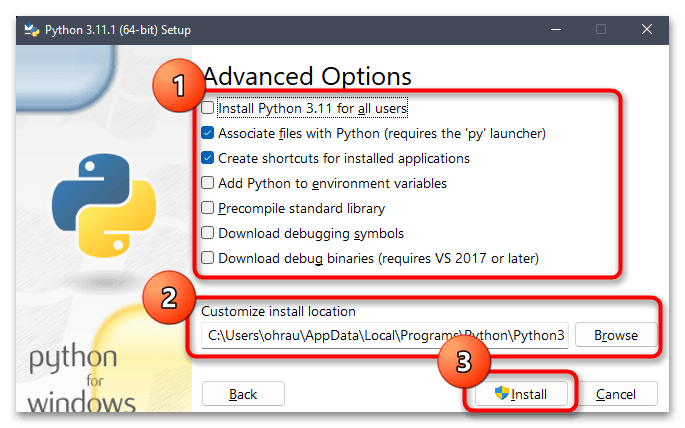
- Инсталляция будет запущена, а вам остается только следить за этим процессом.
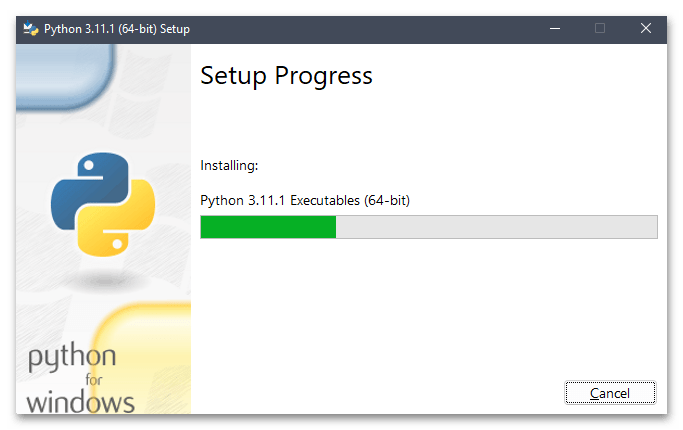
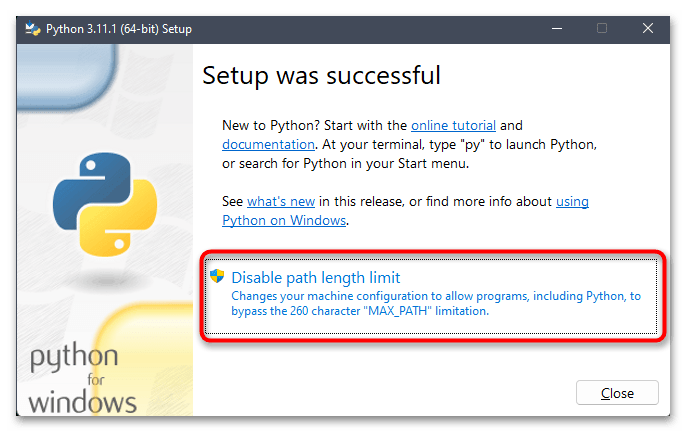
- По завершении будет предложено убрать лимит символов в системных переменных, чтобы разрешить выполнение определенных команд, связанных с Python. Изменяйте этот параметр по своему усмотрению, никакого другого влияния на работу Виндовс 11 он не несет.
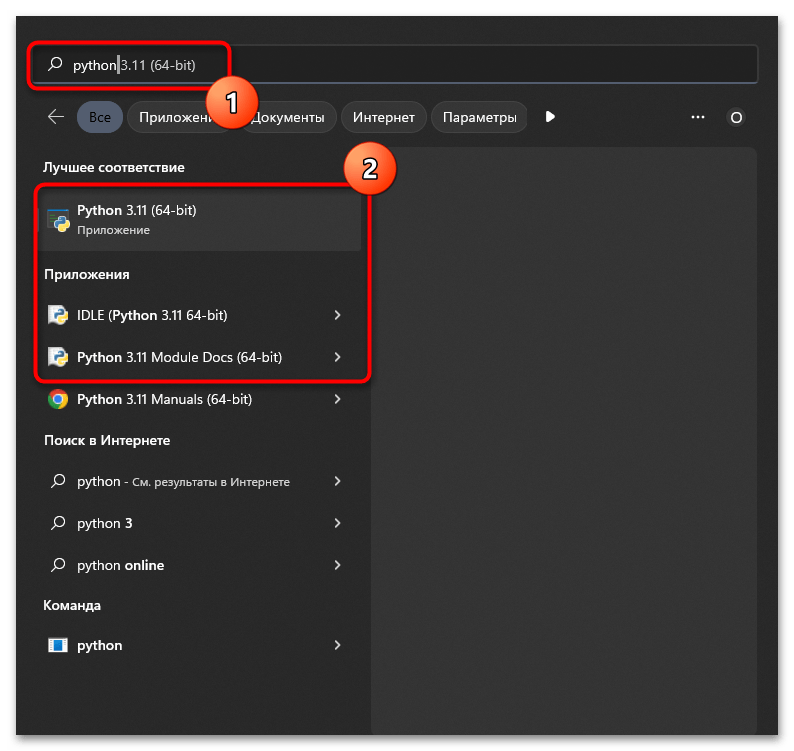
- Для запуска среды разработки или других связанных с Python приложений используйте поиск в «Пуске» или ярлыки на рабочем столе, если решили их создать во время инсталляции.
Дополнительно отметим, что иногда пользователи сталкиваются с необходимостью обновления PIP. Обычно для этого просто скачивается последняя версия Python с любого источника, но есть вариант ручной установки апдейта, если вы не хотите переходить на новую версию языка программирования. Детальнее читайте об этом в статье по следующей ссылке.
How to download & install Python 3 on Windows (run simple Python program in VSCode)

Head over to the link above. On official Python site, click the Download button. It should automatically adjust according to the operating system you’re currently on. So by clicking on it you’re always downloading the latest version of Python for your Operating System.
There are other links to Linux/UNIX, MacOS and Windows installers on that page. So choose the installation package for whatever OS you want to run it on.
Run the Python installer. Just click on the file that was downloaded. This will start Python installation window. Python constantly changes its installation options with every version.
Adding python.exe to PATH. On the first window on the Python 3.11.0 installer, make sure to check “Add python.exe to PATH checkbox.” This will prevent you from having to add your new Python version to Environment Variables in Windows later on.
If that option is missing, you have to add python.exe to your Environment Variables in Windows manually. Go to Start button, and start typing Environment Variables. Hit enter, or click on open button. On this new window, go to Environment Variables, then in the second box below, locate System Variables. Scroll down to locate PATH variable on that list, click on it one time. Then click Add New button. Scroll down to end of list and add C:\python3.11\ (or whatever folder you installed your Python to), and also add C:\python3.11\bin. Click OK 3 times and exist the window.
Learn How To Run Python Code In Visual Studio Code
This tutorial is based on a YouTube video I recorded for Semicolon channel: